# Quick Actions
##### Inventory:
Launch an inventory
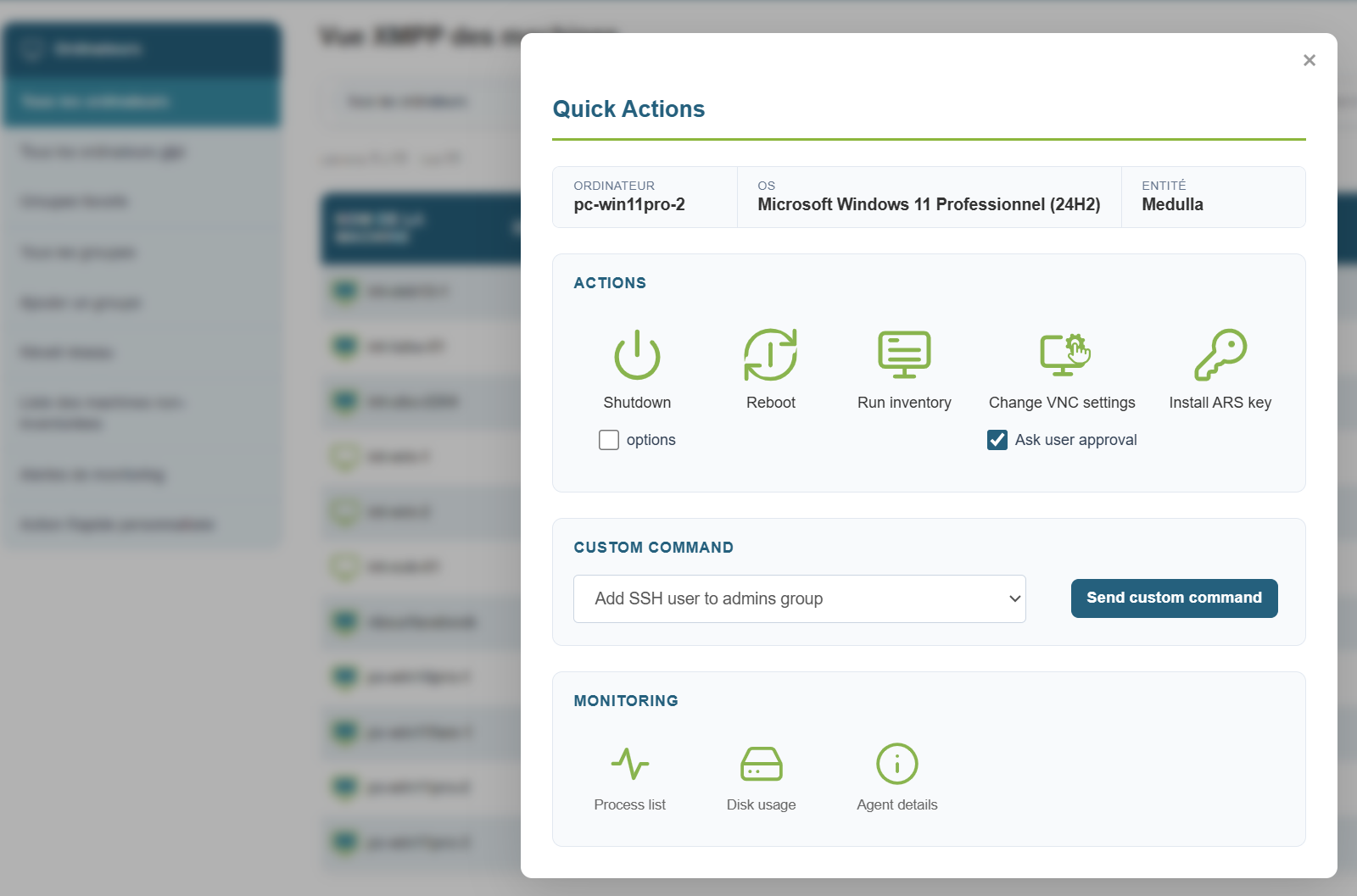
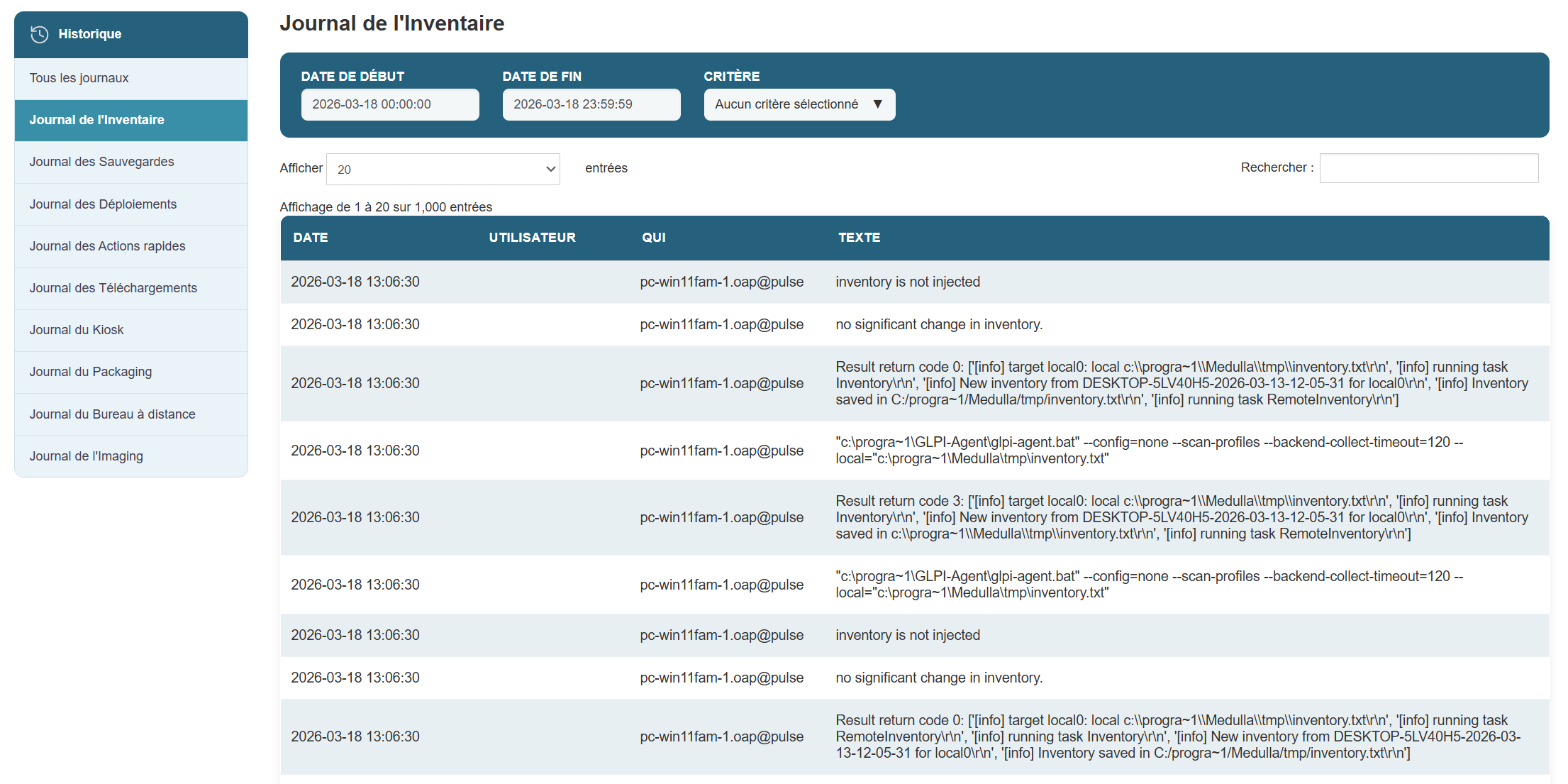
You should see a line in the History view that refers to the inventory request you launched earlier.
[](https://docs.medulla-tech.io/uploads/images/gallery/2026-03/lS6QHljPFW0HgQnr-image.png)
##### Show Process List:

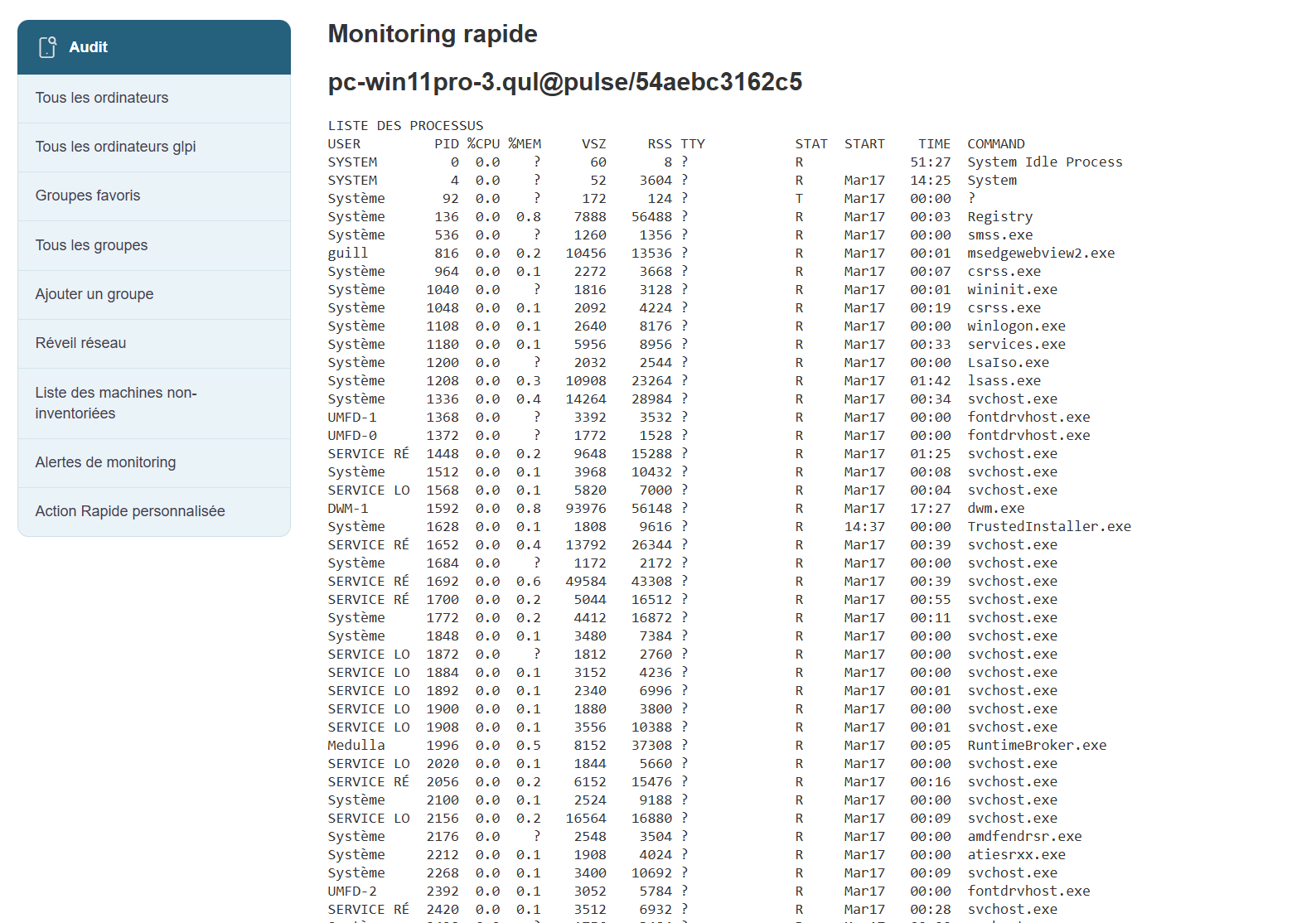
View the list of processes associated with the machine by clicking the "Show Process List" button in the popup.
[](https://docs.medulla-tech.io/uploads/images/gallery/2026-03/N9fTCwKI53r96BVL-image.png)
##### Disk usage:
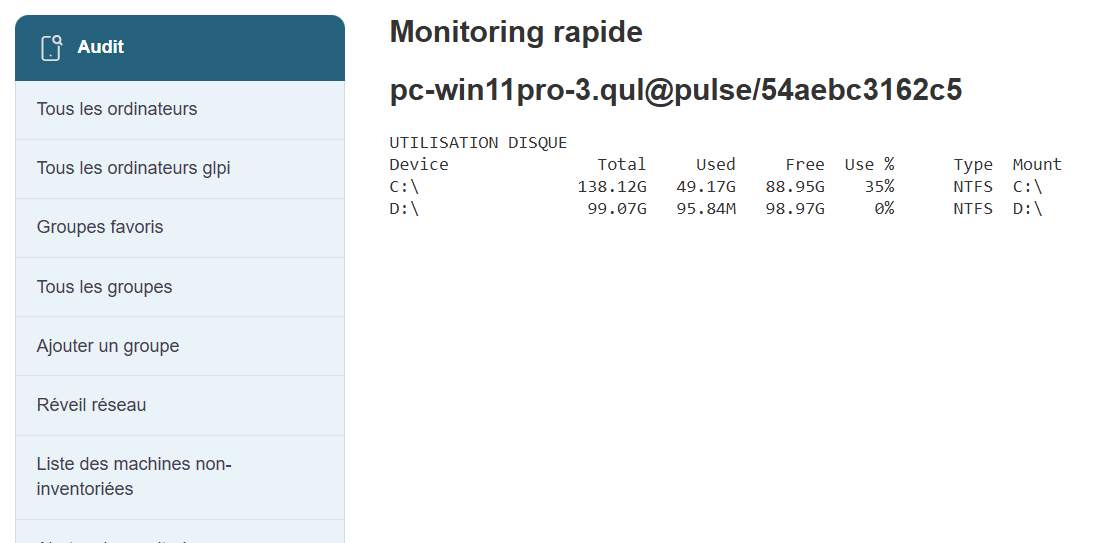
View accurate information regarding the machine’s hard drive usage.
[](https://docs.medulla-tech.io/uploads/images/gallery/2026-03/9wI0JlGAWGaxGE6U-image.png)
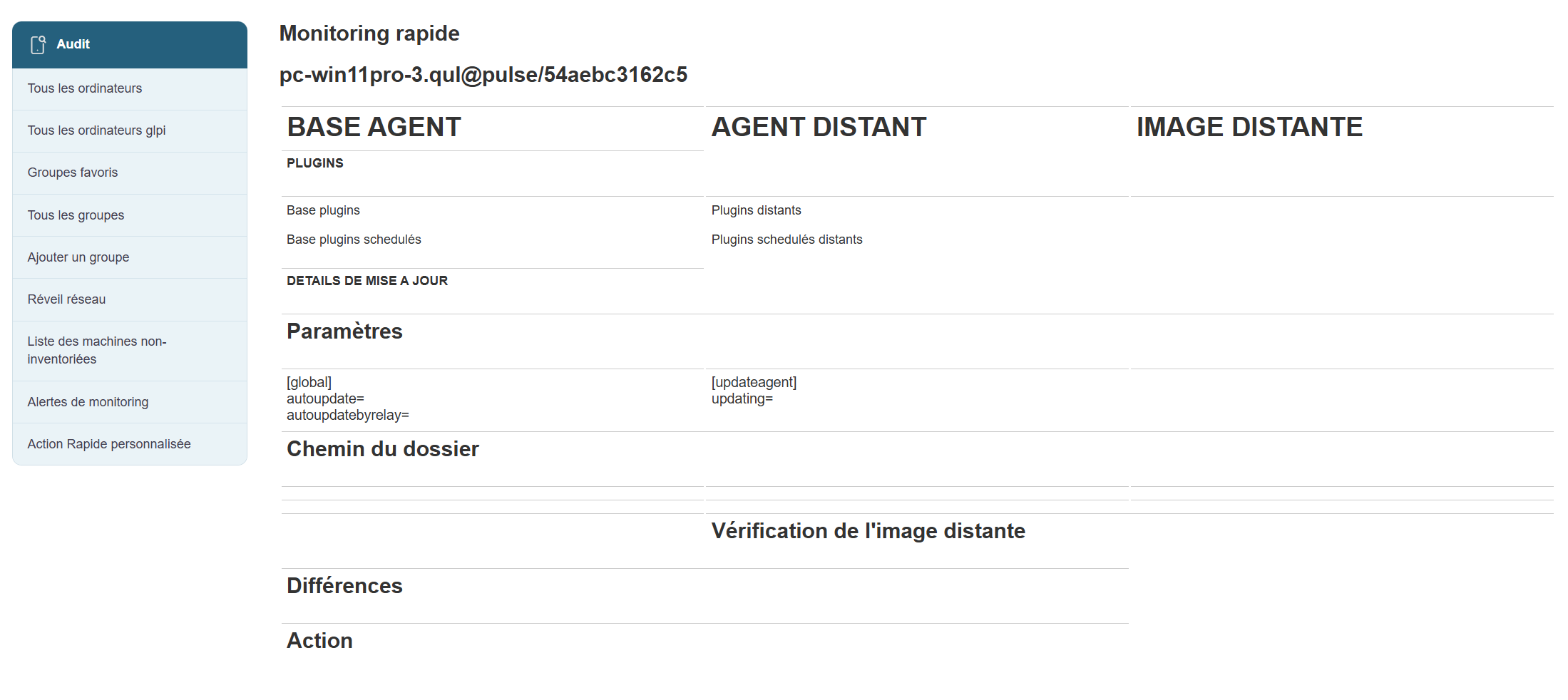
##### Agent Details:
View information about the agent associated with the machine.
[](https://docs.medulla-tech.io/uploads/images/gallery/2026-03/jT6zh92SXRVFa8AJ-image.png)
##### Reboot:
Click the Reboot button and wait about 3 minutes, then verify that the machine has restarted.
[](https://docs.medulla-tech.io/uploads/images/gallery/2026-03/RSy7TAEDcph8DafU-image.png)
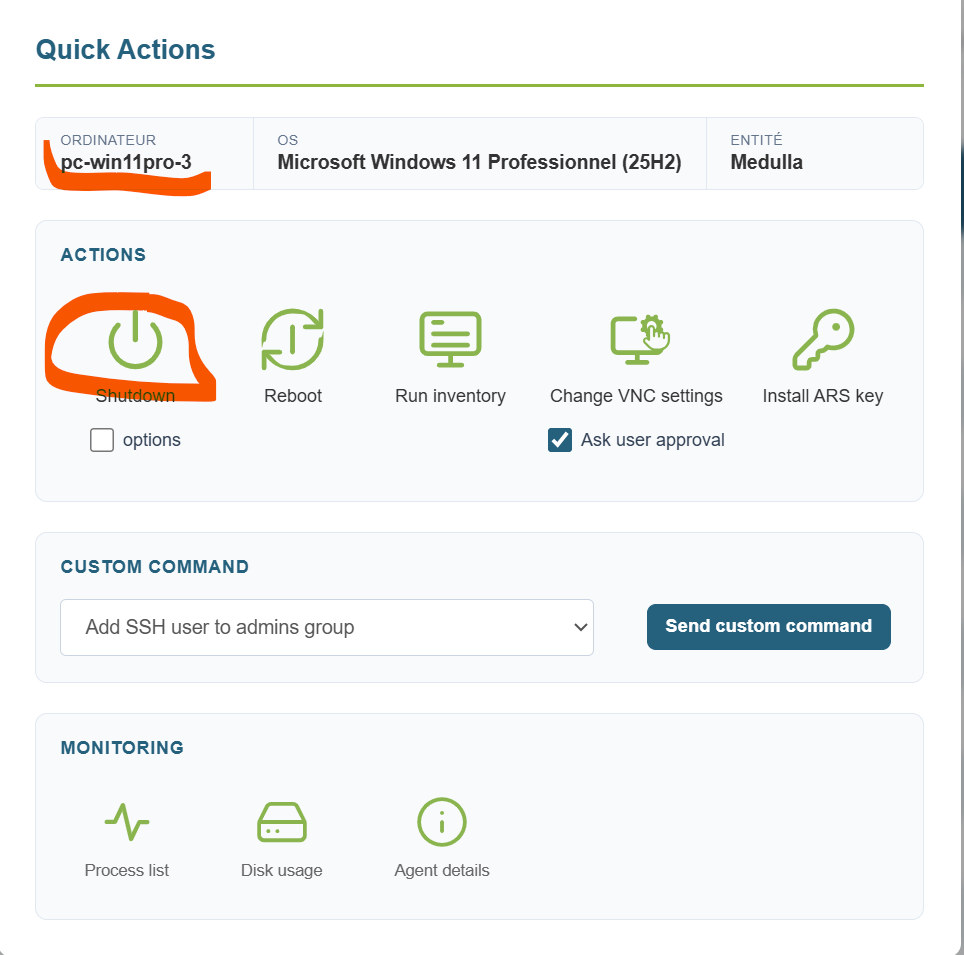
##### Shutdown:
Click the Shutdown button and wait about 3 minutes.
[](https://docs.medulla-tech.io/uploads/images/gallery/2026-03/N1JOu9ZENPctuXU0-image.png)
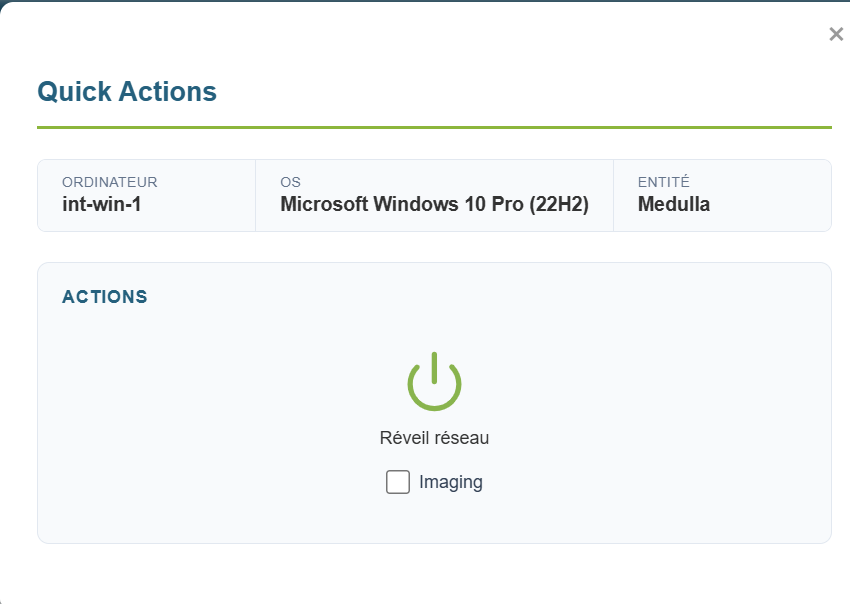
##### WOL:
A WOL can be initiated from the quick actions.
[](https://docs.medulla-tech.io/uploads/images/gallery/2026-03/UWAMcj1EWY76Qbzu-image.png)
Make sure the machine wakes up; this may take about 5 minutes.
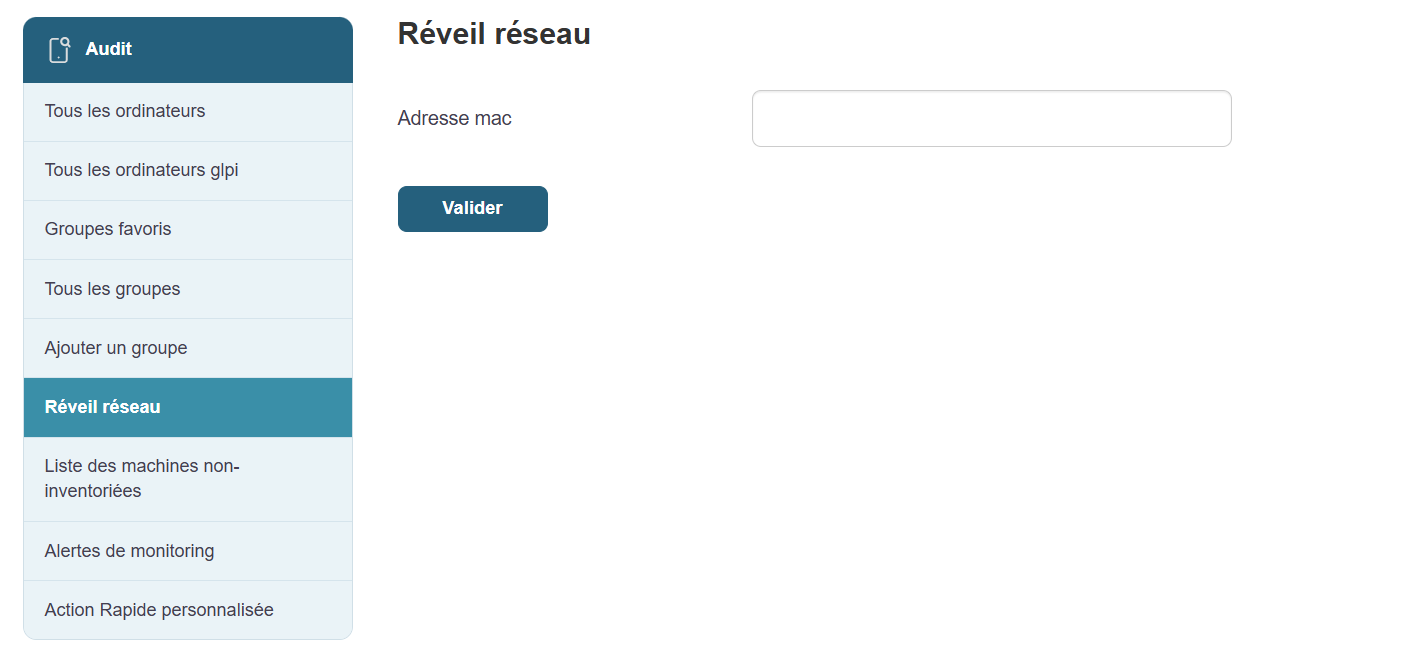
##### Fixed WOL:
A WOL can be initiated from the "Network Wake-up" button on the left side of the Computer view.
[](https://docs.medulla-tech.io/uploads/images/gallery/2026-03/Ez9gA1qjDy3x3fld-image.png)
Make sure the machine wakes up; this may take about 5 minutes.
##### WOL Deployment:
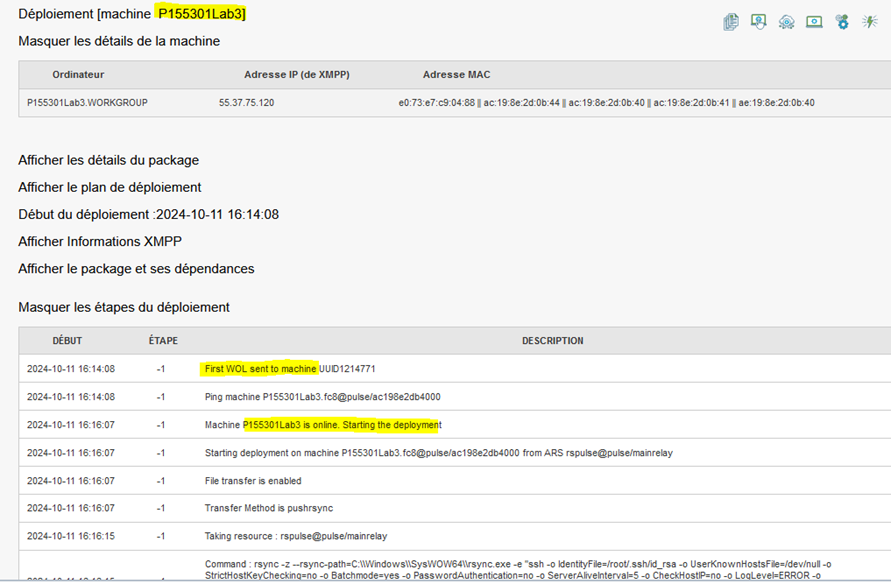
A WOL is initiated via a deployment on a powered-off machine.
Check for the lines "First, Second, and Third WOL sent to machine," then verify that the WOL executed successfully.
[](https://docs.medulla-tech.io/uploads/images/gallery/2025-12/3tzHAJn0sjMhSZyT-image.png)
##### Adding a quick action:
Click the button in the left submenu (at the very bottom)
[](https://docs.medulla-tech.io/uploads/images/gallery/2026-03/vM5EIAiAS9mTgWTr-image.png)
Then click on:
[](https://docs.medulla-tech.io/uploads/images/gallery/2025-12/8l2FxnRtb5CEVPGt-image.png)
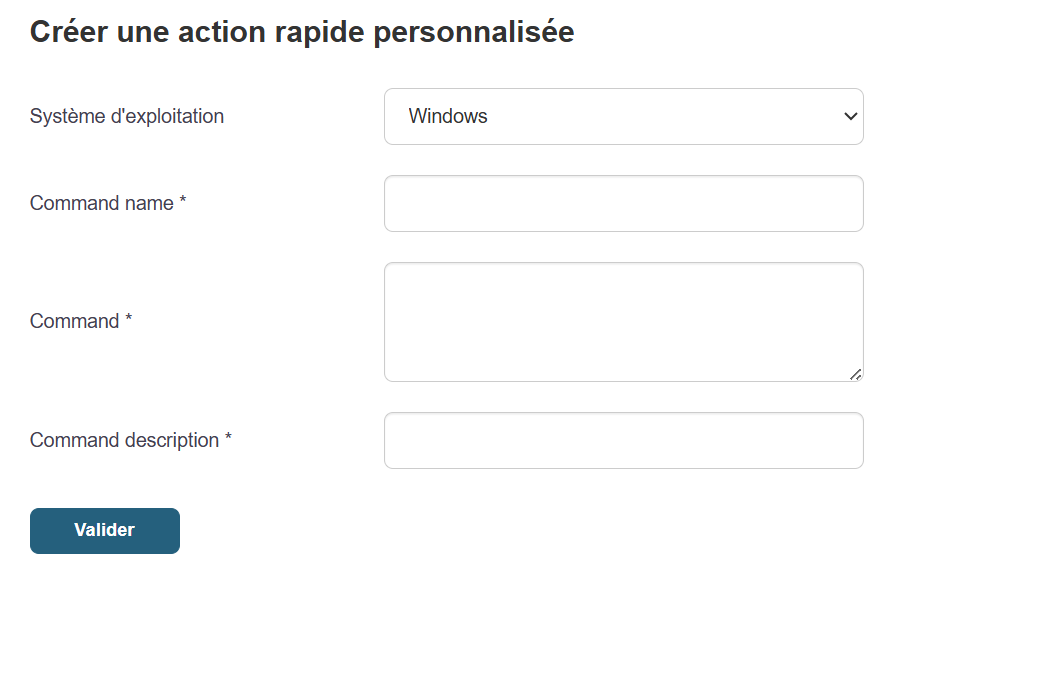
Fill in the information, then click Submit.
[](https://docs.medulla-tech.io/uploads/images/gallery/2026-03/rQ3LKpq2hydUsbY7-image.png)
Next, click the quick action button on a machine; in the drop-down list, locate your command, then run it.
[](https://docs.medulla-tech.io/uploads/images/gallery/2025-12/qXEMChYx5Ht6Djis-image.png)
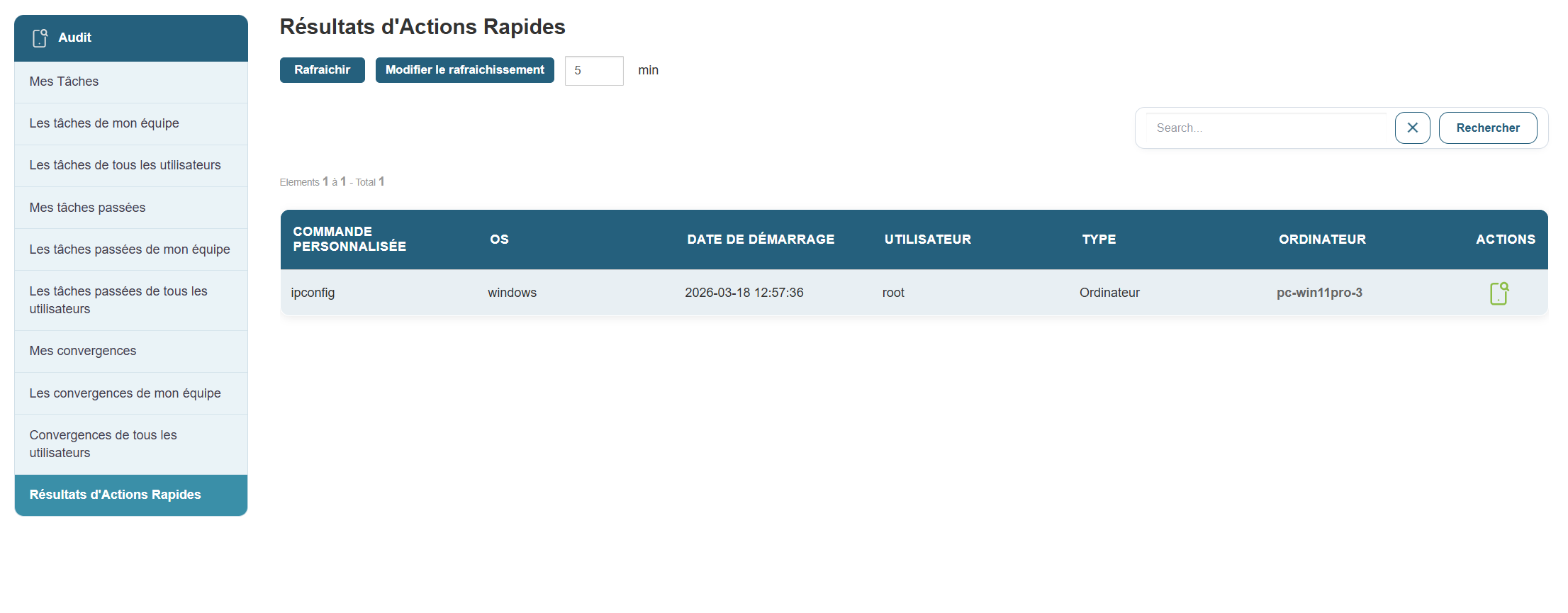
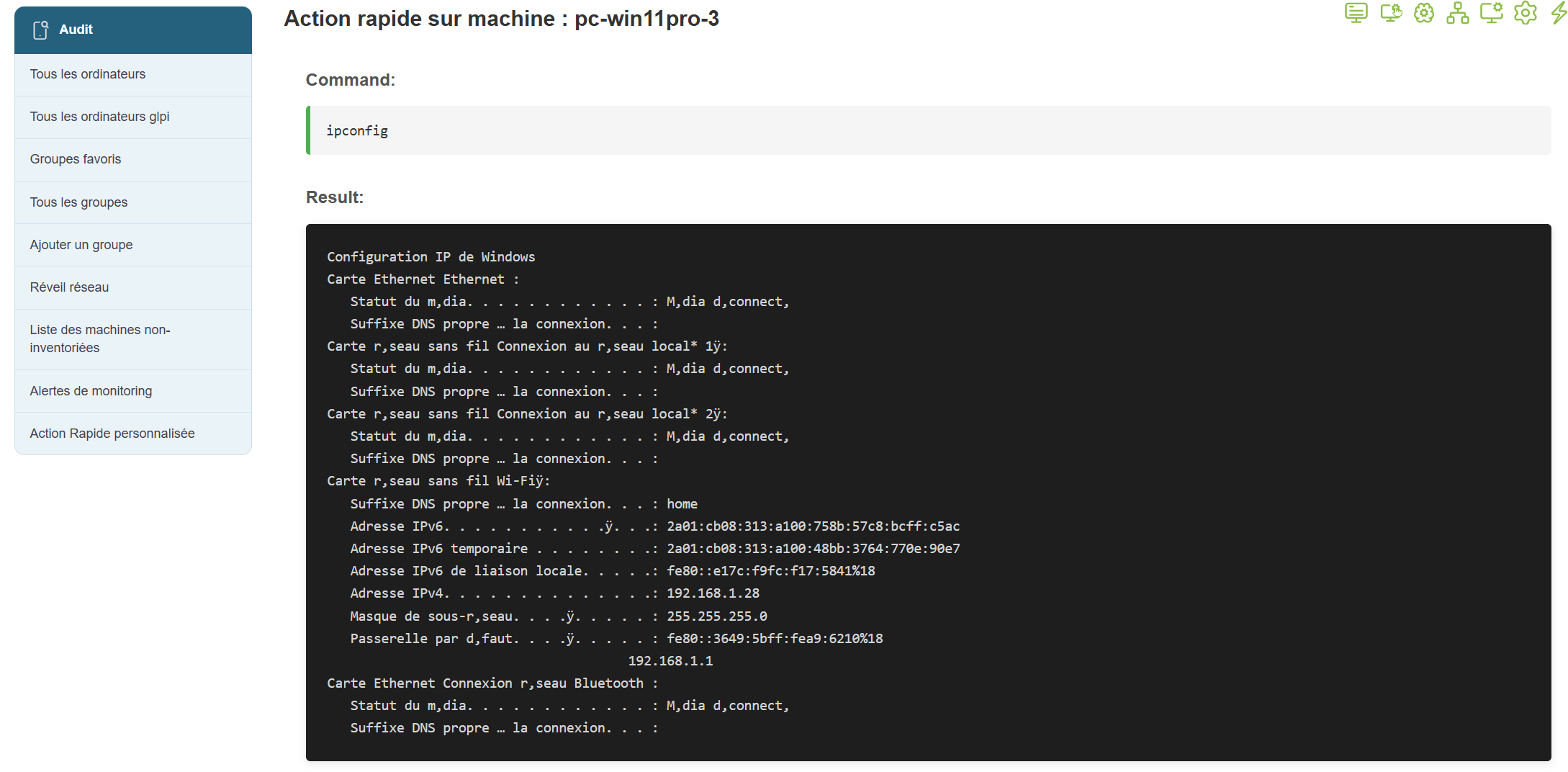
The command results will appear in a few seconds:
[](https://docs.medulla-tech.io/uploads/images/gallery/2026-03/mcIa3GnQRkqepr60-image.png)
Click the icon on the right in the action bar to view the result of the selected command.
[](https://docs.medulla-tech.io/uploads/images/gallery/2026-03/0LVCYplR1CHecKDL-image.png)
##### Verifying the Deletion of a Machine:
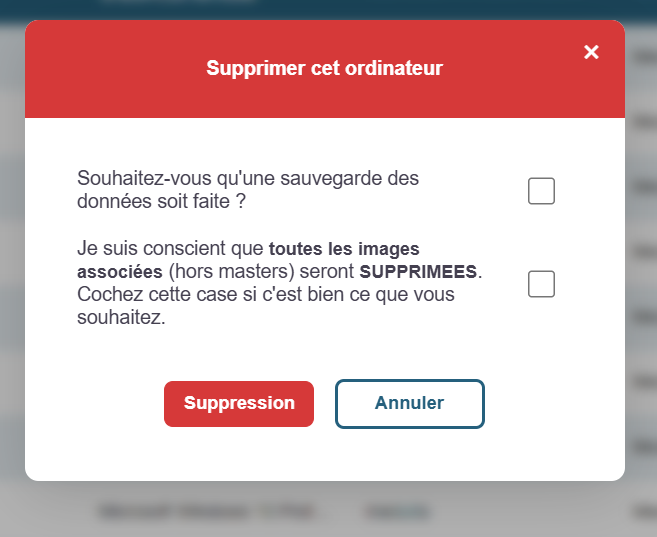
Request deletion via the icon (trash can icon on a computer’s action bar)
Verify the removal of this machine from the list of computers.
[](https://docs.medulla-tech.io/uploads/images/gallery/2026-03/GGT32MJzZ6yg7c3J-image.png)