FAQ - All platforms
- Client Accounts (Status & Visibility)
- Packages
- Console & Administration
- Remote Maintenance & Getting Started
- Set the agent to Debug
- Windows Agent Issue
Client Accounts (Status & Visibility)
Applies to: Medulla – Agents
Version:5.4.3 or later
Environment: On-Premise - Shared SaaS and Private SaaS
Category: Support
Why do some endpoints appear offline even though they are powered on?
- Check the medullaagent and medullanetnotify services on the offline workstations. If the services are indeed "running" but the workstation appears offline on the interface (grayed-out), please contact Support or your Administrator.
- If there are errors in the agent logs (on the device) "C:\Program Files\Medulla\var\log\xmpp-agent-machine.log", report them to Support or your Administrator.
Why are the inventory reports or reported information incomplete or incorrect?
- Make sure the MAC address of the device that is not reporting its inventory is not already in use. To check if a device is having trouble reporting its inventory, note that it is impossible to deploy to the device—even if it appears online on the interface (blue computer icon)—as the deployment icon for the device in the "Actions" menu will be grayed out.
Packages
Medulla Modules Packages / All versions / Public and private SaaS and On-premise / Maintenance
I can't add a file to my package.
- Once you have added a file to your package, it is pending; don’t forget to click “Submit pending package.”
I created a package but it’s not available for deployment—why?
- If your package isn’t visible in the package list, or isn’t visible when you try to deploy it, it’s waiting to sync with the relays. Please wait a few moments before it appears in the “Package List.”
Why isn’t my package available on the Kiosk package addition page?
- Your package must have an associated inventory to be visible in the list of packages available for the Kiosk.
Console & Administration
Medulla / All versions / Public and private SaaS and On-premise / Maintenance
Why is the console slow, unstable, or inaccessible?
- The platform may be overloaded. Please wait a few minutes while we resolve the issue. If the problem persists, please contact Support or your Administrator.
How do I resolve user permission issues?
- A user has a profile with permissions predefined by Medulla. If you are a Super-Admin, you can modify their profile by going to the "Admin" view, then "Entity Management," and clicking the "Manage Users" button
 on the row of the entity where the user is located. Click the "Edit" button (
 ) for the relevant user to modify their profile.
Why don’t I have access to certain groups, audits, or scheduled tasks?
- If you are not a Super-Admin, contact someone with the Super-Admin profile so they can modify your "Profile".
What should I do if the console freezes or I encounter XMPP errors?
- Try logging out and then logging back in; you can also try clearing your browser’s cache and cookies. If the problem persists, please contact Support or your Administrator, explaining your situation in as much detail as possible and providing the error message that was displayed.
Remote Maintenance & Getting Started
Medulla Modules Computers / All versions / Public and private SaaS and On-premise / Maintenance
What to do if remote access (VNC/RDP/PMAD) isn't working?
- Check the TightVNC service on the affected machines.
- Remote access is not available if the computer appears offline (grayed out); if this is the case, check the status of the medullaagent service on the machine.
Set the agent to Debug
Medulla / All versions / Public and private SaaS and On-premise / Maintenance
Setting the agent toDEBUG mode couldn’t be simpler.
Go to the agentconf.ini file located at: C:\Program Files\Medulla\etc\agentconf.ini
In the [global] section
- Change the value log_level = INFO to log_level = DEBUG
- Change the value log_level_slixmpp = FATAL to log_level_slixmpp = DEBUG
Windows Agent Issue
Medulla / All versions / Public and private SaaS and On-premise / Maintenance
Is your issue related to an interaction betweenMedulla and a Windows workstation (agent not reporting, actions not applied, workstation not visible, etc.)?
To facilitate troubleshooting, Medulla provides a verification script that allows you to check network connectivity, the agent’s status, and the workstation’s configuration.
Download the script:
https://dl.medulla-tech.io/nc/windows_connection_check_signed.ps1
(right-click on the link below, then click "Save link as...")
Test Prerequisites
Before you begin, make sure you have downloaded the script above and prepared the machines.
On the Windows client machine with the Medulla agent:
- Right-click on the script, click on Properties, check the box to allow the script to run, and confirm.
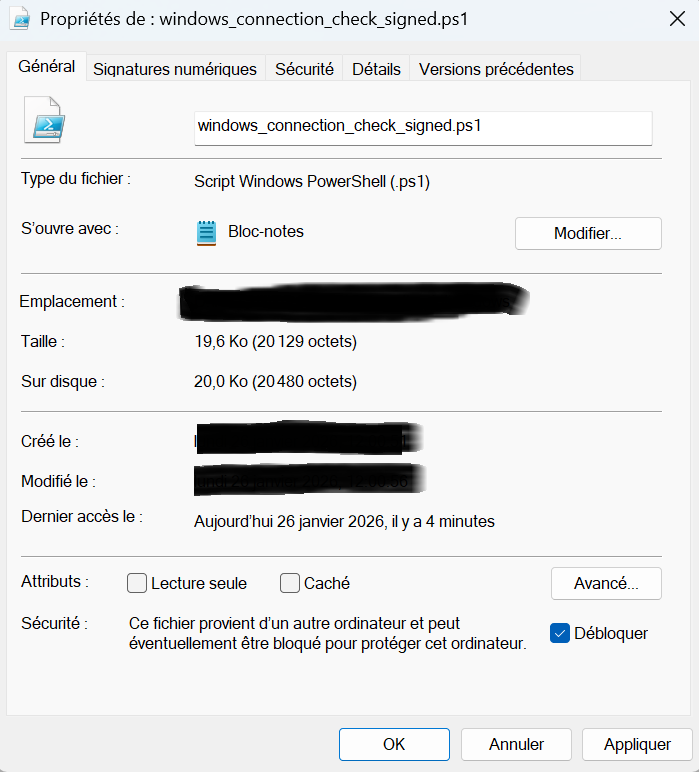
- Allow PowerShell scripts to run:
Set-ExecutionPolicy -Scope CurrentUser -ExecutionPolicy RemoteSigned
# Answer "Yes for all" (Y or T) if prompted
For PowerShell v7.5.4:
There is no need to unblock the script. You must run the command shown above.
It will ask if you want to allow the publisher of the script; simply confirm by clicking R or A.

Medulla Server Test <- Windows Client Workstation
Verify direct communication between the server and the client workstations.
On the Client Workstation (Source): Run the test against the server’s hostname or IP address.
.\windows_connection_check_signed.ps1 -Target <SERVER_IP> -Mode pulse
A log file is created (in the location from which you run the script) and summarizes the tests performed: LOG_Test_Flux.txt
If you encounter permission errors when creating the log file, try placing the script in the user’s Downloads folder, or grant the windows_connection_check.ps1 script permission to create a file in that location.
Medulla On-Premise
If you have a Medulla On-Premise server, you can also run a server diagnostic test from the workstation:
On the Medulla Server (Source): Run the test against the workstation’s hostname or IP address.
./medulla_connection_check.sh -c client.example.com
Recommendation: Please attach the LOG_Test_Flux.txt file when submitting a support request.