For security reasons, avoid saving your password on shared devices.
If you have trouble logging in, contact your organization’s technical support
# Dashboard [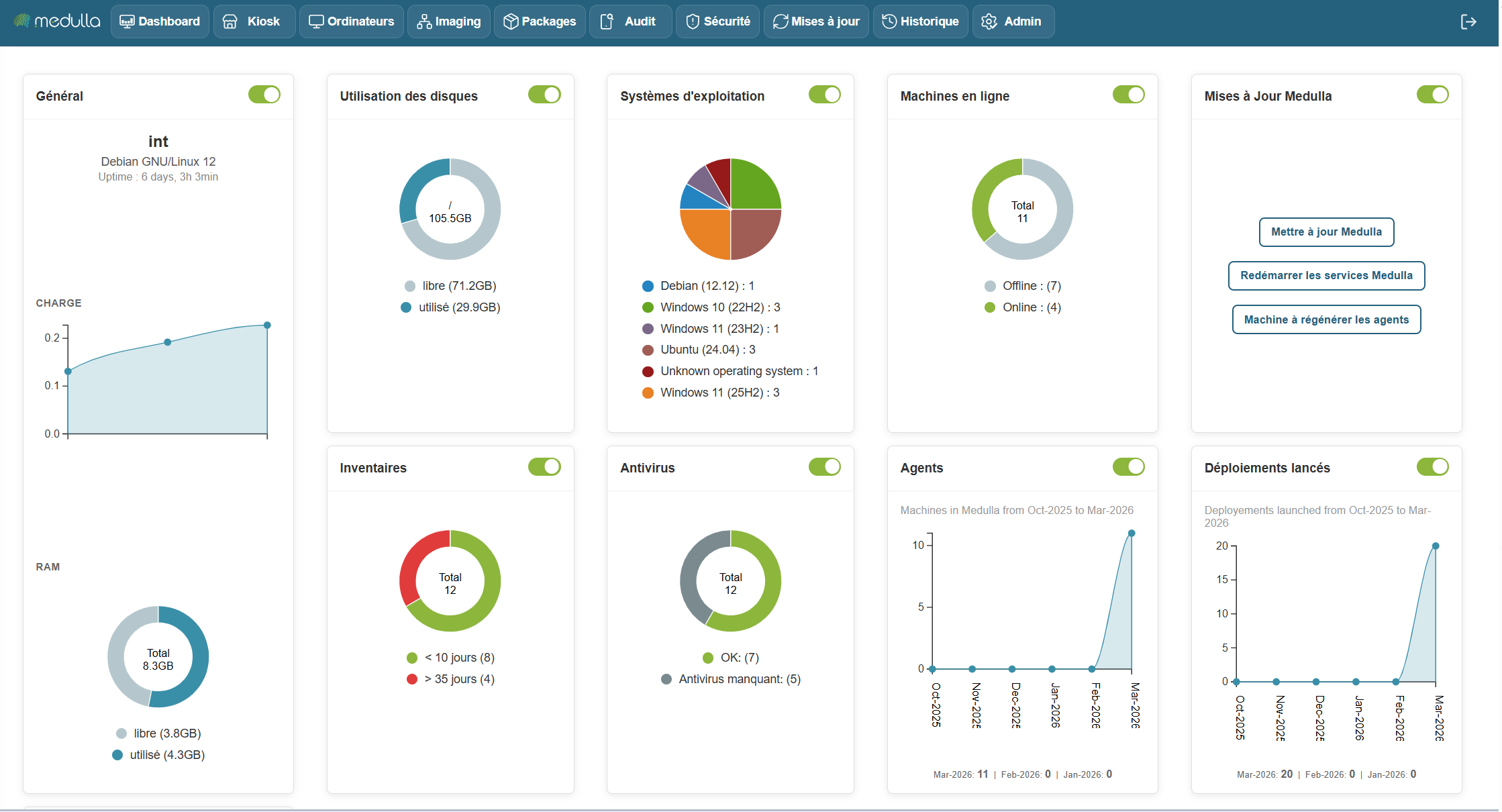](https://docs.medulla-tech.io/uploads/images/gallery/2026-03/kFlUHQl1JD5iJ4at-image.png) The Medulla dashboard allows you to monitor the real-time status of your infrastructure using customizable widgets. You can move, resize, and arrange the widgets as you wish. Each widget also has a button to show or hide it, depending on your needs. Some widgets include dynamic charts for a better understanding of the data, updating in real time. The following widgets allow you to create static groups directly so you can perform actions on them by clicking: Inventory Widget, Operating System, Online Machines, Antivirus ### Available Widgets Widgets are organized by category and allow you to view various information about your infrastructure. Here are the main categories: ##### General [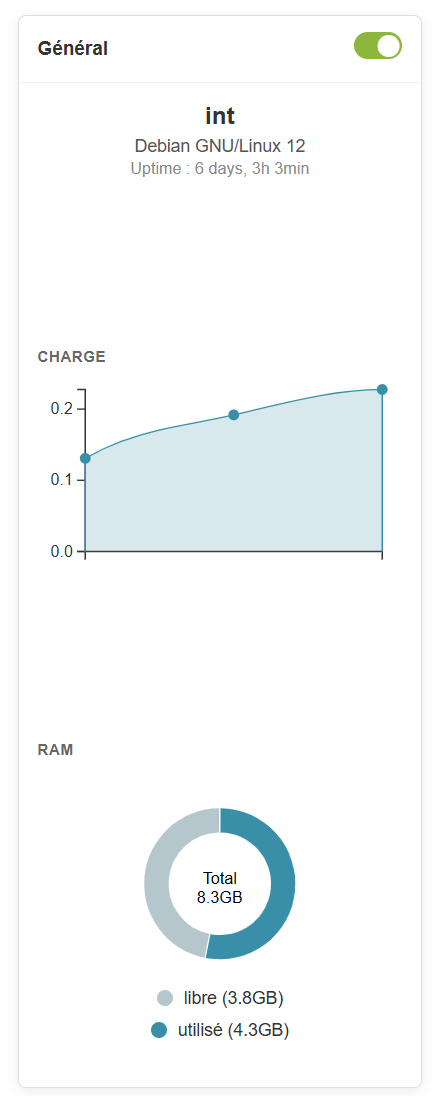](https://docs.medulla-tech.io/uploads/images/gallery/2026-03/zvgwHw5pD3Mb5rS3-image.png) ##### Information provided - **Server name** (example: *devdemo.siveo.net on Debian GNU/Linux 12*) - **Uptime** (time elapsed since the last system reboot) - Total**RAM**, available RAM, and used RAM ##### Customization This widget can be moved wherever you like, and it is resizable to display more or less information depending on your needs. You can also hide it using the toggle if you don’t need to see this information all the time. ##### Graphical representationIn summary, the **Dashboard** is your centralized hub for managing and monitoring the status of your IT infrastructure. It is designed to be **flexible and responsive**, providing an overview of the performance of your machines and resources, while allowing you to react quickly to any alerts or necessary updates.
With this set of tools and **graphical visualizations**, the Dashboard gives you optimal control to **manage your systems efficiently**, while providing a clear and detailed view of your entire IT environment.
# Adding a computer in Medulla The Medulla agent can be downloaded from http://medulla.domaine.lan/downloads/win/Medulla-Agent-windows-FULL-latest.exe The Medulla agent can be installed manually or in silent mode: "Medulla-Agent-windows-FULL-latest.exe /S" The installation process will continue after the installation is complete; it will install all dependencies. It is complete when the computer appears in Medulla in blue (online). [](https://docs.medulla-tech.io/uploads/images/gallery/2026-03/gzEwlM82XWYuG76C-image.png) #### Medulla Agent **By default, we provide a global agent for Medulla (**as explained in this post).**Entity management per workstation is handled via GLPI.** However, if you wish**to benefit**, it is also possible to****. This option, butif it meets your needs. To view agents by Entity:[Entity Management](https://docs.medulla-tech.io/books/medulla-guide-dutilisation-pas-a-pas/page/gestion-des-entites-dans-medulla) # Creating your first package Link to the complete package module: [https://docs.medulla-tech.io/books/medulla-guide-dutilisation-pas-a-pas/chapter/chapitre-8-packages](https://docs.medulla-tech.io/books/medulla-guide-dutilisation-pas-a-pas/chapter/chapitre-8-packages) - [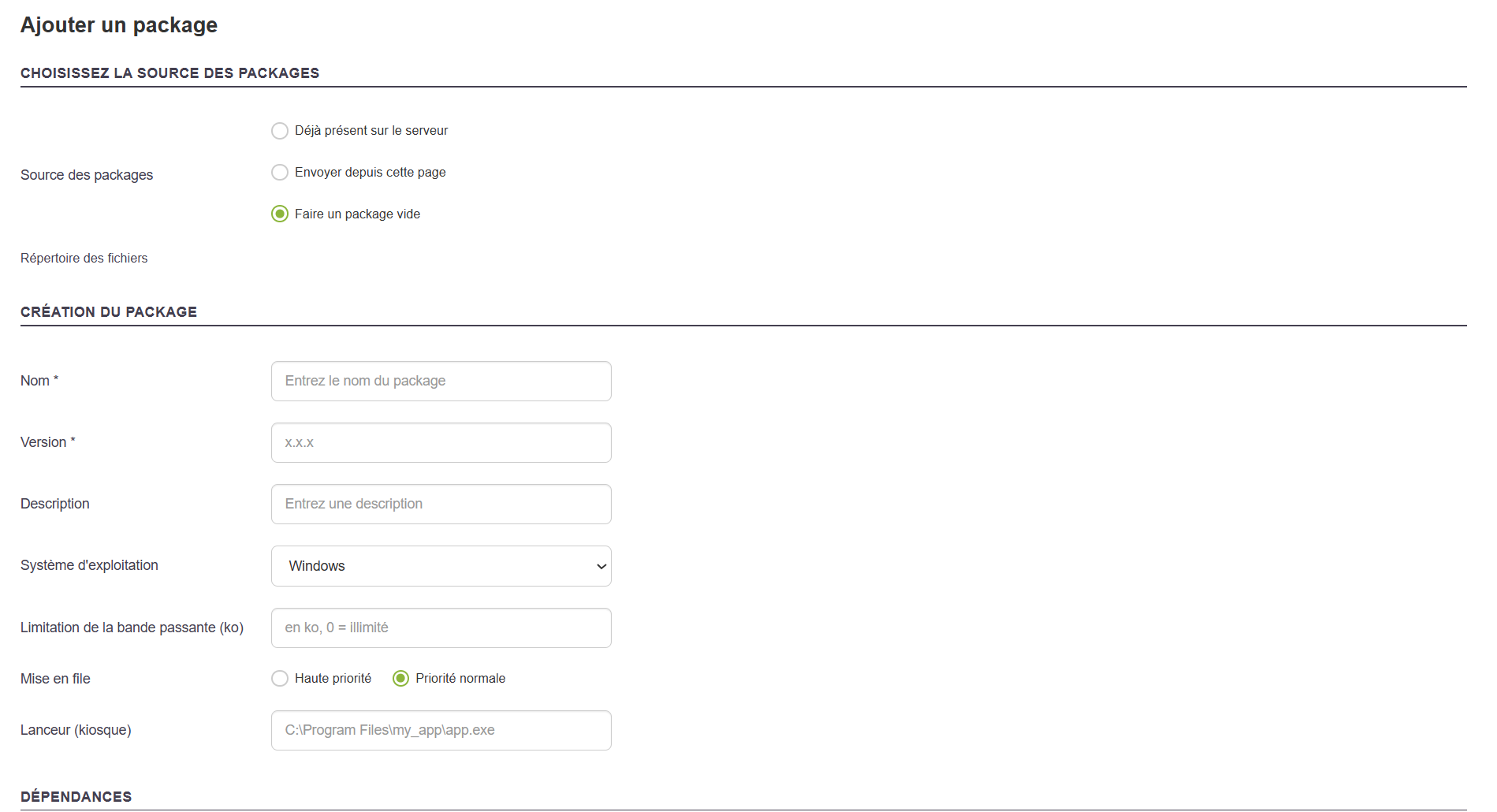](https://docs.medulla-tech.io/uploads/images/gallery/2026-03/dPbH3e98vMnA7abc-image.png) Creating a package involves defining an action (installation, uninstallation, script, etc.) that will be deployed on one or more workstations. The creation form allows you to precisely configure the package’s behavior and its execution options. **Here we will create a simple package, without adding a workflow, solely to install a simple application such as Notepad++.** From the main menu, go to the "Package" view, click**"Add a package"**to open the creation wizard. Next, select the source of the files to be used in the package. Four options are available: - Already on the server - Upload from this page - Create an empty package Use a Notepad++ installer, for example, then click: - **Upload from this page** Import the installation files directly from your computer. - Don’t forget to click “Send pending files.” [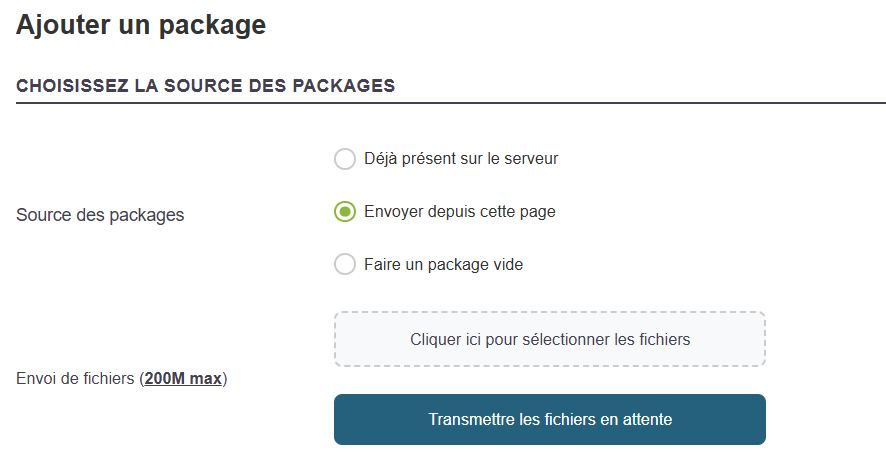](https://docs.medulla-tech.io/uploads/images/gallery/2026-03/0qnUd6JTWqYjTiNw-image.png) [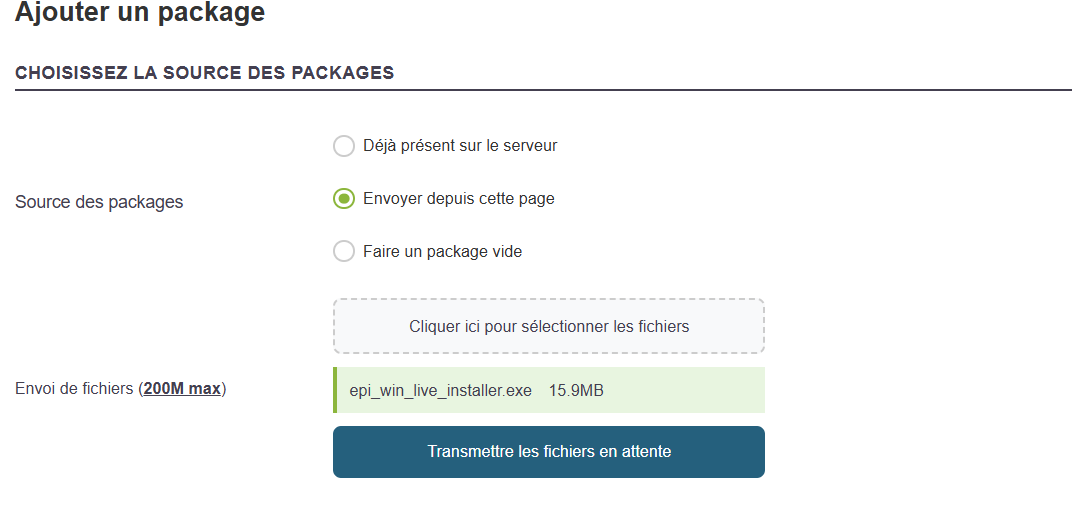](https://docs.medulla-tech.io/uploads/images/gallery/2026-03/2EK4VFHwf9bMmRMA-image.png) #### General information to provide ##### Share Select*Global Packages* to make the package visible across the entire platform, for all Entities. ##### Name Give the package a descriptive name, for example: InstallNotepad *Special characters (except: \_ and -) and accented characters are not allowed.* ##### Version Specify a version number, e.g., 1.0.0 or the Notepad++ version. ##### Description Briefly summarize the purpose of the package. ##### Operating System Select the target OS, for example:*Windows*. ##### Transfer method Generally, use pushrsync (recommended): Server -> Rsync -> Machine. ##### Link to inventory Enable this option to allow tracking of the package after installation via the GLPI inventory, if desired. As you type the first three letters, autocomplete will activate. *Auto-completion is based on the existing inventory in GLPI.* ##### You can add custom actions to the package, depending on your needs: Here, our wizard will automatically determine, based on rules, the correct command to run the installation file to install the application in silent mode. - Run a command or script (When adding a file to the "Package Source" package, our wizard automatically adds the correct command to run the setup file and silently install the application) [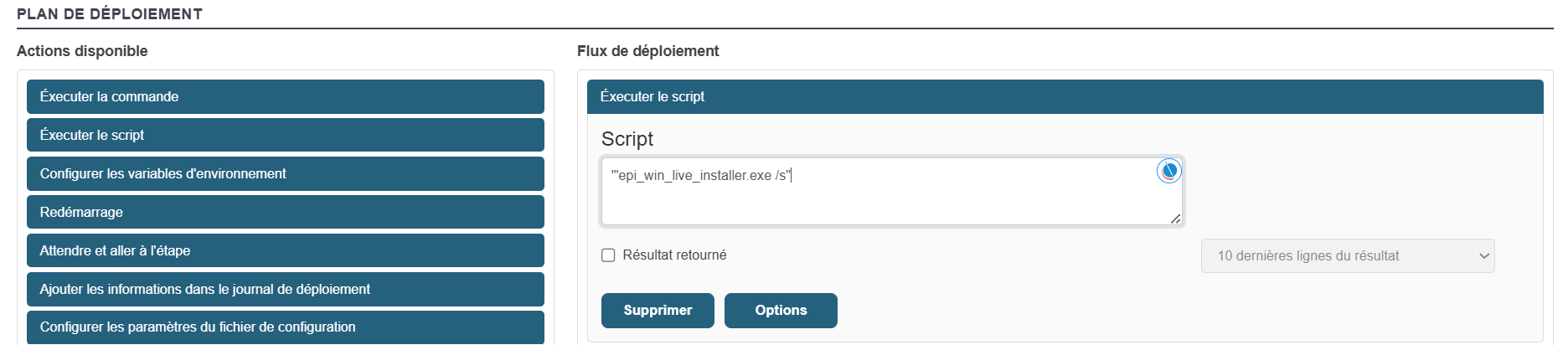](https://docs.medulla-tech.io/uploads/images/gallery/2026-03/o1eAZ2zABQjJpggG-image.png) ##### Once all sections have been configured and verified Click**Add**to save the package. It will then be accessible from the "Packages > Package List" library for use in a deployment. *It will temporarily appear in the "Pending Packages List" if you have relays. This list shows the progress of the package synchronization across all your relays, if you have any.* For a complete guide on creating packages: [Complete Package Creation](https://docs.medulla-tech.io/books/medulla-guide-dutilisation-pas-a-pas/page/creer-un-package) # Package deployment [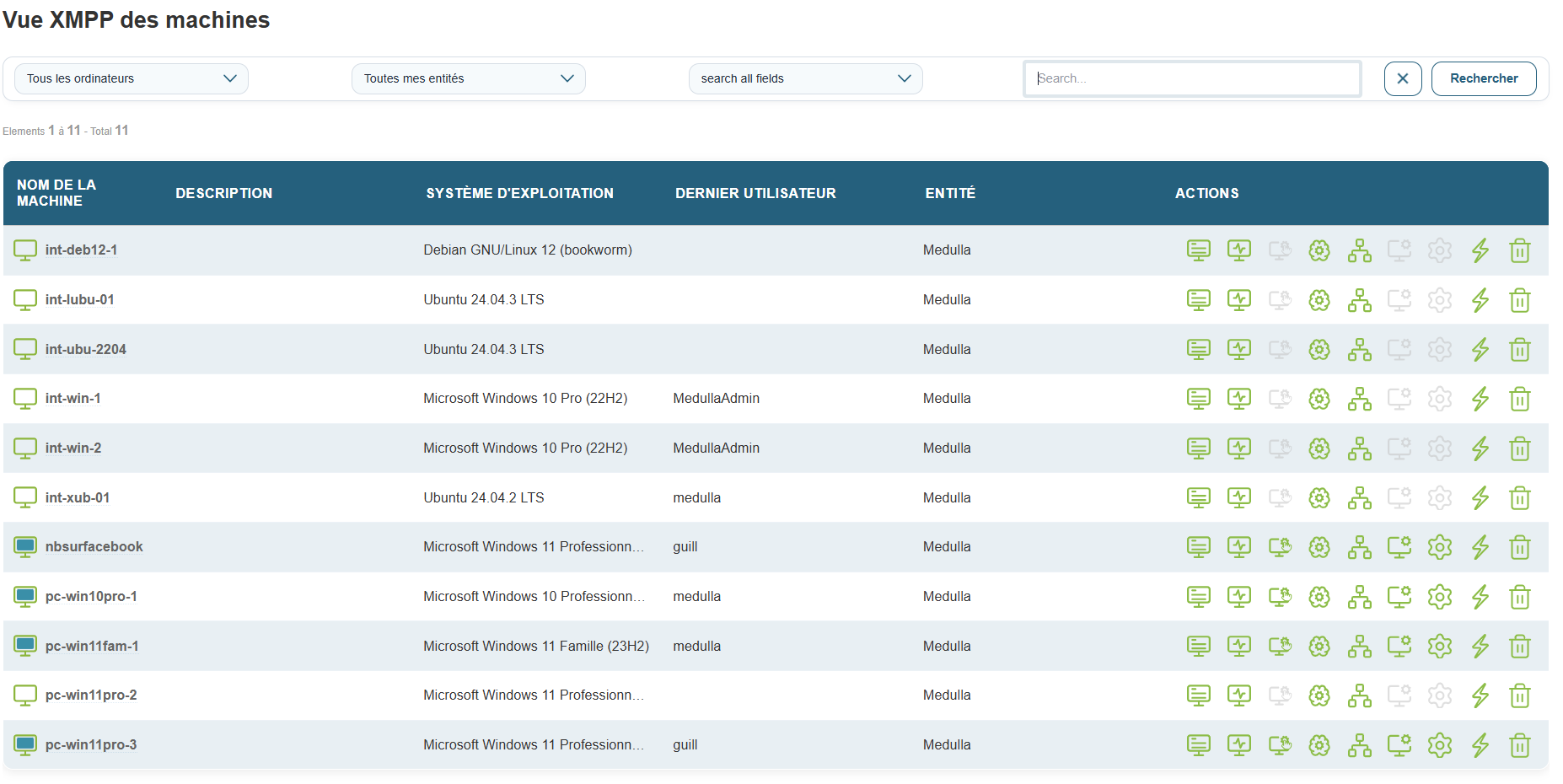](https://docs.medulla-tech.io/uploads/images/gallery/2026-03/OFpqMOaInSY6XqtH-image.png) Here we will deploy the package created earlier. Go to the **Computer** view **and** select a workstation. Click the deployment button:  **Software Deployment -** Remote software installation or update. Find the new package you created earlier in the package list and click the instant deployment icon: [](https://docs.medulla-tech.io/uploads/images/gallery/2026-03/gvv0p9sb31PKQldb-image.png)  **Launch Action** - Deploys the package to the previously selected workstation. When you start a deployment, you are automatically redirected to the Deployment Audit page. Otherwise, go to the **"Audit"** view; a new row will appear, allowing you to track the progress of the deployment you just performed. See the page: [Deployment Audit](https://docs.medulla-tech.io/books/medulla-premier-pas/page/suivre-laudit-dun-deploiement) # Track the audit of a deployment Would you like to view the audit of a deployment? Go to the Audit view in the navigation bar. Search for your deployment by name, which includes the deployment start date and time as well as other useful information. On the row for your deployment’s audit, on the far right, you’ll find the button that lets you view the full deployment audit:  You will then be redirected to a new page that includes all the details of the deployment: [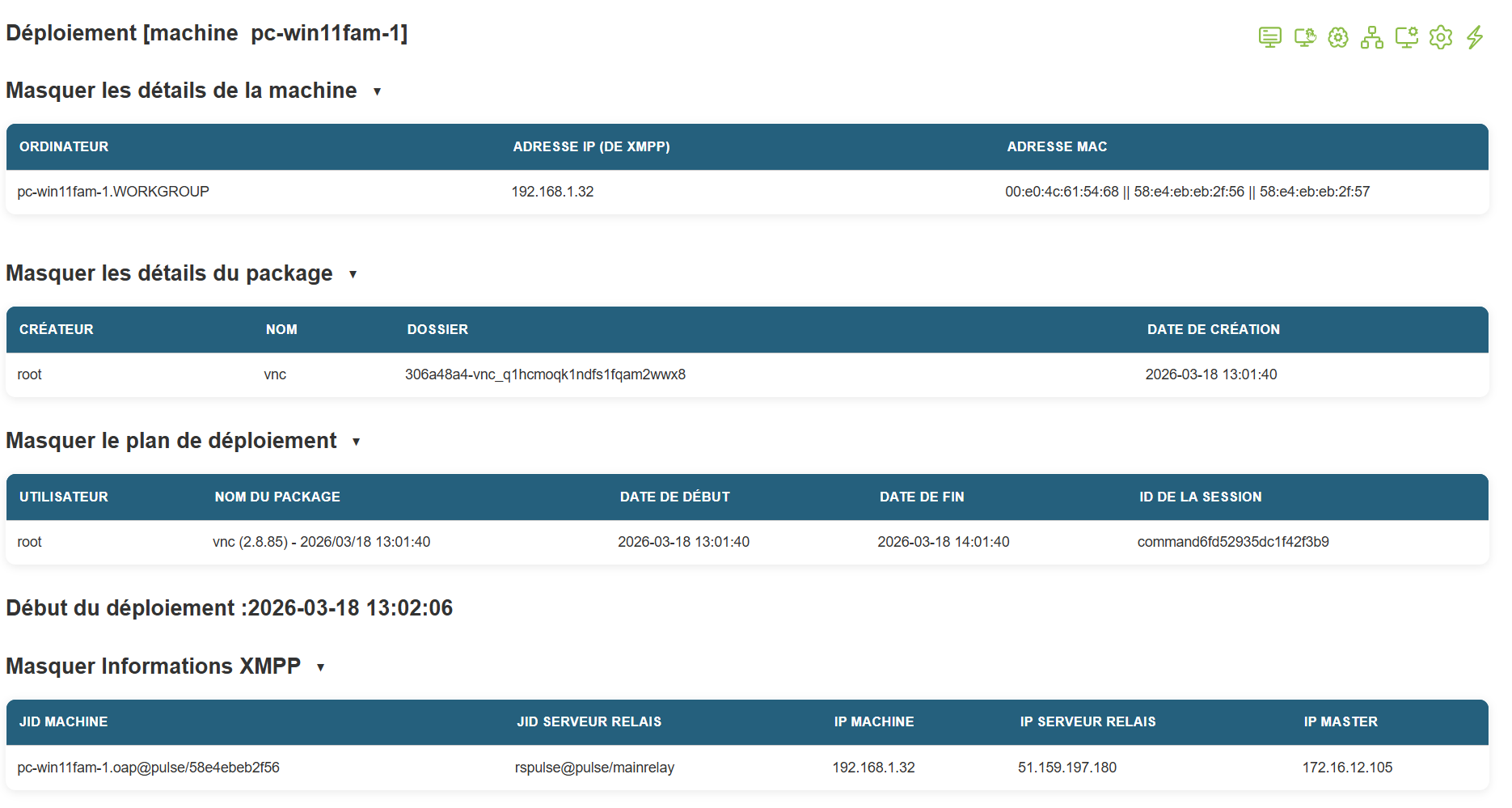](https://docs.medulla-tech.io/uploads/images/gallery/2026-03/UkfzyTjL55AocHGF-image.png) [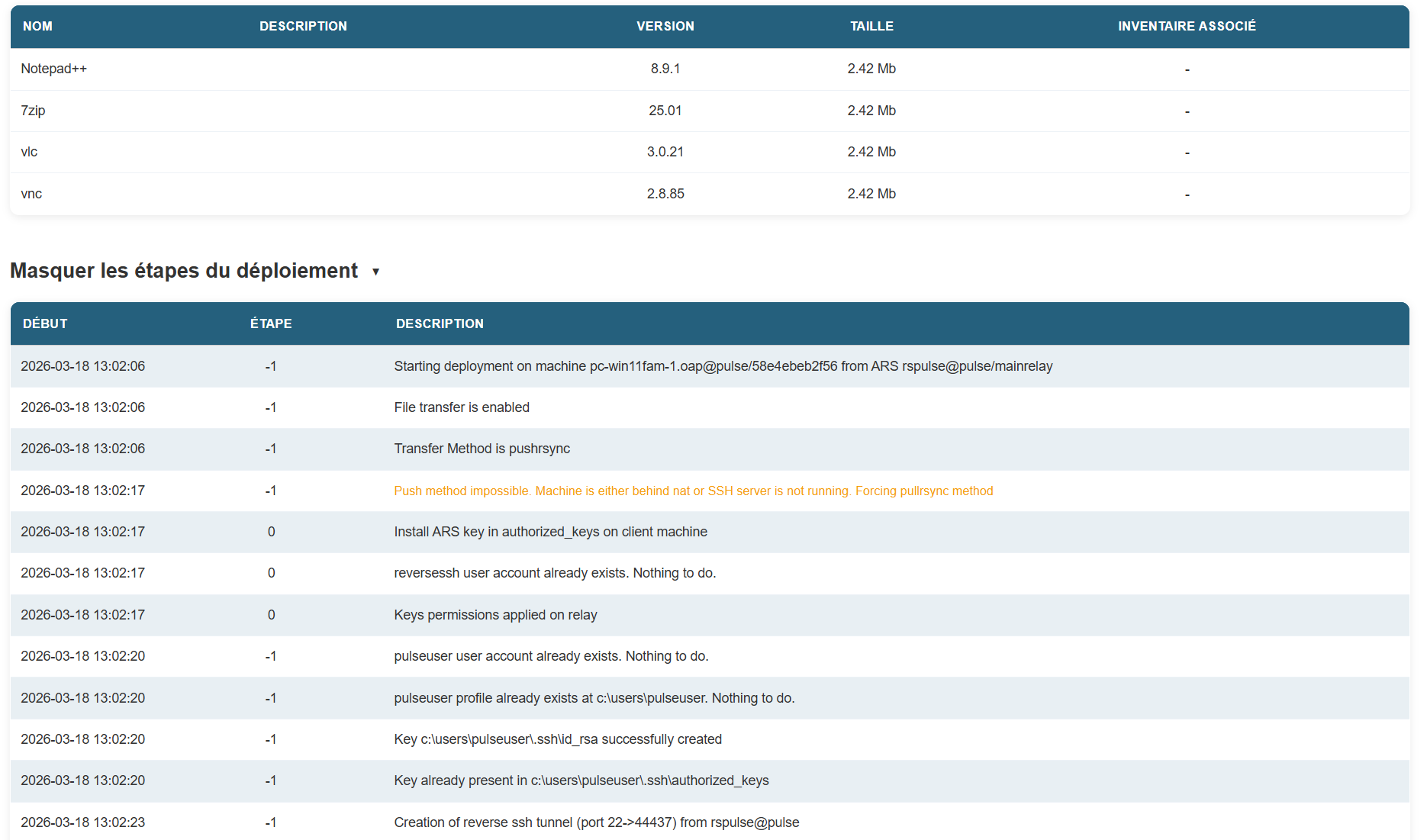](https://docs.medulla-tech.io/uploads/images/gallery/2026-03/95vdgArdVAavlGDn-image.png)