To learn more or access advanced features, you can consult the supplementary documentation by clicking [**Kiosk**](https://docs.medulla-tech.io/books/medulla-guide-dutilisation-pas-a-pas/chapter/chapitre-3-kiosk "Chapitre 3 : Kiosk")
[For more information, visit our website: https://medulla-tech.io](https://medulla-tech.io/) # Computers [](https://docs.medulla-tech.io/uploads/images/gallery/2026-03/oYZPbJnhU6AHUPUc-image.png) The Computers module allows you to manage and monitor the machines in your IT fleet. It centralizes the inventory of computers, their configurations, and their compliance status, as well as alerts related to their proper functioning. ### Key Features: - **List all computers**: Displays a complete list of all machines registered in the system. - **Groups: Allows you** to create, list, and organize groups of machines - [**Network Wake-up**:](https://docs.medulla-tech.io/books/medulla-vue-densemble-enp/page/glossaire "Glossaire") Allows you to boot a set of machines. - **Configure computers**: Allows you to modify settings or apply specific configurations to a machine. - **View alerts**: Displays system alerts or machine errors (e.g., update issues, failed connections, etc.). - **Search for a Computer**: Use filters to search by name, machine type, or status. - **Check Compliance**: Ensures that machines meet configuration and update standards. #### What can you find in the Computers interface? The interface displays: - **Computer name** - **Technical details** (model, operating system, etc.) - **Latest applied configurations** - **Machine status** (online, offline, error, etc.) - **Related alerts** - **Actions**: Edit, configure, or resolve alerts #### Where can I find it? The **Computers** module is accessible via the **main menu**, under the **Computers** tab. - Click **Computers** to view the list. - Use the filters to search for a specific machine, or add a new machine if necessary.To learn more or access advanced features, you can consult the additional documentation by clicking [**Computers.**](https://docs.medulla-tech.io/books/medulla-guide-dutilisation-pas-a-pas/chapter/chapitre-5-ordinateurs "Chapitre 5 : Ordinateurs")
[For more information, visit our website: https://medulla-tech.io](https://medulla-tech.io/) # Imaging [](https://docs.medulla-tech.io/uploads/images/gallery/2026-03/CoHVkiOpqJ1sbcM9-image.png) The**Imaging** module is designed for managing system images, facilitating the deployment and restoration of computers. It allows you to create, modify, and apply standardized images across multiple machines, thereby simplifying the configuration of new devices or the reinstallation of systems. ### Key features: - **Create a system image**: Captures a complete configuration (operating system, software, settings, etc.) for efficient reuse. - **Modify an existing image**: Updates an image by integrating recent software or configurations. - **Deploy an image**: Applies an image to multiple machines simultaneously, ensuring consistent configurations. - **Restore an image**: Allows you to revert to a previous configuration by restoring a saved image. #### What can you find in the Imaging interface? The module’s interface offers several essential features: - **Imaging server status**: Allows you to check the availability and status of associated imaging servers. - **Master management**: Administration of the master images used for deployments. - **Manage boot services**: Configure boot options for image deployment. - **Default boot menu**: Configure the boot menu for imaging. - **Post-imaging scripts**: Manage actions to be performed after an image is deployed. - **List of profiles and adding profiles**: Creating and managing imaging profiles. - **Imaging configuration**: Customizing the settings of the Imaging module. - **Sysprep response file manager**: Configuring response files for automating Windows installations. - **Imaging group management**: Viewing and adding imaging groups to organize deployments. #### Where can I find the Imaging module? The **Imaging** module is accessible from the **main menu**, under the *Imaging* tab. - Click **Imaging** to view the list of images and management options. - Use **Create Image** to start a new project, or select an existing image to edit or deploy it. - Check the **Imaging Server Status** section to see the servers available for your organization. If no imaging server is available for an association, check the configuration or add a server in the dedicated section.To learn more or access advanced features, you can view the additional documentation by clicking [**Imaging.**](https://docs.medulla-tech.io/books/medulla-guide-dutilisation-pas-a-pas/chapter/chapitre-6-imaging-i "Chapitre 6: Imaging")
[For more information, visit our website: https://medulla-tech.io](https://medulla-tech.io/) # Packages [](https://docs.medulla-tech.io/uploads/images/gallery/2026-03/2SFqXmS062MUPqOX-image.png) The **Packages** module allows you to **create, manage, and deploy software packages** on computers in the IT fleet. It facilitates software installation, application updates, and the deployment of specific configurations across multiple machines simultaneously. ### Key features: - **Create a package**: Define the package’s contents, the files to install, and the actions to perform. - **Modify a package**: Update an existing package by adding software or modifying the deployment scripts. - **Deploy a package**: Install a package on one or more computers on the network. - **Manage deployment errors**: Review logs to identify installation failures. - **Track package versions**: Check the versions installed on machines and manage updates. #### What can you find in the Packages interface? The interface displays several key sections:For more information or to access advanced features, you can view the additional documentation by clicking [**packages**](https://docs.medulla-tech.io/books/medulla-guide-dutilisation-pas-a-pas/chapter/chapitre-8-packages)
[For more information, visit our website: https://medulla-tech.io](https://medulla-tech.io/) # Audit [](https://docs.medulla-tech.io/uploads/images/gallery/2026-03/zSKpQNwMzhay8YzM-image.png) Precise and centralized activity tracking: Medulla’s **Audit** module centralizes all activities performed by users, IT teams, and machines to ensure full traceability in compliance with IT security and governance requirements. ### Audit Module Features #### Tracking of user and system tasks - View **current or past tasks** performed by a user, a group, or the entire organization. - View every **scheduled or executed action**, whether it’s a deployment, an update, an installation, or a system operation. #### Individual and Team Audits - Access custom views: - **My Tasks** - **My team's tasks** - **Tasks for all users** - Ideal for multi-administrator or shared management environments. #### Convergence history - View **scheduled convergences** (recurring or orchestrated tasks), by user or by group. - Monitor **task status**, progress, the number of affected machines, and any errors. #### Status dashboard - Real-time display of**the audit platform’s status** to ensure the availability of monitoring data.To learn more or access advanced features, you can consult the supplementary documentation by clicking [**Audit**](https://docs.medulla-tech.io/books/medulla-guide-dutilisation-pas-a-pas/chapter/chapitre-9-audit "Chapitre 9 : Audit")
[For more information, visit our website:](https://medulla-tech.io/)https://medulla-tech.io # Backups [](https://docs.medulla-tech.io/uploads/images/gallery/2026-03/UpYKccYAhD8iOiW8-image.png) Protect your data without compromise: Medulla’s Backup module ensures the protection of data on your workstations and servers. Thanks to efficient backup mechanisms and centralized monitoring, you can be confident that your data is secure and recoverable at any time. ### Key Features #### Smart Incremental Backup - A full backup is performed only once. - After that, only **modified data** is backed up, saving disk space and increasing speed. #### Online & Offline Backups - Backups can be performed to **remote servers** or **local storage media**. - This ensures **double security**, even in the event of a network disconnection or hardware failure. #### One-click restoration - Restore a file, a folder, or a complete system image with ease. - Ideal in case of accidental deletion or critical failure. #### Monitoring and alerts - Clear dashboard to view the status of backups. - Automatic notifications in case of errors or failures. - Detailed logs accessible at any time.To learn more or access advanced features, you can consult the supplementary documentation by clicking [**Backup**](https://docs.medulla-tech.io/books/medulla-guide-dutilisation-pas-a-pas/chapter/chapitre-11-sauvegarde)
[For more information, visit our website:](https://medulla-tech.io/)https://medulla-tech.io # Security [](https://docs.medulla-tech.io/uploads/images/gallery/2026-03/ztSbjQeyemLmyCdG-image.png) The**security**module allows you to**manage and track software CVEs** on computers in the fleet. It reports information regarding software in the fleet that is subject to CVE vulnerabilities, classifying them by severity. This provides administrators with the information they need to take appropriate action. ### Key Features: - **Check entity compliance**: Analyzes the compliance rate of machines to identify those that are up to date or require updates. - **Manage non-compliance alerts**: Displays missing updates and non-compliant machines. - **Deploy updates**: Automatically applies required updates to affected machines. - **Manage update lists**: Allows you to administer and organize available updates for the IT infrastructure. - **Track compliance rate**: Provides statistics on the number of compliant machines, those that are overdue, or those requiring action. #### What can you find in the Updates interface? The interface features several key sections: - **View and launch a vulnerability scan** across the entire fleet of machines managed in the Medulla interface - View and launch a vulnerability scan by entity. - View and launch a vulnerability scan by group. - View the results of all vulnerability scans across the fleet. #### Where can I find the Security module? The **Security**module **is**accessible from the**main menu**, under the *Security* tab For each CVE reported in the module, we organize a ranking based on the severity priority of the vulnerability: - Low priority - Medium priority - High priority - Critical A banner at the top of the module page provides a summary and an overview of the status of security vulnerabilities across the fleet. This banner displays: - The total number of CVEs across the fleet. - The number of critical CVEs - The number of high-severity CVEs - The number of medium-severity CVEs - The number of low-severity CVEs - The number of affected machines. [](https://docs.medulla-tech.io/uploads/images/gallery/2026-03/gt7OT6IertEZicIE-image.png)To learn more or access advanced features, you can view the supplementary documentation by clicking[**CVE**](https://docs.medulla-tech.io/books/medulla-guide-dutilisation-pas-a-pas/chapter/chapitre-15-cve "Chapitre 15: CVE")
[For more information, visit our website: https://medulla-tech.io](https://medulla-tech.io/) # Updates  The **Updates** module allows you to **manage and track the status of software updates** on computers in the fleet. It ensures that all machines are up to date with the latest security patches, software updates, and new operating system versions. ### Key Features: - **Check entity compliance**: Analyzes machine compliance rates to identify which machines are up to date or require updates. - **Manage non-compliance alerts**: Displays missing updates and non-compliant machines. - **Deploy updates**: Automatically applies required updates to affected machines. - **Manage update lists**: Allows you to administer and organize available updates for the IT infrastructure. - **Track compliance rates**: Provides statistics on the number of compliant machines, those that are overdue, or those requiring action. #### What can you find in the Updates interface? The interface features several key sections: - **Entity Compliance**: Displays the compliance rate of machines by entity (e.g., *Siveo Medulla*). - **Manage update lists**: Manage available updates and those awaiting installation. - **Update Status**: Number of missing updates, number of non-compliant machines, and total number of affected computers. - **Search and Filter**: Ability to search for specific entities or filter by compliance rate. #### Where can I find the Updates module? The **Updates** module is accessible from the **main menu**, under the *Updates* tab. - Click **Updates** to view the status of machines and review non-compliance alerts. - Go to **Manage Update Lists** to organize and manage available updates. - Check **Entity Compliance** to view the update rate of machines and detect any anomalies.To learn more or access advanced features, you can view the supplementary documentation by clicking [**Updates**](https://docs.medulla-tech.io/books/medulla-guide-dutilisation-pas-a-pas/chapter/chapitre-10-mises-a-jour)
[For more information, visit our website: https://medulla-tech.io](https://medulla-tech.io/) # History [](https://docs.medulla-tech.io/uploads/images/gallery/2026-03/xXDy4POhKMNindi9-image.png) Keep a record of every action: Medulla’s History module allows you to view all actions performed within your infrastructure. It offers complete and accurate traceability, which is essential for diagnostics, auditing, and continuous improvement. ### Key Features #### View past actions - View the history of operations on machines, configurations, deployments, connections, etc. - Each entry details the time, user, machine involved, and action performed. #### Advanced filters and search - Filter by **dates**, **log types**, **users**, or **machines** to quickly pinpoint a specific action. - Ability to apply multiple criteria for detailed analysis. #### Historical reports - Generate reports for a given period to understand system behavior or identify the source of a problem. - Useful for auditing, compliance requests, or technical documentation. [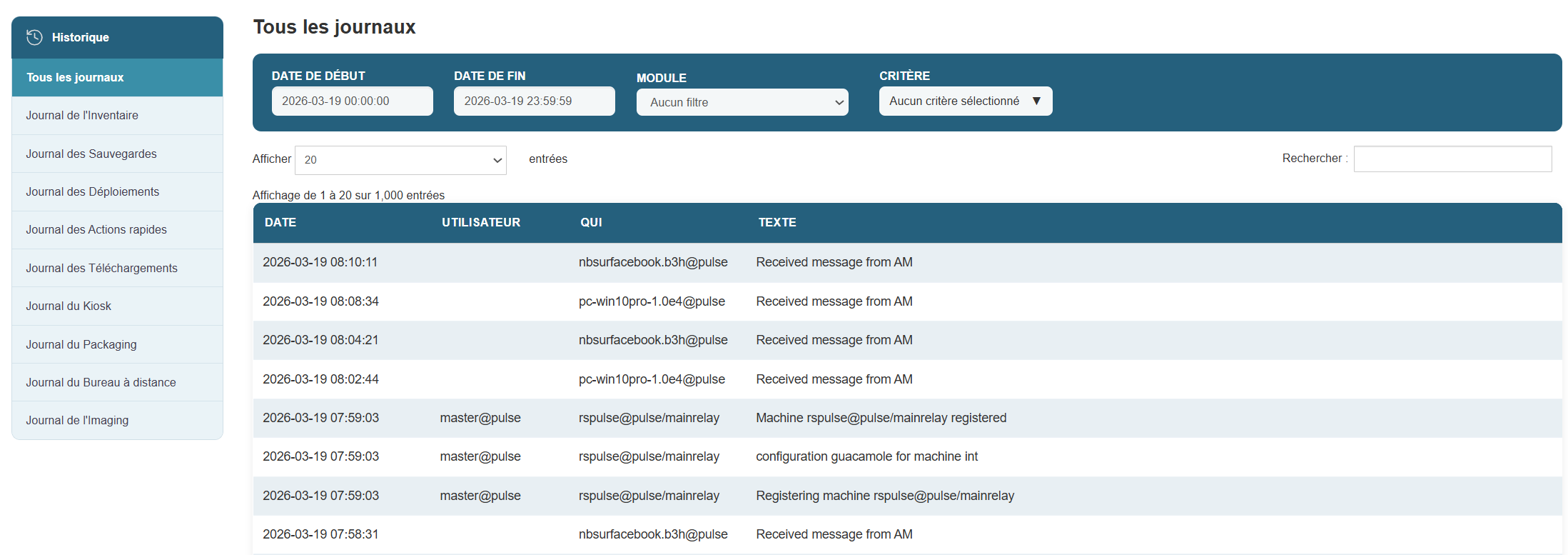](https://docs.medulla-tech.io/uploads/images/gallery/2026-03/qsH7rr7iIpJD5bTx-image.png)To learn more or access advanced features, you can view the supplementary documentation by clicking [**History**](https://docs.medulla-tech.io/books/medulla-guide-dutilisation-pas-a-pas/chapter/chapitre-12-historique "Chapitre 12 : Historique")
[For more information, visit our website: https://medulla-tech.io](https://medulla-tech.io/)