Medulla Overview
This guide is ideal as an introductory manual or functional overview. It is intended to demonstrate what Medulla does without delving into technical details or usage instructions.
- Chapter 1: Table of Contents
- Chapter 2: Introduction
- Chapter 3: Main Interface
- Chapter 4: Modules
- Chapter 5: Administration
Chapter 1: Table of Contents
Table of Contents

Chapter 1: Table of Contents
Introduction
Main Interface
Modules
Administration
Chapter 2: Introduction
What is Medulla?
Medulla is a comprehensive IT management platform designed to simplify, automate, and secure all operations related to an IT infrastructure, whether in a corporate environment, for remote work, or distributed across multiple sites. I’m testing it!
It is based on a real-time XMPP inventory database, providing an accurate and up-to-date view of every workstation at all times, whether connected locally or remotely. This ensures constant reachability of machines, which is essential for effective management.

What is Medulla used for?
Medulla centralizes and streamlines the following tasks:
IT asset management
- Automatic, real-time inventory
- Detailed view of machines and users
- Integration with existing ITSM solutions
Remote deployment of software and scripts
- Application deployment, uninstallation, or script execution
- Advanced scheduling via a conditional GFCET system
- Intelligent wizard for silent installations
System imaging and installation
- Creation of generic system images compatible with all types of hardware
- Dynamic driver management
- Unicast/multicast deployment
- Multi-site synchronization for remote deployments
Application and update management
- Application kiosk for users without admin rights
- On-demand installation, by category
- Transparent, bandwidth-efficient updates
Remote access (PMAD)
- Login or console access on workstations
- Secure connection even without a VPN via an SSH tunnel
- Real-time support, anywhere
Native support for remote work
- Secure access to remote workstations
- No reliance on VPN
- Execute all operations remotely
To discover all the features and learn more, download our supplementary documentation by clicking here. Click the link to view the complete documentation.User Guide

For more information, visit our website:www.medulla.fr
Who is this manual intended for?
Target Audience This manual is intended for anyone involved in managing IT infrastructure and administering information systems, including:
-
System and network administrators
-
IT support technicians
-
IT infrastructure managers
-
CIOs (Chief Information Officers)
-
IT project managers
-
Deployment operators
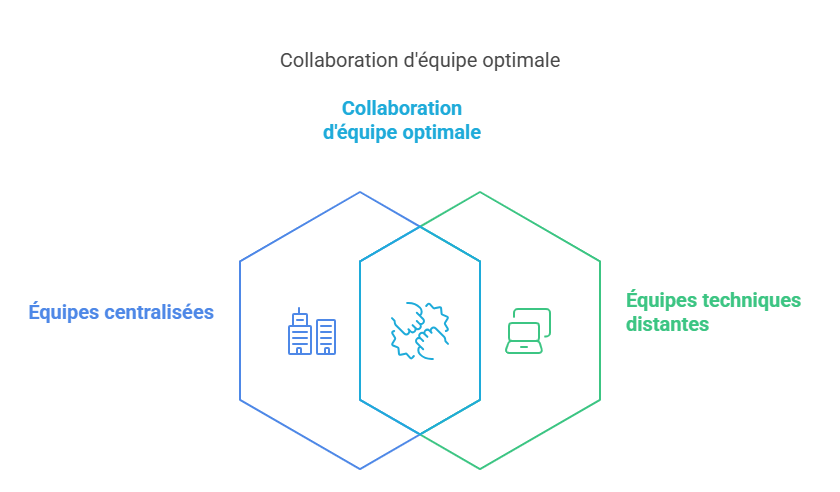
It is intended for both centralized teams and technical teams working remotely or across multiple sites.
Objectives of the manual
The purpose of this manual is to guide you step by step through:
- Getting started with the Medulla interface
- Understanding its functional modules
- Configuring, using, and automating tasks
- Using support, monitoring, and audit tools
- Securely managing workstations both locally and remotely
This manual takes a step-by-step, modular approach: you can read it from start to finish or go directly to the sections that are relevant to you.
Recommended prerequisites
To get the most out of Medulla and this guide, it is recommended that you have:
- Basic knowledge of Windows/Linux systems
- Basic knowledge of network and security management
- Familiarity with ITSM tools (optional but helpful)
- Experience with remote deployment or imaging
You don’t need to be an expert to get started. Medulla’s interface is designed to be intuitive, with built-in wizards to guide you.
For more information, visit our website:www.medulla.fr
Glossary
ARS
Automatic Relay Selector is a mechanism that automatically selects the best relay to route a message or connection.
Cluster
A group of servers that work together to provide load balancing, high availability, and resilience.
Imaging
Here, we are referring to a system image or snapshot (disk image) of a workstation or server containing the OS and software. It is used for rapid deployments or restores.
Logs
Also known as logging, this is a mechanism that records system events, errors, accesses, and user actions. Very useful for audits and security.
OU
Organizational unit: a hierarchical structure within a directory (e.g., LDAP) used to organize machines and users.
Package
A collection of files and resources containing an application ready to be installed and configured on a computer or server. Packages are stored in repositories and managed by package managers.
P.M.A.D
Remote Access
Relay
A relay is a component that allows messages to be passed between different points on the network.
Rules
A rule is a set of criteria used to determine which relay or server should be used.
XMPP
XMPP stands for Extensible Messaging and Presence Protocol and is used for instant messaging, presence, and real-time communication.
Conditional GRAFCET
A scheduling method based on GRAFCET (Graphical State Machine), used to automate sequences of actions (such as software deployment or script execution) based on specific conditions. Each step is executed only if defined conditions are met, enabling dynamic and intelligent process management.
Unicast
A network communication mode in which a single source sends data to a single destination. Used for point-to-point transmissions.
Multicast
A network communication mode in which a single source sends data simultaneously to multiple specific destinations, without sending separate copies to each receiver.
VPN (Virtual Private Network)
A virtual private network that creates a secure, encrypted connection between a user and a network, often via the Internet. It protects data, hides the IP address, and ensures privacy.
SSH (Secure Shell)
A secure communication protocol used to establish a remote, encrypted, and authenticated connection to access a system and execute commands. Primarily used for server administration and secure file transfer.
Wake-on-LAN (WOL)
A feature that allows a computer to be started remotely via a network by sending a special packet calleda Magic Packet containing the target machine’s MAC address. Used for remote administration and managing machines without having to turn them on manually.
Chapter 3: Main Interface
The dashboard
Dashboard Overview The Medulla dashboard provides a clear and detailed overview of the status of your IT infrastructure. Designed to give you a quick and accurate snapshot, it consolidates essential information and performance metrics to help you make informed decisions in real time.
Fully customizable, this dashboard allows you to tailor its content to your priorities by adding or removing widgets as needed.
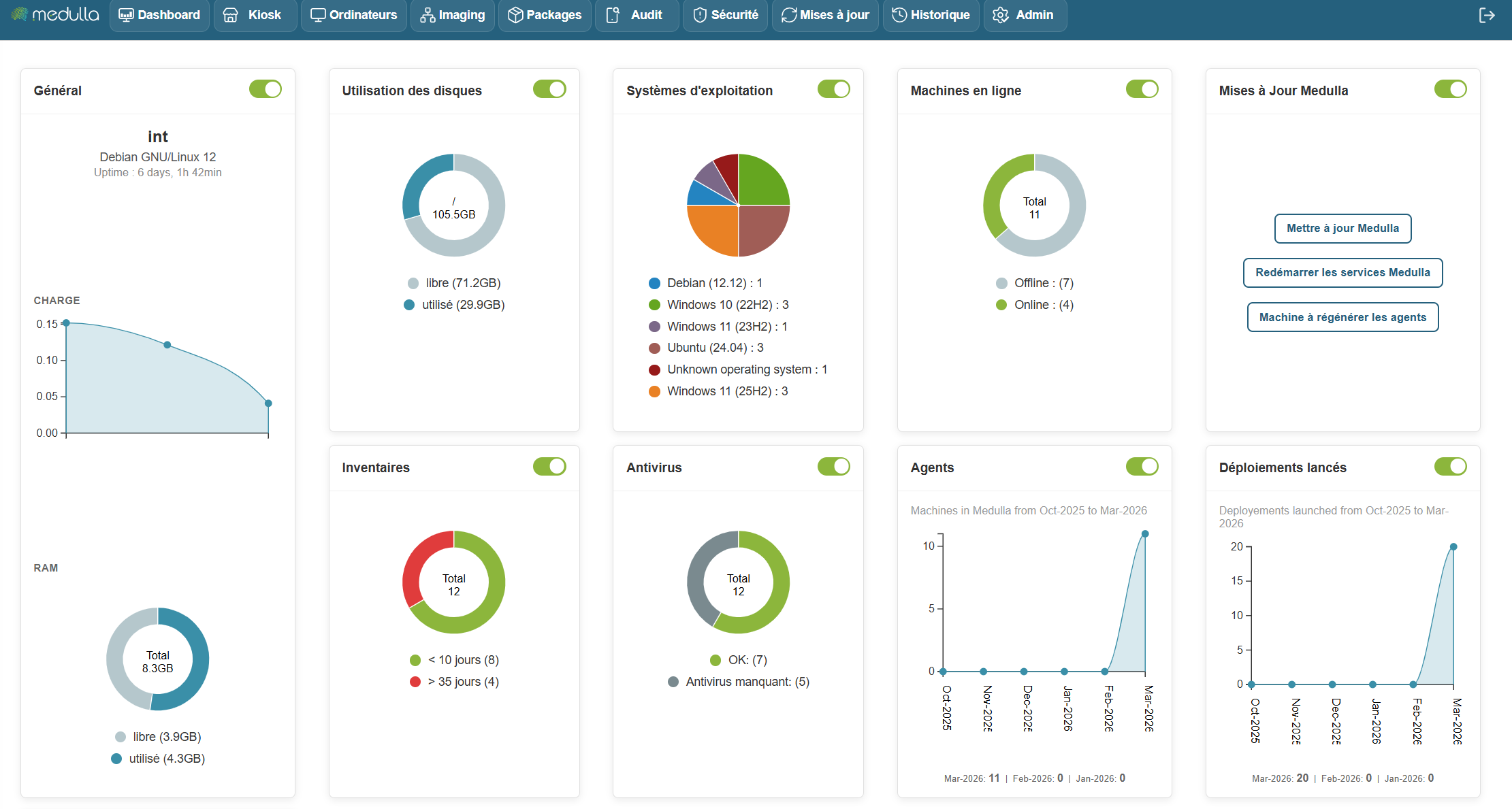
Machine Status
The dashboard displays the status of machines in real time, whether they are online, offline, or experiencing specific issues such as failed deployments or non-compliance.
Recent Alerts
It allows you to view critical and non-critical alerts, such as:
- Deployment issues
- Pending updates
- Unreachable machines
- Failed backups
Each alert can be viewed and managed directly from this section.
History of actions and events
Detailed tracking of actions performed on the system, including:
- Completed deployments
- Backups performed
- Configuration changes
- Remote access
Update tracking
The dashboard lets you track the status of ongoing updates, with the ability to easily manage them: install immediately or schedule for later.
Resource management
You have direct access to system resource usage, such as:
- Bandwidth
- Available storage space
- Management server performance
Dashboard Customization
Thanks to widget customization, you can track key information such as:
- The number of machines working remotely
- Device compliance
- Deployment progress
Widgets can be easily rearranged using drag-and-drop, providing an experience fully tailored to your needs.
Dashboard interactivity
The dashboard is interactive, allowing you to:
- Click on an alert to view details and respond directly.
- Click on a machine to access its information and perform actions, such as deploying software.
- Click on an update to install it immediately or schedule it according to your schedule.
Benefits
- A quick and responsive overview of incidents, allowing you to react immediately.
- Direct access to critical actions, without having to navigate through complex menus.
- Save time with centralized management and constantly updated information.
To learn more or access advanced features, you can view the additional documentation by clickingDashboard.
For more information, visit our website: https://medulla-tech.io
Menu and navigation
Overview: Medulla’s interface is designed to provide a smooth, clear, and functional user experience. Thanks to its modular structure, each user can quickly access the information and actions they need.

Main Navigation Bar
Located at the top of the screen, the navigation bar gives you access to the platform’s main modules

Custom Dashboard
Users can configure a personalized dashboard with dynamic widgets:
- Number of active machines
- Deployments in progress
- Recent backups
- Critical alerts
For more information, visit our website:www.medulla.fr
Interface layout
A modular and intuitive interface Medulla is built on a modular interface, where each feature is grouped by theme into an independent module. This allows for:
-
Simplify daily use
-
Quickly navigate to the desired action
-
Adapt the tool to your business needs
Each module functions as an application within the application, with its own views, filters, tabs, and settings.
Example of module-based organization
Let’s look at a few concrete examples:
Computers Module

Main view:
List of computers with status (online/offline), user, and last contact.
Available tabs:
Inventory, Actions, PMAD, Backup, History.
Available filters:
Operating system, groups, connectivity.
Additional features:
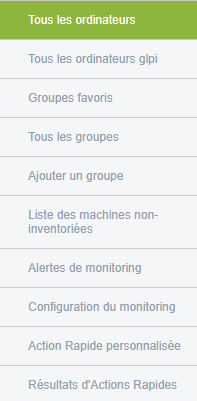
- All computers / GLPI
- Favorite groups
- Uninventoried machines
- Alert monitoring, configuration
- Quick actions (custom and results)
- XMPP view
Search:
By fields, entity, with filtering options.
Example of a listed machine:

To learn more or access advanced features, you can consult the additional documentation by clicking Computers
For more information, visit our website:www.medulla.fr
Chapter 4: Modules
Kiosk

Install applications independently, improve responsiveness, and reduce the workload on your IT teams with Kiosk: a Medulla module designed to allow users to install the applications they need themselves, without requiring administrative privileges.
Key features:

Application Catalog
-
Applications are organized by category.
-
Each user accesses a personalized catalog based on their profile or group.
Privilege-Free Installation
-
Users can install or uninstall software without IT intervention.
-
All installations are tracked and monitored from the Medulla console.
Managed updates
-
Manual or automatic updates depending on the selected configuration.
-
The administrator defines the versions to use to ensure compliance.
Centralized control
-
Granular management of software access rights.
-
Ability to restrict certain actions, such as uninstalling critical apps.
To learn more or access advanced features, you can consult the supplementary documentation by clicking Kiosk
For more information, visit our website: https://medulla-tech.io
Computers

The Computers module allows you to manage and monitor the machines in your IT fleet. It centralizes the inventory of computers, their configurations, and their compliance status, as well as alerts related to their proper functioning.
Key Features:
- List all computers: Displays a complete list of all machines registered in the system.
- Groups: Allows you to create, list, and organize groups of machines
- Network Wake-up: Allows you to boot a set of machines.
- Configure computers: Allows you to modify settings or apply specific configurations to a machine.
- View alerts: Displays system alerts or machine errors (e.g., update issues, failed connections, etc.).
- Search for a Computer: Use filters to search by name, machine type, or status.
- Check Compliance: Ensures that machines meet configuration and update standards.
What can you find in the Computers interface?
The interface displays:
- Computer name
- Technical details (model, operating system, etc.)
- Latest applied configurations
- Machine status (online, offline, error, etc.)
- Related alerts
- Actions: Edit, configure, or resolve alerts
Where can I find it?
The Computers module is accessible via the main menu, under the Computers tab.
- Click Computers to view the list.
- Use the filters to search for a specific machine, or add a new machine if necessary.
To learn more or access advanced features, you can consult the additional documentation by clicking Computers.
For more information, visit our website: https://medulla-tech.io
Imaging

TheImaging module is designed for managing system images, facilitating the deployment and restoration of computers. It allows you to create, modify, and apply standardized images across multiple machines, thereby simplifying the configuration of new devices or the reinstallation of systems.
Key features:
- Create a system image: Captures a complete configuration (operating system, software, settings, etc.) for efficient reuse.
- Modify an existing image: Updates an image by integrating recent software or configurations.
- Deploy an image: Applies an image to multiple machines simultaneously, ensuring consistent configurations.
- Restore an image: Allows you to revert to a previous configuration by restoring a saved image.
What can you find in the Imaging interface?
The module’s interface offers several essential features:
- Imaging server status: Allows you to check the availability and status of associated imaging servers.
- Master management: Administration of the master images used for deployments.
- Manage boot services: Configure boot options for image deployment.
- Default boot menu: Configure the boot menu for imaging.
- Post-imaging scripts: Manage actions to be performed after an image is deployed.
- List of profiles and adding profiles: Creating and managing imaging profiles.
- Imaging configuration: Customizing the settings of the Imaging module.
- Sysprep response file manager: Configuring response files for automating Windows installations.
- Imaging group management: Viewing and adding imaging groups to organize deployments.
Where can I find the Imaging module?
The Imaging module is accessible from the main menu, under the Imaging tab.
- Click Imaging to view the list of images and management options.
- Use Create Image to start a new project, or select an existing image to edit or deploy it.
- Check the Imaging Server Status section to see the servers available for your organization.
If no imaging server is available for an association, check the configuration or add a server in the dedicated section.
To learn more or access advanced features, you can view the additional documentation by clicking Imaging.
For more information, visit our website: https://medulla-tech.io
Packages

The Packages module allows you to create, manage, and deploy software packages on computers in the IT fleet. It facilitates software installation, application updates, and the deployment of specific configurations across multiple machines simultaneously.
Key features:
- Create a package: Define the package’s contents, the files to install, and the actions to perform.
- Modify a package: Update an existing package by adding software or modifying the deployment scripts.
- Deploy a package: Install a package on one or more computers on the network.
- Manage deployment errors: Review logs to identify installation failures.
- Track package versions: Check the versions installed on machines and manage updates.
What can you find in the Packages interface?
The interface displays several key sections:
Where can I find the Packages module?
The Packages module is accessible from the main menu, under the Packages tab.
For more information or to access advanced features, you can view the additional documentation by clicking packages
For more information, visit our website: https://medulla-tech.io
Audit

Precise and centralized activity tracking: Medulla’s Audit module centralizes all activities performed by users, IT teams, and machines to ensure full traceability in compliance with IT security and governance requirements.
Audit Module Features
Tracking of user and system tasks
-
View current or past tasks performed by a user, a group, or the entire organization.
-
View every scheduled or executed action, whether it’s a deployment, an update, an installation, or a system operation.
Individual and Team Audits
-
Access custom views:
- My Tasks
- My team's tasks
- Tasks for all users
-
Ideal for multi-administrator or shared management environments.
Convergence history
-
View scheduled convergences (recurring or orchestrated tasks), by user or by group.
-
Monitor task status, progress, the number of affected machines, and any errors.
Status dashboard
-
Real-time display ofthe audit platform’s status to ensure the availability of monitoring data.
To learn more or access advanced features, you can consult the supplementary documentation by clicking Audit
For more information, visit our website:https://medulla-tech.io
Backups

Protect your data without compromise: Medulla’s Backup module ensures the protection of data on your workstations and servers. Thanks to efficient backup mechanisms and centralized monitoring, you can be confident that your data is secure and recoverable at any time.
Key Features
Smart Incremental Backup
-
A full backup is performed only once.
-
After that, only modified data is backed up, saving disk space and increasing speed.
Online & Offline Backups
-
Backups can be performed to remote servers or local storage media.
-
This ensures double security, even in the event of a network disconnection or hardware failure.
One-click restoration
-
Restore a file, a folder, or a complete system image with ease.
-
Ideal in case of accidental deletion or critical failure.
Monitoring and alerts
-
Clear dashboard to view the status of backups.
-
Automatic notifications in case of errors or failures.
-
Detailed logs accessible at any time.
To learn more or access advanced features, you can consult the supplementary documentation by clicking Backup
For more information, visit our website:https://medulla-tech.io
Security

Thesecuritymodule allows you tomanage and track software CVEs on computers in the fleet. It reports information regarding software in the fleet that is subject to CVE vulnerabilities, classifying them by severity. This provides administrators with the information they need to take appropriate action.
Key Features:
- Check entity compliance: Analyzes the compliance rate of machines to identify those that are up to date or require updates.
- Manage non-compliance alerts: Displays missing updates and non-compliant machines.
- Deploy updates: Automatically applies required updates to affected machines.
- Manage update lists: Allows you to administer and organize available updates for the IT infrastructure.
- Track compliance rate: Provides statistics on the number of compliant machines, those that are overdue, or those requiring action.
What can you find in the Updates interface?
The interface features several key sections:
- View and launch a vulnerability scan across the entire fleet of machines managed in the Medulla interface
- View and launch a vulnerability scan by entity.
- View and launch a vulnerability scan by group.
- View the results of all vulnerability scans across the fleet.
Where can I find the Security module?
The Securitymodule isaccessible from themain menu, under the Security tab
For each CVE reported in the module, we organize a ranking based on the severity priority of the vulnerability:
- Low priority
- Medium priority
- High priority
- Critical
A banner at the top of the module page provides a summary and an overview of the status of security vulnerabilities across the fleet.
This banner displays:
- The total number of CVEs across the fleet.
- The number of critical CVEs
- The number of high-severity CVEs
- The number of medium-severity CVEs
- The number of low-severity CVEs
- The number of affected machines.

To learn more or access advanced features, you can view the supplementary documentation by clickingCVE
For more information, visit our website: https://medulla-tech.io
Updates

The Updates module allows you to manage and track the status of software updates on computers in the fleet. It ensures that all machines are up to date with the latest security patches, software updates, and new operating system versions.
Key Features:
- Check entity compliance: Analyzes machine compliance rates to identify which machines are up to date or require updates.
- Manage non-compliance alerts: Displays missing updates and non-compliant machines.
- Deploy updates: Automatically applies required updates to affected machines.
- Manage update lists: Allows you to administer and organize available updates for the IT infrastructure.
- Track compliance rates: Provides statistics on the number of compliant machines, those that are overdue, or those requiring action.
What can you find in the Updates interface?
The interface features several key sections:
-
Entity Compliance: Displays the compliance rate of machines by entity (e.g., Siveo Medulla).
-
Manage update lists: Manage available updates and those awaiting installation.
-
Update Status: Number of missing updates, number of non-compliant machines, and total number of affected computers.
-
Search and Filter: Ability to search for specific entities or filter by compliance rate.
Where can I find the Updates module?
The Updates module is accessible from the main menu, under the Updates tab.
-
Click Updates to view the status of machines and review non-compliance alerts.
-
Go to Manage Update Lists to organize and manage available updates.
-
Check Entity Compliance to view the update rate of machines and detect any anomalies.
To learn more or access advanced features, you can view the supplementary documentation by clicking Updates
For more information, visit our website: https://medulla-tech.io
History

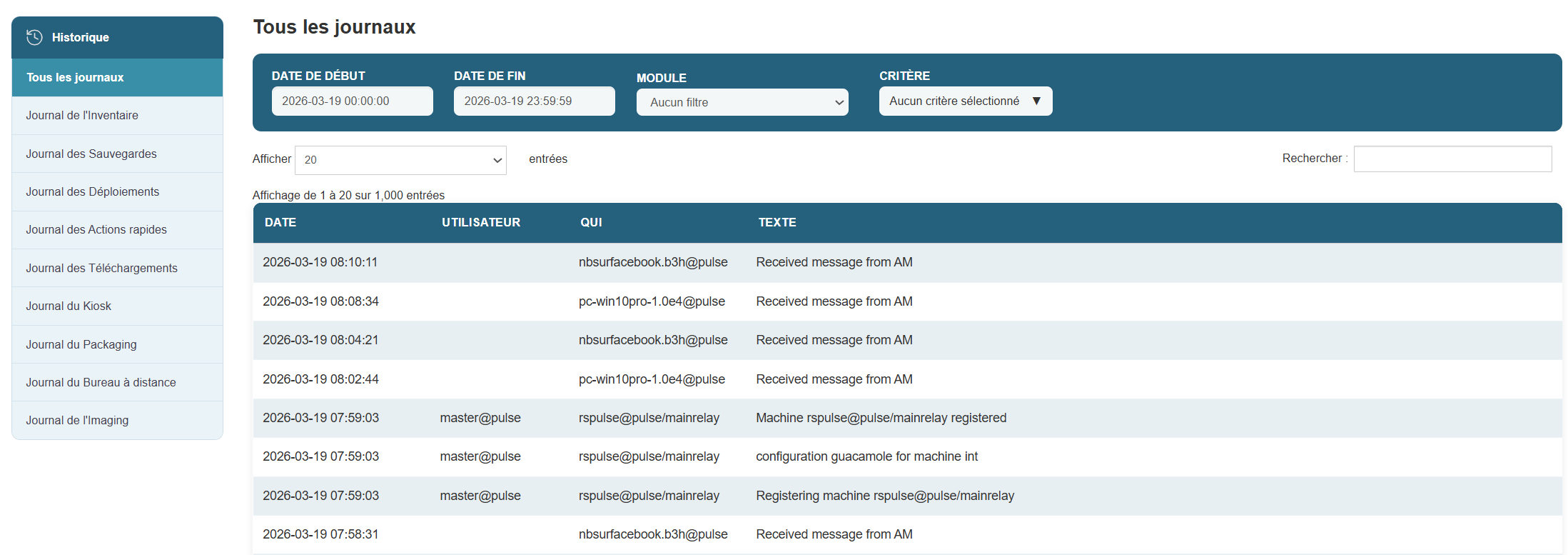
Keep a record of every action: Medulla’s History module allows you to view all actions performed within your infrastructure. It offers complete and accurate traceability, which is essential for diagnostics, auditing, and continuous improvement.
Key Features
View past actions
-
View the history of operations on machines, configurations, deployments, connections, etc.
-
Each entry details the time, user, machine involved, and action performed.
Advanced filters and search
-
Filter by dates, log types, users, or machines to quickly pinpoint a specific action.
-
Ability to apply multiple criteria for detailed analysis.
Historical reports
-
Generate reports for a given period to understand system behavior or identify the source of a problem.
-
Useful for auditing, compliance requests, or technical documentation.
To learn more or access advanced features, you can view the supplementary documentation by clicking History
For more information, visit our website: https://medulla-tech.io
Chapter 5: Administration
Administrator access

How do I access the admin module?
You can access the administrator module by clicking the gear icon on the far right of the menu or at the bottom of the menu bar (also on the right) by clicking the link "Click to switch to expert mode."
What is the Administration module used for?
The Administration module allows users with administrator privileges to manage the advanced settings of the Medulla system. It includes the tools necessary for system configuration and application customization.

For more information, visit our website:medulla-tech.io
General settings
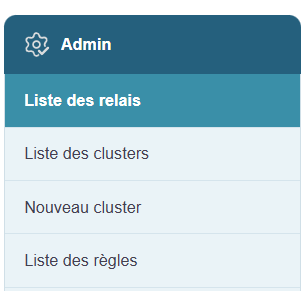
The administration interface is organized as follows to manage various settings:
- List of relays
- List of clusters
- New cluster
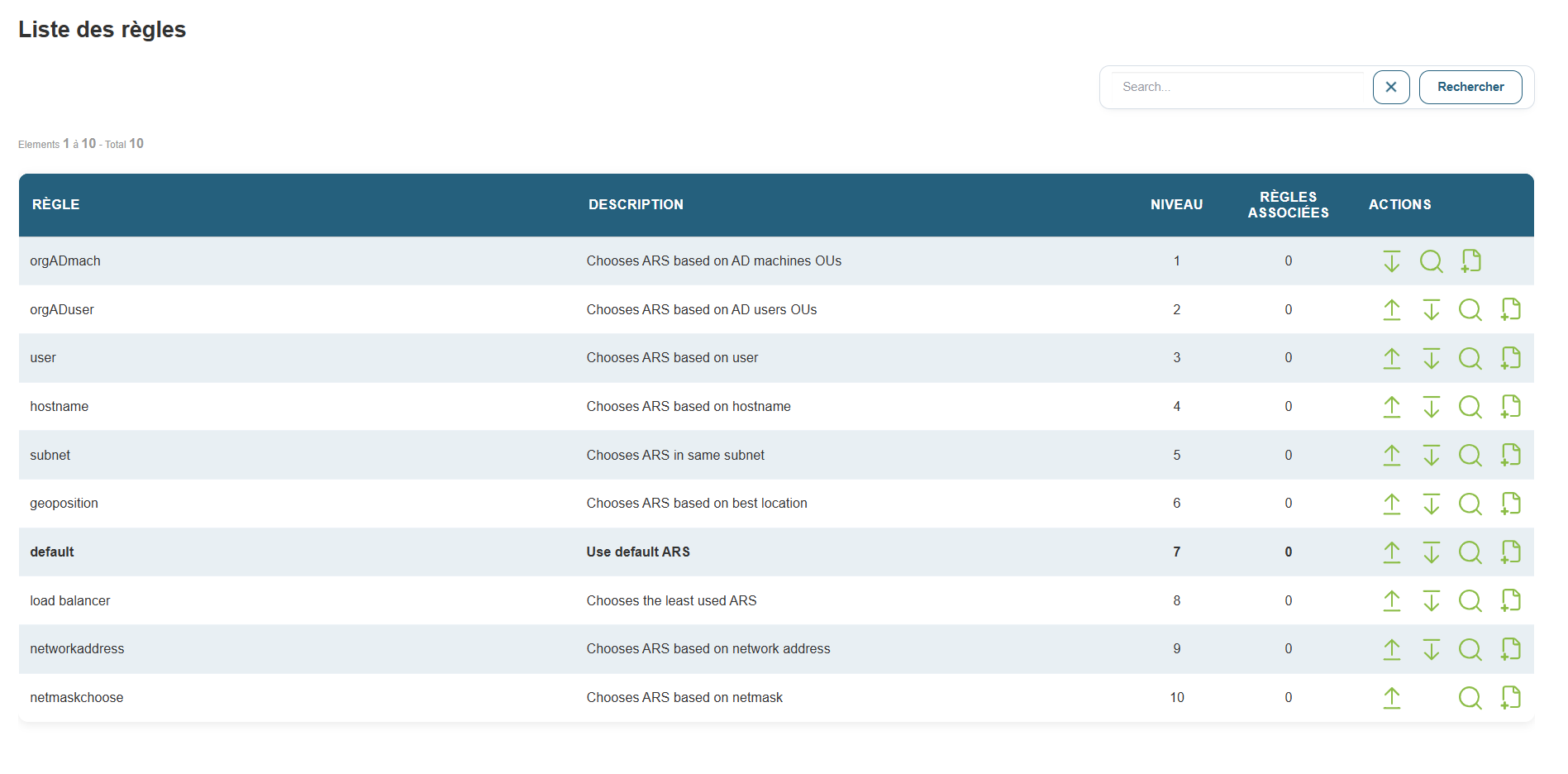
- List of rules
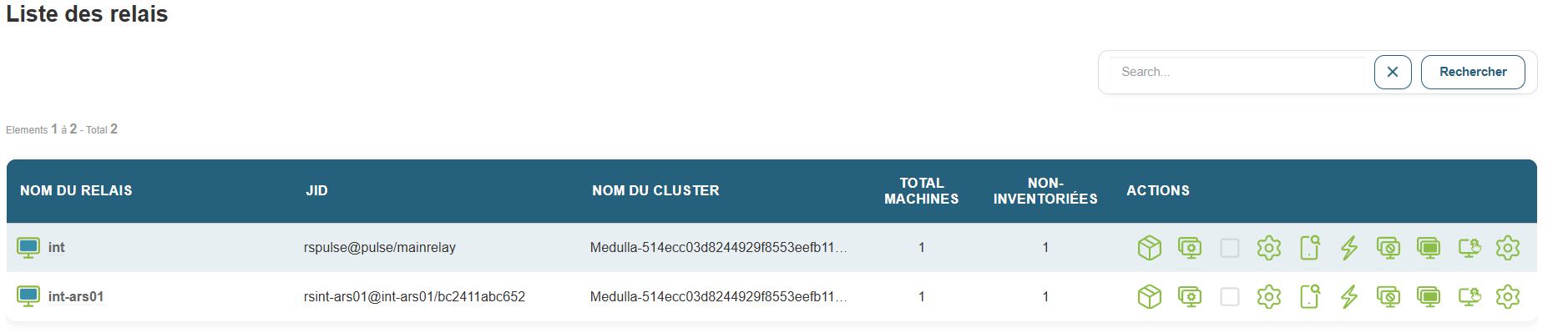
List of relays
contains the list of relays currently configured in the system. A relay is an intermediary component that allows XMPP messages to be routed between different servers or clusters. The list of relays contains various pieces of information (relay name, identifier, relay type: public or private, etc.). This helps us see which relays are in place and allows us to monitor or diagnose these components.
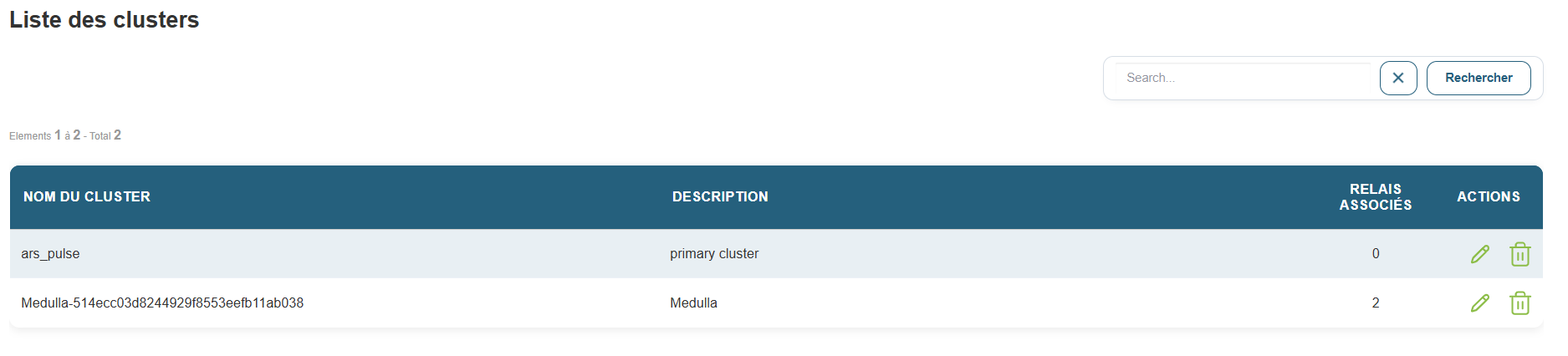
A cluster is a group of servers, so the list of clusters displays the list of server groups and contains information about these groups (name, descriptions, associated relays, or actions performed). This allows us to better organize the network structure and manage communications between servers.
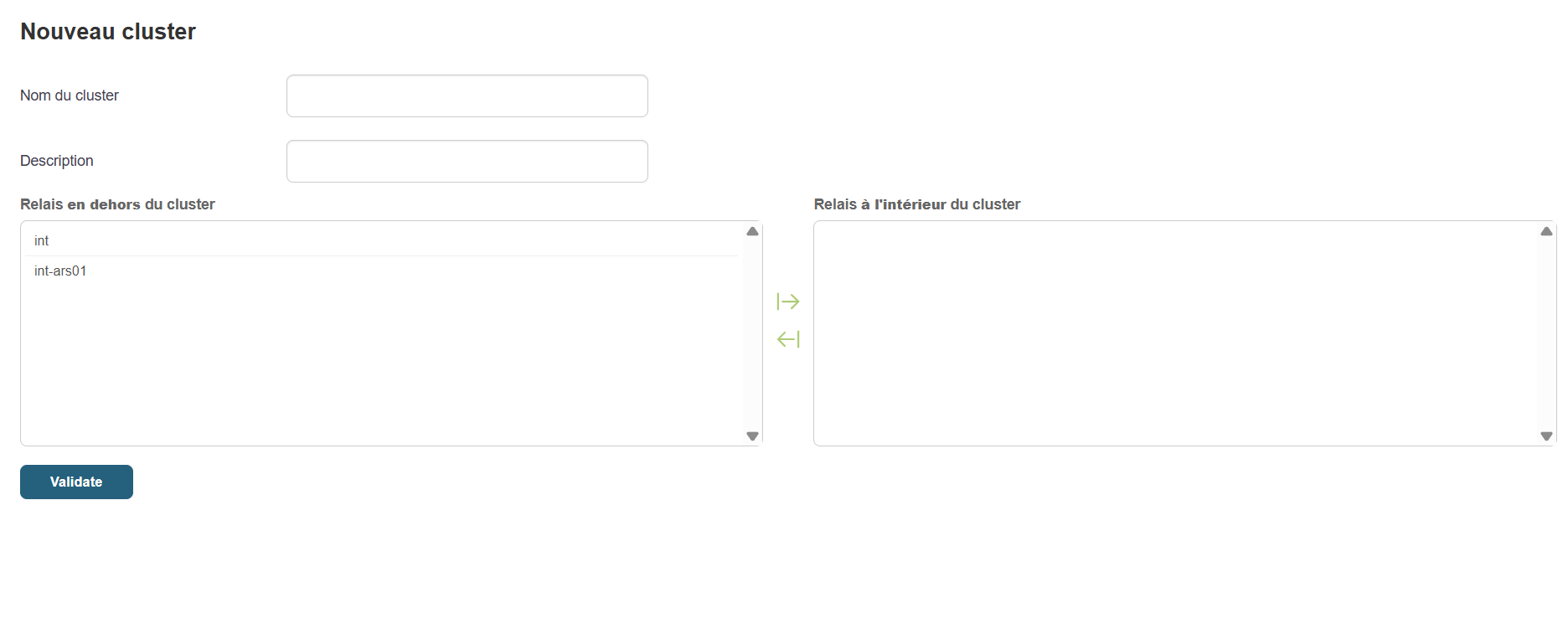
New Cluster
allows you to create a new cluster by entering its name, description, and the relays that are internal or external to the cluster.
Rules
is the option that allows you to choose which relays will be used, the priority level of the rule, as well as the dependencies between them; this section also allows you to create new rules.
For more information, visit our website:https://medulla-tech.io