Chapter 4: Modules
Kiosk

Install applications in full autonomy, gain in reactivity while reducing the burden of your IT teams with the Kiosk: a Medulla module designed to allow users to install the applications they need themselves, without requiring administrative rights.
Main features:

Catalogue of applications
Applications are classified by category.
Each user accesses a customized catalog according to their profile or group.
Installation without privileges
Users can install or uninstall software without IT intervention.
All installations are traced and controlled from the Medulla console.
Managed updates
Manual or automatic updates depending on the configuration chosen.
The administrator defines the versions to be used to ensure compliance.
Central control
Fine management of software access rights.
Ability to restrict certain actions such as uninstalling critical apps.
To learn more or access advanced features, you can view the additional documentation by clicking Kiosk

For more information, visit our website :www.medulla.fr
Computers

the Computers module allows to manage and supervise the machines of the computer park. It centralises the inventory of computers, their configurations and compliance status, as well as alerts related to their proper functioning.
Key Features:
- List all computers : Displays a complete list of all machines saved in the system.
- The Groups: Creates, lists and organizes groups of machines
- Network Alarm: Allows to start a set of machines.
- Configure Computers : Allows you to modify parameters or apply specific configurations to a machine.
- See alerts : Displays system alerts or machine errors (e.g. update problems, failed connections...).
- Find a computer : Use filters to search by name, type of machine, or status.
- Check compliance : Makes sure the machines meet the configuration and update standards.
What is found in the Computers interface?
The interface displays:
- Computer Name
- Technical details (model, operating system, etc.)
- Latest configurations applied
- Status of the machine (online, offline, wrong...)
- Related alerts
- Actions : Edit, configure, or resolve alerts
Where to find him?
The module Computers is accessible via the main menu, under the tab Computers.
- Click on Computers to display the list.
- Use filters to search for a specific machine, or add a new machine if necessary.
To learn more or access advanced features, you can view the additional documentation by clicking Computers.
For more information, visit our website :www.medulla.fr
Imagine

The moduleImagine is designed for system image management, facilitating computer deployment and restoration. It allows to create, modify and apply standardized images on several machines, simplifying the configuration of new devices or the re-installation of systems.
Key Features:
- Create System Image Capture a complete configuration (operational system, software, parameters...) for efficient reuse.
- Edit an existing image : Updates an image by integrating software or recent configurations.
- Deploy Image : Apply an image to several machines simultaneously, guaranteeing homogeneous configurations.
- Restore Image : Allows you to return to a previous configuration by restoring a saved image.
What is found in the Imaging interface?
The module interface offers several essential features:
- Status of the server : Lets you check the availability and status of the associated imagining servers.
- Management of Masters : Administration of master images used for deployments.
- Manage start-up services : Configuration of boot options for the deployment of images.
- Default Start Menu : Start menu settings for imagining.
- Post-imagining scripts : Managing actions to execute after an image is deployed.
- List of profiles and addition of profiles : Creation and administration of profiles
- Configuring the imaginationg : Customize Imagining module settings.
- Sysprep Response File Manager : Configuration of response files for automation of Windows installations.
- Management of groups : Displaying and adding groups of imagining to organize deployments.
Where to find the Imaging module?
The module Imagine is accessible from the main menu, under the tab Imagine.
- Click Imagine to display image list and management options.
- Use Create Image to start a new project, or select an existing image to edit or deploy it.
- See section Status of the server to see the servers available for your entity.
If no imagining server is available for an association, check the configuration or add a server to the dedicated section.
To learn more or access advanced features, you can view the additional documentation by clicking Imagine.
For more information, visit our website :www.medulla.fr
Packages

The module Packages allows create, manage and deploy software packages on computers in the computer park. It facilitates the installation of software, the updating of applications and the deployment of specific configurations on several machines simultaneously.
Main features:
- Create Package : Set the contents of the package, the files to install and the actions to execute.
- Edit Package : Update an existing package by adding software or modifying deployment scripts.
- Deployment of a package : Install a package on one or more computers in the network.
- Manage deployment errors : Check the logs to identify installation failures.
- Follow the package versions Check versions installed on machines and manage updates.
What is found in the Packages interface?
The interface displays several essential sections:
Where to find the Packages module?
The module Packages is accessible from the main menu, under the tab Packages.
For more information, visit our website :www.medulla.fr
Updates

The module Updates allows manage and track the status of software updates on the park's computers. It ensures that all machines comply with the latest security patches, software updates and new versions of operating systems.
Key Features:
- Verify compliance of entities : Analyses the compliance rate of machines to identify those that are up-to-date or require updates.
- Managing Non-Compliance Alerts : Displays missing updates and non-compliant machines.
- Deploy updates : Automatically applies the required updates to the machines concerned.
- Manage Update Lists : Allows to administer and organize the available updates for the computer park.
- Follow compliance rate : Provides statistics on the number of machines that comply, delay or require intervention.
What is found in the Updates interface?
The interface offers several key sections:
Compliance of entities : Display of machine compliance rate by entity (e.g. Siveo Medulla).
Manage Update Lists : Administration of available and pending updates.
Update status Number of missing updates, number of non-compliant machines and total number of computers involved.
Search and Filter : Possibility to search for specific entities or filter by compliance rate.
Where to find the Updates module?
The module Updates is accessible from the main menu, under the tab Updates.
Click Updates to display the machine status and check for non-compliance alerts.
Go to Manage Update Lists to organize and administer available updates.
See Compliance of entities to see the update rate of the machines and detect any anomalies.
For more information, visit our website :www.medulla.fr
Backup

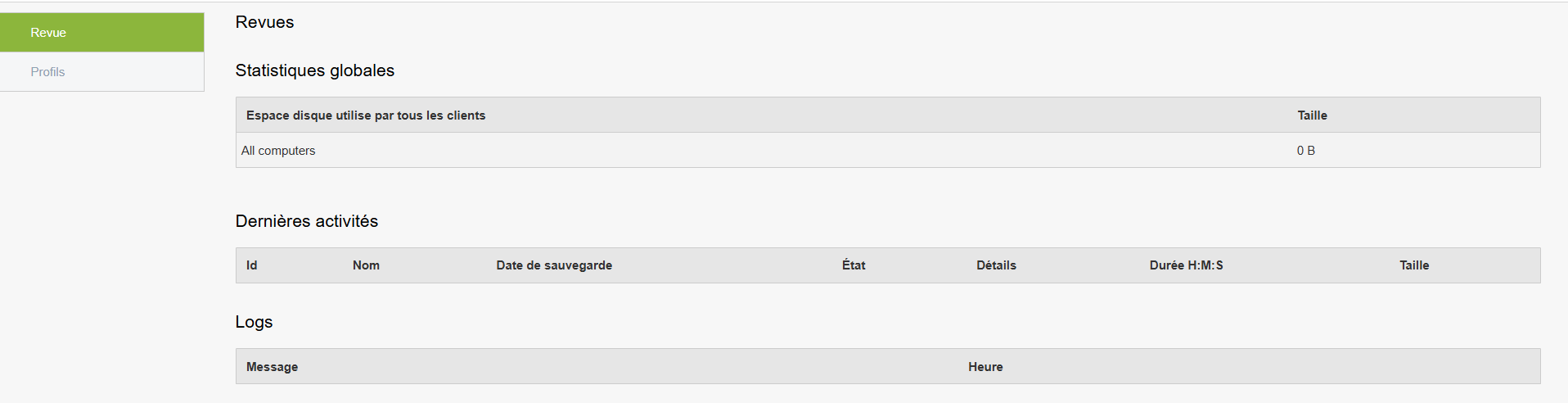
Protect your data, without compromising the Medulla Backup module ensures data protection for your posts and servers. Thanks to effective backup mechanisms and centralized tracking, you have the assurance that your data is safe and recoverable at all times.
Main functions
Smart incremental backup
A full backup is performed only once.
Then, only the modified data are saved, for saving disk space and speed.
Online & offline backups
Possible backups to Remote servers or Local media.
This guarantees double security, even in case of network disconnection or hardware failure.
Restoration in one click
Restore a file, folder or full system image very easily.
Ideal for accidental suppression or critical failure.
Monitoring and alerts
Clear dashboard to view the status of backups.
Automatic notifications in case of error or failure.
Detailed logs (logs) accessible at any time.
For more information, visit our website :www.medulla.fr
Background

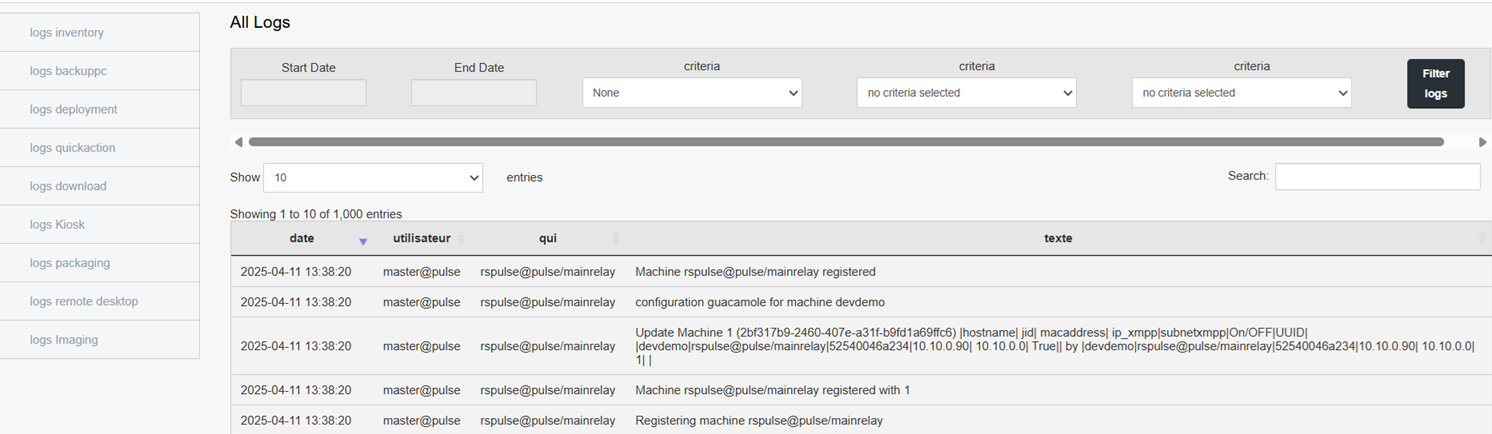
Keep track of each action the Medulla History module allows you to view all the actions performed in your infrastructure. It offers complete and accurate traceability, essential for diagnosis, audit and continuous improvement.
Main functions
Consultation of past actions
View the operations history on machines, configurations, deployments, connections, etc.
Each entry details the hour, user, machine concerned, and action performed.
Advanced filters and research
Filtering by dates, types of logs, users or machinery to quickly target specific action.
Possibility of applying several criteria for fine analysis.
Historical reports
Generate reports over a given period to understand the system's behaviour or identify the origin of a problem.
Useful for audit, compliance requests or technical documentation.
For more information, visit our website :www.medulla.fr
Audit

Accurate and centralized monitoring of activities Audit From Medulla it is possible to centralise all the activities carried out by users, IT teams, and machines, to ensure complete traceability and compliance with the requirements of security and IT governance.
Audit module features
User task monitoring and system
See current or past tasks by a user, group or whole organisation.
View each programmed or executed action, whether deployment, updating, installation or system operation.
Individual and team audit
Access custom views:
- My tasks
- The tasks of my team
- Tasks of all users
Ideal for multi-administrative or shared management environments.
Convergence history
View them Planned convergences (recurring or orchestrated tasks), by user or group.
Watch him status of tasks, their progress, the number of machines involved, and any errors.
Status dashboard
Real-time display of lstatus of the audit platformto ensure the availability of monitoring data.