# Chapter 8: Packages
# List of packages available
[](https://docs.medulla-tech.io/uploads/images/gallery/2025-05/scaled-1680-/ek3image-png.png)
The deployment of packages makes it possible to install, uninstall or perform specific actions on several remote stations in a centralized and automated way. It is a key feature for the management of a computer fleet, offering accurate speed, homogeneity and monitoring.
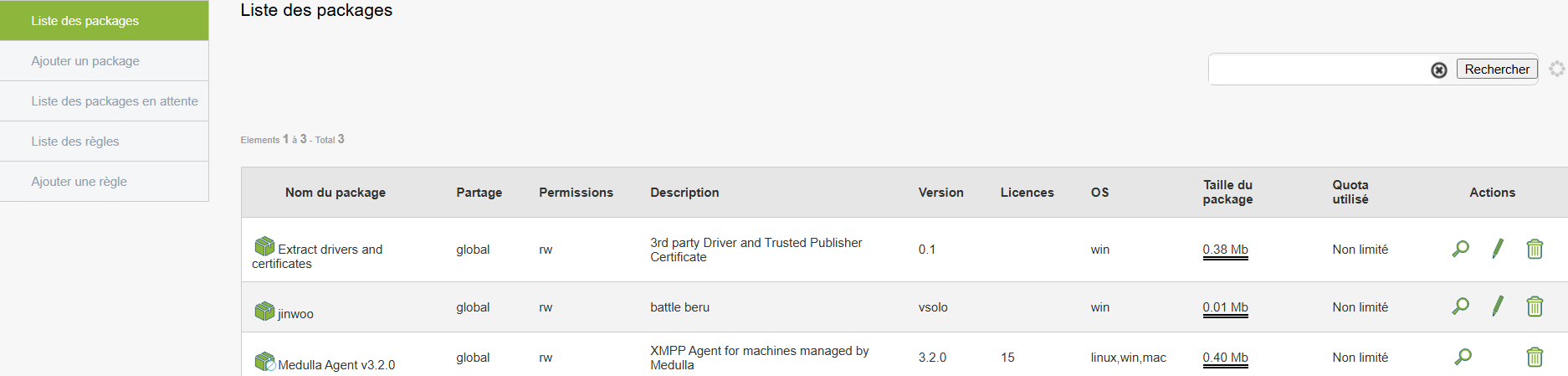
This section displays all packages ready for deployment.
#### Access
Side menu **List of packages**
#### Viewed Content
Each row of the list presents
- The **name** the package
- One **Description**
- The **type of action** (installation, uninstallation, script)
- The **version**
- The **Associated rights**
#### Available functions
- Search by keyword
- Sort list in alphabetical order, date, or version
This allows rapid and organized consultation of available deployment tools.
# Add a new package
**[](https://docs.medulla-tech.io/uploads/images/gallery/2025-05/scaled-1680-/Bn0packageaddparti-png.png)**
**[](https://docs.medulla-tech.io/uploads/images/gallery/2025-05/scaled-1680-/dhxpackageaddpartii-png.png)**
Creating a package consists of setting an action (installation, uninstallation, script...) that will be deployed on one or more posts. The creation form allows you to precisely configure the behavior of the package and its execution options.
From the main menu, click **"Add Package"** to open the creation assistant.
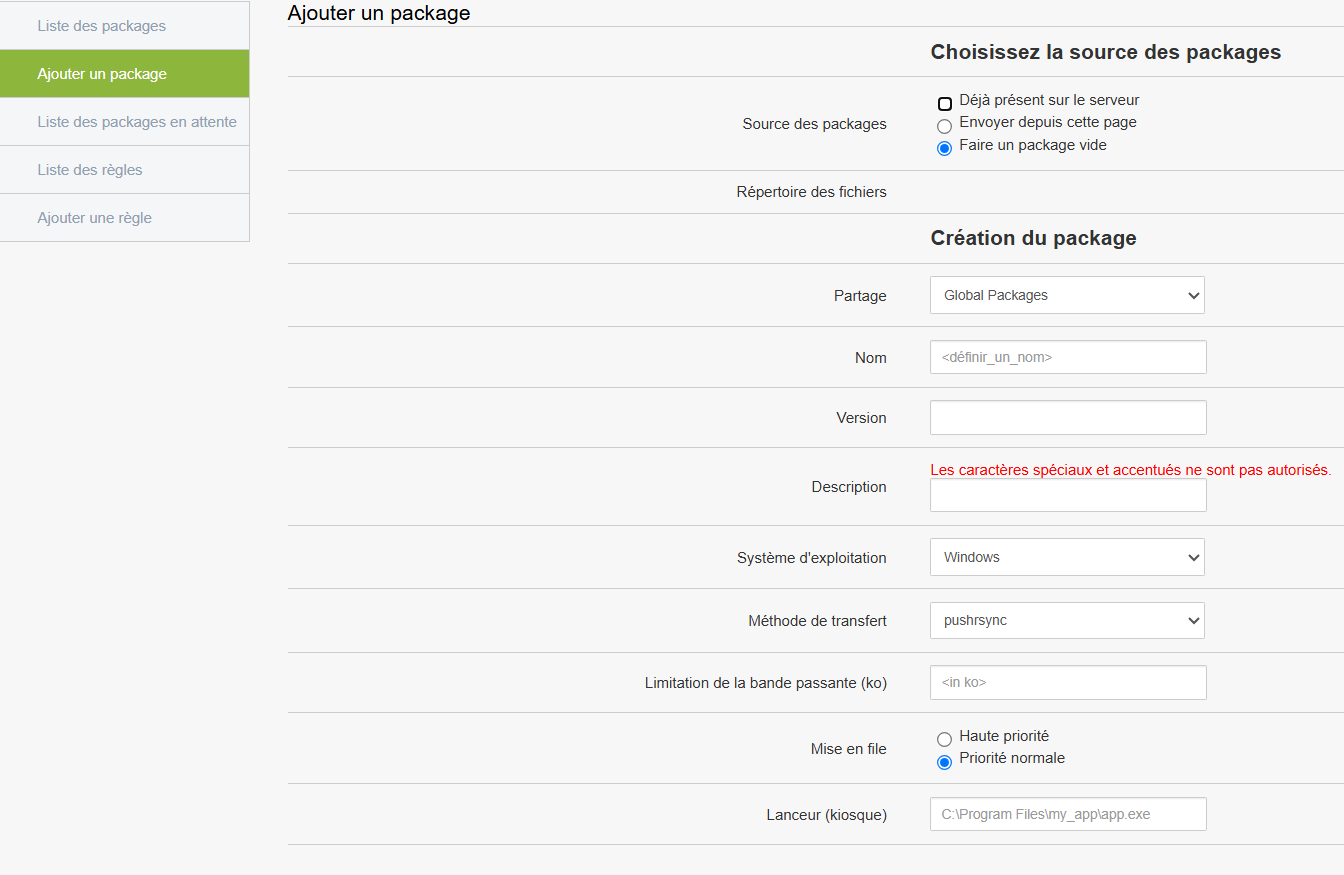
Then select the original files to use in the package. Four options are available:
- **Already on the server**
Use files previously transferred to the server.
- **Send from this page**
Import installation files directly from your desktop.
- **Make an empty package**
Creates a package without initial content, to be completed later.
- **File directory**
Use a shared directory containing the files to deploy.
#### General information to be provided
##### Sharing
Choose*Global Packages* to make the package visible throughout the platform.
#### Name
Give an explicit name to the sample package: Install\_Chrome
*Special and accented characters are not allowed.*
##### Version
Indicate an example version number:1.0.0.
##### Description
Briefly summarize the objective of the package.
##### Operating system
Select the target OS, for example:*Windows*.
#### Define the technical modalities of deployment
##### Method of transfer
Generally use pushrsync (recommended).
##### Bandwidth limitation
Optional value to limit the speed of the transfer ex 500
Choose between*High priority* or *Normal priority*, depending on the urgency of deployment.
##### Launcher
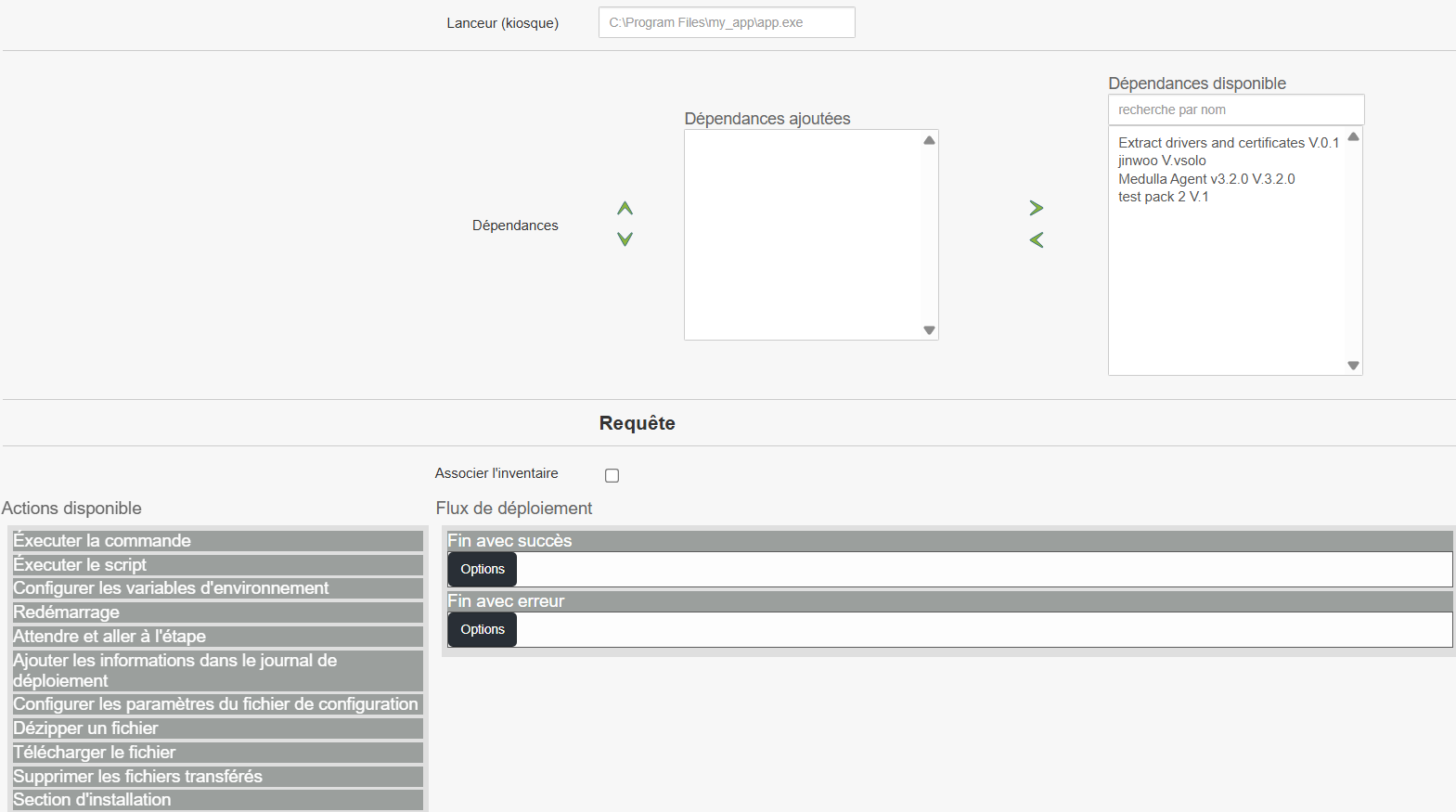
Specify the path to the executable file that must be started after installation (e.g.:`C:\Program Files\my_app\app.exe`).
**If your application requires other components to work**
Find and add the necessary dependencies via the available list (examples:`Extract drivers`, `Medulla Agent`).
Added dependencies will appear in the corresponding section.
##### Associate with inventory
Enable this option to allow the package to be tracked after installation.
##### You can add custom actions to the package, depending on your needs:
- Run a command or script
- Configure environment variables
- Restart post after installation
- Wait and move on to the next step
- Add information to deployment log
- Edit or configure a parameter file
- Uncompress, download or delete files
##### The package may consist of several stages depending on its life cycle
- **Installation Section** : for the first installation
- **Update Section** : when switching to a new version
- **Disinstallation Section** : to delete the program
##### To interact with the end user
- **Notification booth** : Display information in user space
- **User notification** : Message displayed on the screen
- **Question to the user** : Conditional interaction (e.g. timing)
- **Deferral options** : Allows to delay installation
##### Define package behavior at the end of the process
- **Successful end**
The step can be named `END_SUCCESS`. Allows to trigger a final action.
- **End with error**
The step can be named `END_ERROR`. To manage errors or failures in deployment.
- **Inventory**
Option available if a change in the position is detected following deployment.
- **Remove Package**
Enable this option if the package should be deleted after execution (rarely used in standard deployments).
##### Once all sections are configured and verified
Click **Add** to save the package.
It will then be accessible from the library to be used in a deployment rule or triggered manually.
# Packages pending deployment
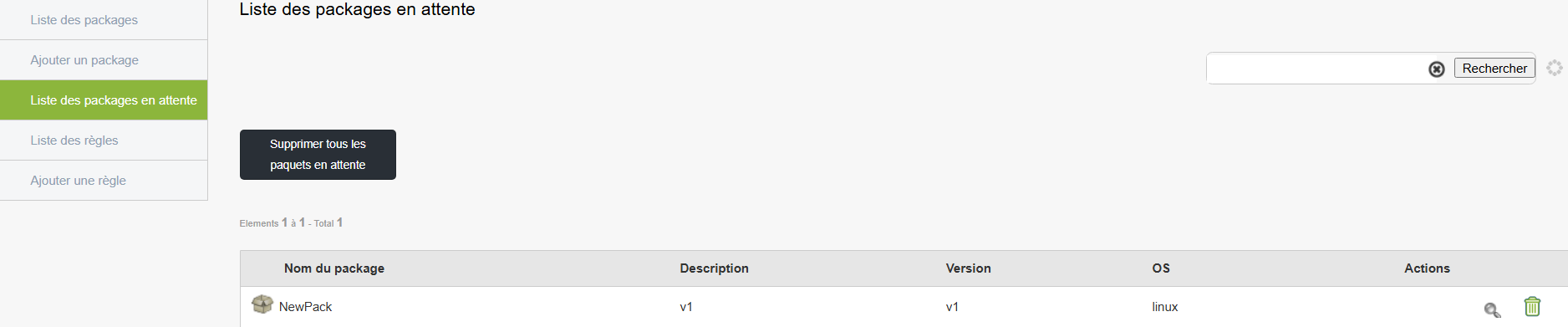
This section allows you to view packages that have been created or added but have not yet been sent to the target posts. It is mainly used to organize, verify or delete pending actions before they are executed.
[](https://docs.medulla-tech.io/uploads/images/gallery/2025-05/scaled-1680-/sAnwaitingpackage-png.png)
**Access:**
Side menu → **Pending packages**
**Section content:**
Once in this page, a list of all queued packages is displayed with the following information for each entry:
- **Name of package**
- **Description**
- **Version**
- **Target operating system**
- **Available actions** (to the right of each line)
**Possible actions:**
- **Show state of mirrors** : allows checking the available mirror servers for distribution of the package.
- **Remove pending packages** : button to remove a specific package from the list.
- **Delete all pending packages** : General button at the top of the page to empty the entire queue if necessary.
- **Find a package** : search field to filter the list by name or version.
> Note: This page does not allow directly to **launch** a deployment, but it helps you control the items still in queue. Deployment is usually done from another dedicated section or via an action triggered through a scenario or rule.
# List of deployment rules
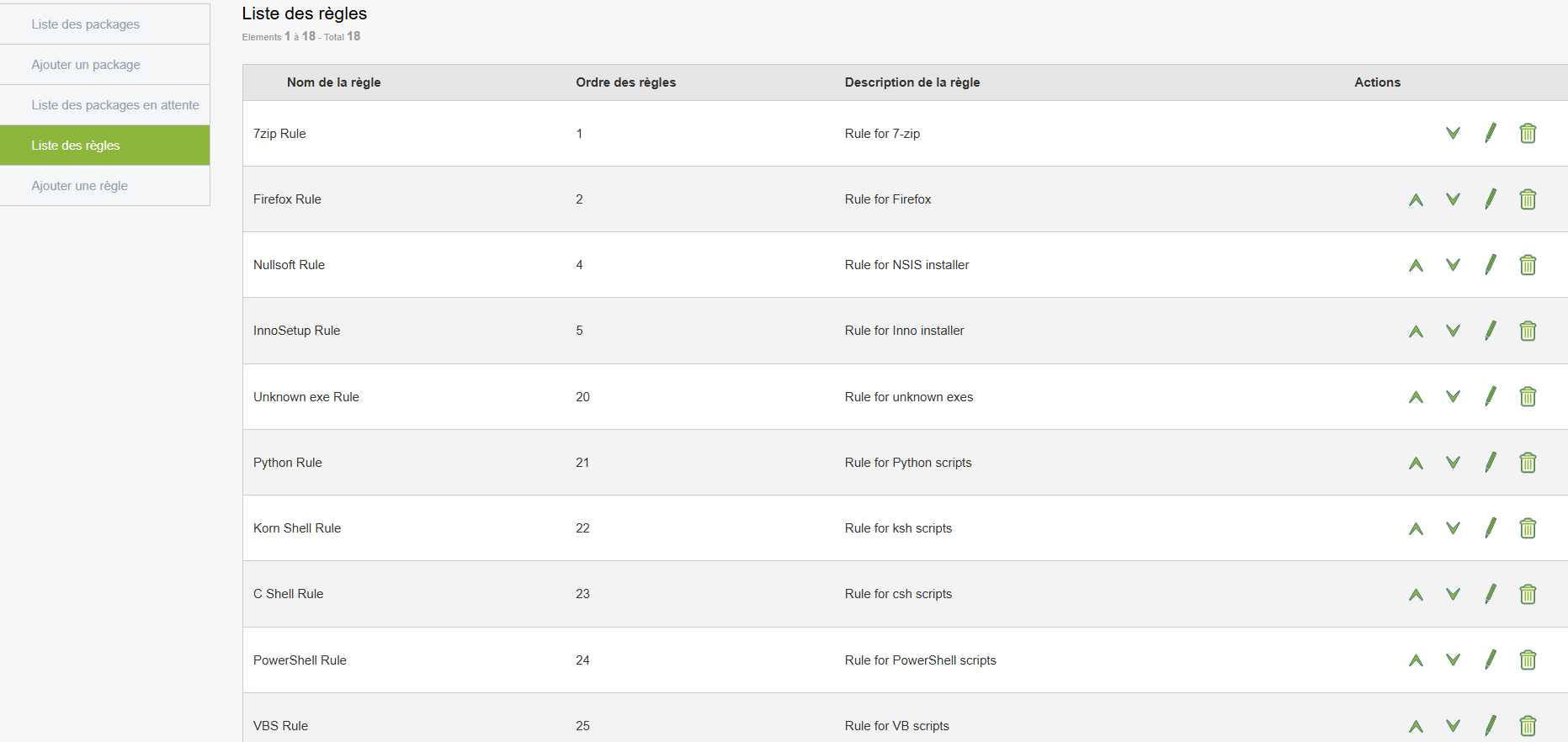
Deployment rules allow for planning or limiting deployment according to specific criteria (time range, type of machine, group of users...).
[](https://docs.medulla-tech.io/uploads/images/gallery/2025-05/scaled-1680-/yiiruleslistparti-png.png)
**Access:**
- Side menu → **List of rules**
**Available information:**
- List of existing rules with their conditions
- Examples of criteria:
- Name
- Order
- Descriptions
- Actions:
- Increase or decrease the priority of the rule
- Edit Rule
- Delete Rule
# Add Custom Rule
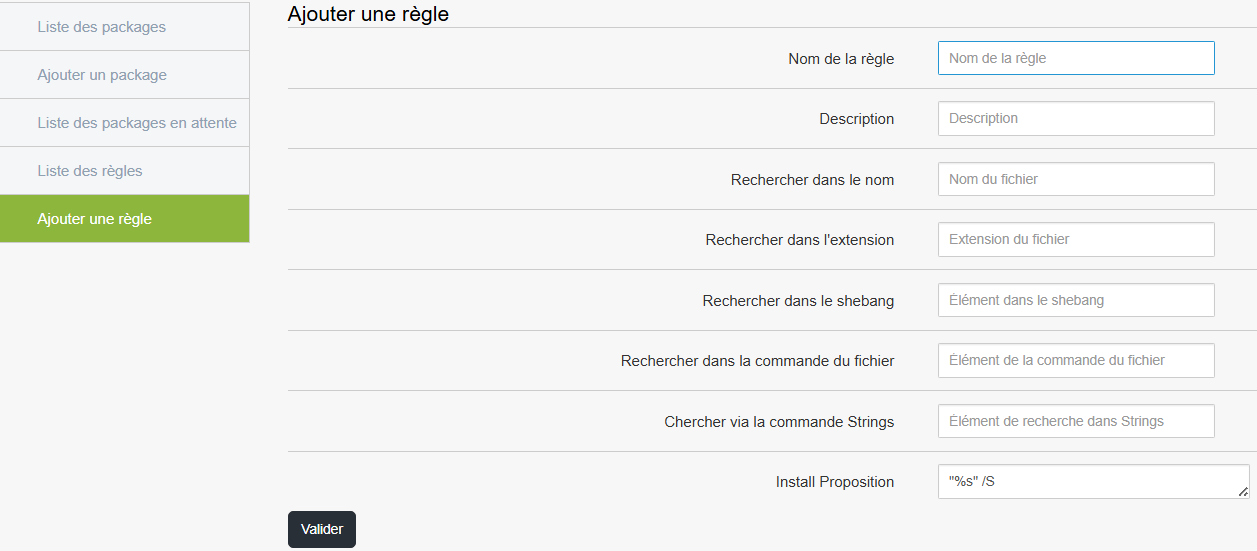
Creating a rule allows you to define precisely when and on which machines a package will be deployed.
[](https://docs.medulla-tech.io/uploads/images/gallery/2025-05/scaled-1680-/9Etrulesadd-png.png)
**Steps:**
1. Side menu → **Add Rule**
2. Define conditions:
- Example: Run every Monday at 9 a.m. on Windows 11 posts in Building A
3. Associate this rule with one or more packages
4. Save
The rule is now activated and automatically applied when its conditions are met.
# Launch and track deployment
When your packages and rules are ready, you can launch deployment on the targeted machines.
**Steps:**
1. Side menu → **List of packages**
2. Select Package
3. Click on **Start Action** or **Deployment**
**Real-time tracking:**
- Progress is visible from the interface
- The machines go back to their condition: Ongoing, Successful, Failed
**In case of failure:**
- Go to the section **Monitoring of actions**
- See the detailed error report (examples: machine turned off, rights error)
- Correct if necessary, then restart the action without having to start over
#### **Conclusion**
With this feature, you can centralize and automate all your software installations and system actions across your fleet. You save time, ensure consistency of positions, and have accurate control over each deployment.