# All groups

## Favorite groups

Once computer groups are created, you can **mark some as favorites** for quick access.

Favorite groups are useful for:

- Teams that regularly work on the same set of positions
- Preparation of clustered action scenarios (imagining, updating, etc.)
- Monitoring critical or sensitive machines

## All groups

**![image.png](https://docs.medulla-tech.io/uploads/images/gallery/2025-05/scaled-1680-/ElZimage-png.png)**

This section displays **all groups** computers available in your Medulla instance. You can manage all groups centrally and carry out large-scale actions, such as:

- **Software deployment**
- **Installation of updates**
- **Remote restarting of machines**
- **Export of reports in CSV format**

It also allows for a large-scale set of actions, such as software deployment, installation of updates, reboot of remote machines, or export of reports in CSV format

## Add Group

Medulla offers several ways to structure and organize your computer park through a flexible group system. When creating a group, you can choose between several methods:

### Creating a dynamic group

![image.png](https://docs.medulla-tech.io/uploads/images/gallery/2025-05/scaled-1680-/du9image-png.png)

The **dynamic groups** allow you to automatically target machines according to predefined criteria. These groups automatically update as soon as a machine meets or no longer meets the chosen criteria.

Modules available for creating a dynamic group:

- **GLPI** : requests based on GLPI inventory (OS, hardware status...)
- **XMPPMaster**: requests related to XMPP actions (real time communication, monitoring...)
- **Group**: to cross or filter existing groups

<p class="callout info">Dynamic groups are particularly useful in constantly changing environments or for automated targeted deployment</p>

### Creation of a static group

[![image.png](https://docs.medulla-tech.io/uploads/images/gallery/2025-05/scaled-1680-/RhBimage-png.png)](https://docs.medulla-tech.io/uploads/images/gallery/2025-05/scaled-1680-/RhBimage-png.png)

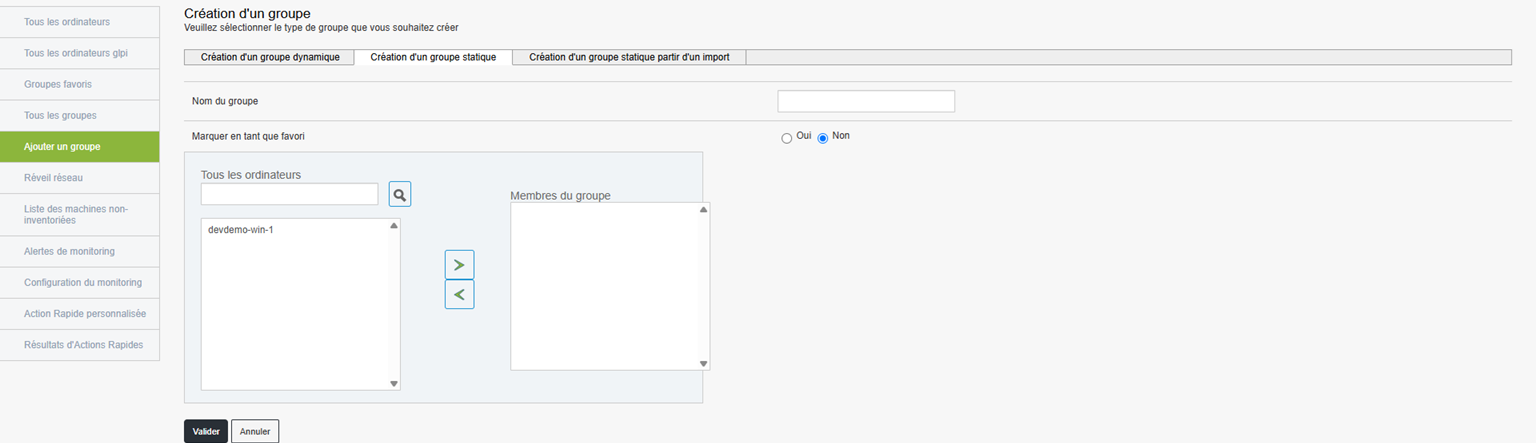
The **static groups** are created manually, explicitly selecting the machines to include. Unlike dynamic groups, the composition of a static group does not change automatically. You will need to add or remove machines as needed.

#### Operation:

- **Name of group** : Give a clear and relevant name to the group.
- **Favorite** : Check this option if you want the group to be easily accessible from the favourite groups menu.
- **Selection of machines** Choose the computers to include in the group from the list of available machines.

##### Typical examples of use:

- Create a group of **Test machines**.
- Prepare a set of computers to **manually configure**.
- Follow one **fixed set of items** in a specific context.

<p class="callout info">The static group is ideal for specific contexts or tracking  
</p>

### Creation of a static group from an import  

![image.png](https://docs.medulla-tech.io/uploads/images/gallery/2025-05/scaled-1680-/AHmimage-png.png)

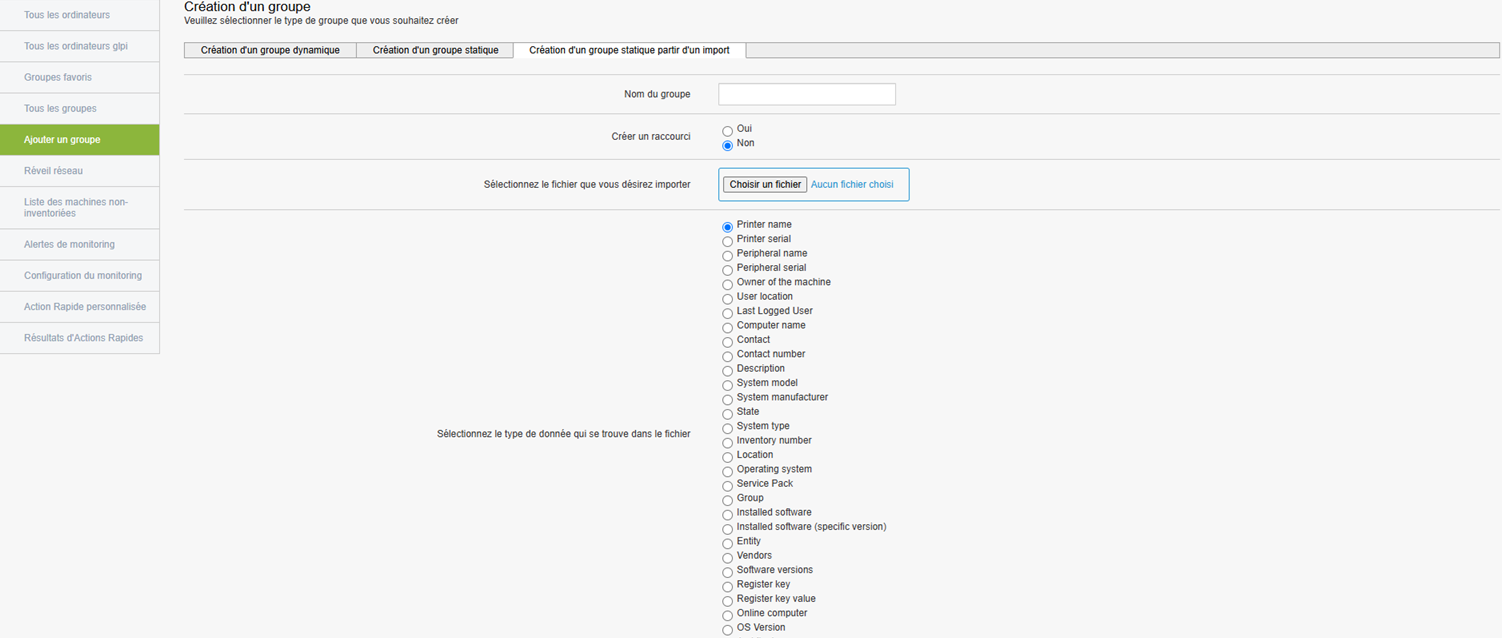
If you already have a list of machines (in format **CSV** or **Excel**), you can easily create a group from this file.

#### Creation Steps:

- **Name of group** : Enter a name for the group.
- **Favorite** : Check this option if you want the group to be a favourite.
- **Import File** : Click "Choose a file" to import your list (formats **CSV** or **Excel** compatible).
- **Define data types** : Indicate the types of data contained in the file (e.g., Machine Name, User, Inventory Number, Operating System, etc.).

<p class="callout info">This method is perfect if you retrieve information from an external system or a structured Excel sheet.</p>