# Chapter 10: Updates
# How the WSUS update module works.
Medulla offers an effective solution to replace the WSUS (Windows Server Update Services) server. This guide explains how Medulla’s update module works.
##### How It Works:
Update Source:
Medulla retrieves updates from the wsusscn2.cab file, a database maintained by Microsoft.
Medulla always uses the latest version of this database published by Microsoft.
Updates apply only to Microsoft products, with the exception of major operating system updates (for example, the transition from Windows 10 to Windows 11).
Update Classification:
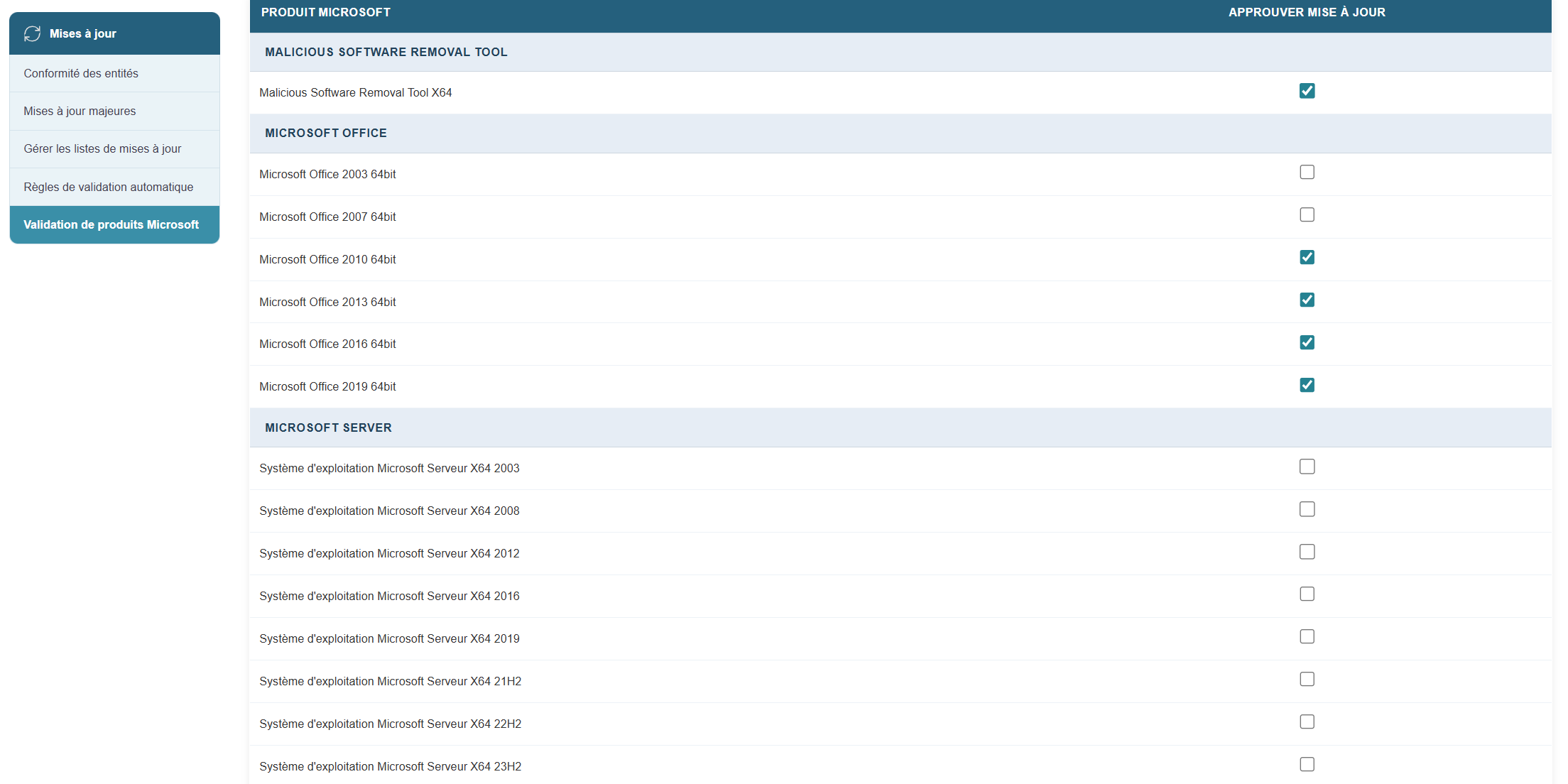
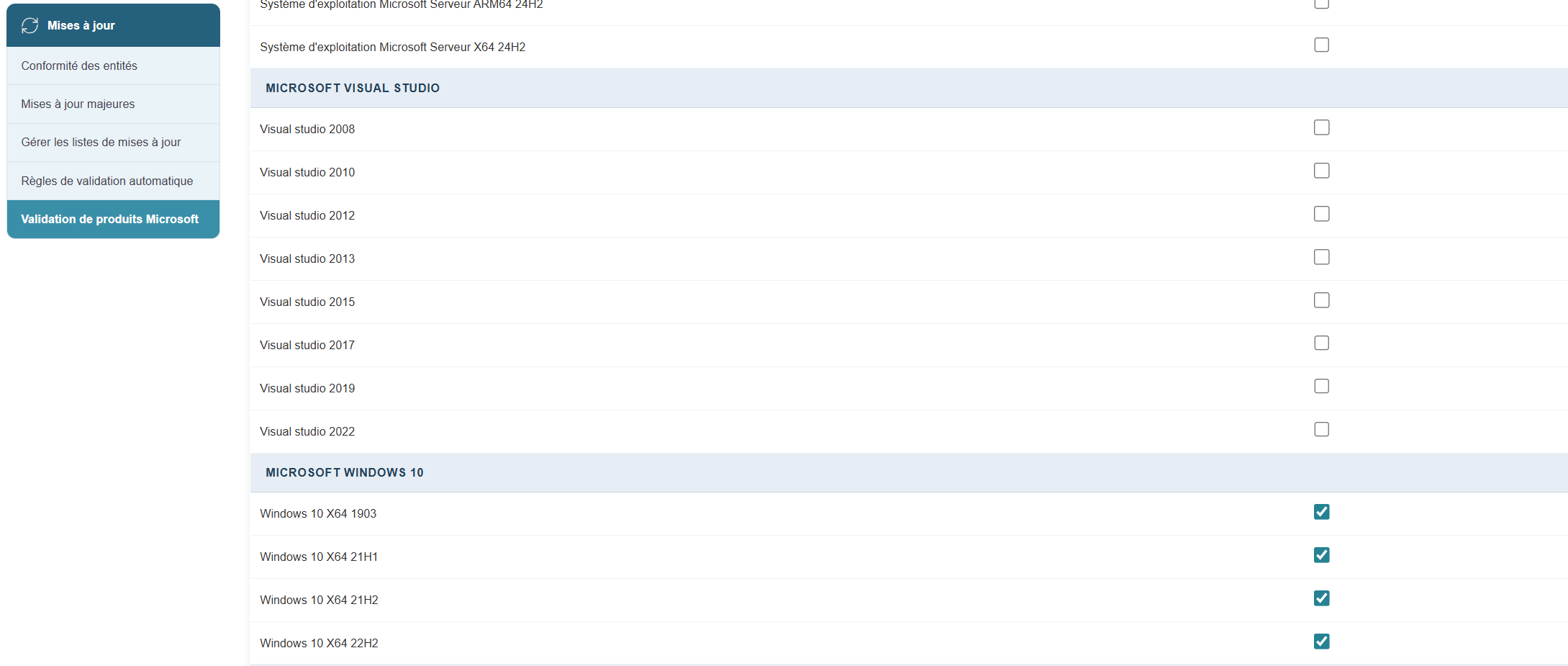
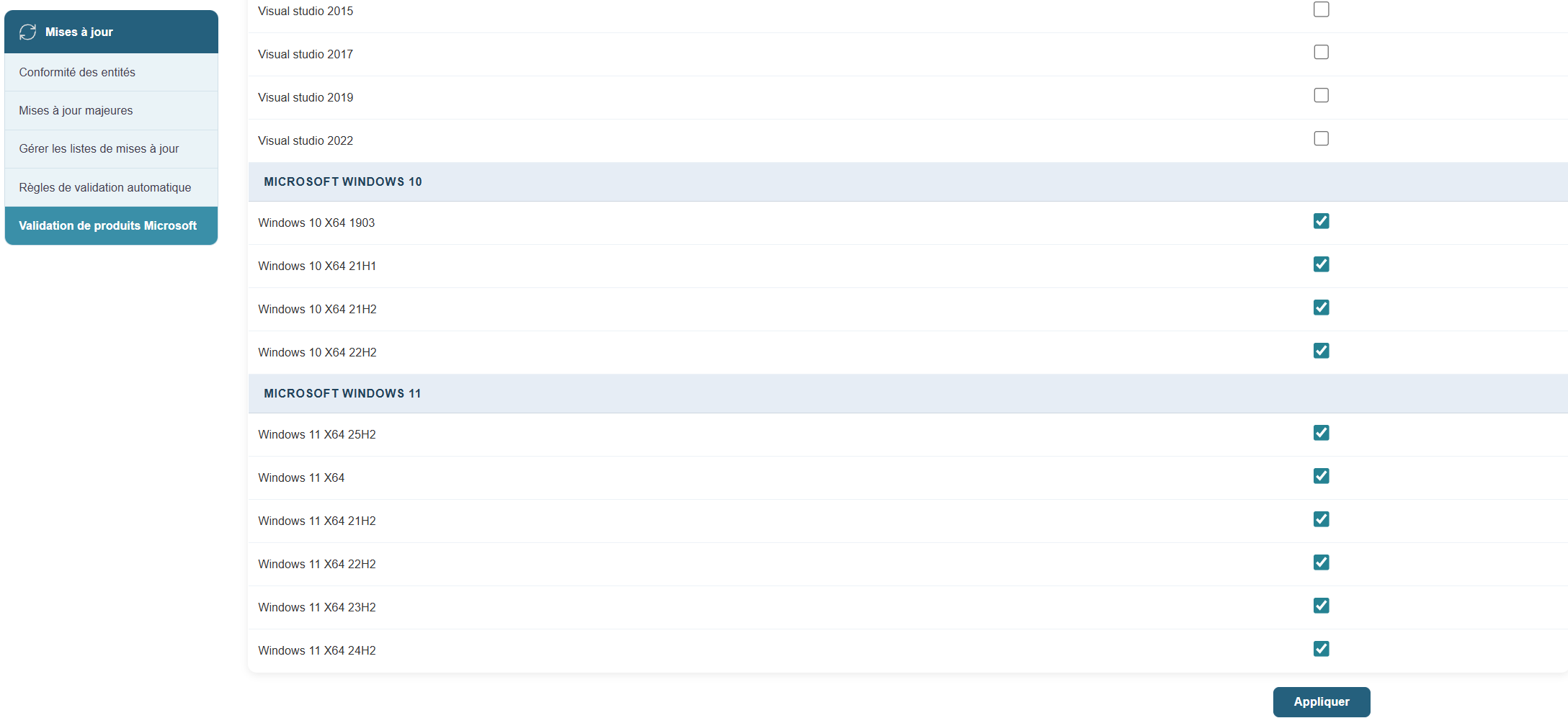
Microsoft updates are classified by product to meet users’ specific needs.
Medulla supports the following classes:
[](https://docs.medulla-tech.io/uploads/images/gallery/2026-03/DVpsh8gIjELN5Eki-image.png)
[](https://docs.medulla-tech.io/uploads/images/gallery/2026-03/ax7J3EBMEVoCLUhR-image.png)
[](https://docs.medulla-tech.io/uploads/images/gallery/2026-03/L0SDagL5zTYGPmVQ-image.png)
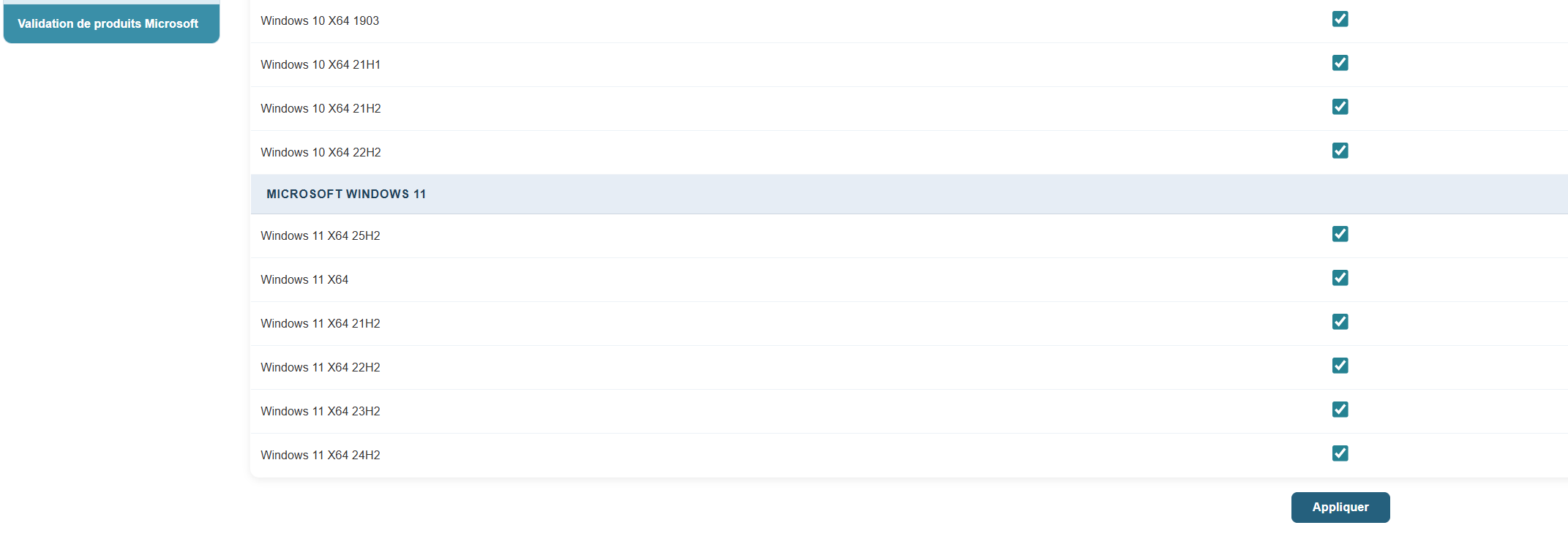
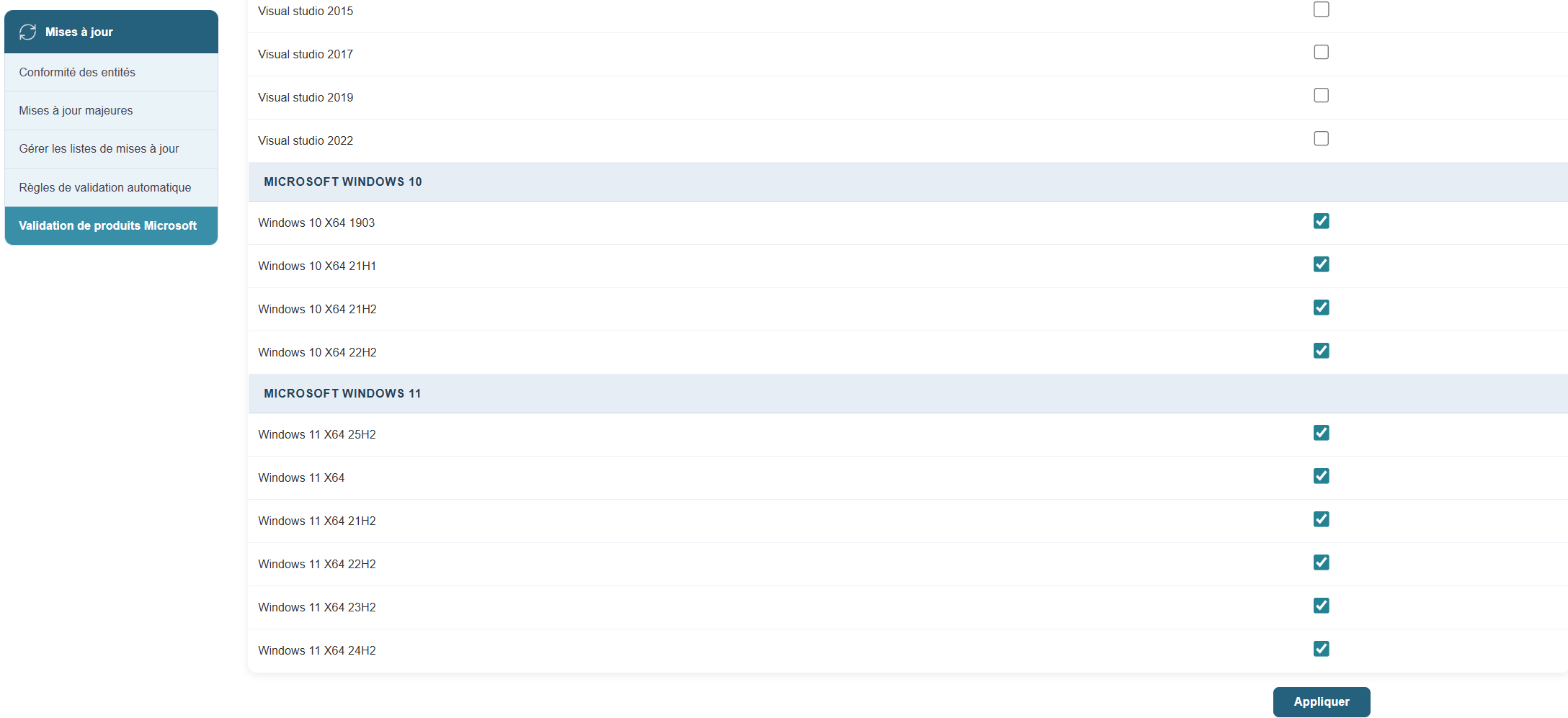
To enable the desired updates:
In the Updates module, click the button:
Validate Microsoft products and select the relevant products.
[](https://docs.medulla-tech.io/uploads/images/gallery/2026-03/tIybYxabclJ9M4e9-image.png)
Machine Status:
Each machine displays its update status, identified by Knowledge Base (KB) numbers.
Medulla determines the necessary updates for each machine based on the list of machine types, processors, etc.
Creating and Distributing Update Packages:
If necessary, Medulla creates an update package and makes it available.
Based on user-defined management rules, Medulla pushes these updates to the machines.
Product Management:
The selection of products to be included is managed in the database.
Simply request that a specific product be included, and it will be integrated into the update process.
Conclusion
Medulla simplifies and automates update management for Microsoft products, offering an efficient and customizable alternative to the WSUS server. By following this guide, you can configure and use Medulla to keep your systems up to date in the best possible way.
# Entity Compliance
Update management is a key factor in ensuring the security, stability, and consistency of your IT environment. Using the tools provided by the platform, you can precisely identify which entities need updating, track overall compliance, and take targeted, phased, and optimized action.
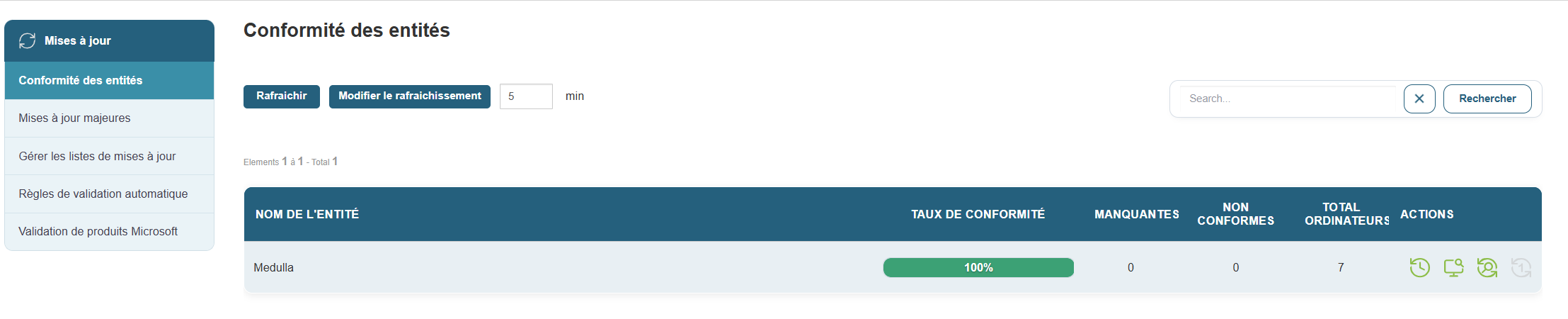
**The Entity Compliance** section provides a clear overview of the update status for each set of machines. It allows you to immediately identify entities at risk or requiring action.
[](https://docs.medulla-tech.io/uploads/images/gallery/2026-03/Hdxm2tw3FMDD6w1f-image.png)
##### Access:
Side menu → **Entity Compliance**
##### Table displayed:
- **Entity Name**: e.g., *Siveo Medulla*, *Siveo Medulla > Private*
- **Compliance Rate**: percentage of up-to-date machines
- **Missing updates**: total number of uninstalled patches
- **Non-compliant machines**: number of non-standard workstations
- **Total computers**: number of machines in the entity
##### Example:
##### Available actions:
- **View details**: access the complete list of missing updates, including affected workstations and deployment attempt history
- **Search / filter**: by entity name, compliance status, or number of missing updates
This view is ideal for planning update campaigns, preparing audits, or measuring the effectiveness of your security policy.
## Compliance Tracking
Update compliance is an indicator of your fleet’s health. The higher it is, the more protected and aligned your systems are.
##### **Best practices:**
- Regularly check entities with a compliance rate below 100%
- Analyze the causes of non-compliant machines (deployment errors, missed reboots, software conflicts, etc.)
- Launch a new targeted deployment from the affected entity
Managing updates is not just about fixing issues. It is a proactive, continuous, and strategic process. With the compliance tools offered by the platform, you can:
- Quickly view at-risk devices
- Intelligently deploy the necessary patches
- Minimize the impact on the network and users
- Maintain a high level of security across your infrastructure
# Entity Compliance Tracking
Update compliance is an indicator of the health of your IT infrastructure. The higher it is, the more protected and aligned your systems are.
##### **Best practices:**
- Regularly check entities with a compliance rate below 100%
- Analyze the causes of non-compliant machines (deployment errors, missed reboots, software conflicts, etc.)
- Launch a new targeted deployment from the affected entity
Managing updates is not just about fixing issues. It is a proactive, continuous, and strategic process. With the compliance tools offered by the platform, you can:
- Quickly view at-risk devices
- Intelligently deploy the necessary patches
- Minimize the impact on the network and users
- Maintain a high level of security across your infrastructure
# Manage update lists
Medulla’s update management module replaces Microsoft’s WSUS solution.
How it works:
The Medulla server retrieves the list of updates—available based on the criteria defined during server installation or configuration—and makes them available to the various client machines managed in Medulla. Each client machine requests the updates it needs from the server; once the server has a complete list of each machine’s requirements, it downloads the relevant updates and makes them available to the clients. Each client workstation will then request the installation of the updates it needs based on the settings of the update lists (Manual Installation, Automatic Installation, or Block Updates).
This operating principle works on a per-entity basis. For each entity, you can manage different update lists.
How it works:
In the interface, updates will appear on the "Manage Update Lists" page:
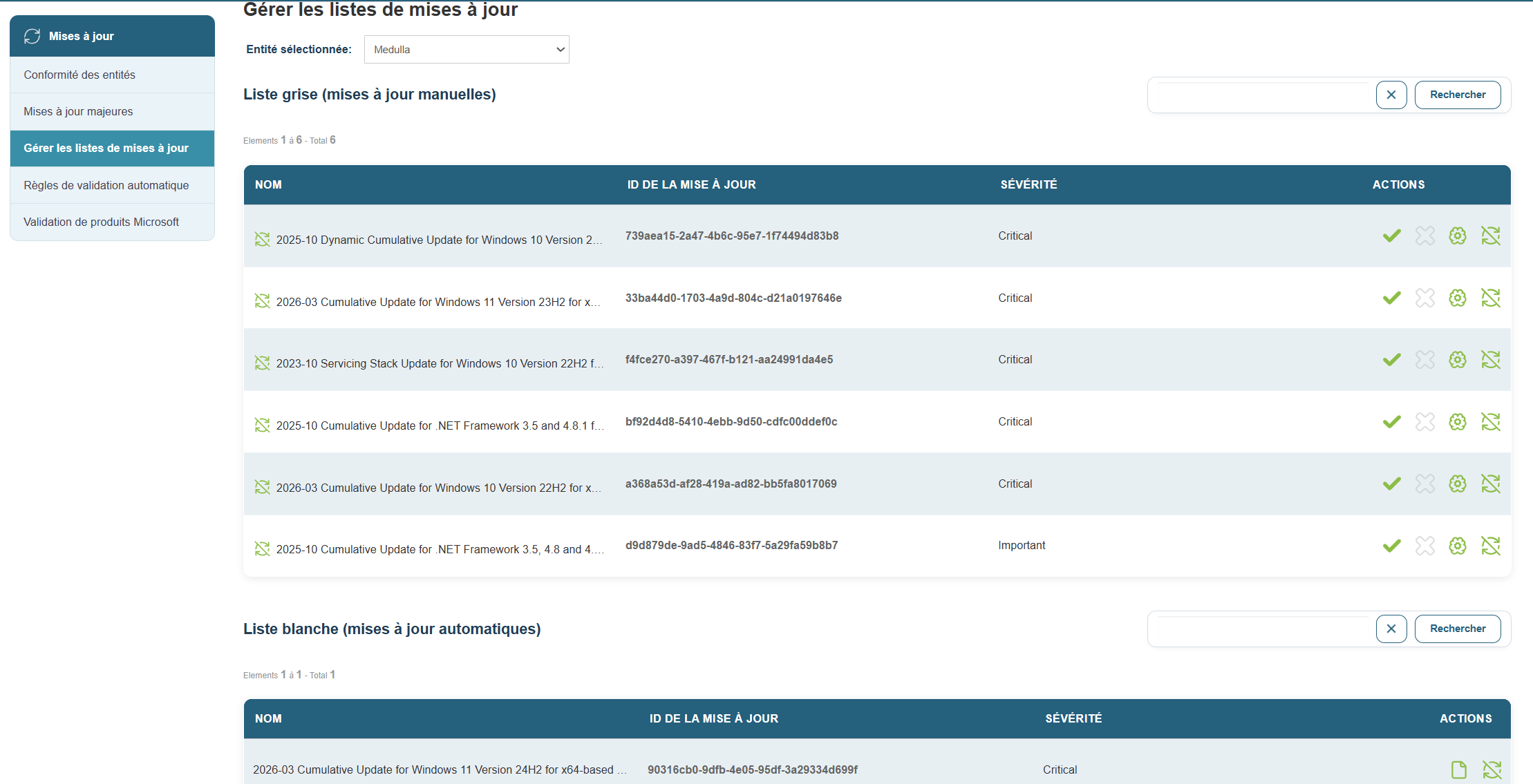
By default, updates are added to the gray list, which corresponds to manual updates.
Several options are available:
[](https://docs.medulla-tech.io/uploads/images/gallery/2025-07/8NdKcelOLO6QCuvn-image.png) Enable for manual update
Disable for manual update
Approve for automatic update
Block the update
If you approve for automatic updates, this moves the update to the whitelist, and all client machines that need this update will then retrieve and install it.
If you click "Block update," the update is moved to the blacklist and will not be offered to any client workstations.
# Upgrading to major OS versions.
The update module in Medulla allows you to perform version updates directly from the Medulla interface via the Major Updates tab:
[](https://docs.medulla-tech.io/uploads/images/gallery/2026-03/xoyPYhgmdEdjUrt2-image.png)
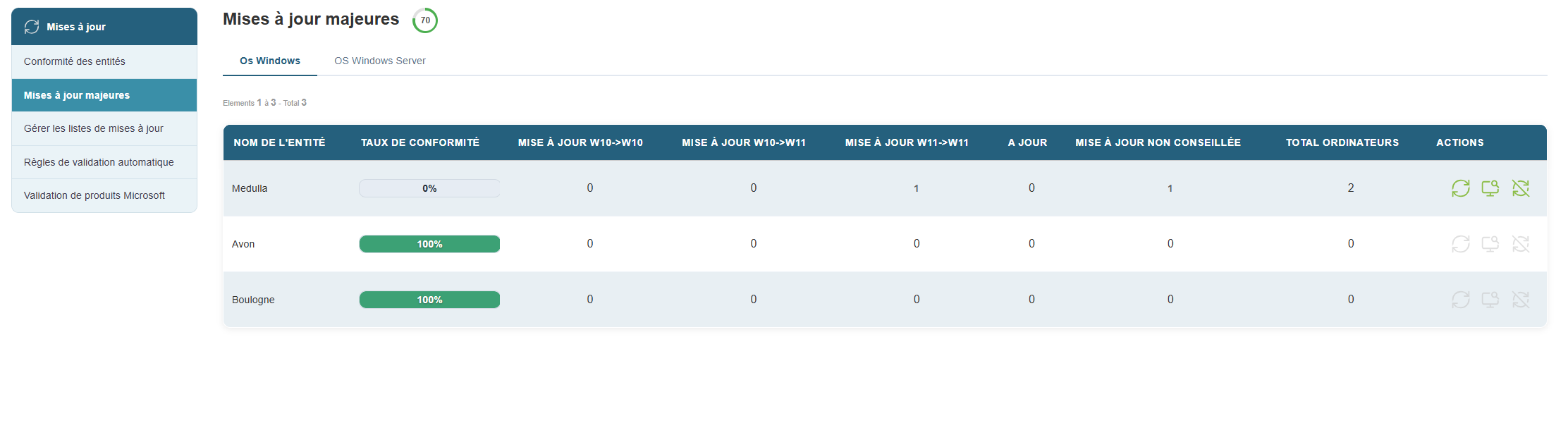
By clicking the Major Updates button, you will see the compliance view and view machines sorted by entity.
For each entity, you will see information ranging from Windows 10 versions up to the update from Windows 10 to Windows 11.
[](https://docs.medulla-tech.io/uploads/images/gallery/2026-03/Pj0pP5Yj5bZAB1Z2-image.png)
Among the information provided are the number of machines, updates from Windows 10 to Windows 10, and updates from Windows 10 to Windows 11.
Medulla includes Microsoft’s prerequisites for upgrading to Windows 11.
In the image below, we can see that 4 machines do not meet Microsoft’s requirements for upgrading to Windows 11.
[](https://docs.medulla-tech.io/uploads/images/gallery/2026-03/wNV2WVwqLYbTtzSv-image.png)
Among the actions available on this page:
[](https://docs.medulla-tech.io/uploads/images/gallery/2025-09/8Cke1T8gR8wsg82K-image.png) This icon allows you to deploy available major updates. If, as shown here, it is grayed out, this means that no machine requires an update or that no machine meets the conditions to receive an update.
[](https://docs.medulla-tech.io/uploads/images/gallery/2025-09/WKhqB3ag5l1A80bq-image.png) Details per machine in the entity (this provides a history for each machine).
[](https://docs.medulla-tech.io/uploads/images/gallery/2025-09/ZKrAQiTGztxsUDpk-image.png) This action lists the machines that cannot be updated to Windows 11 until the prerequisites are met;
By clicking on the details per machine, you will see the following information:
[](https://docs.medulla-tech.io/uploads/images/gallery/2026-03/1TDURTISPbzGPKVv-image.png)
# Automatically approve whitelisted updates.
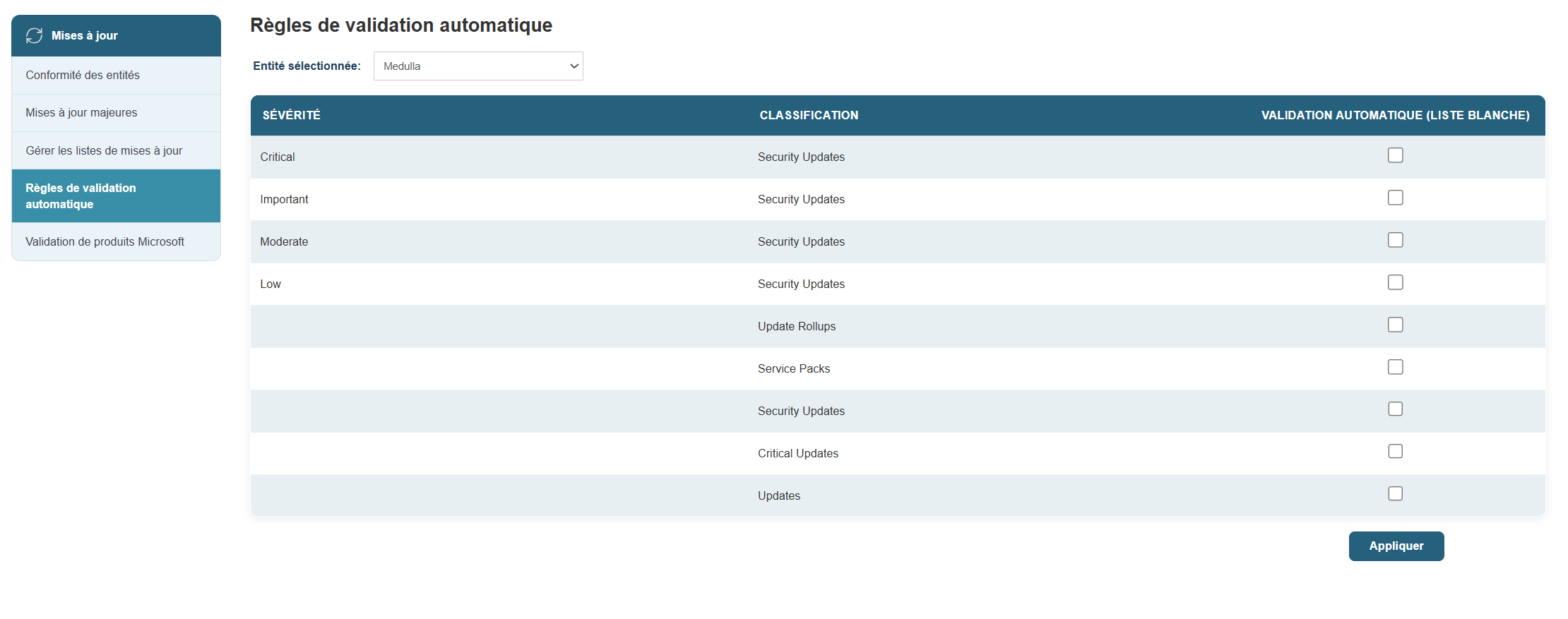
In Medulla’s WSUS module, an option allows you to automatically approve a type of update and thus automatically whitelist it.
Once whitelisted, these types of updates will be deployed to the machines that require them.
To do this:
Click on the Updates tab in the Medulla interface, then click the button in the left-hand menu:
[](https://docs.medulla-tech.io/uploads/images/gallery/2026-03/5tv4L2LiYfY8UDiY-image.png)
Select the types of updates you want to automatically whitelist. Then click the "Confirm" button.
[](https://docs.medulla-tech.io/uploads/images/gallery/2026-03/qMLk09pW8lgFzZUN-image.png)
You will then be redirected to the page.
[](https://docs.medulla-tech.io/uploads/images/gallery/2026-03/7gAT55ifmqwUWu7I-image.png)
You will then be able to see the updates automatically approved in the whitelist:
[](https://docs.medulla-tech.io/uploads/images/gallery/2026-03/AL1EkNV9Qudl8Kj8-image.png)
# Microsoft Product Validation
By going to the "**Microsoft Product Validation**" submenu, you can choose whether or not to validate a Microsoft product category for updating.
[](https://docs.medulla-tech.io/uploads/images/gallery/2026-03/6zydVS7jv80udzN2-image.png)
This system prevents your update module from being cluttered with products you do not wish to manage.
[](https://docs.medulla-tech.io/uploads/images/gallery/2026-01/VCKD8NU65vFzYzPl-image.png)
Simply check the boxes for the desired products and click the "**Apply**" button at the bottom of the page.