Chapter 11: Backup
Enable backup
A good backup policy is the key to a resilient infrastructure. Whether due to hardware failure, human error, or an attack, a properly configured backup solution ensures you can quickly restore data and maintain business continuity without interruption.
Backups can be enabled on a per-user basis or via shared profiles. This allows you to precisely define what needs to be protected.

Access:
Steps:
-
Select the relevant profile or workstation.
-
Click Configure Backup.
-
Define the scope of the backup:
-
Specific files/folders
-
Full workstation backup
-
-
Choose the frequency (daily, weekly, or custom).
-
Click Enable Backup.
Once the backup is active, it runs automatically according to the defined schedule, without interrupting the user.
Track backups
Real-time backup monitoring allows you to verify that all tasks have been executed correctly.
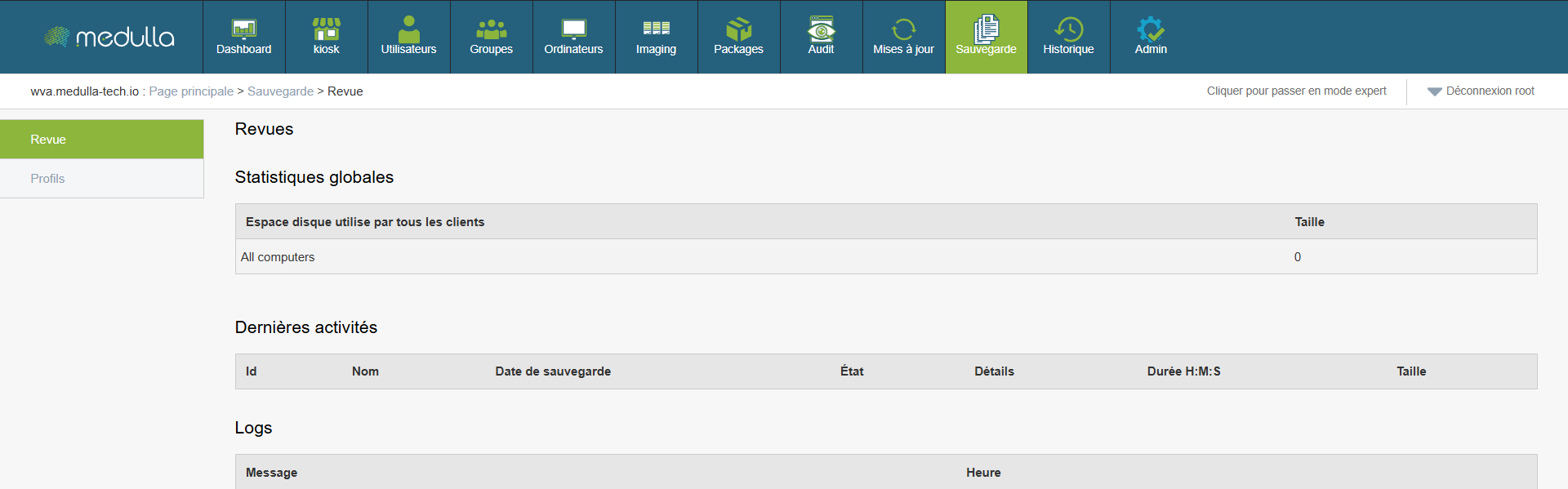
Access:
In case of an error:
-
View the detailed logs.
-
Identify the cause (network connection, insufficient disk space, etc.).
-
Set up alerts to anticipate problems.
Overall statistics
You have key metrics to assess the overall status of your backups.
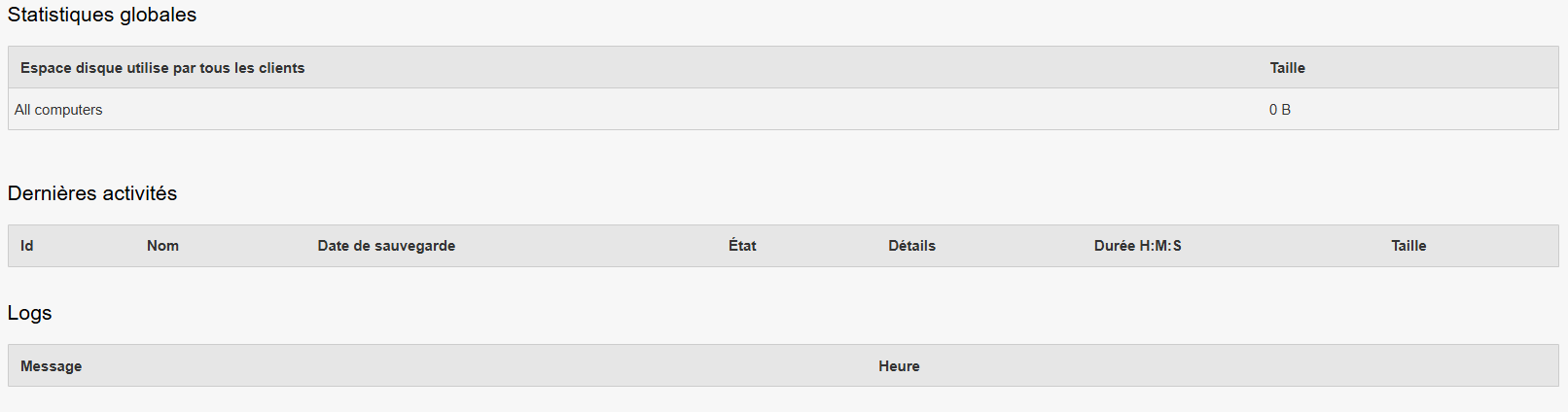
Access:
Review > Global Statistics
-
Disk space used: total size of backups across all clients
-
Active / backed-up machines
-
Successful / Failed Backups
Implementing a backup strategy is not just about preventing data loss—it’s about ensuring business continuity. With the platform, you can:
-
Monitor all activities in real time
-
View your overall efficiency through statistics