Chapter 13: Admin
List of XMPP relays
XMPP relays are communication points between the various machines on your network.
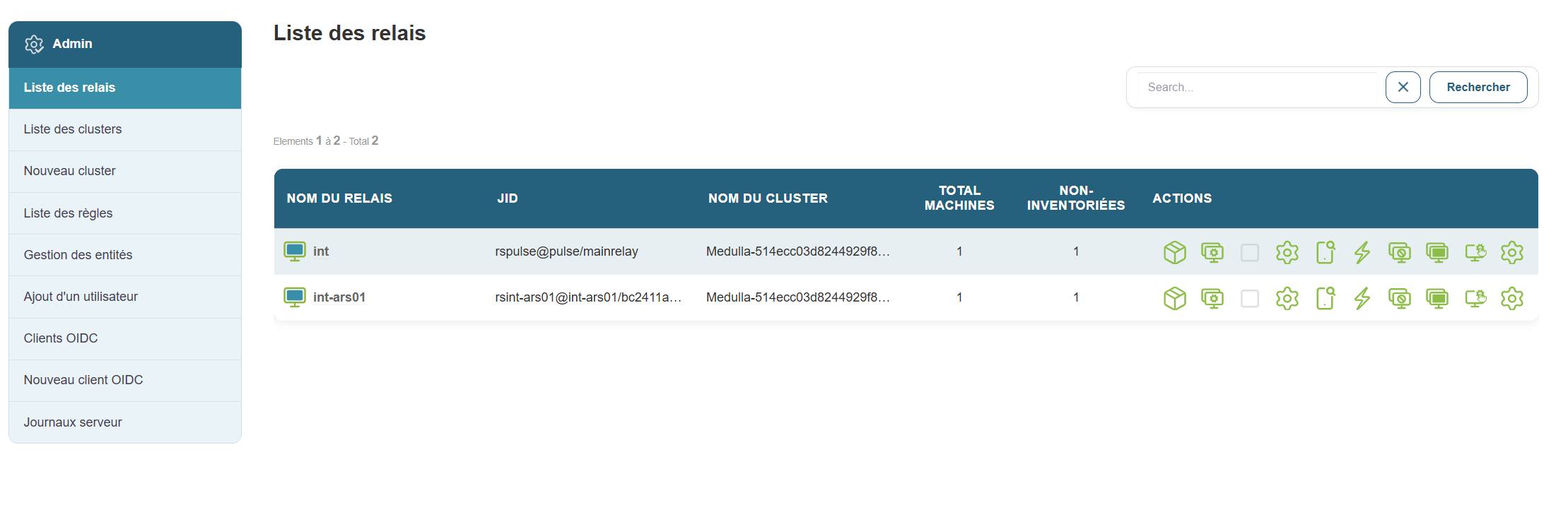
Why this is useful:
This allows you to see all active connections and understand how machines communicate with each other.
Steps:
Tip:
You can search for a relay by typing a keyword into the search bar at the top of the list.
Cluster List
Acluster is a group of relays that are grouped together to organize the network in a more logical way.
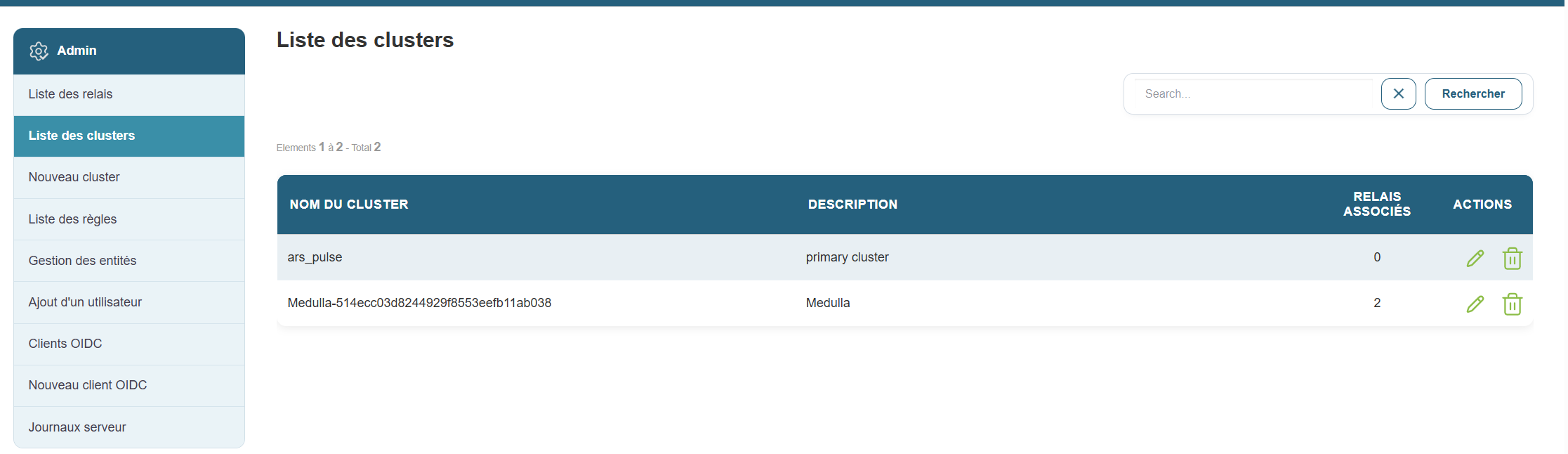
Why this is useful:
It helps you better manage your network, especially if you have different environments (e.g., test, production, etc.).
Steps:
-
Go to the “Clusters List” section .
-
You will see a list with:
-
The cluster name
-
Its description
-
The type (private or public)
-
The relays associated with it
-
Example:
A cluster named “Public-...” can contain all shared public relays.
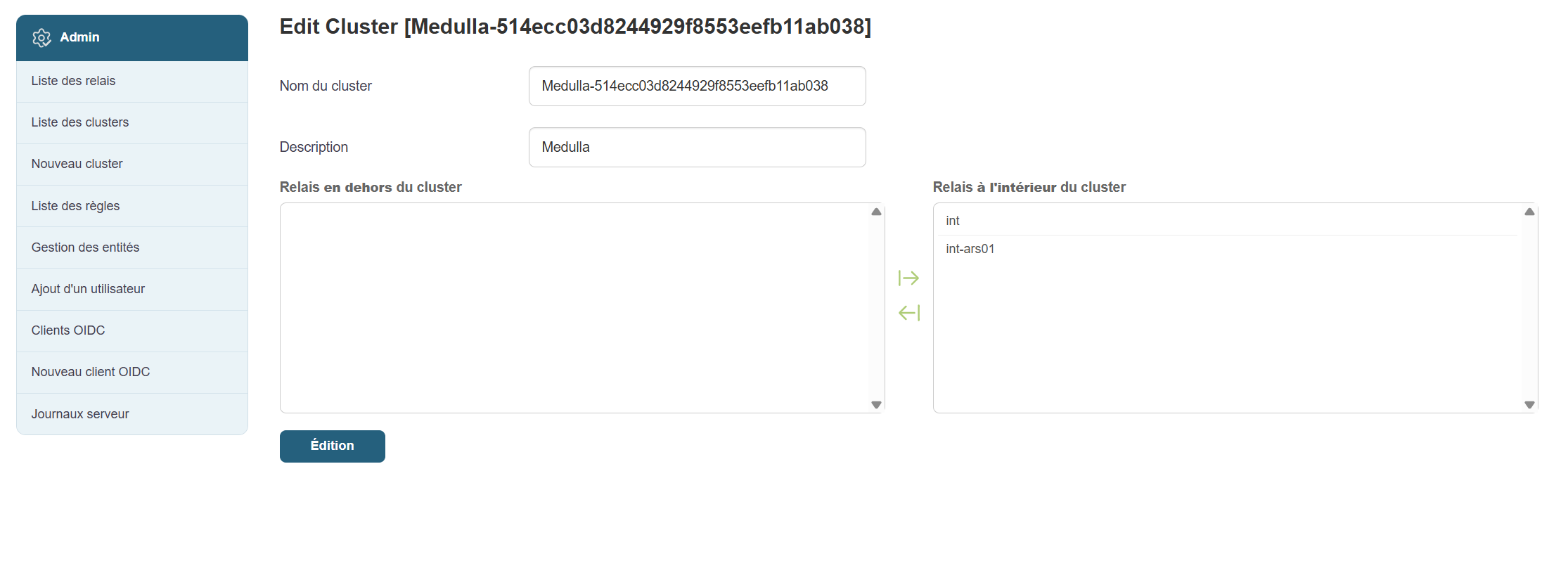
By clicking the pencil icon in Actions, you can edit the cluster by following these steps:
- Choose a cluster name
- Choose a description
- Select the relays outside the cluster to add to the cluster and vice versa
- Confirm
Create a cluster
Creating acluster allows you to better organize your relays according to your needs (for example, separating testing from production). This is exactly the same form as the edit form.
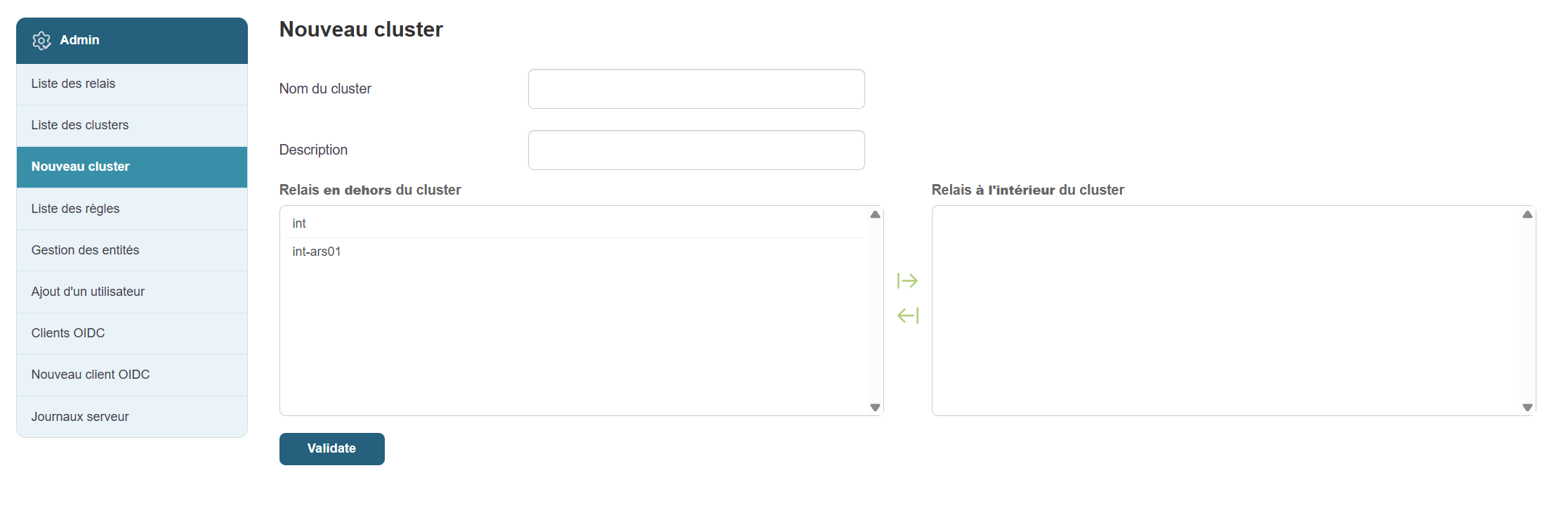
Steps:
-
Click “New Cluster” in the menu.
-
Click the “Add a new cluster” button .
-
Fill in the fields:
-
Clustername (e.g., "TestCluster")
-
Description (e.g., "Cluster for test relays")
-
-
Select the relays you want to associate with it (a list will appear).
-
Click “Confirm” to save.
Manage rules
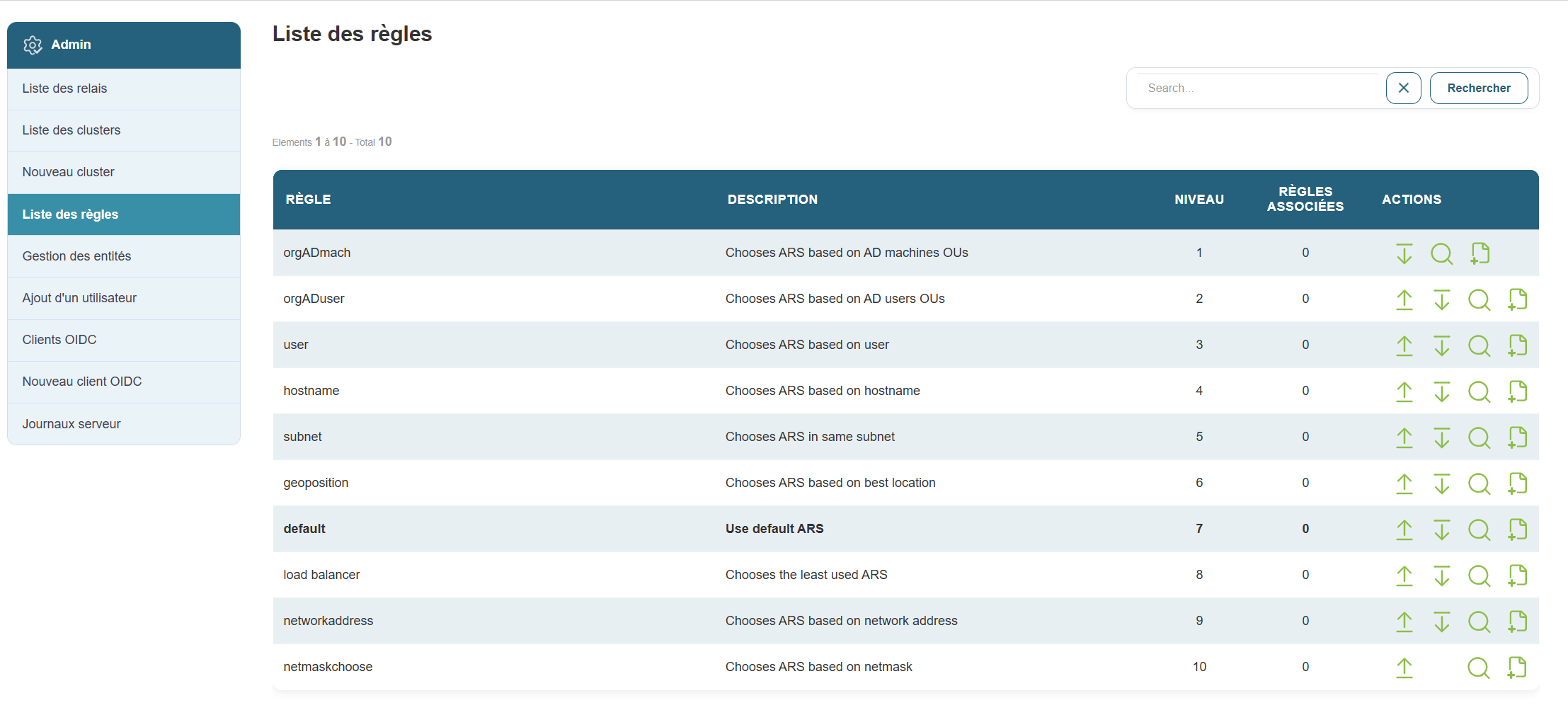
Rules allow you to automate certain network actions or behaviors.
Why this is useful:
For example, this can trigger an automatic check or apply specific settings based on defined conditions.
Steps:
-
Click “Rules” in the menu.
-
On the page, you can:
-
Change the priority order of existing rules by clicking the down arrow to lower it or the up arrow to raise it.


-
Add a new rule as needed

- View the details of a rule

-



When you click the plus icon to add a new rule, the following form appears:
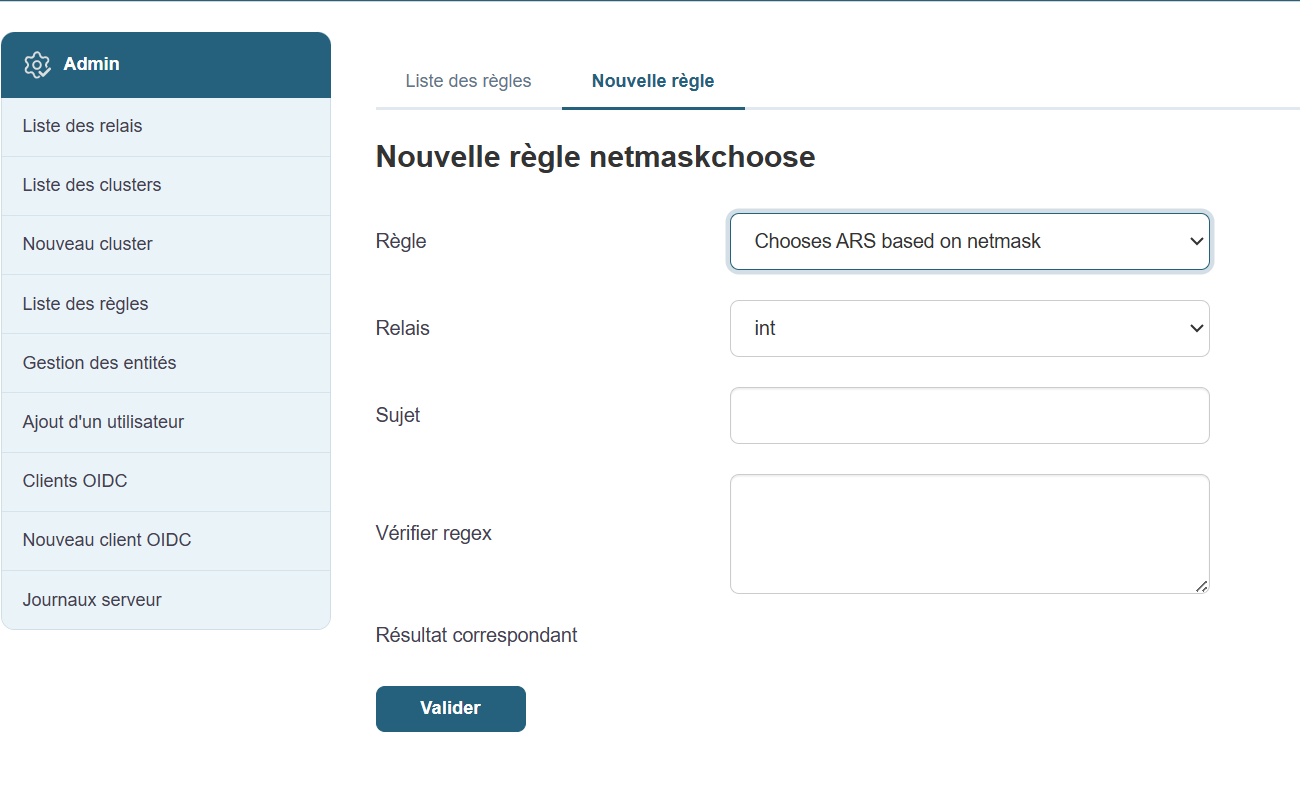
Fill in the fields one by one:
- Select the rule
- Select your relay
- Describe the subject
- Enter the regex to check
- Validate
Even if you’re not technically inclined, you can ask an administrator which rules are recommended for your environment.
Quick Actions
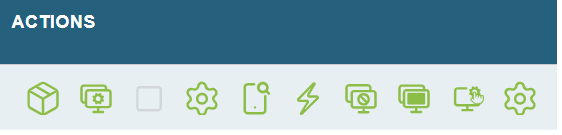
Each XMPP relay has a setof quick actions that allow you to interact directly with the machines it manages. These actions are accessible from the list of relays and are designed to simplify common administration, diagnostic, or configuration tasks without requiring advanced technical knowledge.
Here is a detailed overview of each action, its purpose, and the procedure for using it.
1. View the list of installed packages
Purpose
View the software installed on the machines attached to a relay.
Procedure

-
Click the "List of packages" button to the right of the relevant relay.
-
A window opens displaying the installed software, along with their names and versions.
When to use
-
To verify the presence of a program.
-
To check the software versions deployed.
2. Reconfigure the machines connected to the relay
Objective
Automatically reapply the active configuration to machines connected to the relay.
Procedure

-
Click "Reconfigure".
-
Confirm the action if prompted.
-
The machines will receive the current configuration again.
When to use
-
After modifying settings, rules, or configuration files.
-
If a machine appears to be out of sync or non-compliant.
3. Change the relay on one or more machines (Switch function)
Objective
Move one or more machines from one relay to another.
Procedure

-
Click "Switch" to the right of the original relay.
-
Select the machines to move.
-
Select the destination relay.
-
Confirm to apply the change.
When to use it
-
When performing maintenance or removing a relay.
-
When reorganizing the network architecture.
4. Modify the configuration files
Objective
Manually modify the configuration files of a relay or its machines.
Procedure

-
Click "Edit configuration files" (first gear icon)
-
An editing interface opens.
-
Make the necessary changes.
-
Save the changes.
When to use it
-
To adjust a specific configuration for a one-time need.
-
During a test or manual intervention.
Note: This operation directly affects the system. Use with caution.
5. View current or past quality assurance (QA) checks
Objective
View compliance, security, or quality tests performed on the machines.
Procedure

-
Click "QA Launched".
-
A window displays the list of tests run and their status (passed or failed).
When to use
-
To verify that the rules are being properly applied.
-
To identify potential malfunctions.
6. Access system actions (advanced diagnostics)
Objective
To use diagnostic or remote intervention tools on a machine.
Procedure

-
Click "Actions" next to the relay.
-
Select one of the available options:
-
Reboot: Restart the machine.
-
Process: View running processes.
-
Disk usage: View the disk space used.
-
Agent version: View the version of the installed software agent.
-
Netstat: displays active network connections.
-
Console: opens a command-line interface.
-
When to use it
-
When a machine is down, running slowly, or unstable.
-
For quick diagnostics or manual verification.
7. Banning a machine
Objective
Temporarily block a machine’s access to the system.
Procedure

-
Click "Ban" next to the relay.
-
Confirm the ban.
-
The machine is isolated from the rest of the network.
When to use
-
In case of abnormal behavior, suspected compromise, or a critical error.
8. Unbanning a machine
Objective
To lift the block applied to a previously banned machine.
Procedure

-
Click "Unban".
-
The machine regains its normal communication privileges.
When to use
-
After the initial problem has been resolved.
-
If the machine was blocked incorrectly.
9. Remote Access
Objective
To control a machine remotely as if you were physically in front of it.
Procedure

-
Click "Remote Control".
-
A remote session opens, allowing you to interact with the machine’s graphical interface.
When to use it
-
To perform manual operations.
-
To diagnose a specific problem.
-
When no other automated action is sufficient.
10. Manage relay rules
Objective
View, modify, or add operating rules specific to a relay.
Procedure

-
Click on "Relay Rules" (last gear icon)
-
From the interface:
-
View existing rules.
-
Edit or delete obsolete rules.
-
Add new rules as needed.
-
When to use it
-
To automate repetitive actions.
-
To dynamically adapt the relay's behavior to a specific use case.