Chapter 15: CVE
- CVE Module (Concept and Principles)
- CVE operation
- Results view by machine
- Results view by entity
- Results view by group
- View all CVEs
- CVE settings.
CVE Module (Concept and Principles)
Medulla has introduced a new feature that allows the inventory database to be compared with CVE search APIs based on three CVE database models: NVD (U.S.), CIRCL (Luxembourg), and EUVD (European Union).
This real-time comparison of the inventory database with these three databases enables the detection of all CVE-related anomalies and provides system administrators and security teams with visibility into vulnerabilities on workstations linked to applications that are out of date or need to be updated across the network.
This module allows you to perform the following actions:
- View and launch a vulnerability scan across the entire fleet of machines managed in the Medulla interface
- View and launch a vulnerability scan by entity.
- View and launch a vulnerability scan by group.
- View the results of all CVEs across the fleet.
For each CVE reported in the module, we organize a ranking based on the severity priority of the vulnerability:
- Low priority
- Medium priority
- High priority
- Critical priority
A banner at the top of the module page provides a summary and an overview of the status of security vulnerabilities across the fleet.
This banner displays:
- The total number of CVEs across the fleet.
- The number of critical CVEs
- The number of high-severity CVEs
- The number of medium-severity CVEs
- The number of low-severity CVEs
- The number of affected machines.

To access this module, click the security button:

CVE operation
When you access the CVE module, it provides an overview of the CVEs across the infrastructure, their severity, and the number of affected machines.
By clicking on the CVE summary banner, you can create groups based on severity. You can also click the trash can button to exclude CVEs, machines, or groups from the CVE lists.
You can view the details of each CVE by using the CVE search APIs to retrieve information about the vulnerability and its impact.
You can sort this by entity, search for a specific CVE, or run a scan.
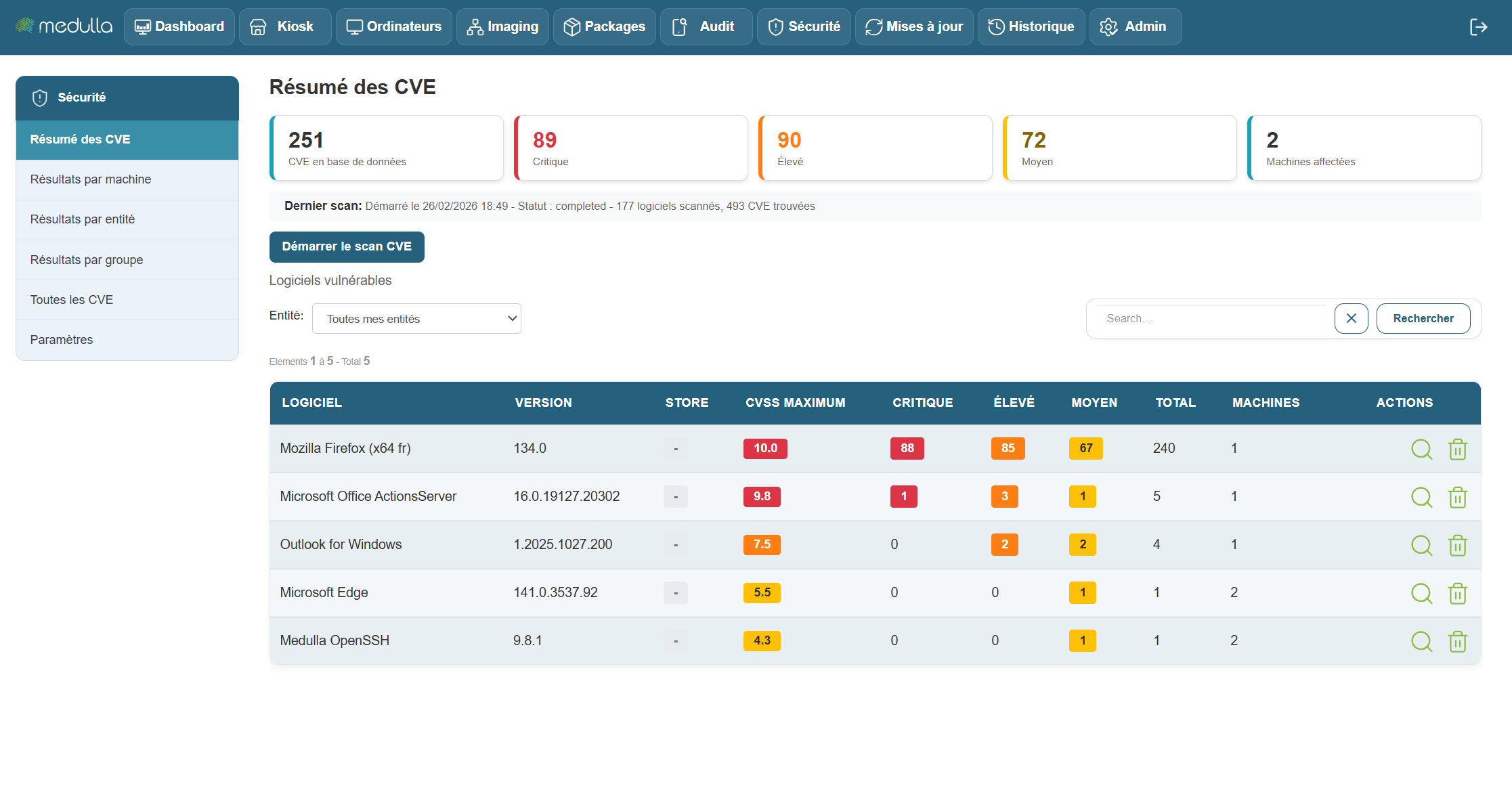
- An overview, which is the module’s home page.
- A results view by machine
- A results view by entity
- A results view by group
- A view of all CVEs.
- A settings menu.
Results view by machine
Result view by machine:
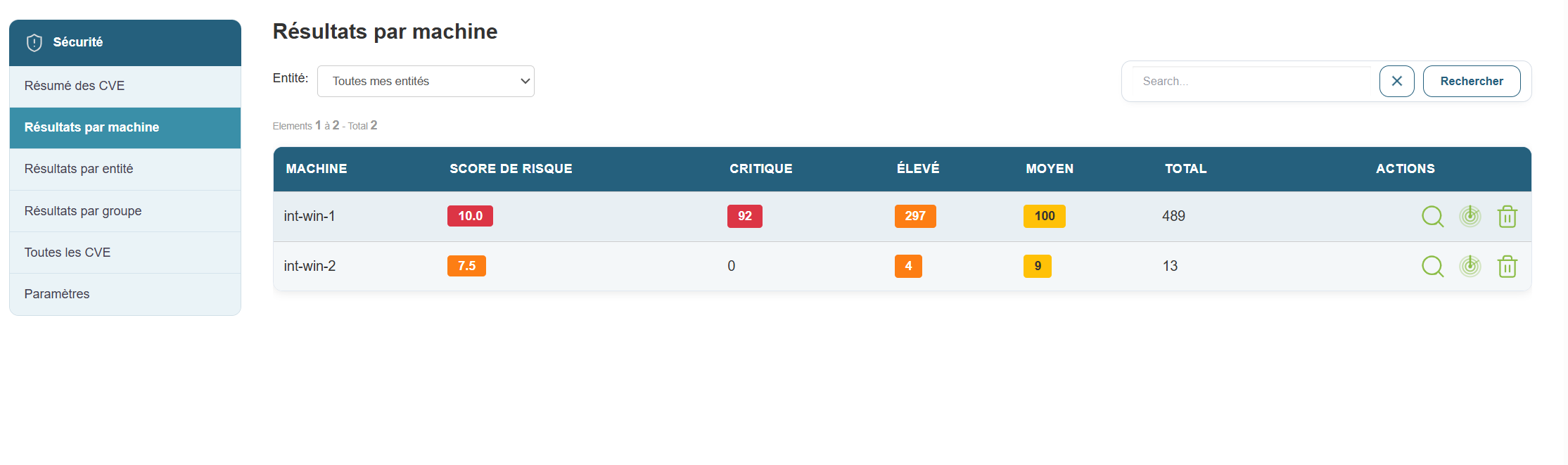
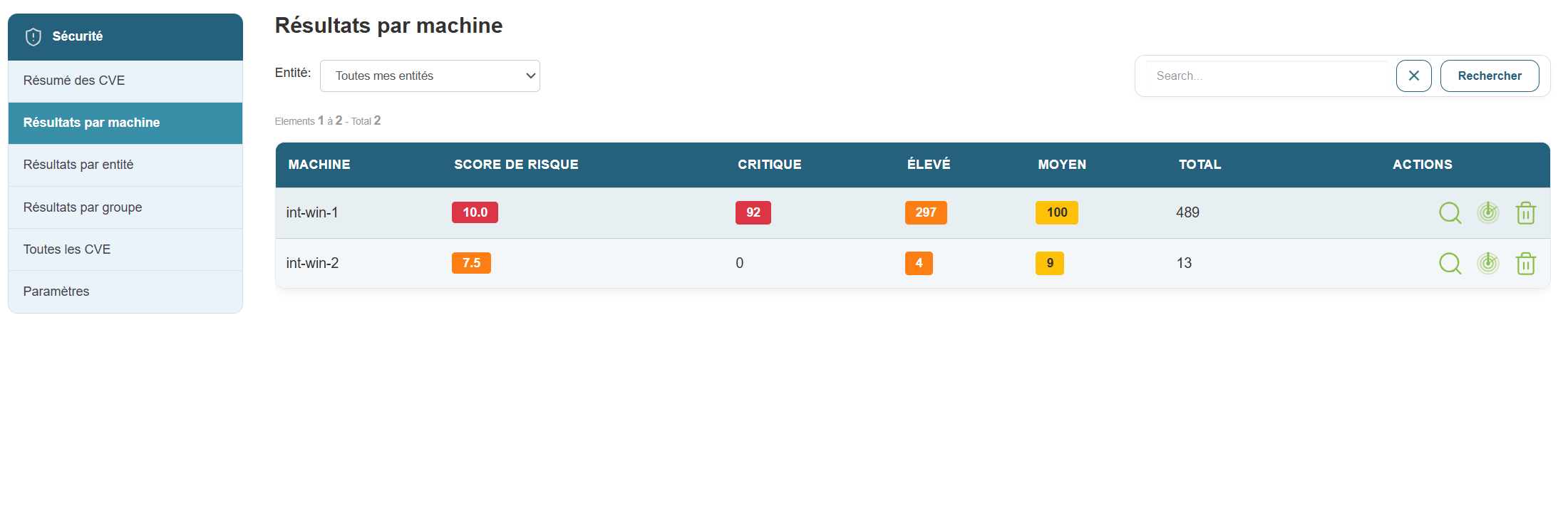
In this view, you will see all machines affected by CVEs:
- Machine name
- CVSS Score
- Number of critical CVEs
- Number of high-severity CVEs
- Number of medium CVEs
- Number of low-severity CVEs
- Total CVEs per machine
- The three actions for viewing details and launching a scan on an entity.
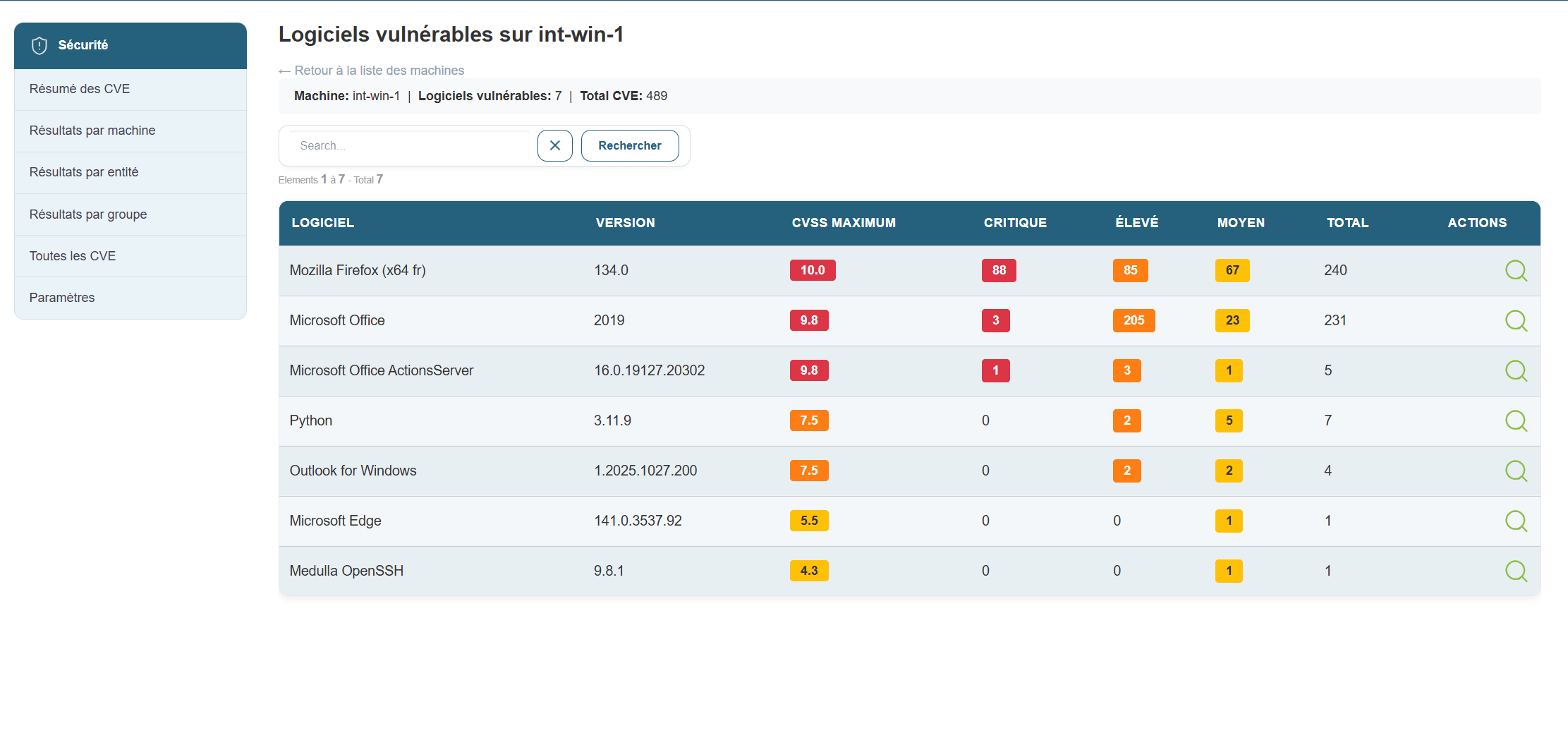
By clicking the button to view details, you’ll see the CVEs listed by application. You can drill down further by selecting a specific CVE—for example, Flatpak—if you want to see more information about that vulnerability. Just click the button in the actions menu.
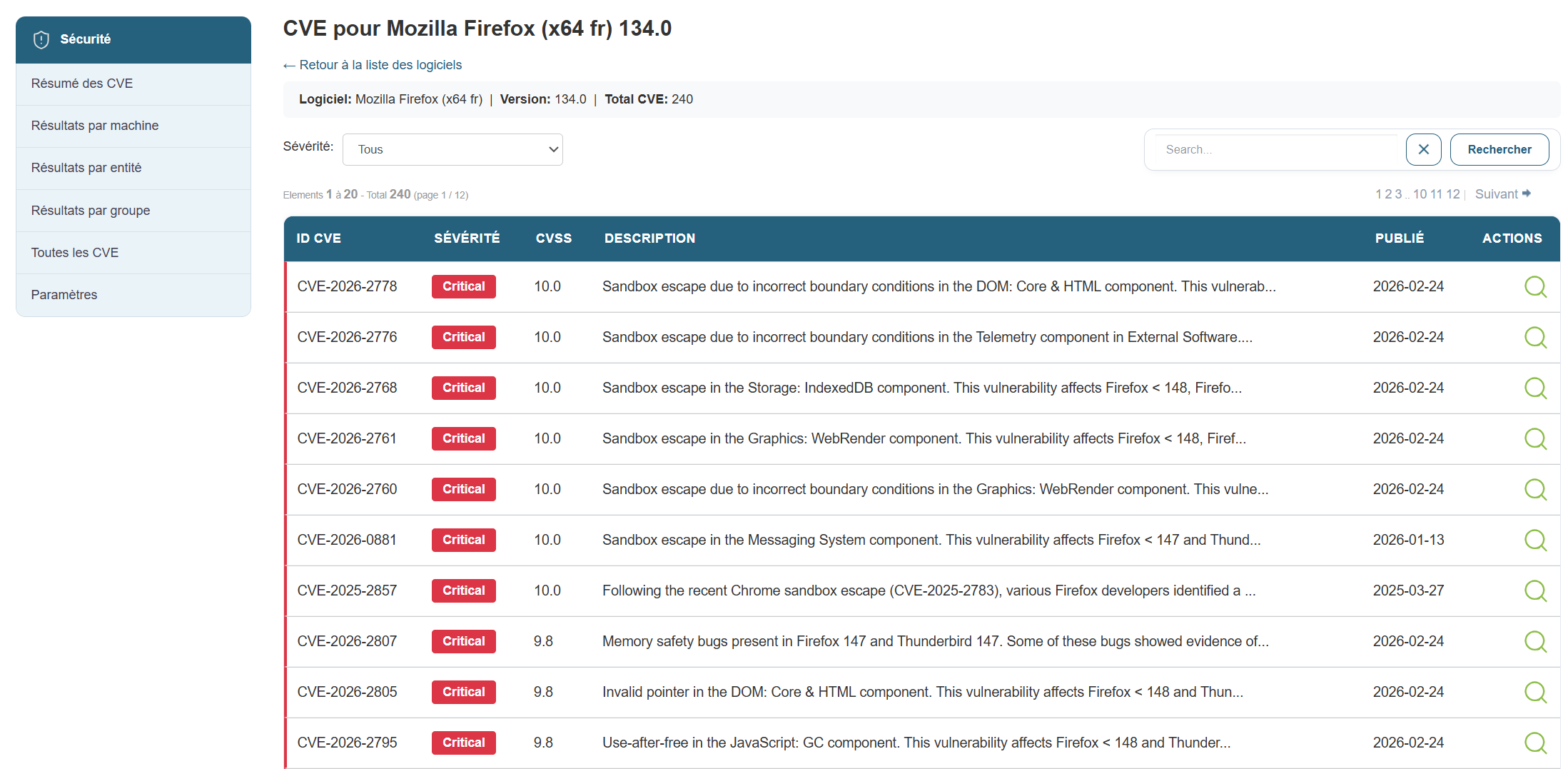
In this view, you’ll find the following information:
- The CVE ID
- The severity
- The CVSS score
- The CVE description
- Publication date
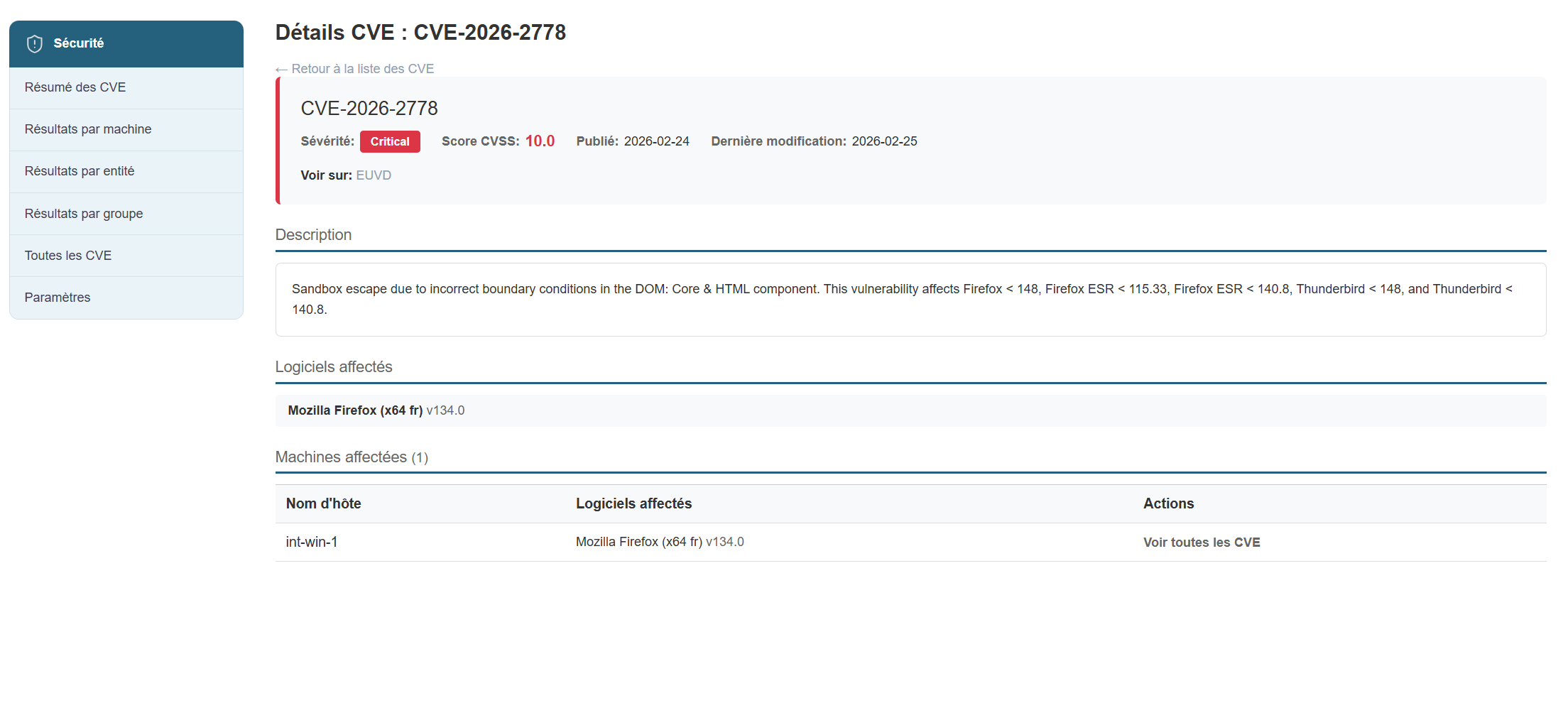
Clicking the action button for CVE-2024-42472 will give me a complete view of the CVE taken directly from the CVE database
Results view by entity
Results view by entity:
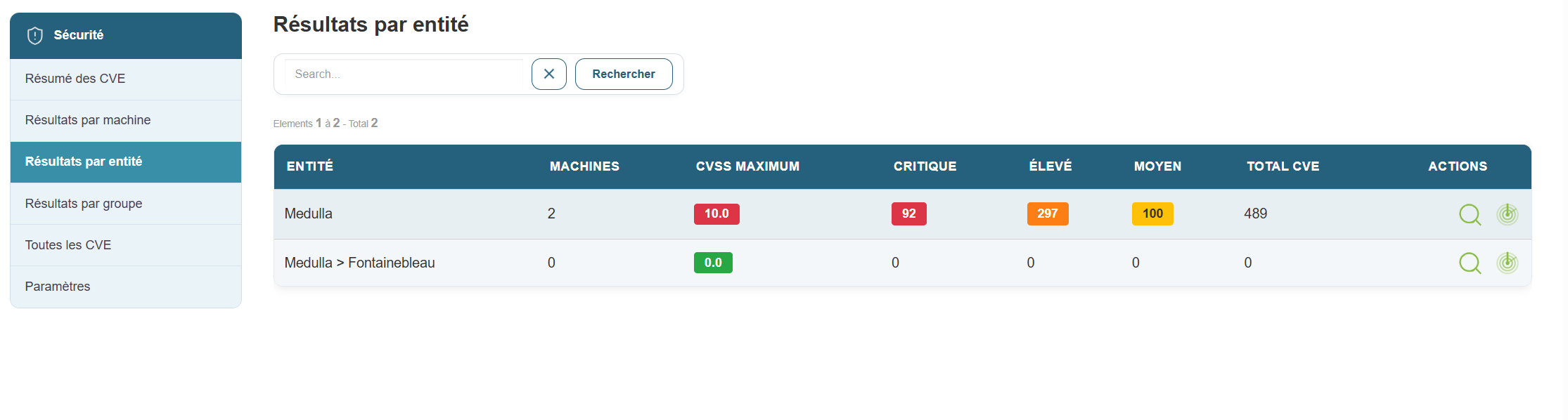
This view displays only the entity-based view and includes the following information:
- Entity name
- Number of machines in the entity
- CVSS score
- Number of critical CVEs
- Number of high-severity CVEs
- Number of medium CVEs
- Number of low-severity CVEs
- Total CVEs per entity
- The two actions: detailed view and scan initiation for an entity.
By clicking the "Details by Entity" button: You will see the details view by machine, showing only the machines in that entity.
Results view by group
Results View by Group
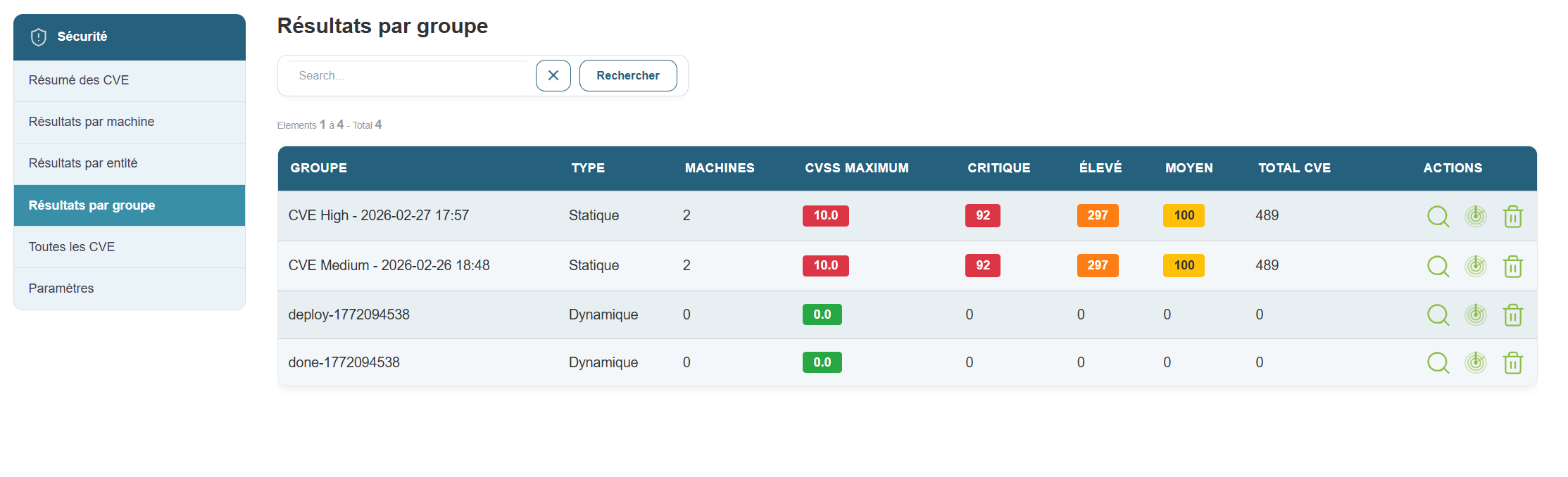
This view displays only the machine group view and includes the following information:
- Group name
- Group type
- Number of machines per group
- CVSS score
- Number of critical CVEs
- Number of high-severity CVEs
- Number of medium CVEs
- Number of low-severity CVEs
- Total CVEs per group
- The two actions: detailed view and scan initiation for a group.
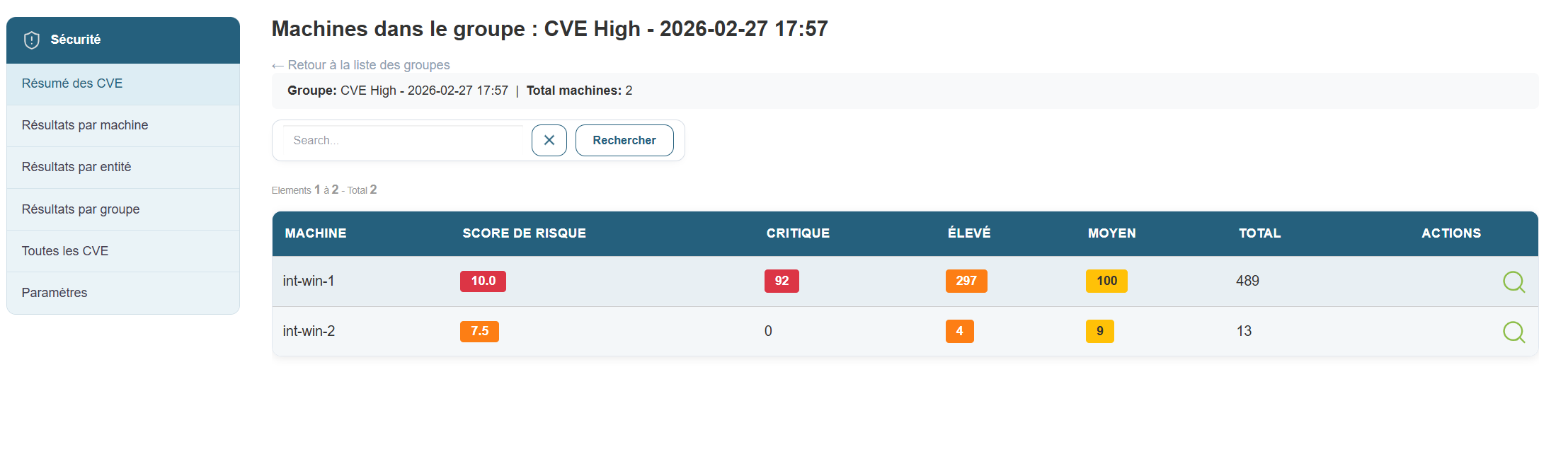
By clicking the "Details by Group" button, you can view the details by machine, showing only the machines in that group.
View all CVEs
View all CVEs
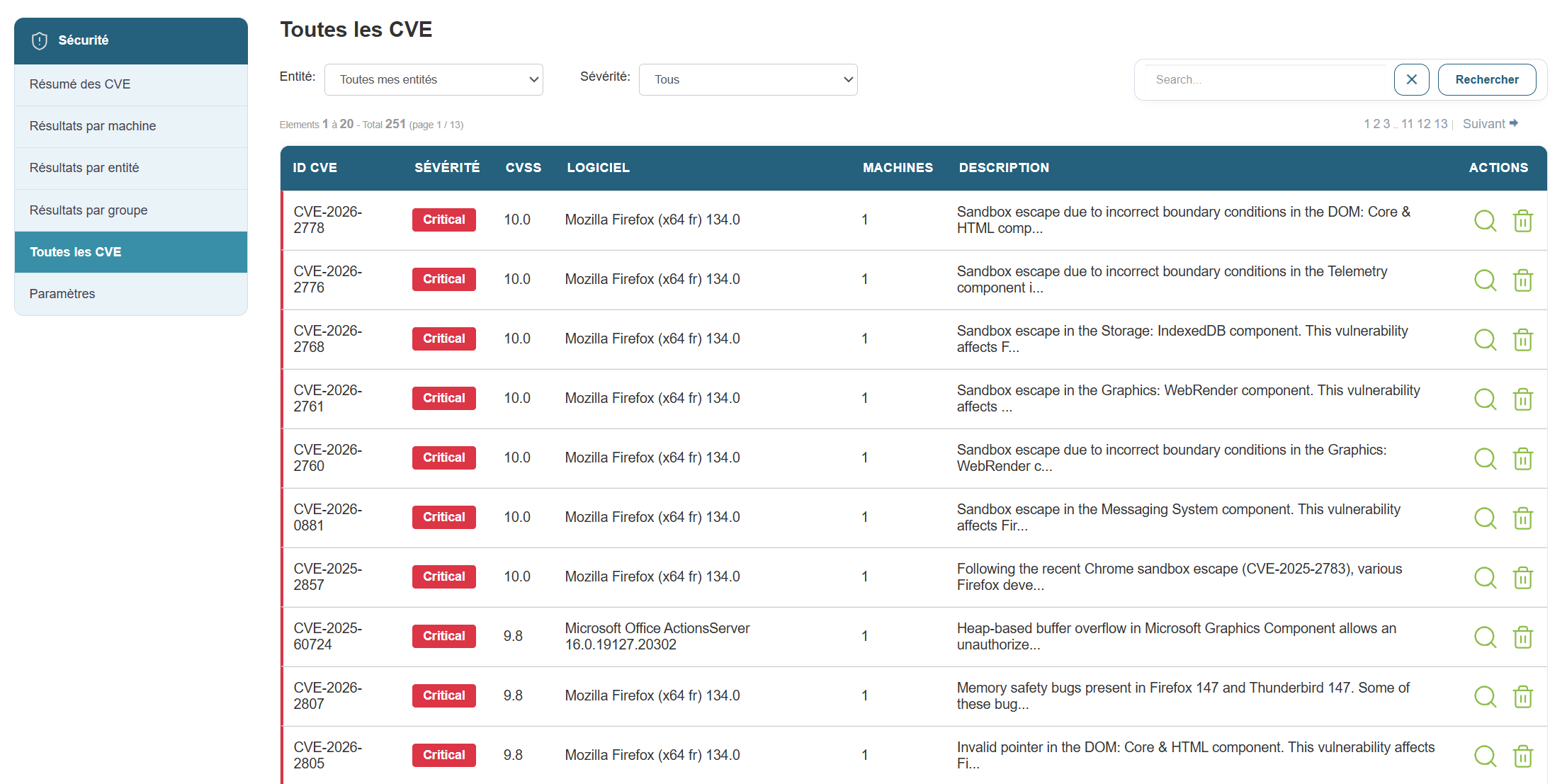
Here you will find all CVEs and the following information:
- The CVE ID
- Severity
- The CVSS score
- The affected software
- The number of affected machines
- Description
- Detailed action.
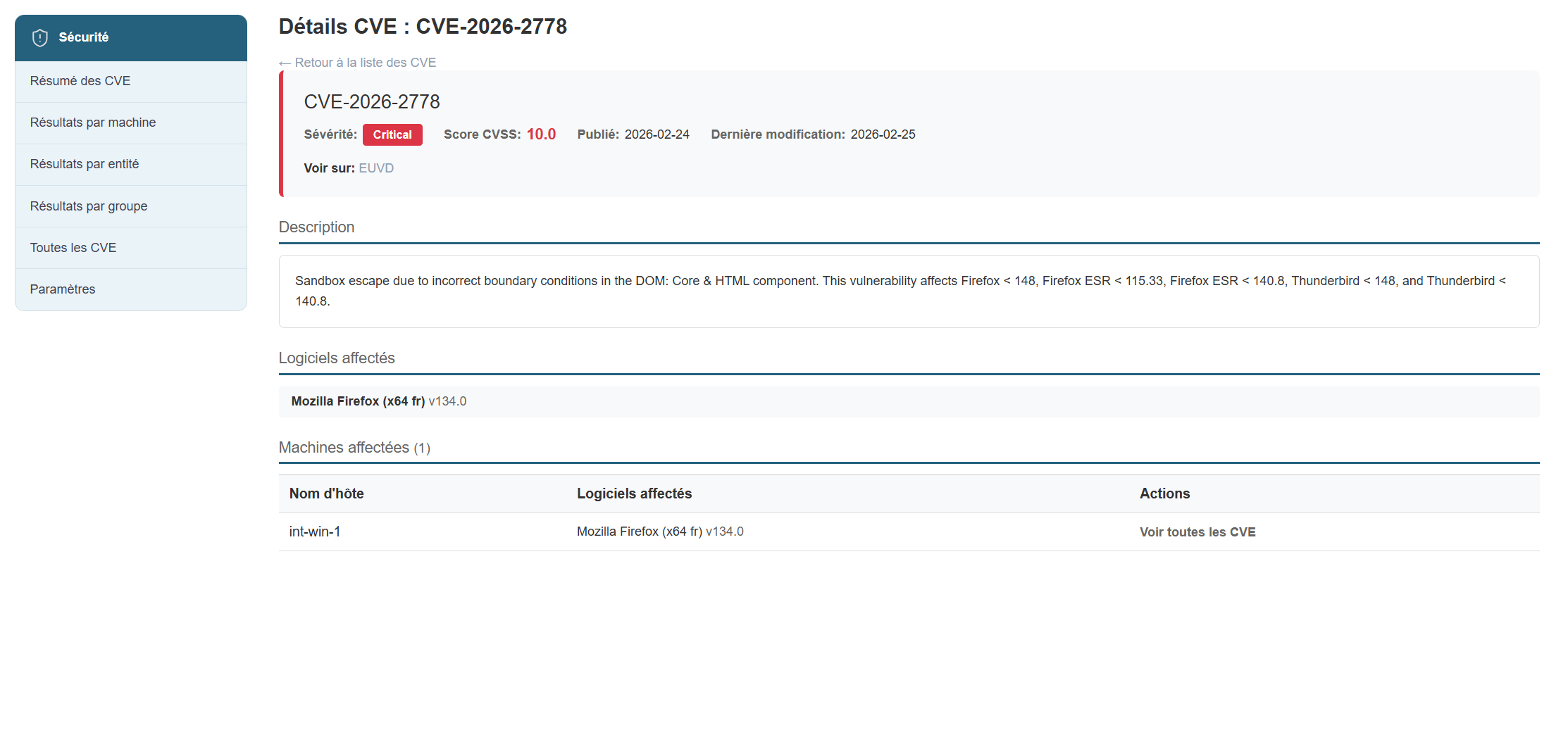
When you click on "Details," you will see the CVE record that was displayed in the main view:
CVE settings.
- Display filters
- Software filters
- CVE filters
- Publisher filters
- Machine filters
- Group filters
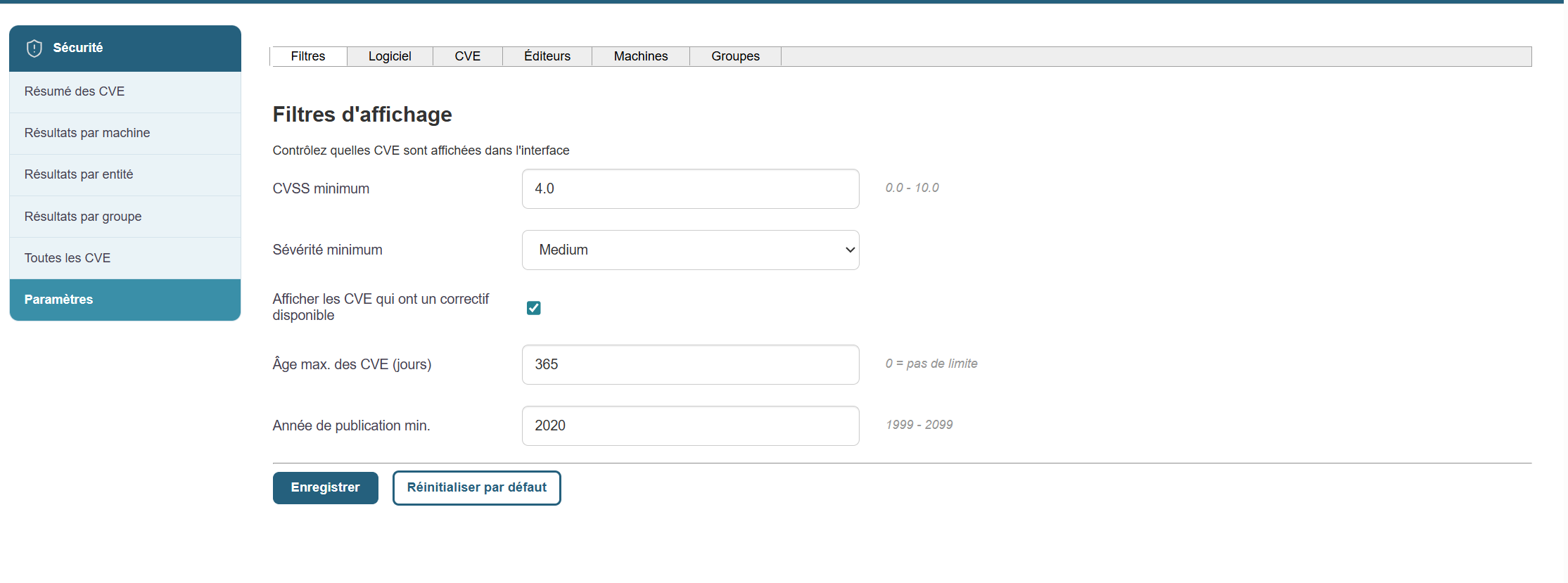
Display filters:
You can select display filters based on the following options:
- Minimum CVSS Score
- Minimum Severity
- Maximum Age of CVEs
- Minimum CVE Publication Year
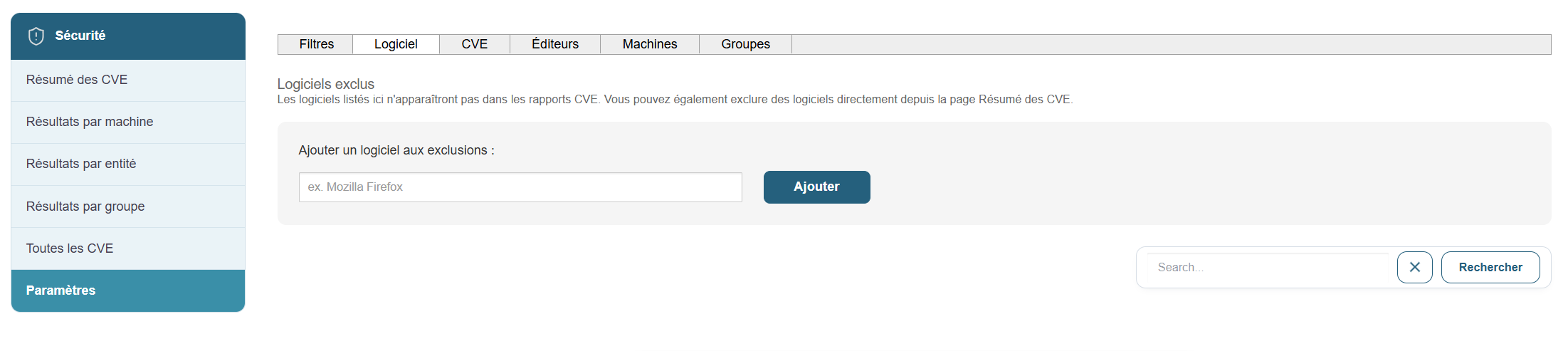
Software Filters:
We can apply filters to the software we want to exclude from the list of CVEs. :
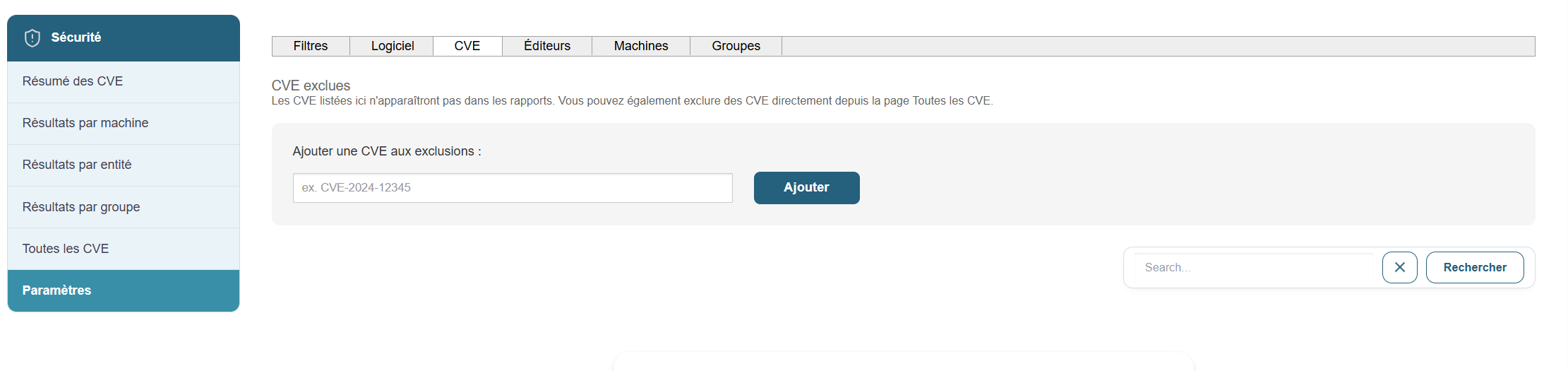
CVE filters:
We will apply filters to the CVEs we want to exclude from the list:
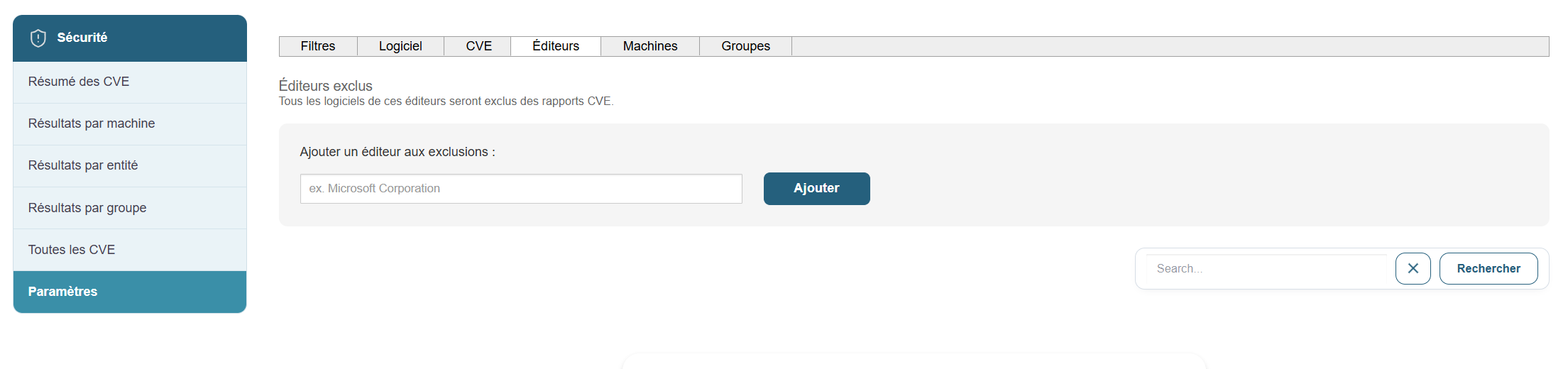
Vendor filters:
We will apply filters to the vendors we want to exclude from the CVE list.
Machine filters:
We will set exclusions for the machines we want to exclude. To do this, simply click on the  in the list of machines.
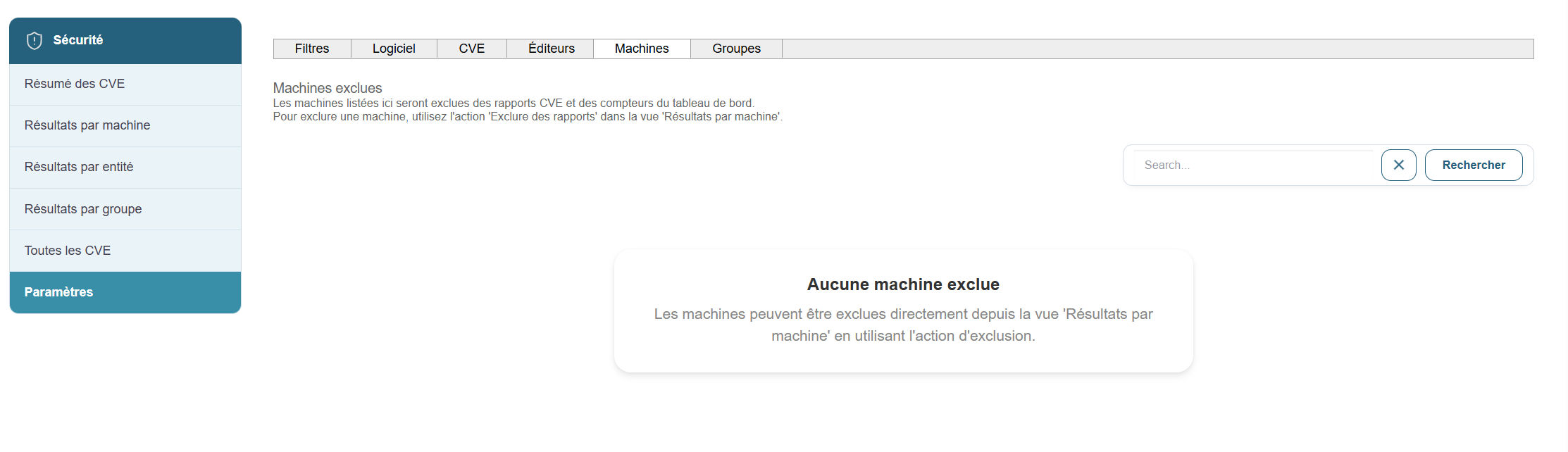
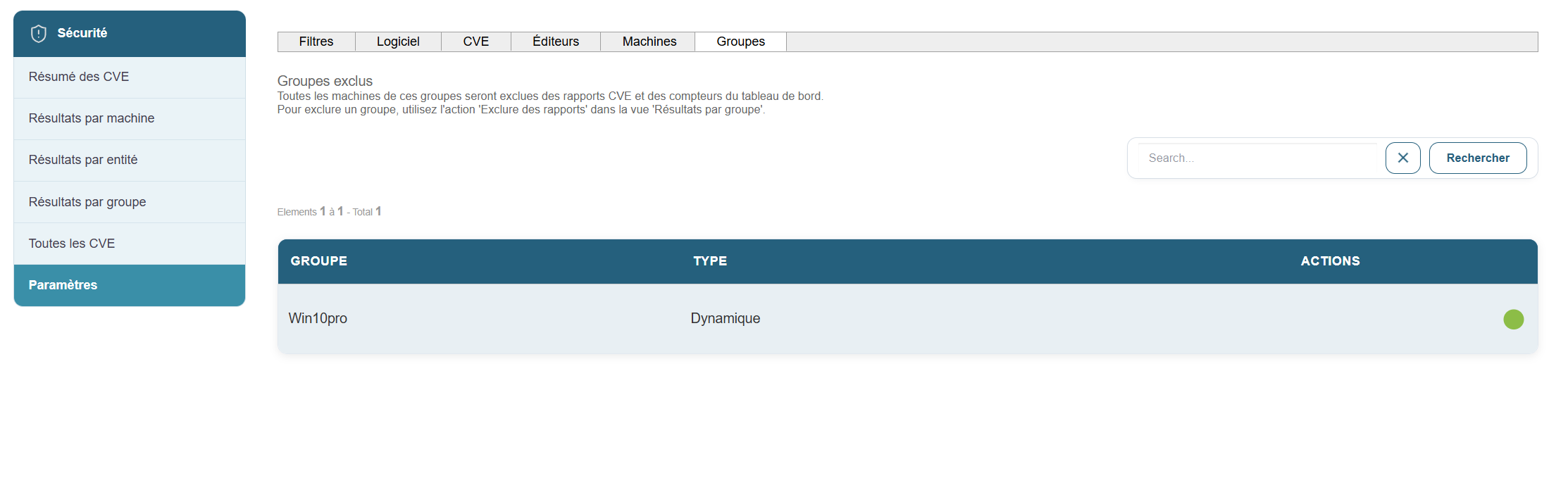
Group filters:
We will set exclusions for groups. To do this, simply click the button in the list of groups .