# Chapter 6: Imaging I
# Imaging
****
This section is dedicated to**verifying the status of the imaging server**, an essential step before deploying a system or creating a reference image.
The **imaging server** is a central component of Medulla: it allows a system image (a sort of complete "copy" of a computer) to be sent to one or more workstations. **If this server is unavailable or malfunctioning, no imaging-related operation can be completed**.
This is why it is recommended to **systematically check its status before performing any such action.**
### Accessing the Imaging Server Status
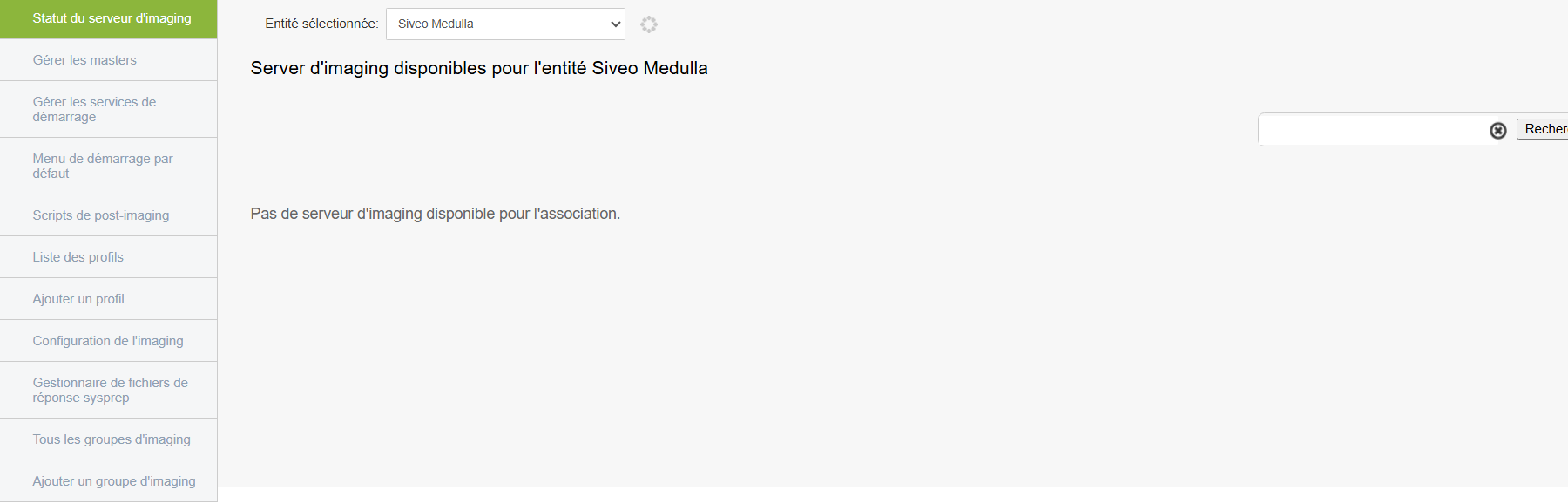
When you click on **the Imaging Server Status** tab, you are immediately taken to the page where the pre-selected entity is neither private nor public; we will therefore refer to it as "General."
#### "General" Entity with Server Offline
This means that the imaging server linked to the "General" entity is inactive. You will not be able to deploy images to the machines in this entity
#### Understanding the Displayed Information
##### Selected Entity
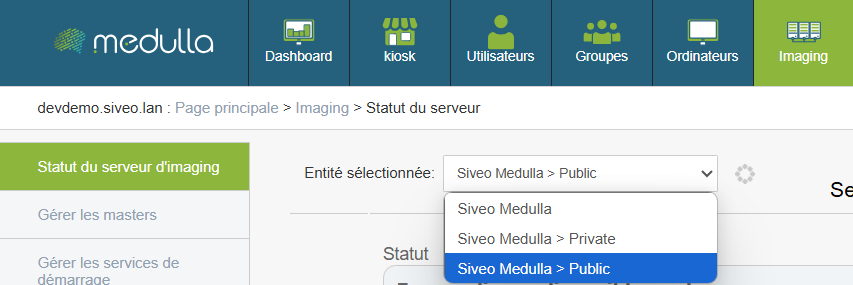
At the top of the page, you must select**the** relevant**entity**.
Entities correspond to logical groupings, often used to separate environments (e.g., services, departments, locations).
**[](https://docs.medulla-tech.io/uploads/images/gallery/2025-05/scaled-1680-/entityselection-png.png)**
Examples of entities:
- **Public**
- **Private**
- **General**
##### Why it matters:
Each entity can be linked to a separate imaging server. It is therefore crucial to **verify the status of the server for the entity you wish to use.**
#### Server Status
For the selected entity, a visual indicator shows the current status of the server.
Three statuses may appear:
- **Available**
The server is operational. You can proceed with image creation or deployment.
- **Offline**
The server is not responding.
**No imaging operations can be performed.**
**Recommended action:** contact the administrator or technical support.
- **Connection error**
The server is reachable, but the connection fails (often due to a configuration or network communication issue).
**Operations are blocked.**
**Recommended action:** report the issue to the technical team.
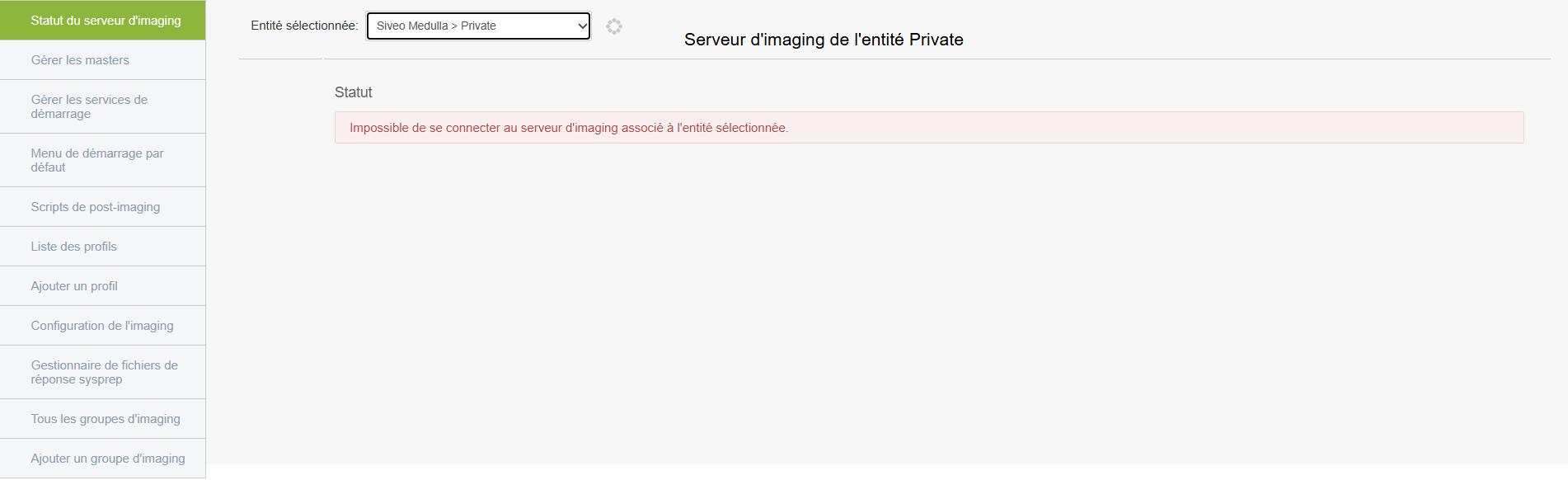
#### "Private" entity with connection error
Even if the server appears to be accessible, **communication is not working**.
**The deployment will fail upon launch** because the connection between Medulla and the server is broken.
[](https://docs.medulla-tech.io/uploads/images/gallery/2025-05/scaled-1680-/TJfimage-png.png)
#### "Public" entity with successful connection
##### **[](https://docs.medulla-tech.io/uploads/images/gallery/2025-05/scaled-1680-/publicentittstat-png.png)**
If there are no errors and the server is online, this means the server is active and ready for use; it will therefore display various statistics as shown with the "Public" entity above.
In this case, it will display various information:
- **Available disk space on the server: This** section shows the server’s storage capacity, i.e., the space available to host system images. This space is divided into two parts called “partitions”; the first (dev/vda3) is the main partition, and the remaining free space indicates that there is room left to store images. The second is a small partition used for server boot but has no impact on deployments.
- **Server load: This** data provides a general overview of the server’s status, such as the duration of operation without a reboot and RAM usage
- **Public entity statistics: This** is information about imaging usage within the entity. Clients correspond to the machines associated with the entity; the "client has x backup images" field indicates which machines required a restore, and the number of available masters tells us how many system images are ready for deployment.
Before performing any imaging operation, verify that you are on the correct entity and that the server status is listed as **“Available.”**
If the status is **"Offline"** or **"Connection Error**, **"** do not proceed and notify the administrator or support.
# Manage masters
[](https://docs.medulla-tech.io/uploads/images/gallery/2025-05/scaled-1680-/mastergestionpublic-png.png)
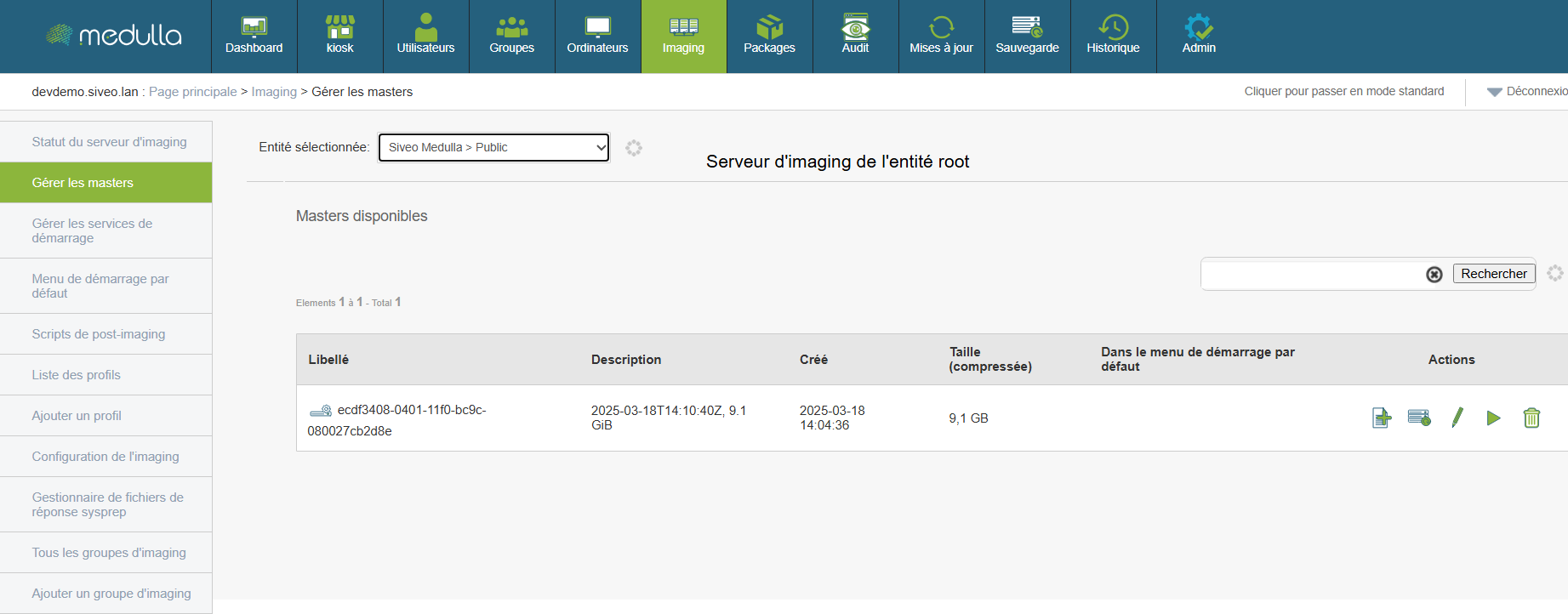
A **master** is a complete system image created from a configured workstation. It serves as a template for quickly and consistently deploying an environment to other machines.
Before any deployment, it is essential to know which masters are available and how to use them.
#### Reading the displayed information
Each master is presented as a line containing several elements:
- **Label**: automatic identifier for the image.
- **Description**: optional text describing the image’s content or purpose.
- **Creation date**: indicates when the image was generated.
- **Compressed size**: size of the image file (expressed in GB).
- **Default startup menu**: specifies whether the image is used automatically during network startup.
- **Actions**: set of options available for the image.
#### Use a master for deployment
- **Select a master** from the list.
- **Check its date,** description, and size to ensure it matches what you want to deploy.
- **Select the image** as the basis for deploying one or more workstations via the dedicated interface.
The master system will be automatically installed on the target workstations, without requiring manual intervention on each machine.
#### Actions available for each image
For each master, you can perform several operations:
- **Add to the default boot menu**
Allows you to set the image as the one automatically used during a workstation’s network boot (useful if you perform frequent deployments).
- **Create a bootable ISO**
Generates an ISO file from the image, which you can then copy to a USB drive or CD to boot a computer offline.
- **Edit the image**
Modify the information associated with the image, such as the description or name.
- **Clone the master**
Creates a copy of the current image. This allows you to create a new version without modifying the original.
- **Delete**
Permanently deletes the image from the server. This action is irreversible.
Before using a master, verify that it matches the desired configuration, including the operating system, version, and installed software. Only delete a master if you are certain it is no longer in use, as this action is irreversible. If you are unsure which image to choose or what action to take, it is recommended that you contact your technical support representative for guidance.
# Manage startup services
##### [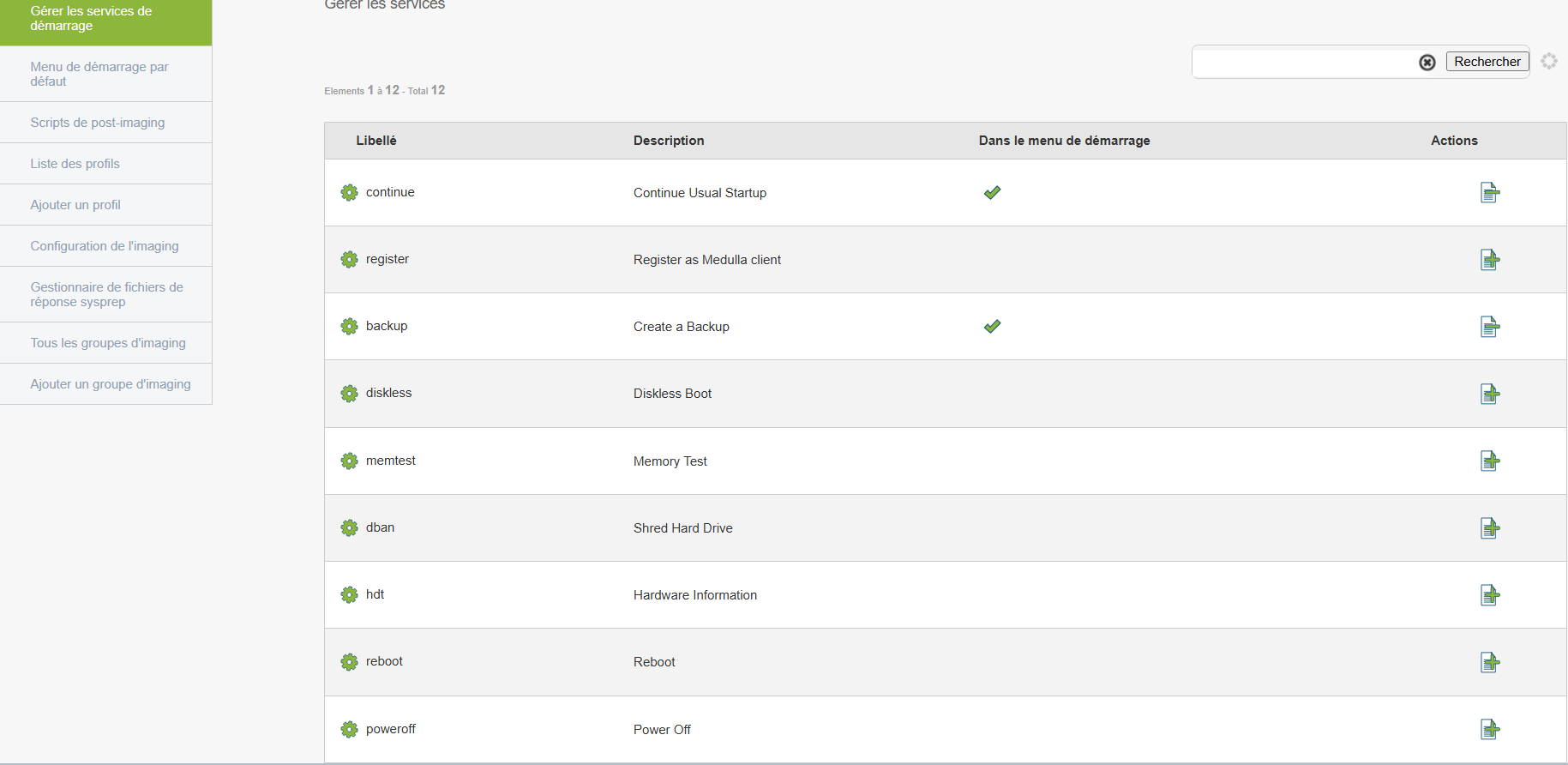](https://docs.medulla-tech.io/uploads/images/gallery/2025-05/scaled-1680-/servicegestion-png.png)
Boot services allow machines to boot an image from the network (via PXE, for example).
#### To configure
- Side menu **Manage boot services**
#### You can
- Enable or disable certain services
- Customize the boot process to suit your environment
# Default startup menu
[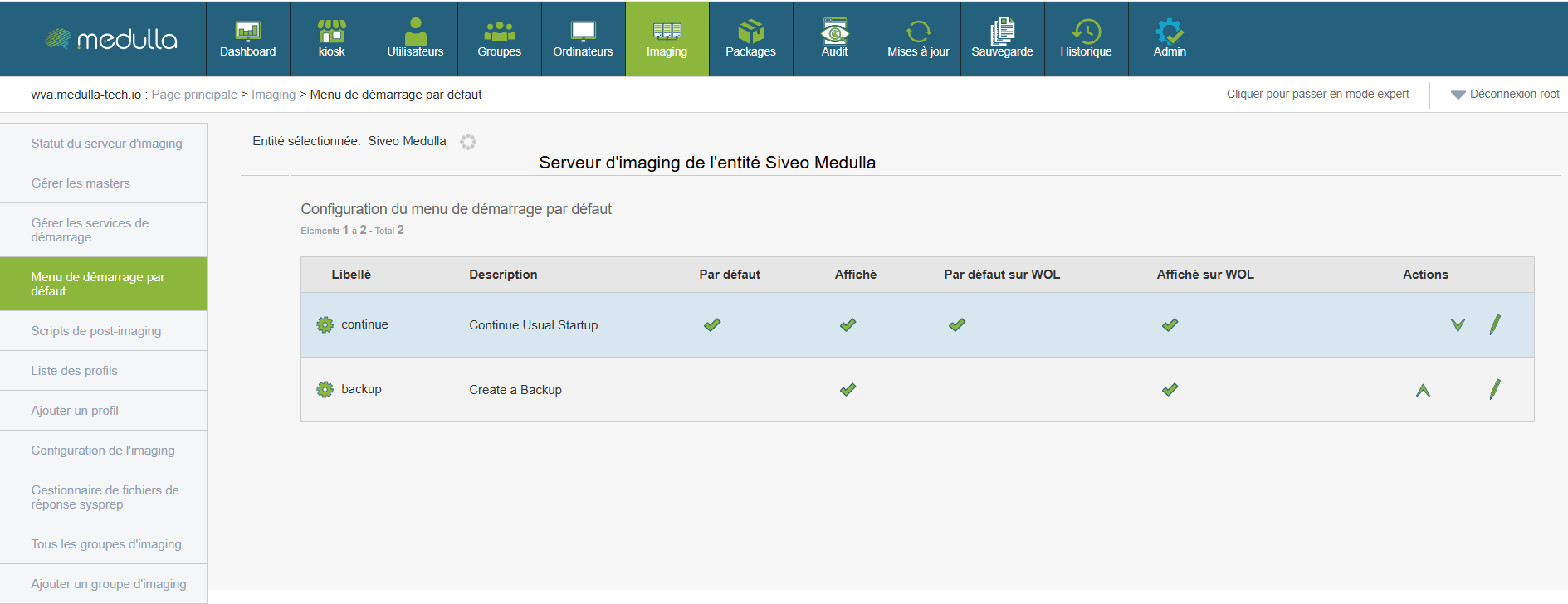](https://docs.medulla-tech.io/uploads/images/gallery/2025-05/voYimage.png)
This section allows you to choose between **automatic or manual** behavior when machines start up.
#### Access
- Side menu**Default startup menu**
#### Available options
You can edit each option to adjust:
- Default selection
- Classic startup display or WOL (Wake On LAN)
# Post-imaging scripts
##### [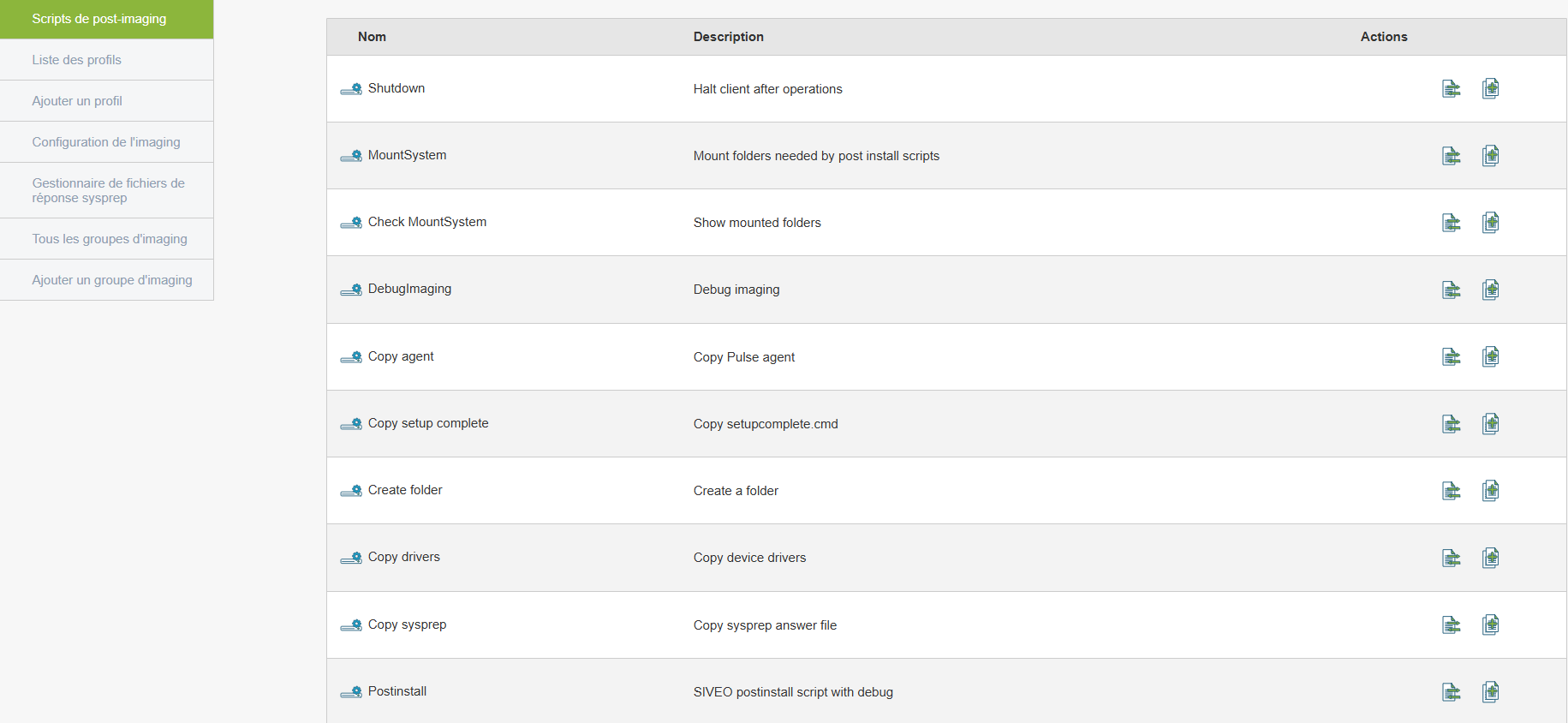](https://docs.medulla-tech.io/uploads/images/gallery/2025-05/scaled-1680-/postimagingscript-png.png)
Allows you to automate actions **after** an image is deployed (such as installing software or configuring the network).
#### To create/edit a script
- Side menu:**Post-Imaging Script**
- Click **Duplicate** on the latest postinstall
- Click Edit on the postinstall script you just created.
- Type:
MountSystem
CopySysprep (the name of your sysprep without parentheses)
CopyRunAtOnce
CopyAgent
CopyDrivers
UseOEMBiosLicence (if you are using Windows OEM licenses)
- Associate it with a deployment process
Here is what the post-install script options do:
**MountSystem:** copies the master image to the machine, mounts the partition(s), and detects the mount points for the various operations.
**CopySysprep**: retrieves the registered hostname from the PXE (the MAC/hostname association), adapts it in the answer file, and copies it to the Windows image under a generic name, unatended.xml.
**CopyRunAtOnce:** copies the setupcomplete.cmd file, which will be executed on the final Windows reboot. This file primarily serves to delete the unatended.xml file, which likely contains a user with domain join permissions.
**CopyAgent:** copies the Medulla-Agent-windows-FULL-latest.exe agent; it is also possible to pass a parameter to select the agent to deploy.
**CopyDrivers:** Copies the default drivers required by Windows 10.
**UseOEMBiosLicence:** Copies the license present in the BIOS and enters it into the post-installation sysprep file.
# How Imaging Works
Imaging consists of several parts:
**Master Creation**
We provide a pre-built and prepared master image, Windows 11 25H2.
To download and create the master, you can run the following command:
`import_master.sh`
**Creating a sysprep**
To create a sysprep, go to Medulla and "Sysprep Answer File Manager," then follow the steps to create the sysprep file you want.
**Creating a post-install script**
The master created in the previous step requires a post-install script.
Post-install scripts enable various actions that accompany the master deployment; by default, we ask you to create a post-install script with the necessary options. Please refer to the documentation to create and fill it out, and to understand the different options.
**Profile**
Create a new profile, associate it with the previously created post-install script, select 0 in the script field, and click Validate.
Then associate the profile with a master.
**Deploying a master**
Boot the computer you want to deploy via PXE (it must already be registered), then select the master with its associated profile and let the master deployment proceed.
For each step, you can refer to the relevant sections on the other pages of this documentation.
---
> OPTIONAL
For further information, if you really want to create a highly customized master:
**Registration**
For the machine to be recognized by Medulla, it must be registered.
When booting the machine via PXE on the network, the "register" option appears; you must select it to register the machine.
Here, either the machine is already present in GLPI and the menu displays its name directly, or you can enter the machine’s name during registration.
**Image capture**
Once the machine is properly registered, you will see the "backup" option in the menu to save the computer's image in order to create a master.
Some prerequisites for capturing an image correctly:
- First, you must back up a computer running a fresh copy of Windows straight out of the box. Then, when you boot it up, you must skip the OOBE (Out of Box Experience, the questions during Windows installation)
- Make sure there is no "pending reboot"; here is the command to check for one:
Get-ItemProperty "HKLM:\SOFTWARE\Microsoft\Windows\CurrentVersion\WindowsUpdate\Auto Update\RebootRequired" -ErrorAction SilentlyContinue
- You can then perform some basic Windows configurations if needed, such as creating a user account, etc.
- Run the prepare-master.ps1 script found here:
/var/lib/pulse2/imaging/postinst/winutils/prepare-master.ps1
This script checks for Windows updates, removes non-essential applications, and disables BitLocker if the C: drive is encrypted; it also optimizes the image size by deleting temporary files and cleans up the Windows component store.
- Reboot the machine.
**Creating a master**
Once you have captured your image in the previous step, you can find it in the Imaging menu of the machine on which you just performed the capture.
Go to "All GLPI Machines," click the "Imaging Menu" action for the relevant machine, then "Images and Masters," where you will find the captured image.
Click on the captured image to convert it into a master, give it a name (label), then click "Validate and Convert to Master".