Chapter 9: Audit
Individual and group tasks
The ability to track and understand every action taken is crucial. The management system offers several views to explore past operations in detail, monitor ongoing tasks, identify errors, and collaborate effectively across teams.
The My Tasks section allows you to view all the actions you have initiated, whether they are in progress or completed.

Access:
View:
-
In-progress tasks: displays deployments in progress over the last 24 hours.
-
Scheduled Tasks: lists actions scheduled for a future date.
-
My past tasks: tracks all your previous actions, along with their results.
Available information:
For each task:
-
Deployment type
-
Target (machine or group)
-
Start date
-
Progress status (success, failure, download error, stopped)
-
User who initiated the action
Filters allow you to search for a task by name or user.
Task monitoring isn’t limited to your personal activity. With team views, you can track your colleagues’ operations, identify commonalities, and avoid duplication.
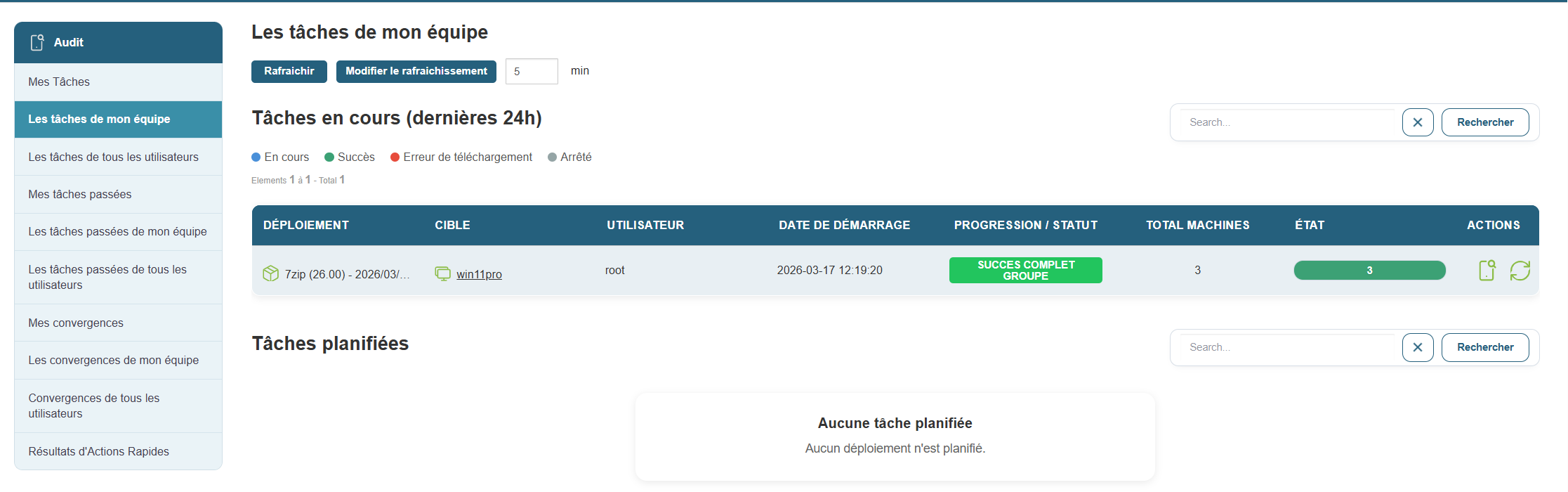
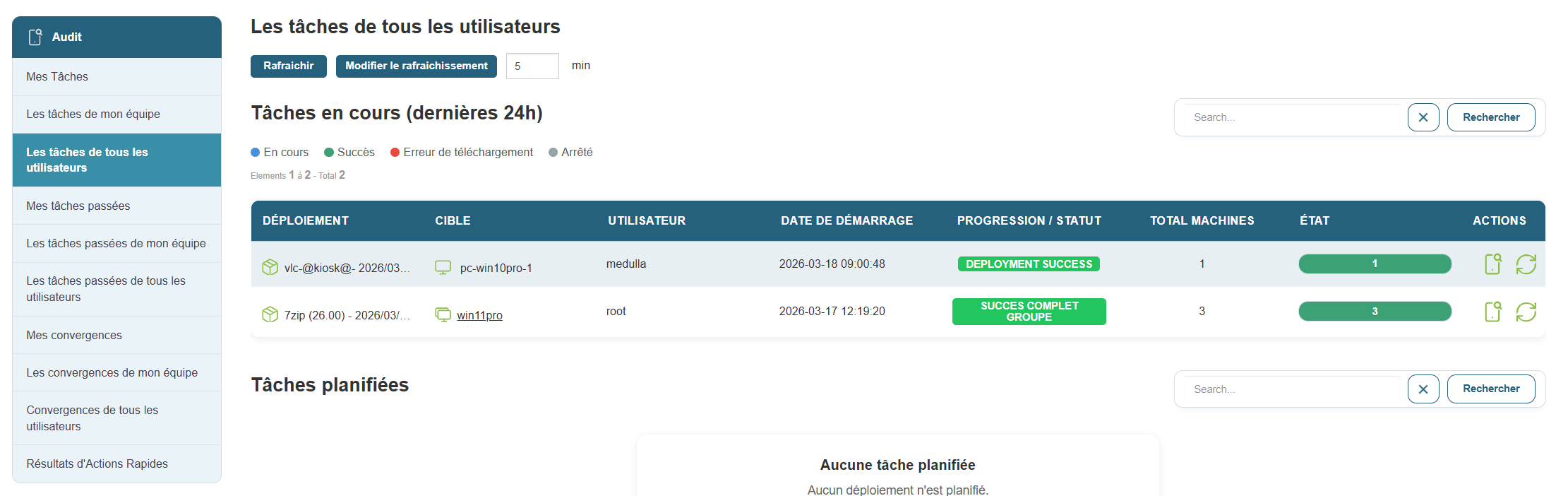
Access:
Available sections:
-
My team's past tasks: comprehensive history of actions initiated by your team.
-
Past tasks of all users: comprehensive view of all recorded operations.
-
Convergences:
-
My Convergences: tasks affecting multiple machines or groups at once that you have initiated.
-
Convergences formy team or all users: collective view of major operations.
-
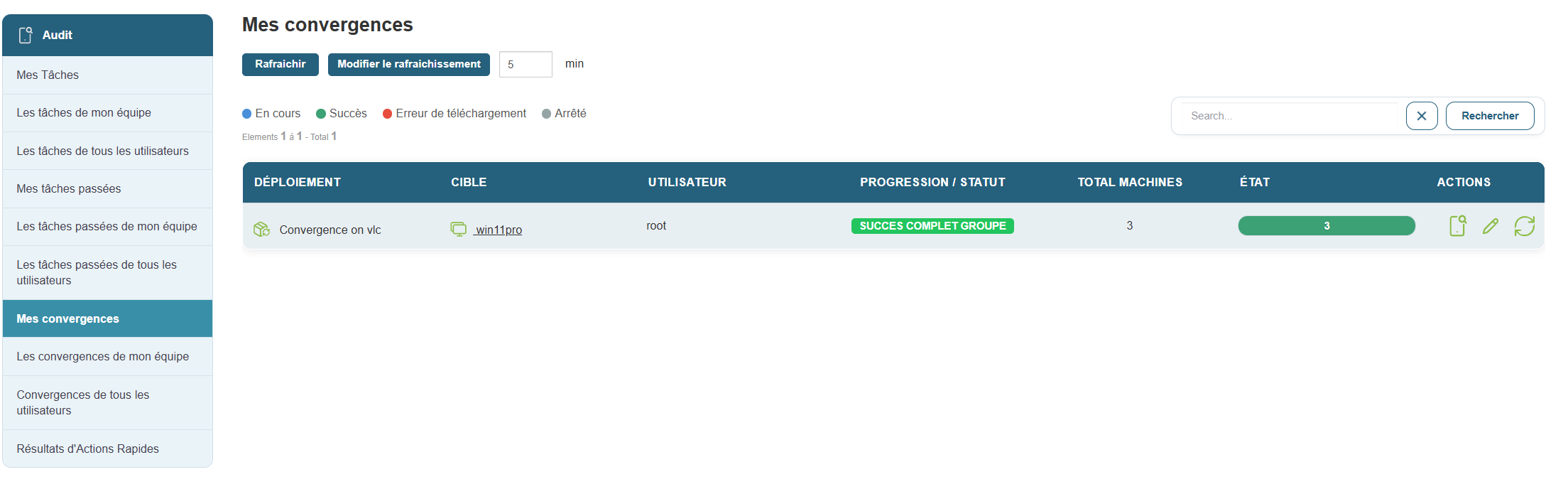
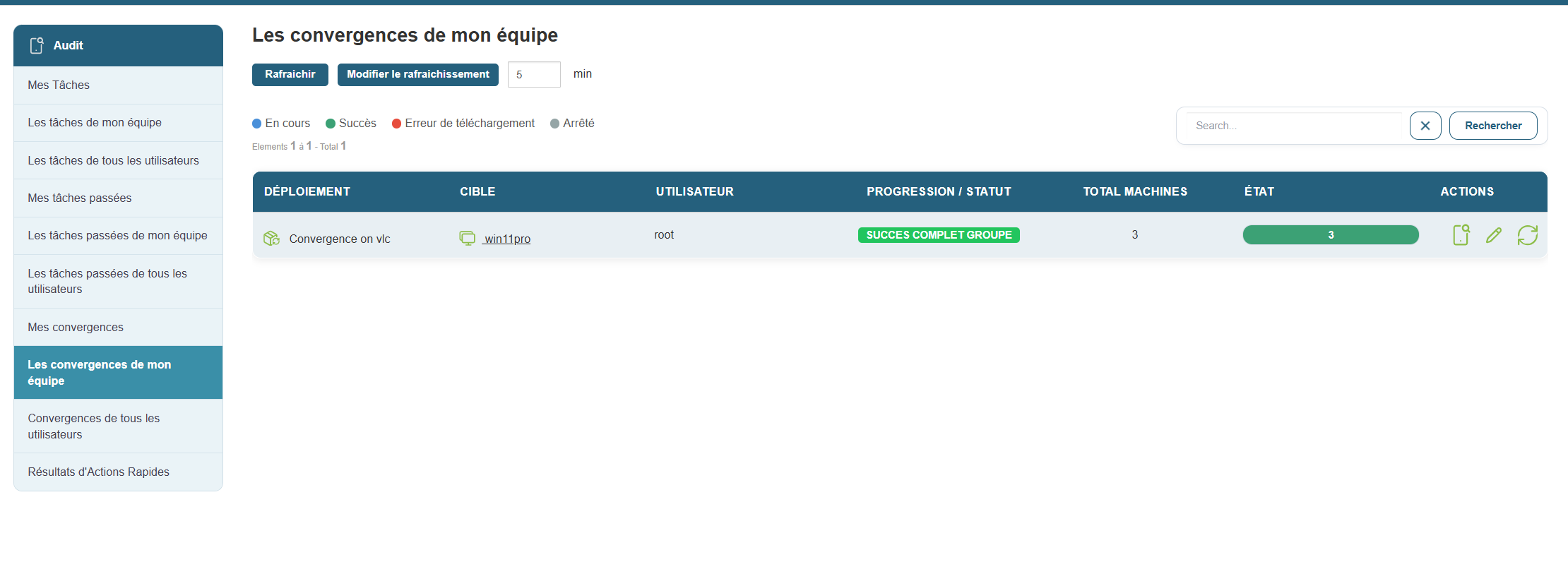
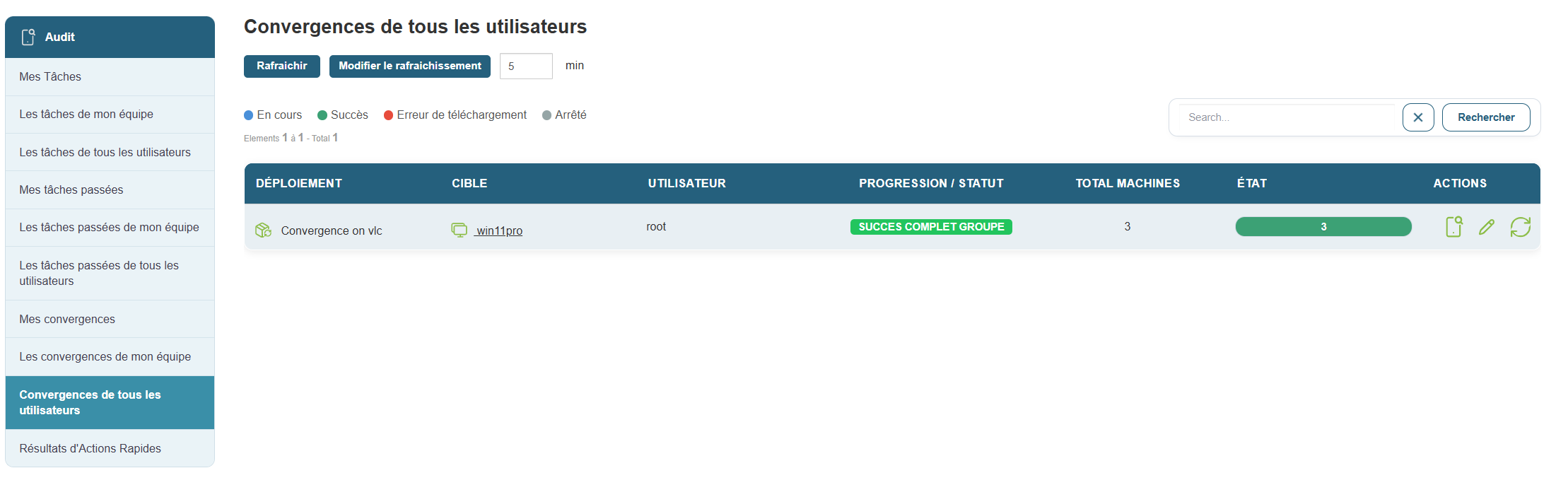
This information allows you to cross-reference intervention data, identify recurring or critical operations, and act consistently within your department.
Task Analysis
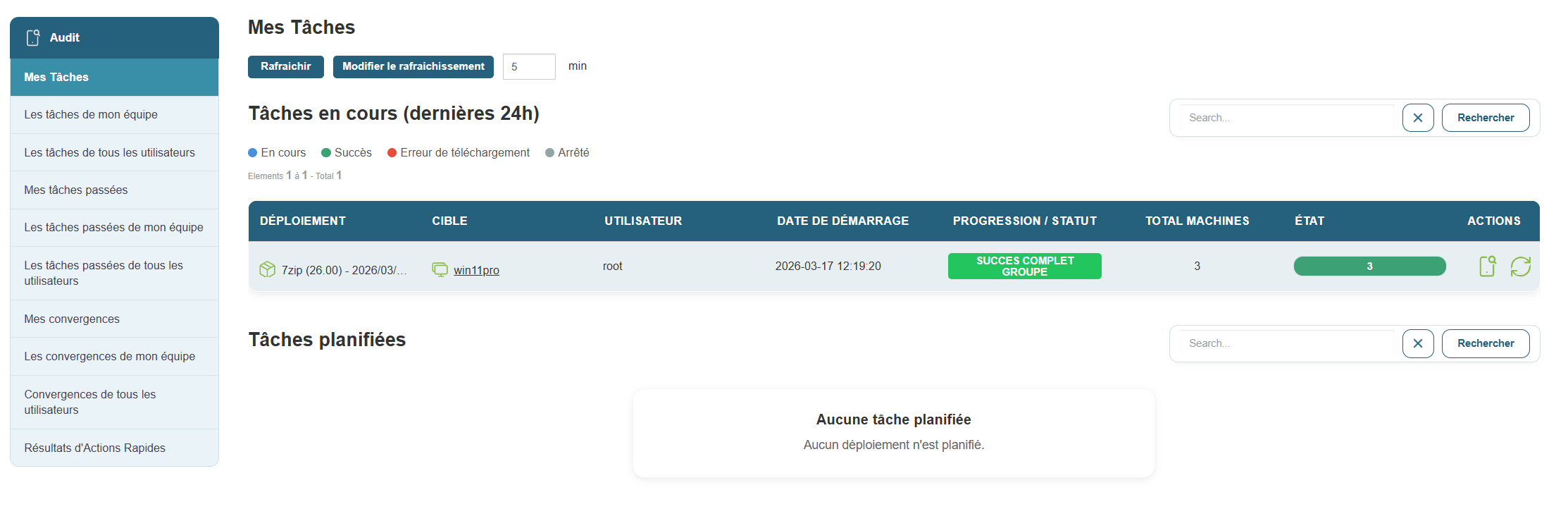
For each listed task, you can access acomplete description that includes:
-
The total number of machines affected
-
The progress rate (successes, errors, stopped transfers)
-
Download or permission errors
-
The associated execution log
This data is essential for:
-
Diagnosing incidents
-
Justify an intervention
-
Verify deployment compliance
-
Documenting processes for audit purposes
To access these details, simply click the 
A Refresh button (with a configurable interval, default 5 minutes) keeps the view constantly updated.
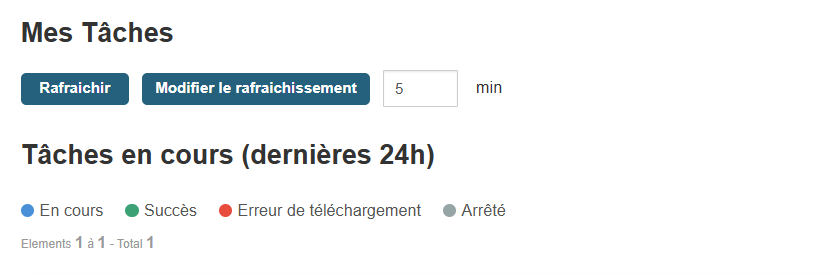
This facilitates active management by allowing you to:
-
Respond quickly in the event of a failure or blockage
-
Identify tasks that are taking an unusually long time
-
Follow a precise schedule in real time
The audit and task management interface is a true retrospective and collaborative dashboard. It allows you to understand what was done, by whom, on which machine, and with what results. This traceability is essential for strengthening security, improving internal procedures, and ensuring reliable and controlled administration of your IT environment.
Group Deployment Analysis:
When you open the group deployment, you’ll see an interface that displays the pie charts from the home screen.
You can then click on each pie chart segment to create a group based on the error type.
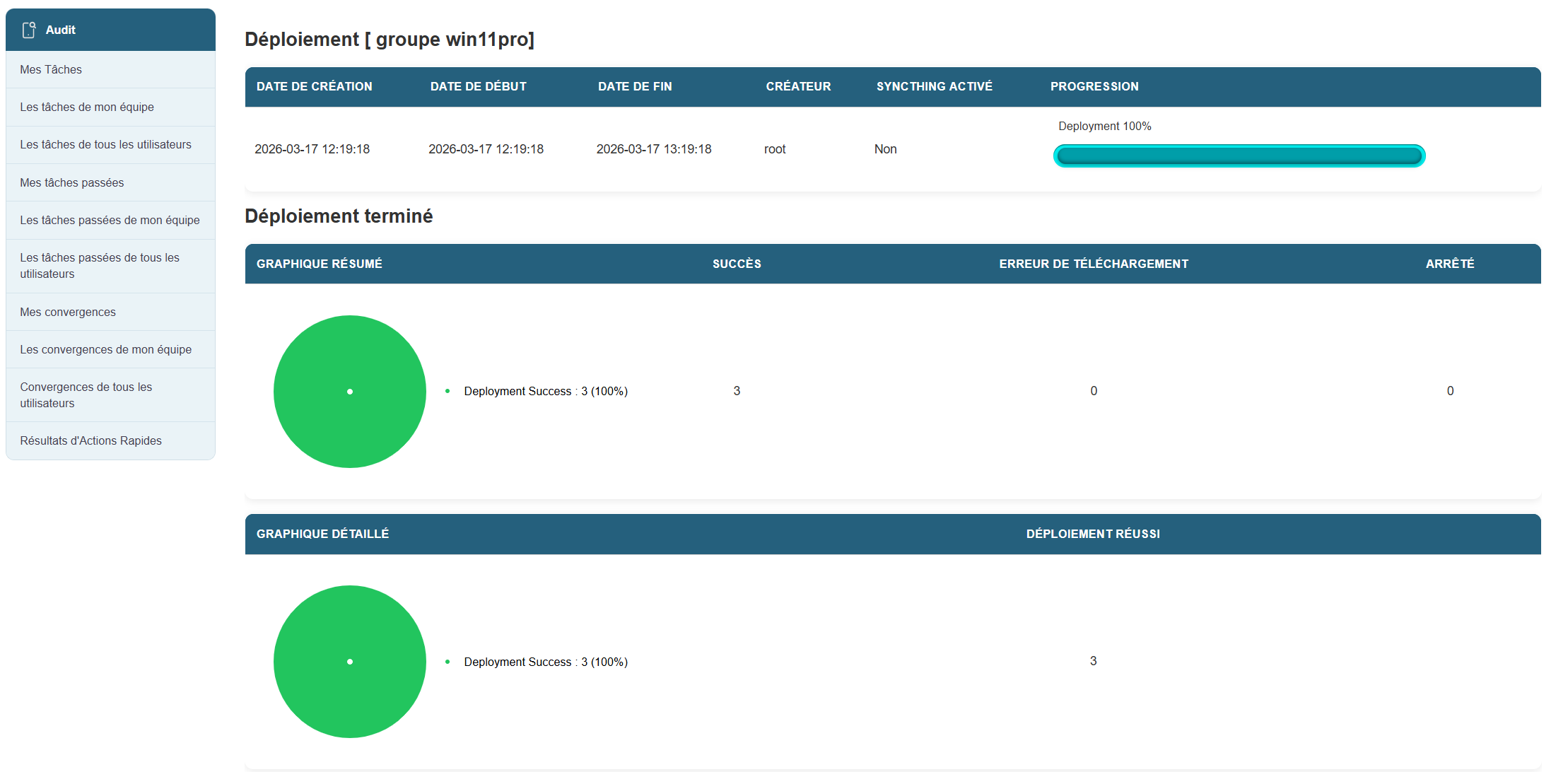
In the second section of the page, you’ll see details of the machines included in the group, along with summary information and two buttons that allow you to:
- view deployment details for the individual machine
- to restart the deployment if it failed.
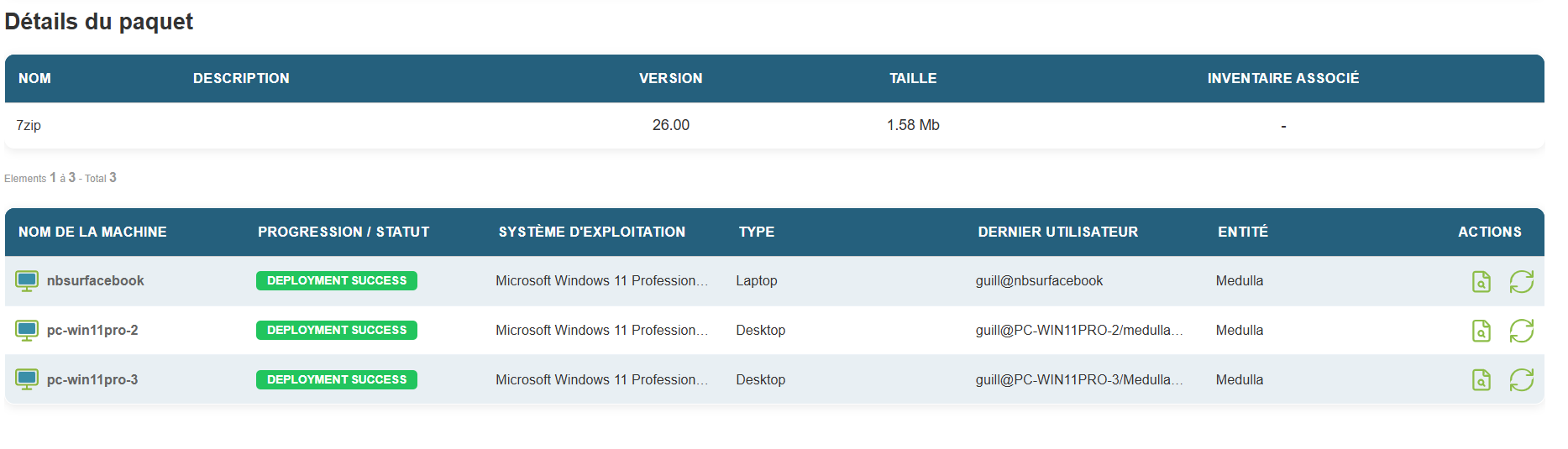
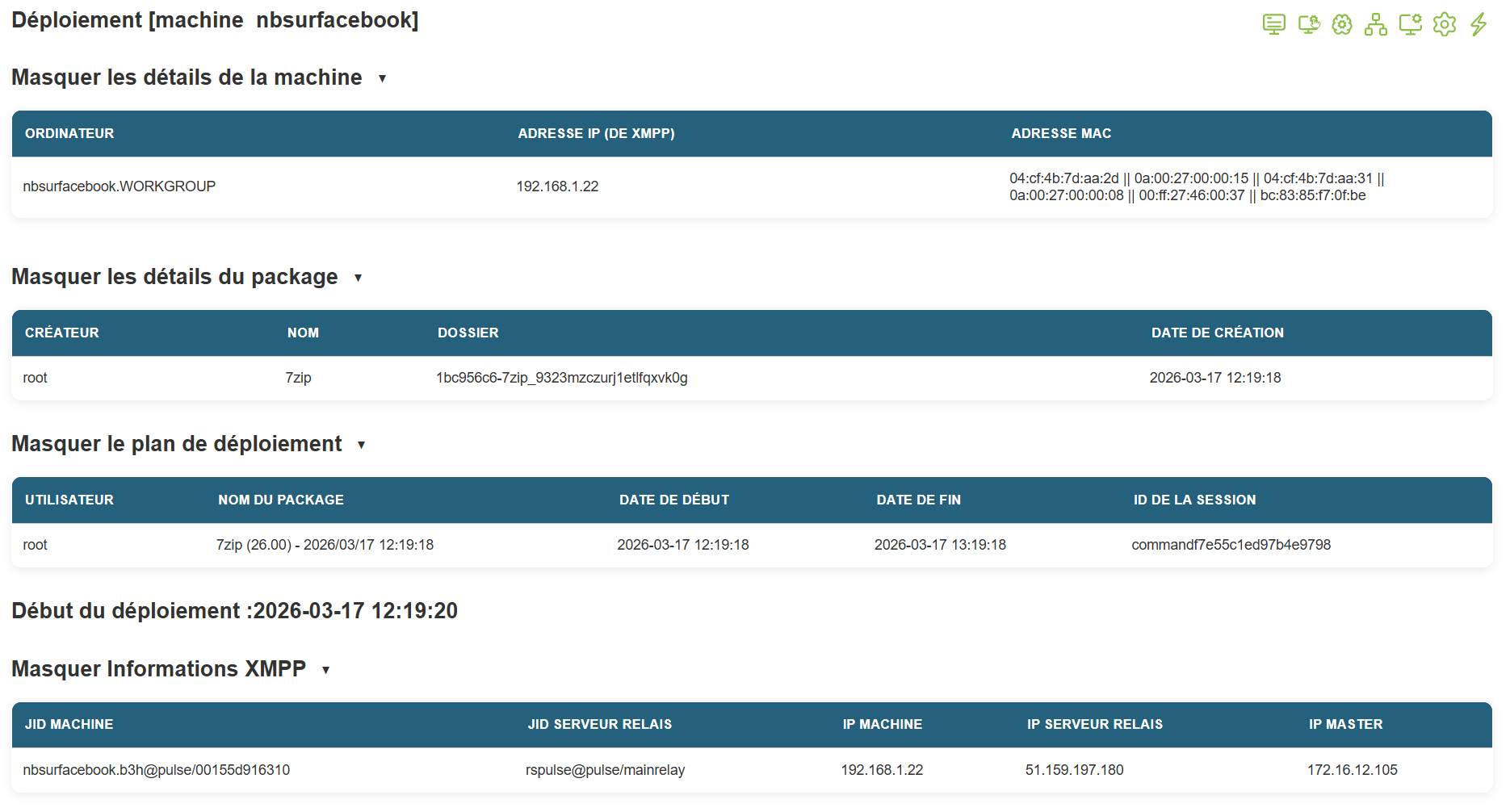
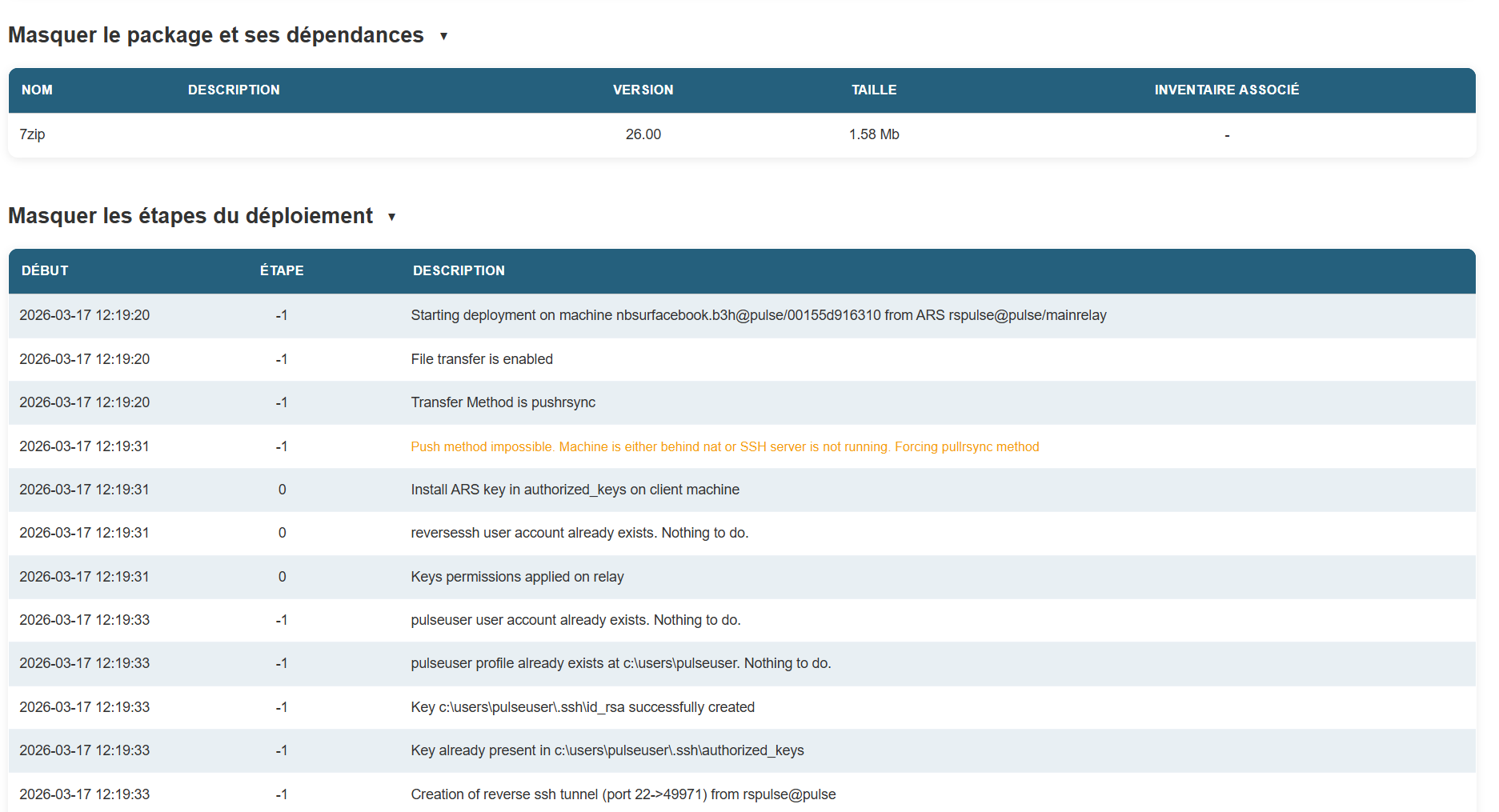
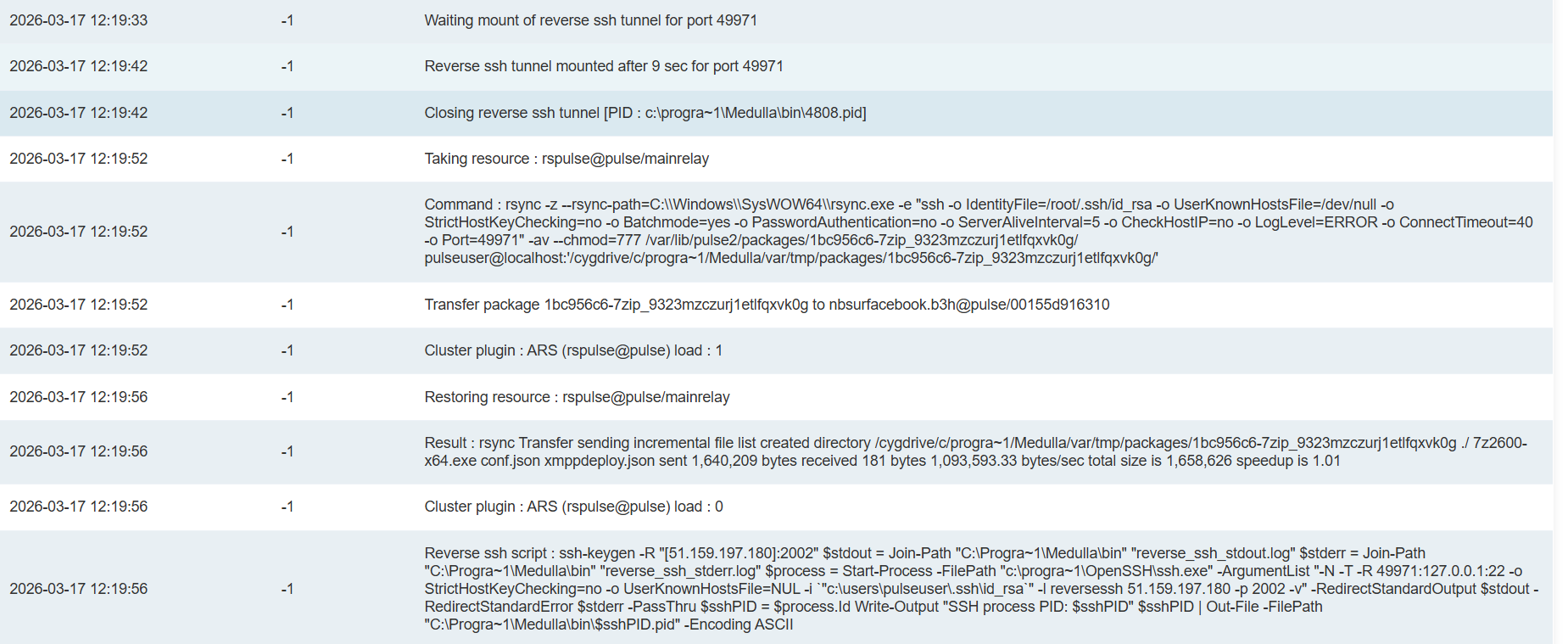
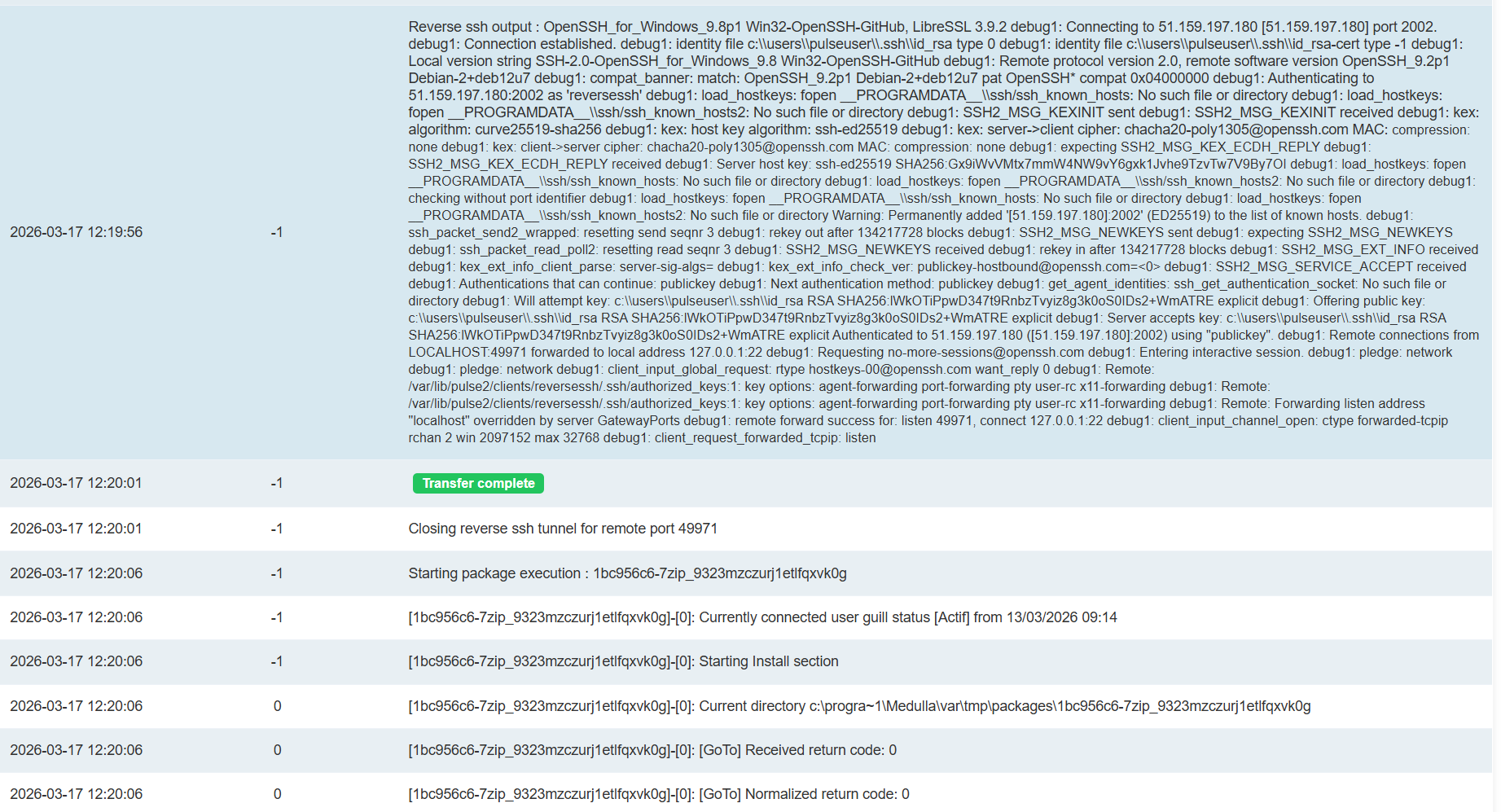
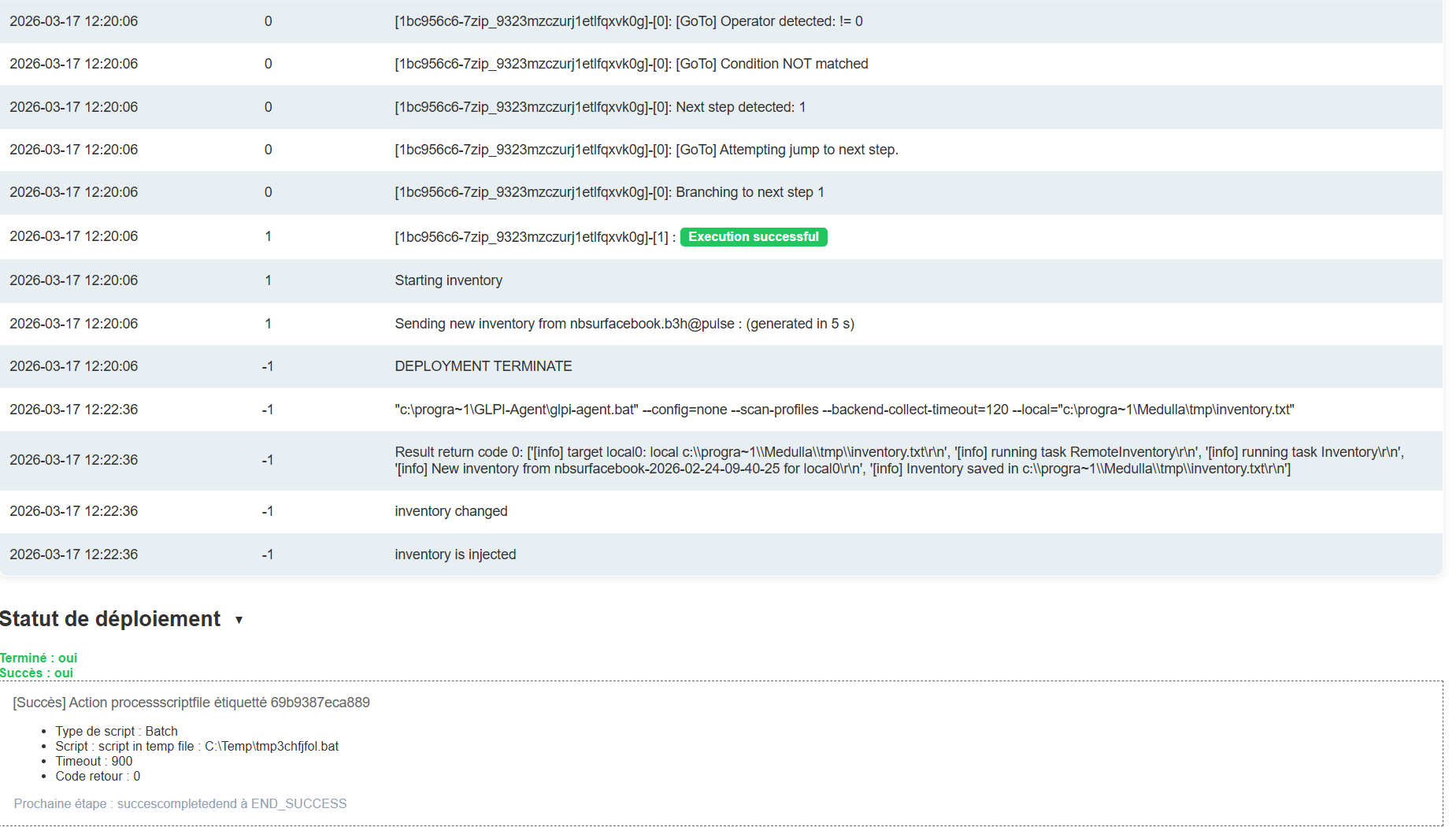
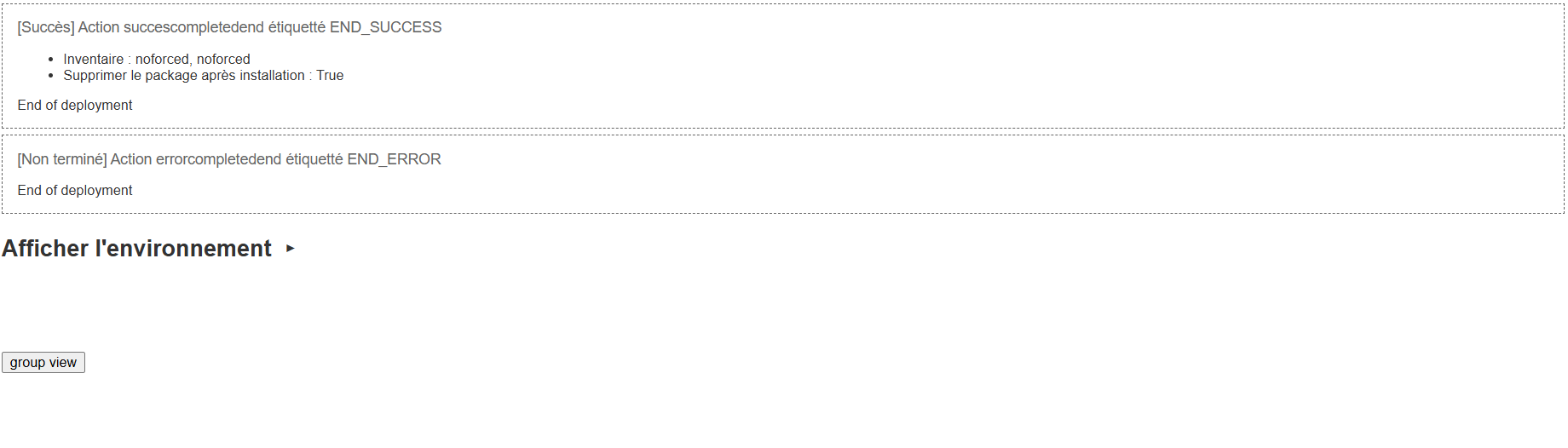
Deployment details for a machine:
The deployment details include every action performed during the deployment phase.
The deployment process at Medulla is divided into three parts:
- Sending the binary to the workstation;
- Executing the installation
- Launching an inventory.