Add a new package
Creating a package involves defining an action (installation, uninstallation, script, etc.) that will be deployed to one or more workstations. The creation form allows you to precisely configure the package’s behavior and its execution options.
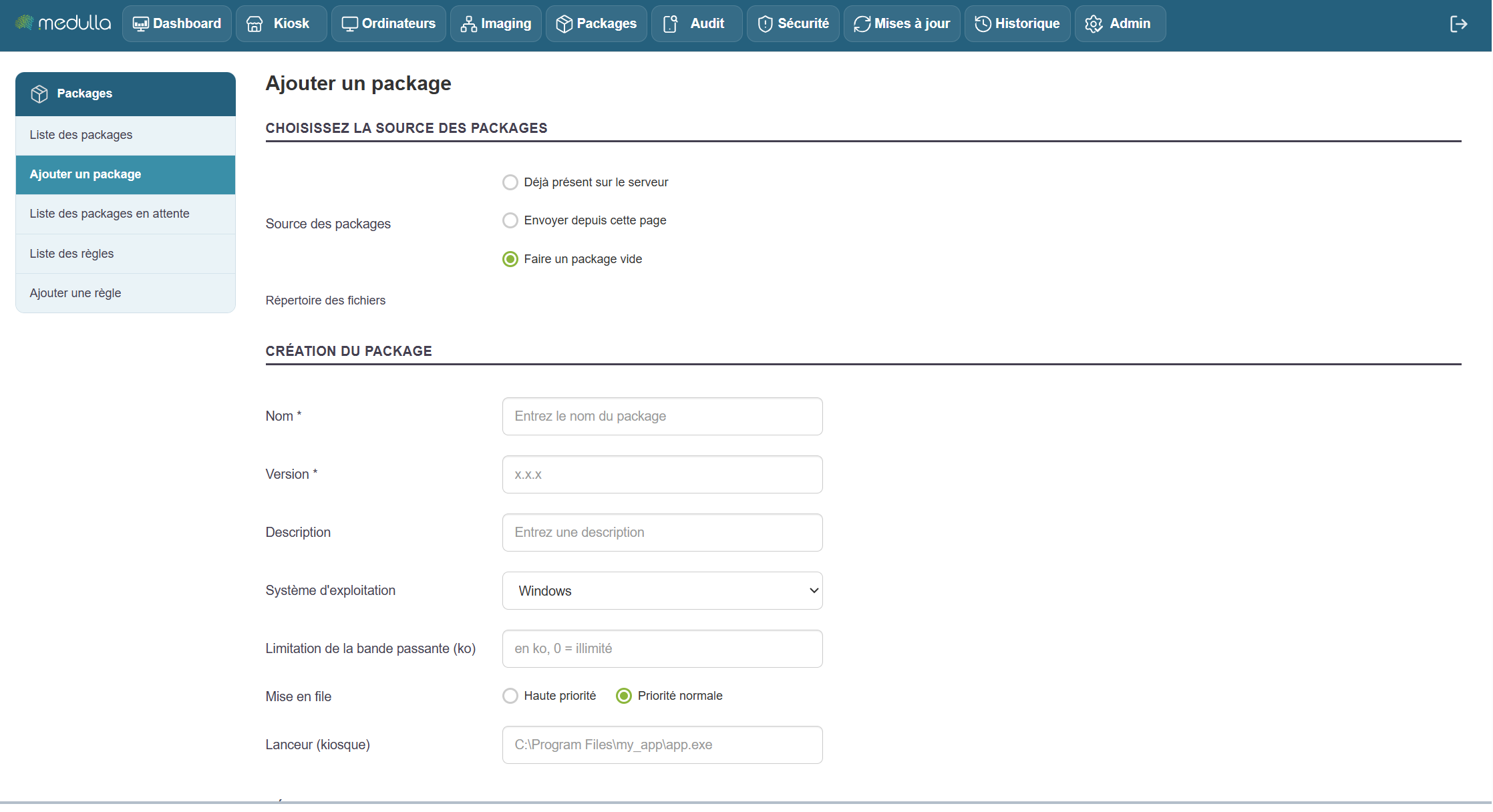
Next, select the source of the files to be used in the package. Four options are available:
-
Already present on the server
Use files previously uploaded to the server. -
Upload from this page
Import the installation files directly from your computer. -
Create an empty package
Create a package with no initial content, to be filled in later. -
File directory
Use a shared directory containing the files to be deployed.
General information to provide
Sharing
SelectGlobal Packages to make the package visible across the entire platform, for all Entities.
Name
Give the package a descriptive name, for example: Install_Chrome
Special characters and accented characters are not allowed.
Version
Enter a version number, for example: 1.0.0.
Description
Briefly summarize the purpose of the package.
Operating System
Select the target OS, for example:Windows.
Define the technical deployment details
Transfer method
Generally, use pushrsync (recommended).
- pushrsync: The server pushes the package to the workstation via Rsync.
- pullrsync: The machine retrieves the package from the server via Rsync.
- pulldirect: The machine retrieves the package from the server.
Bandwidth Limitation
Optional value to limit the transfer speed, e.g., 500Queuing
Queuing
Choose between High PriorityorNormal Priority, depending on the urgency of the deployment.
The execution order (from the queue) of deployments is determined based on the priority selected when the package was created.
Launcher (Kiosk)
Specify the path to the executable file that should be launched after installation (e.g.,C:\Program Files\my_app\app.exe).
Only required for Kiosk mode, to run the previously installed software via a button available on the Kiosk.
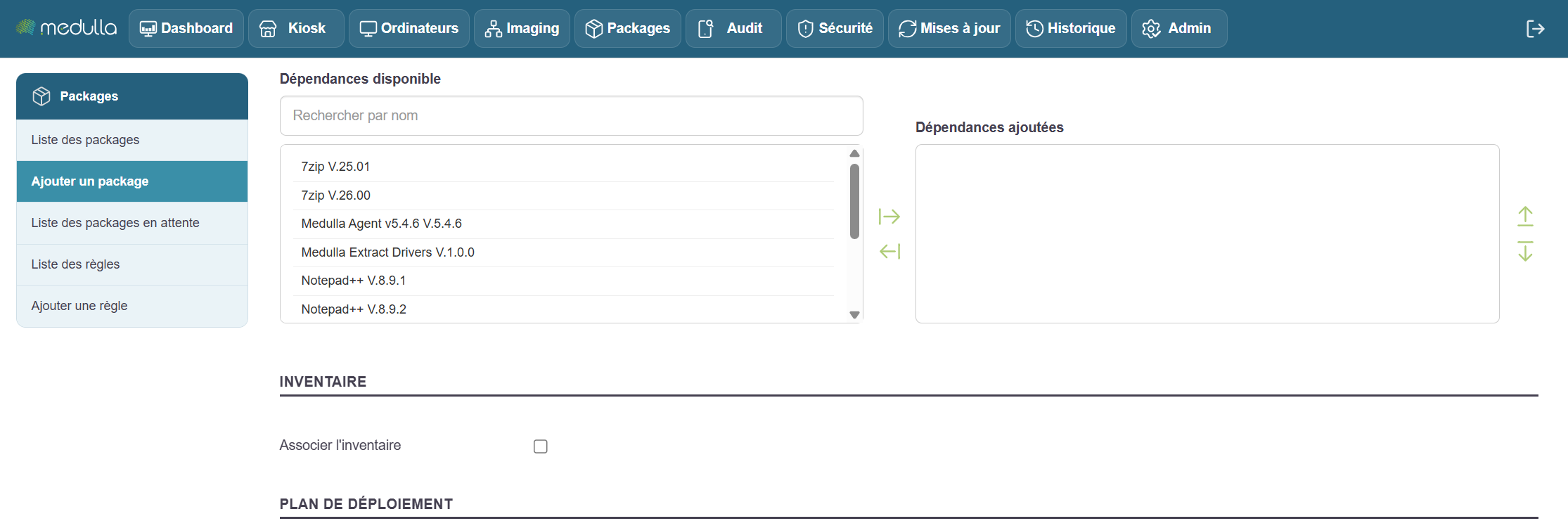
Dependencies
If your application requires other components to function
Search for and add the necessary dependencies from the available list (examples:Extract drivers, Medulla Agent).
The added dependencies will appear in the corresponding section.
Link to inventory
Enable this option to allow tracking of the package after installation via the GLPI inventory.
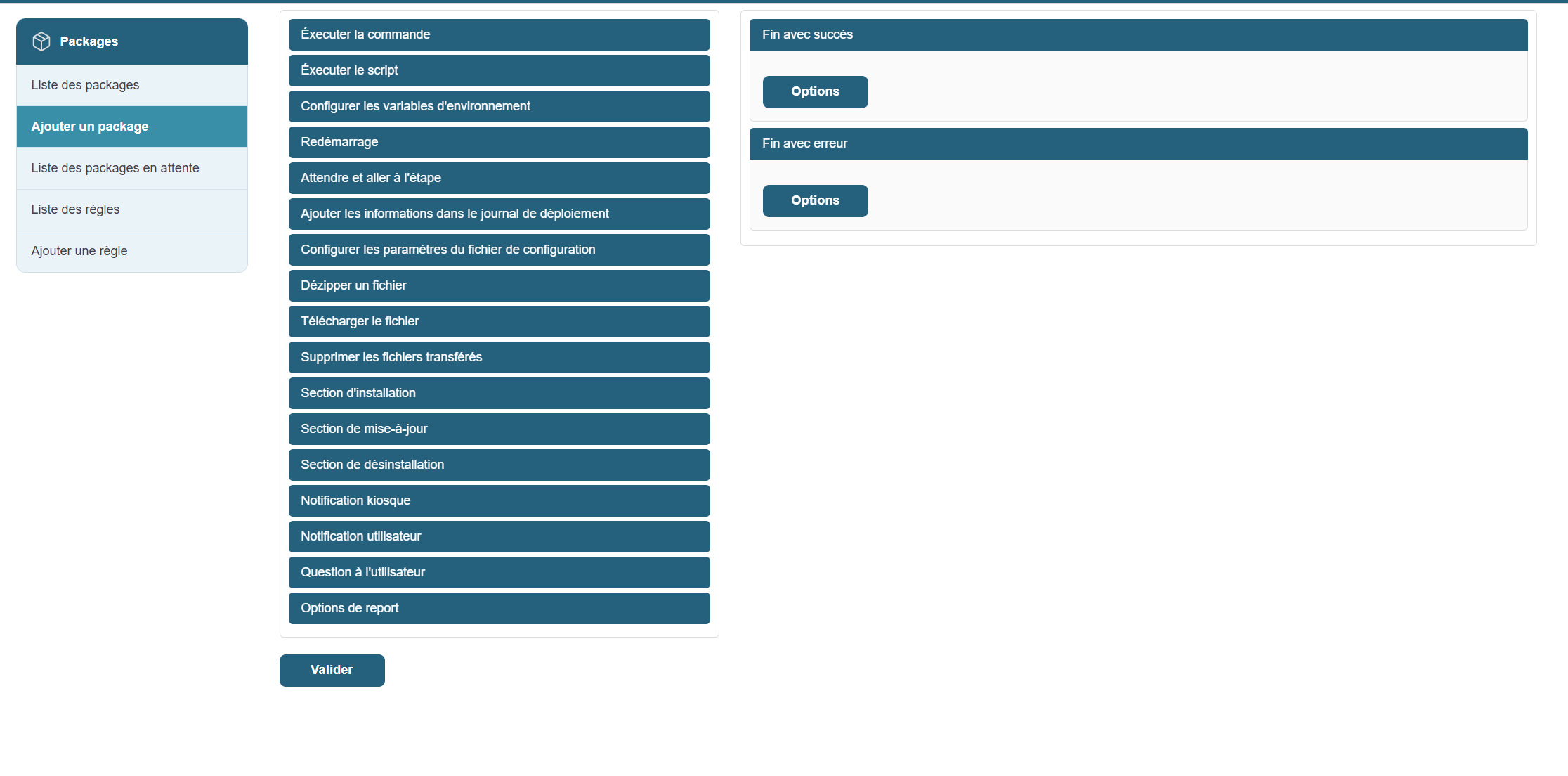
You can add custom actions to the package, depending on your needs:
-
Run a command or script (When adding a file to the "Package Source" package, our wizard automatically adds the correct command to run the setup file, allowing for silent installation of the application)
-
Configure environment variables
-
Restart the workstation after installation
-
Wait and proceed to the next step
-
Add information to the deployment log
-
Modify or configure a settings file
-
Extract, download, or delete files
The package may include several steps depending on its lifecycle
-
Installation section: for the initial installation
-
Update section: when upgrading to a new version
-
Uninstallation section: to remove the program
To interact with the end user
-
Kiosk notification: Displays information in the user area
-
User notification: Message displayed on the screen
-
User prompt: Conditional interaction (e.g., choosing a time)
-
Postponement options: Allows you to postpone the installation
Define the package’s behavior at the end of the process
-
Successfully completed
The step can be namedEND_SUCCESS. Allows you to trigger a final action. -
End with error
The step can be namedEND_ERROR. Used to handle deployment errors or failures.
-
Inventory
Option available if a change to the device is detected following deployment. -
Delete the package
Enable this option if the package should be deleted after execution (rarely used in standard deployments).
Once all sections have been configured and verified
Click Add to save the package.
It will then be accessible from the library for use in a deployment rule or to be triggered manually.