Custom Quick Action
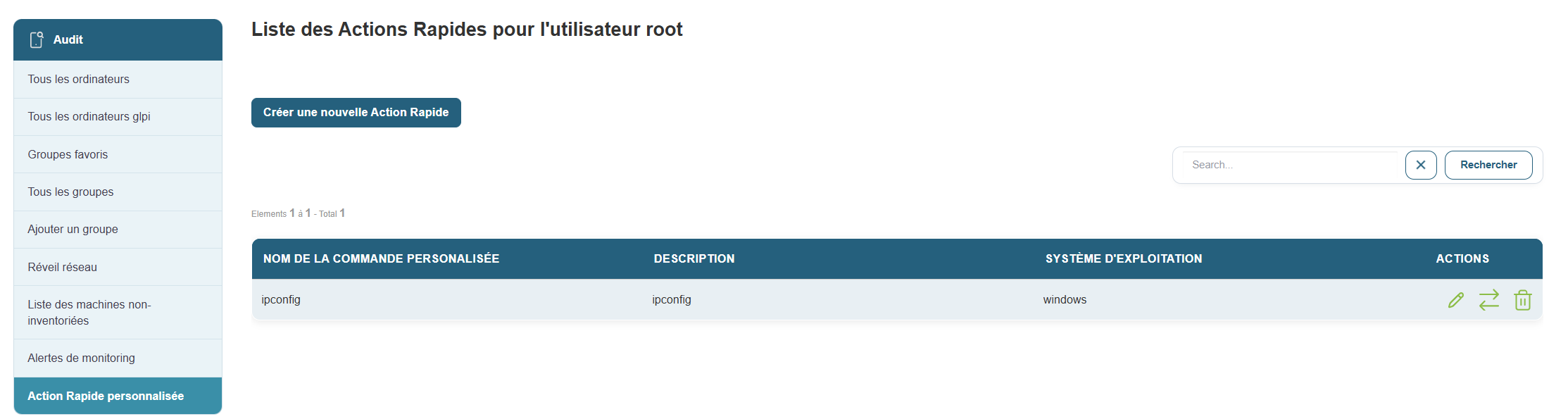
The Custom Quick Action section allows you to create and manage automated actions that will be executed remotely on your machines. These actions can include specific scripts or commands, thereby facilitating bulk management and the automation of administrative tasks across multiple workstations simultaneously.
Overview
Once in this section, you will see a list of all custom quick actions already configured for the root user. If no actions have been created yet, an empty table will appear, allowing you to add custom commands.
The table contains the following information:
-
Custom Command Name: The name assigned to the quick action. This is the name that will be used to identify the action.
-
Description: A summary or detailed description of what the action does. This allows you to quickly understand the purpose of the command without having to consult its script.
-
Operating System: The type of system for which the quick action was defined (e.g., Windows, Linux, macOS).
-
Actions: The options available to edit or delete an existing quick action.
Create a new custom quick action
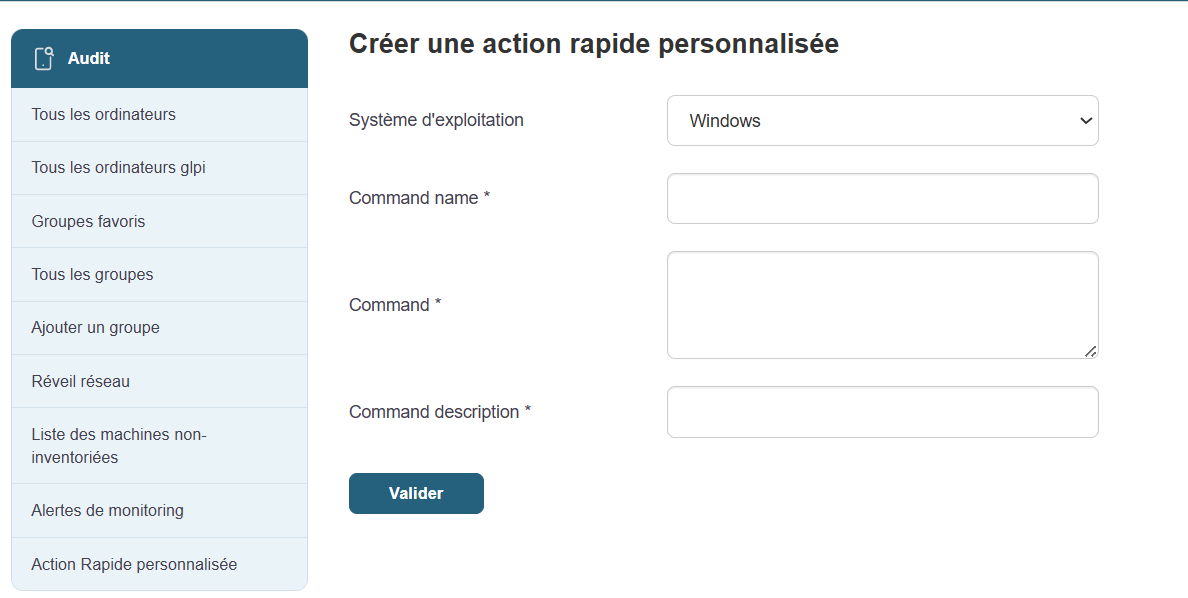
To create a new custom quick action, simply click the "Create a custom quick action" button at the top of the page. This will take you to a form where you can define the settings for your new command.
Custom Quick Action Creation Form
The form is divided into several essential fields:
-
Operating System:
Select the target operating system on which the command will be executed. Example: Windows, Linux, macOS, etc. -
Command Name:
Give this quick action a unique name so you can easily identify it among other commands. This name should be clear and descriptive to avoid confusion. -
Command or Script:
Enter the exact command or script you want to run remotely on the target machines. For example, you can enter a command such as:shutdown /r /t 0to immediately reboot a Windows machine, or another administrative script tailored to your needs. -
Command Description:
Add a concise description explaining the purpose of the command. This will help all administrators understand its purpose, even if they weren’t responsible for creating it.
Once all fields are filled in, simply click "Validate" to save and activate the action. The action will now be available in the list of custom commands and can be executed on the target machines.
Verification: Before running an action on a large number of machines, test it on a single machine to ensure it works as expected.
Documentation: It is recommended that you clearly describe each quick action so that all users can understand its purpose and effects.
Security: Commands can have a significant impact on systems. Ensure that only authorized and necessary actions are executed.