Chapter 5: Computers
- Computers
- All groups
- Network Wake-up
- List of uninventoried machines
- Monitoring alerts
- Custom Quick Action
- Delete a computer
Computers

This section is dedicated to the comprehensive management of all IT devices in Medulla. Whether you want to monitor, organize, or interact remotely with your machines, everything is centralized in a user-friendly and intuitive interface.
Computer management in Medulla is based on a centralized interface accessible via the XMPP View. From this interface, you have access to all the features needed to monitor machine status, perform targeted searches, apply filters, and perform various actions on your computers—all in real time.
XMPP View of Computer Workstations
The XMPP View is the heart of workstation management in Medulla. It allows you to monitor the connection status of each machine in real time and interact with them. This module centralizes information and available actions for complete control of your IT infrastructure
Filters and Workstation Selection
At the top of the page, you have three radio filters to select computers based on their connection status:
-
All Computers: Displays all machines, regardless of their status.
-
Online computers: Displays only computers that are currently connected.
-
Offline computers: Displays machines that are not currently connected.
These filters are useful for quickly and efficiently managing machines based on their availability.
Filtering by Entity
Global Search
Using the “Search all fields” search field, you can search for a machine by entering a keyword. This search field applies to all fields visible in the table, such as the machine name, IP address, operating system, or associated entity.
Actions Available on Devices
Under each computer workstation in Medulla, you have several actions available for remote management and control. These actions include advanced features such as machine inventory, monitoring, remote control, and much more. For a detailed view of each function, consult the Admin section, which covers these options in depth.
Here is an overview of the available actions:
 GLPI Inventory Tracking and management of hardware and software configurations via integration with GLPI.
 Monitoring Real-time monitoring of machine performance.
 Remote Control : Directaccess to machines to perform troubleshooting or maintenance tasks.
 Backup: Access to the Medulla backup module for user workstations.
 Software Deployment : Remoteinstallation or updating of software.
 Imaging Management Deployment and managementof system images.
 XMPP Console: Verify machine connectivity and interact in real time via XMPP.
 Editing Configuration Files: Modify configuration files remotely.
 Quick Actions: Launch actions and commands via the XMPP protocol.
 Delete machine
All GLPI Computers
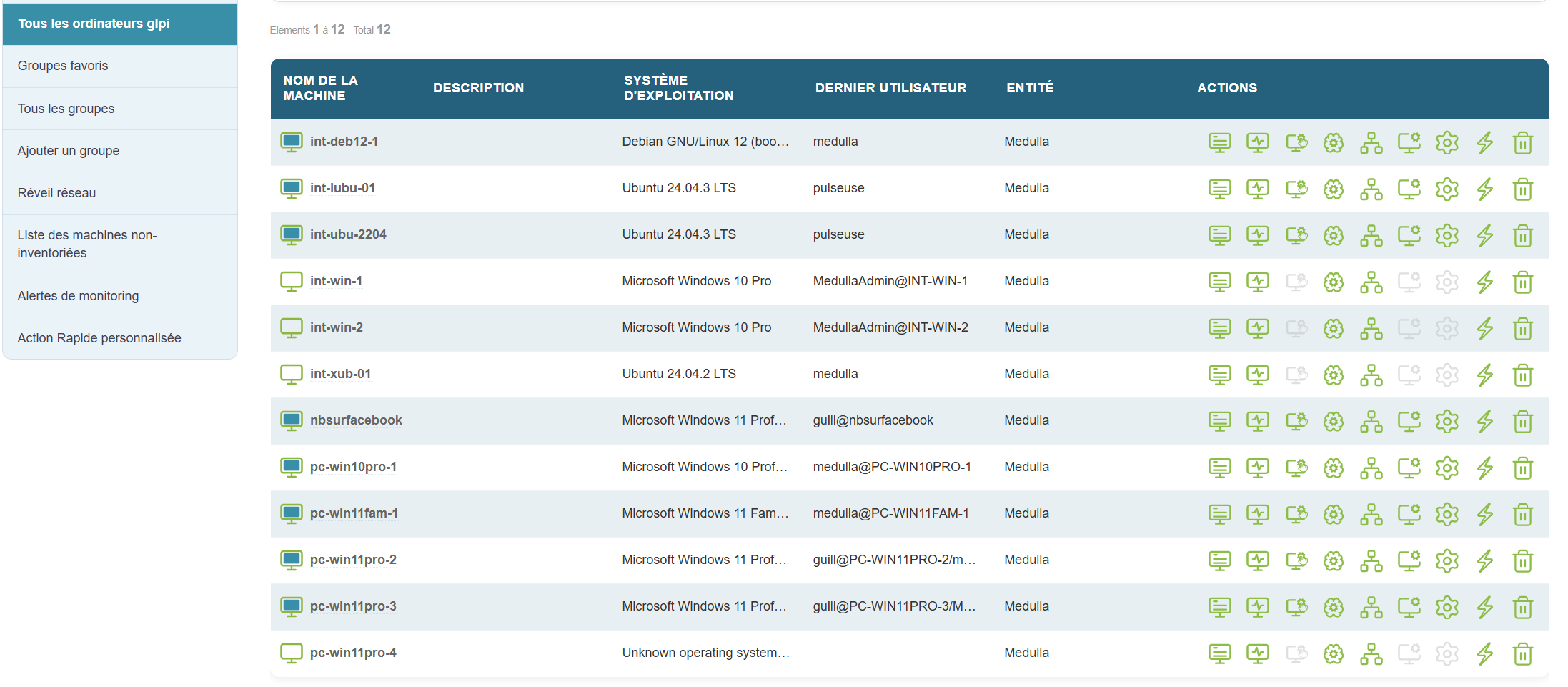
This section displays only the computers that have been synchronized withGLPI via the automated inventory. Here, you can view all machines registered in the GLPI system and check their status.
Features:
-
Display similar to the main page: You will find a visual interface identical to that of the "All Computers" view, with options to filter online or offline machines.
-
GLPI fields displayed: Key information about computers synchronized with GLPI is visible, such as:
-
Machine name
-
Operating system (OS)
-
Entity to which the machine is linked
-
Last user
-
And other important information
-
-
Filter by connection status: The interface allows you to filter online and offline machines based on their synchronization status with GLPI.
-
Display based on GLPI connection: Only computers that have been successfully synchronized with the GLPI inventory will appear here. If no machines appear, this may mean that the GLPI inventory has not been configured correctly or that the machines have not yet been synchronized.
If no devices appear here, it means that the GLPI inventory has not yet been configured or that the machines have not been synchronized
All groups
Favorite Groups
Once computer groups have been created, you can mark some of them as favorites for quick access.
Favorite groups are useful for:
-
Teams that regularly work on the same set of workstations
-
Preparing bulk action scenarios (imaging, updates, etc.)
-
Monitoring critical or sensitive machines
All Groups
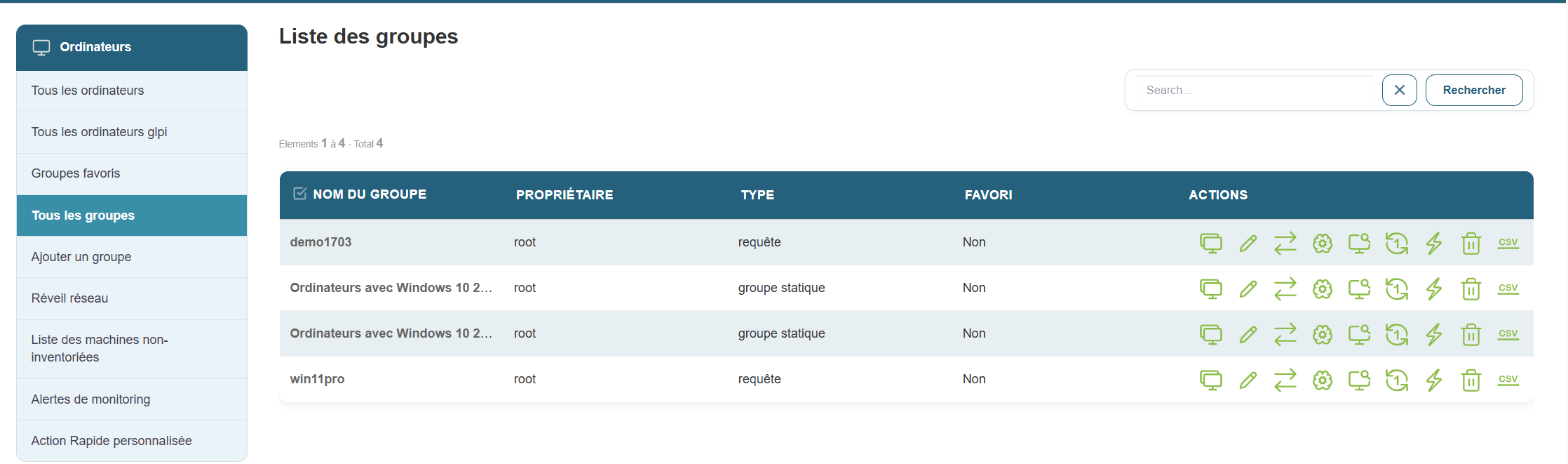
This section displays all available computer groups in your Medulla instance. This allows you to manage all groups centrally and perform large-scale actions, such as:
-
Software deployment
-
Installing updates
-
Remotely rebooting machines
-
Exporting reports to CSV format
It also allows you to perform a range of large-scale actions, such as deploying software, installing updates, remotely restarting machines, or exporting reports to CSV format
Add a group
Medulla offers several ways to structure and organize your IT infrastructure through a flexible group system. When creating a group, you can choose from several methods:
Creating a dynamic group
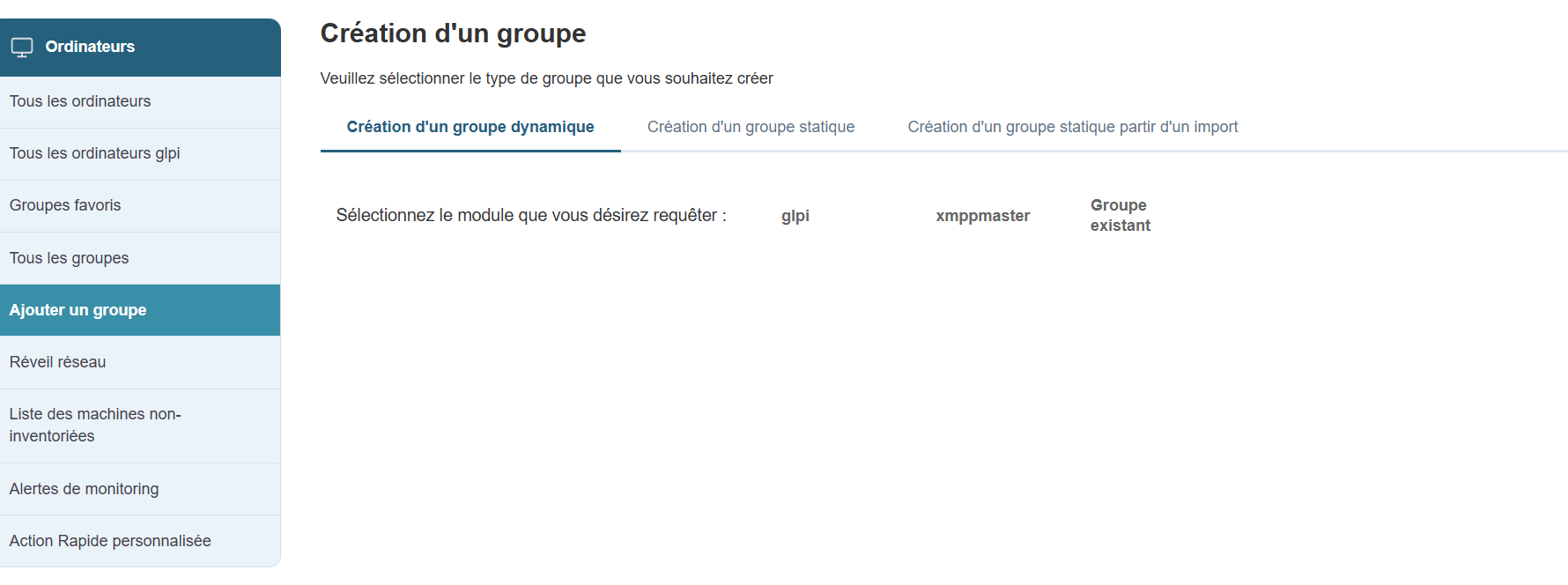
Dynamic groups allow you to automatically target machines based on predefined criteria. These groups update automatically as soon as a machine meets or no longer meets the selected criteria.
Modules available for creating a dynamic group:
-
GLPI: queries based on the GLPI inventory (OS, hardware status, etc.)
-
XMPPMaster: queries related to XMPP actions (real-time communication, monitoring, etc.)
-
Group: to cross-reference or filter existing groups
Dynamic groups are particularly useful in constantly evolving environments or for automated targeted deployment
Creating a static group
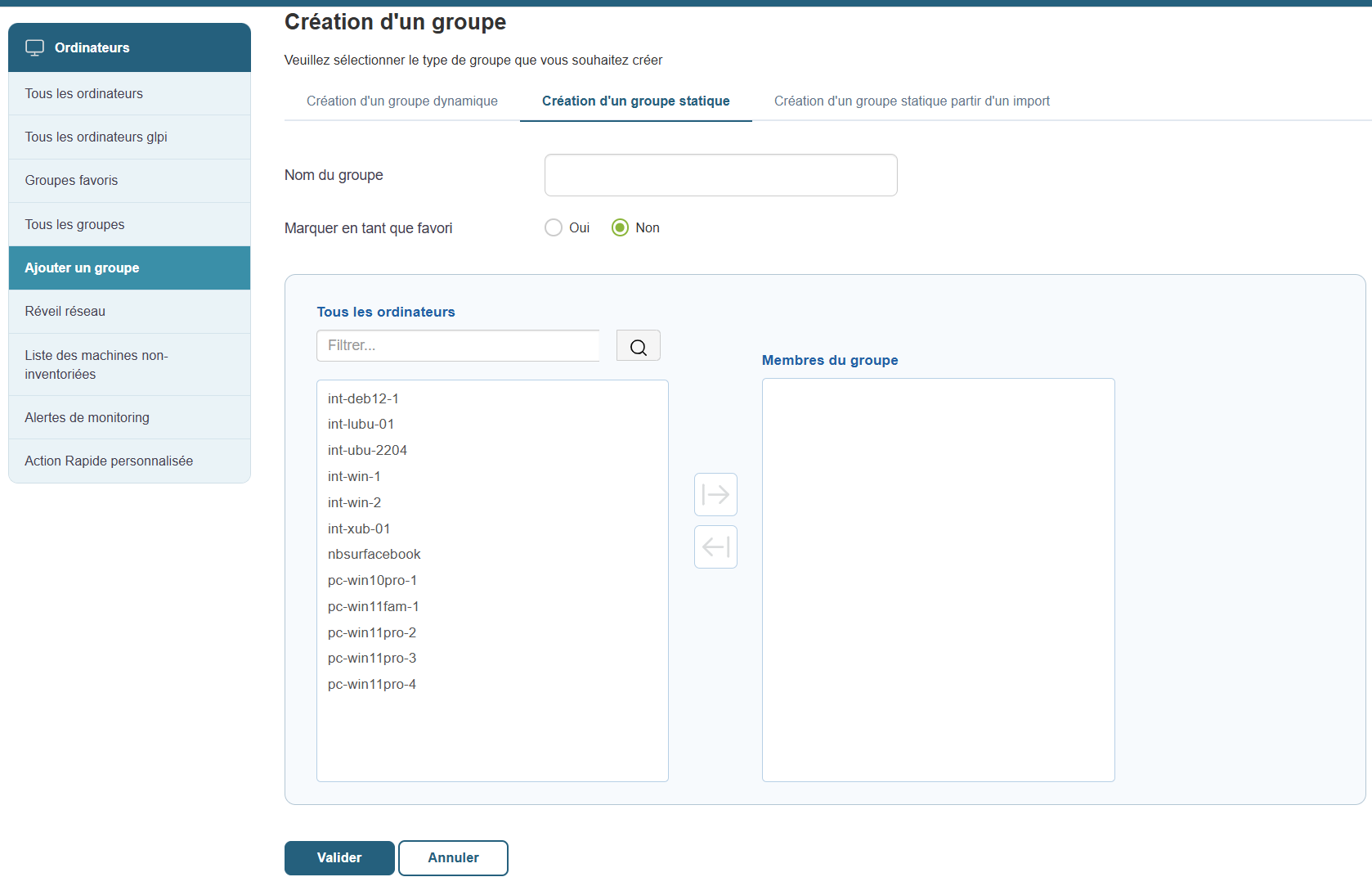
Static groups are created manually by explicitly selecting the machines to include. Unlike dynamic groups, the composition of a static group does not change automatically. You will need to add or remove machines as needed.
Functionality:
-
Group Name: Give the group a clear and relevant name.
-
Favorite: Check this option if you want the group to be easily accessible from the favorites menu.
-
Select machines: Choose the computers to include in the group from the list of available machines.
Typical use cases:
-
Create a group of test machines.
-
Prepare a set of computers to configure manually.
-
Monitor a fixed set of workstations in a specific context.
Static groups are ideal for one-time scenarios or specific monitoring tasks
Creating a static group from an import
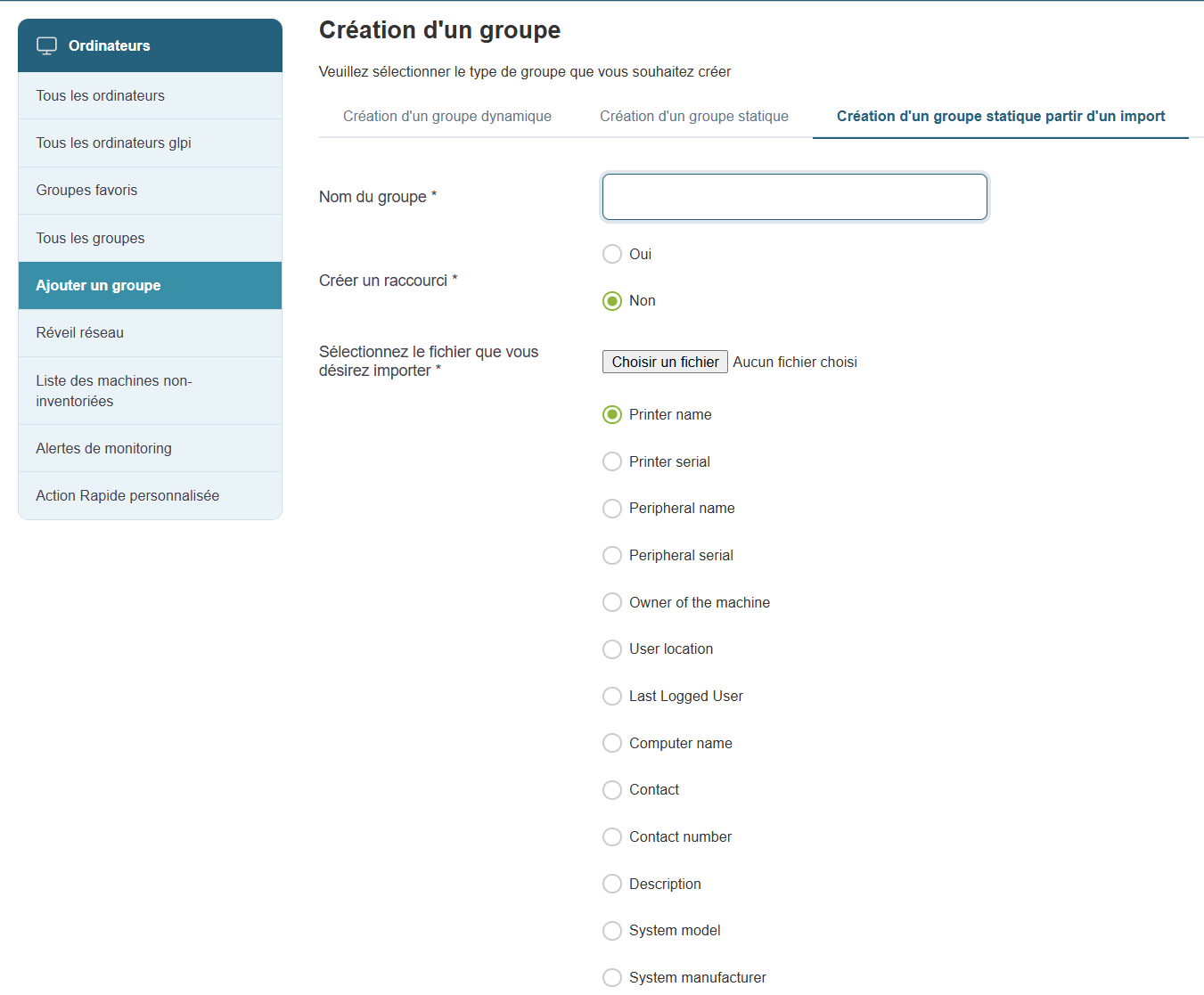
If you already have a list of machines (in CSV or Excel format), you can easily create a group from this file.
Creation steps:
-
Group Name: Enter a name for the group.
-
Favorite: Check this option if you want the group to be a favorite.
-
Import file: Click "Choose a file" to import your list ( CSV or Excel formats supported).
-
Define data types: Specify the data types contained in the file (e.g., Machine Name, User, Inventory Number, Operating System, etc.).
This method is ideal if you are retrieving information from an external system or a structured Excel spreadsheet.
Network Wake-up
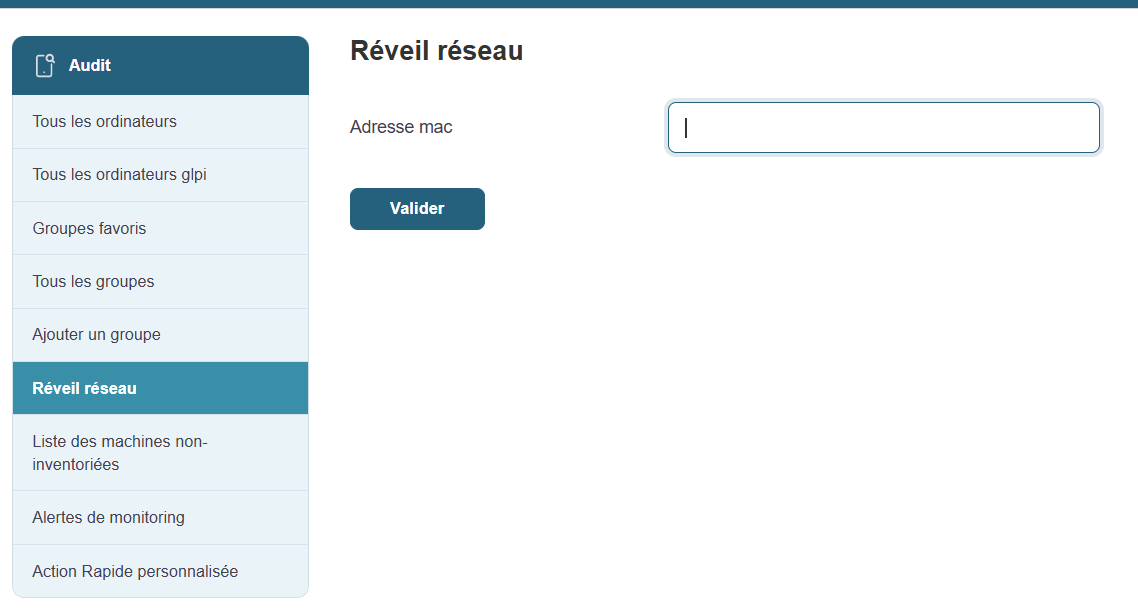
Wake on LAN (WOL) is a handy feature that allows you to remotely power on machines that are turned off, provided they are configured to accept this command.
How does it work?
Accessible from the Medulla main menu, this feature displays a list of machines compatible with Wake on LAN. This allows you to take remote control and manage the power-up of workstations without having to physically move to them.
Information available for each machine:
-
Machine Name: The identifier of the computer you want to wake up.
-
Current status: Displays the machine’s status (online or offline).
-
Action button: Allows you to attempt to wake up the selected machine. Clicking this button will attempt to send the wake-up command.
Prerequisites:
Wake-on-LAN relies on proper BIOS/UEFI configuration of the machines. Ensure this feature is enabled on the machines before attempting to wake them remotely.
Typical uses:
-
Booting groups of machines before a deployment or maintenance operation.
-
Wake up computers to update them or run backups overnight, so as not to disrupt business operations during the day.
Benefits of Wake on LAN:
-
Time savings: Remotely boot multiple machines simultaneously.
-
Flexibility: Allows you to keep workstations up to date and perform maintenance operations without physical intervention.
-
Increased productivity: Ideal for IT teams that need to manage a large number of machines without disrupting users.
This feature relies on the workstations’ BIOS/UEFI settings (Wake-on-LAN must be enabled
Typical use
-
Remotely boot a group of computers before a deployment operation
-
Wake up computers to keep them up to date or run backups overnight
List of uninventoried machines

This section allows you to quickly identify machines that are not properly inventoried in Medulla. These may be machines that have never reported information, or machines that have been offline for too long.
Objective:
-
Identify inactive or misconfigured machines.
-
Verify that the XMPP/GLPI agents are functioning properly on the machines.
-
Identify machines that have been deleted without being cleaned up in the database.
Overview:
When you access this page, a table appears listing all machines with inventory anomalies. Here is the information available in this table to help you diagnose and resolve these issues:
Table columns:
-
XMPP Machines: List of machines with an XMPP agent enabled, allowing real-time communication with Medulla.
-
JID (Jabber ID): Unique identifier of the XMPP agent, used to establish the connection with Medulla.
-
Archi: The machine’s hardware architecture (e.g., x86_64, ARM, etc.).
-
Class: The machine’s class (e.g., PC, server, terminal, etc.).
-
Kiosk Presence: Indicator showing whether the Kiosk is installed and operational on the machine.
-
OR Users: Organizational unit associated with the machine’s users.
-
OU Machines: Organizational unit associated with the machine itself.
-
Cluster Name: Name ofthe cluster to which the machine might belong (if applicable).
-
Cluster Description: Description or additional details about the machine’s cluster.
-
MAC Address: The machine’s MAC address, used to uniquely identify network devices.
-
XMPP IP: IP address used for XMPP communication.
-
Actions: Buttons for performing actions on the machine, such as deleting, updating, or repairing the agent.
Typical use cases:
-
Suspected inactive machine or failing agent:
If you suspect that a machine is no longer active or that the XMPP/GLPI agent is no longer functioning properly, this page is an excellent starting point for checking its status. In particular, you can identify the machine using the MAC address or the XMPP IP. -
Inventory cleanup or audit preparation:
If you are cleaning up the inventory or preparing for an audit, this list allows you to identify machines to check or remove from the database. You can quickly filter and locate machines to audit, for example, by checking information such as the presence of Kiosk or the XMPP status.
Helpful tip:
If a machine appears in this list but no longer appears in "All Computers, " this may mean that it has been disconnected for a long time or that its XMPP/GLPI agent is misconfigured. You can then take the necessary steps to resolve the issue (reinstalling the agent, deleting the entry, etc.).
Monitoring alerts
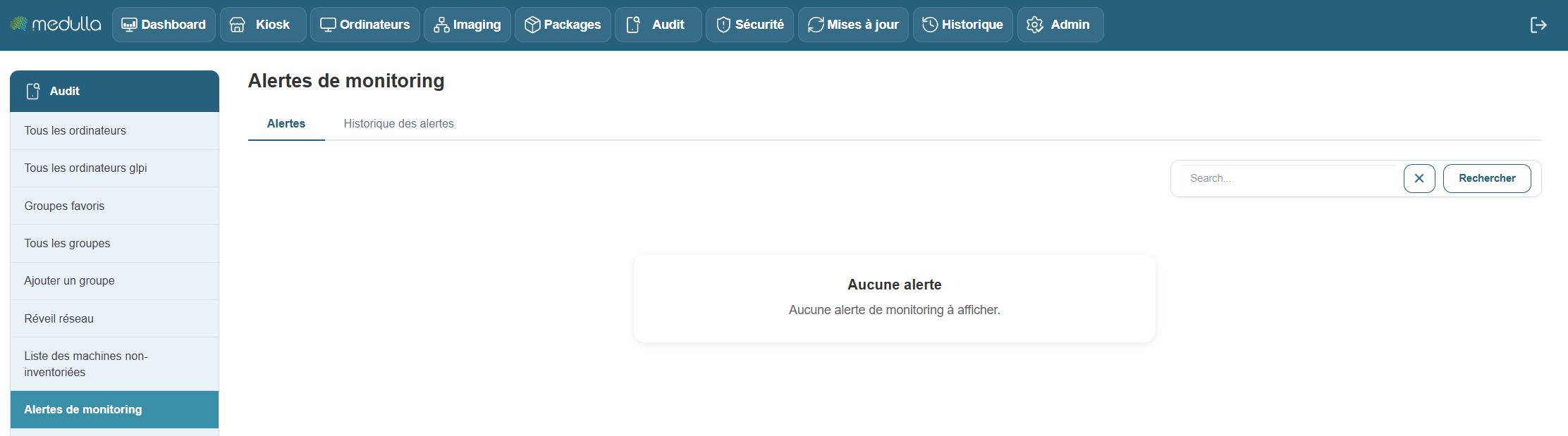
This section centralizes all alerts generated by the monitored machines in your Medulla environment. It allows you to track, in real time or later, hardware or software incidents detected by the monitoring agents deployed on your machines.
Objective
-
Identify critical or recurring incidents: such as disk failures, device errors, network anomalies, or any other issue affecting monitored machines.
-
Ensure clear event traceability: by maintaining a precise timestamp for each alert to guarantee comprehensive tracking.
-
Enable a rapid response: by alerting administrators to detected issues so they can intervene quickly.
Alert History
When no alerts are currently active, you can view the history of past events. This includes resolved alerts, ensuring complete traceability of incidents and actions taken on your machines.
Information available in the history:
If alerts are logged, the table will display the following:
-
Machine name: Name of the machine affected by the alert.
-
Event date: Exact date and time of the incident.
-
Event type: Category of the incident (e.g., device error, hardware failure).
-
Machine message: Details of the error or problem reported by the machine.
-
Affected device: The device associated with the incident (e.g., hard drive, network card).
-
Status: Current status of the alert (open, in progress, resolved).
-
Message: Alert message generated by the monitoring agent.
-
Serial number: Serial number of the device or machine.
-
Firmware: Firmware version related to the incident.
-
Comment: Space for comments or details about the incident.
-
Available Actions: Actions to take regarding the incident (e.g., resolve, ignore, export).
Note: If the table is empty, it means that no alerts have yet been detected or recorded in your environment.
Recommendations
Before making any changes, it is recommended that you back up the existing file.
Apply changes carefully and test them on a small number of machines.
Contact your system administrator if you have any questions about a setting.
Custom Quick Action
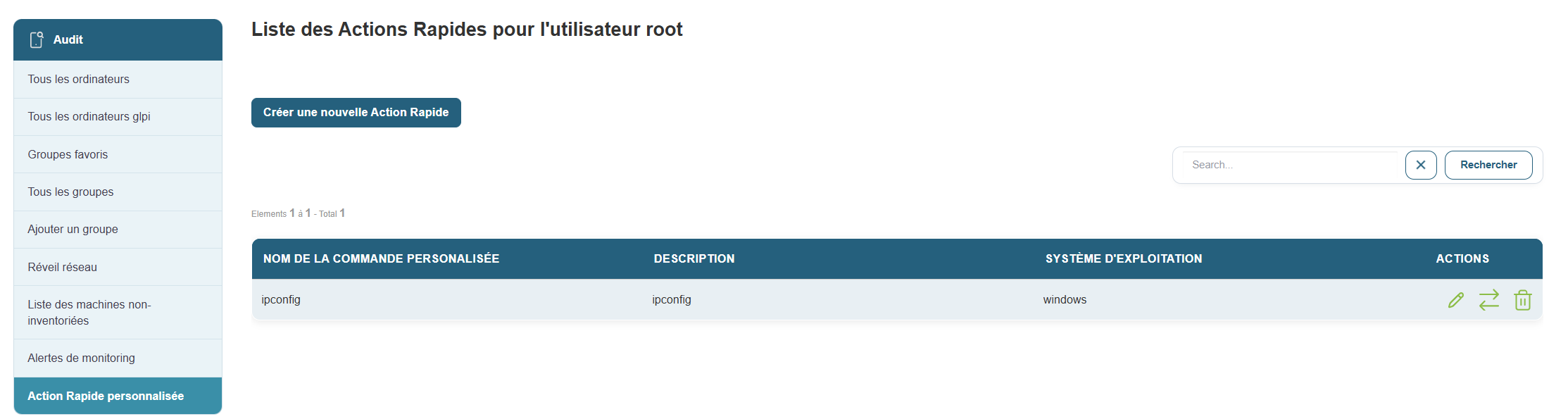
The Custom Quick Action section allows you to create and manage automated actions that will be executed remotely on your machines. These actions can include specific scripts or commands, thereby facilitating bulk management and the automation of administrative tasks across multiple workstations simultaneously.
Overview
Once in this section, you will see a list of all custom quick actions already configured for the root user. If no actions have been created yet, an empty table will appear, allowing you to add custom commands.
The table contains the following information:
-
Custom Command Name: The name assigned to the quick action. This is the name that will be used to identify the action.
-
Description: A summary or detailed description of what the action does. This allows you to quickly understand the purpose of the command without having to consult its script.
-
Operating System: The type of system for which the quick action was defined (e.g., Windows, Linux, macOS).
-
Actions: The options available to edit or delete an existing quick action.
Create a new custom quick action
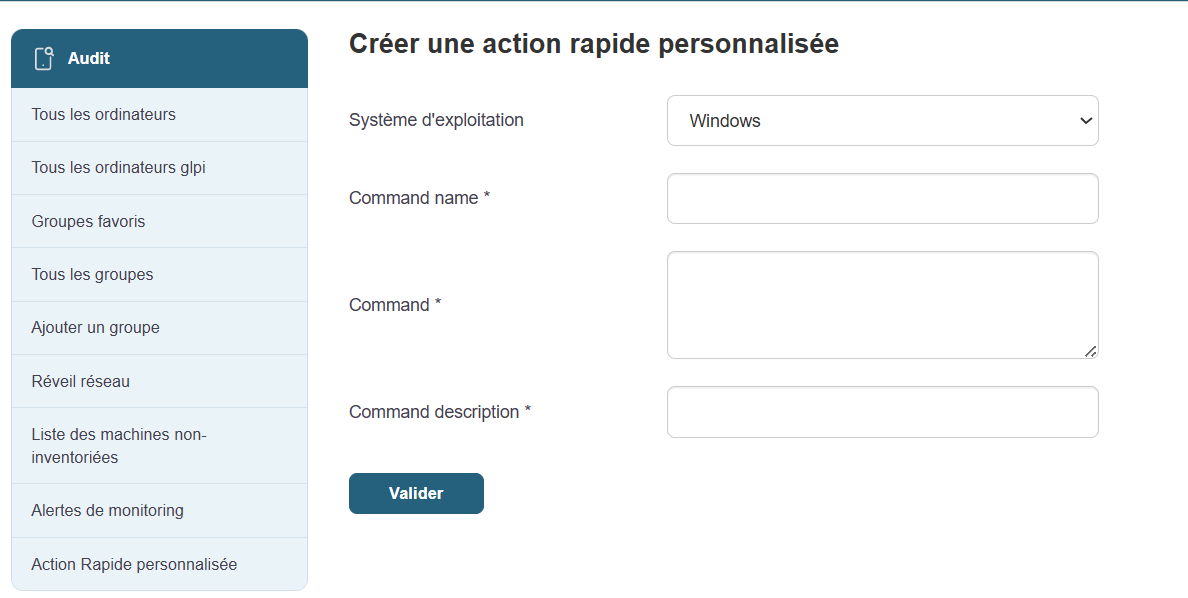
To create a new custom quick action, simply click the "Create a custom quick action" button at the top of the page. This will take you to a form where you can define the settings for your new command.
Custom Quick Action Creation Form
The form is divided into several essential fields:
-
Operating System:
Select the target operating system on which the command will be executed. Example: Windows, Linux, macOS, etc. -
Command Name:
Give this quick action a unique name so you can easily identify it among other commands. This name should be clear and descriptive to avoid confusion. -
Command or Script:
Enter the exact command or script you want to run remotely on the target machines. For example, you can enter a command such as:shutdown /r /t 0to immediately reboot a Windows machine, or another administrative script tailored to your needs. -
Command Description:
Add a concise description explaining the purpose of the command. This will help all administrators understand its purpose, even if they weren’t responsible for creating it.
Once all fields are filled in, simply click "Validate" to save and activate the action. The action will now be available in the list of custom commands and can be executed on the target machines.
Verification: Before running an action on a large number of machines, test it on a single machine to ensure it works as expected.
Documentation: It is recommended that you clearly describe each quick action so that all users can understand its purpose and effects.
Security: Commands can have a significant impact on systems. Ensure that only authorized and necessary actions are executed.
Delete a computer
To delete a device, simply go to the Computer view, select the device you want to delete, go to the actions on the right, and click the "Trash" button.