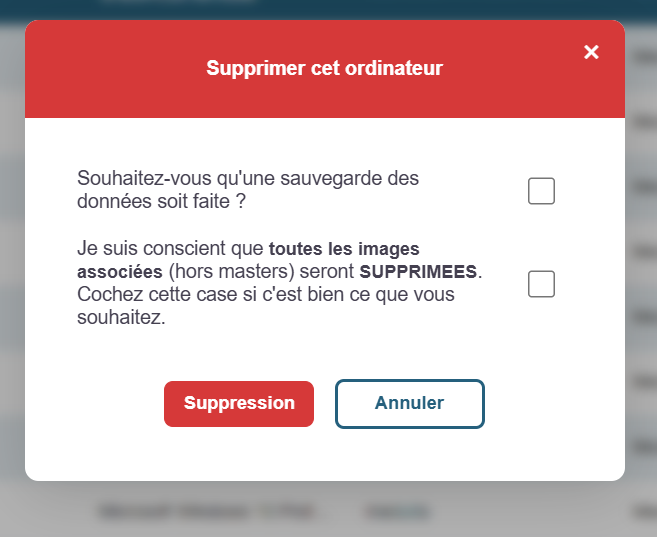
Quick Actions
Inventory:
Run an inventory
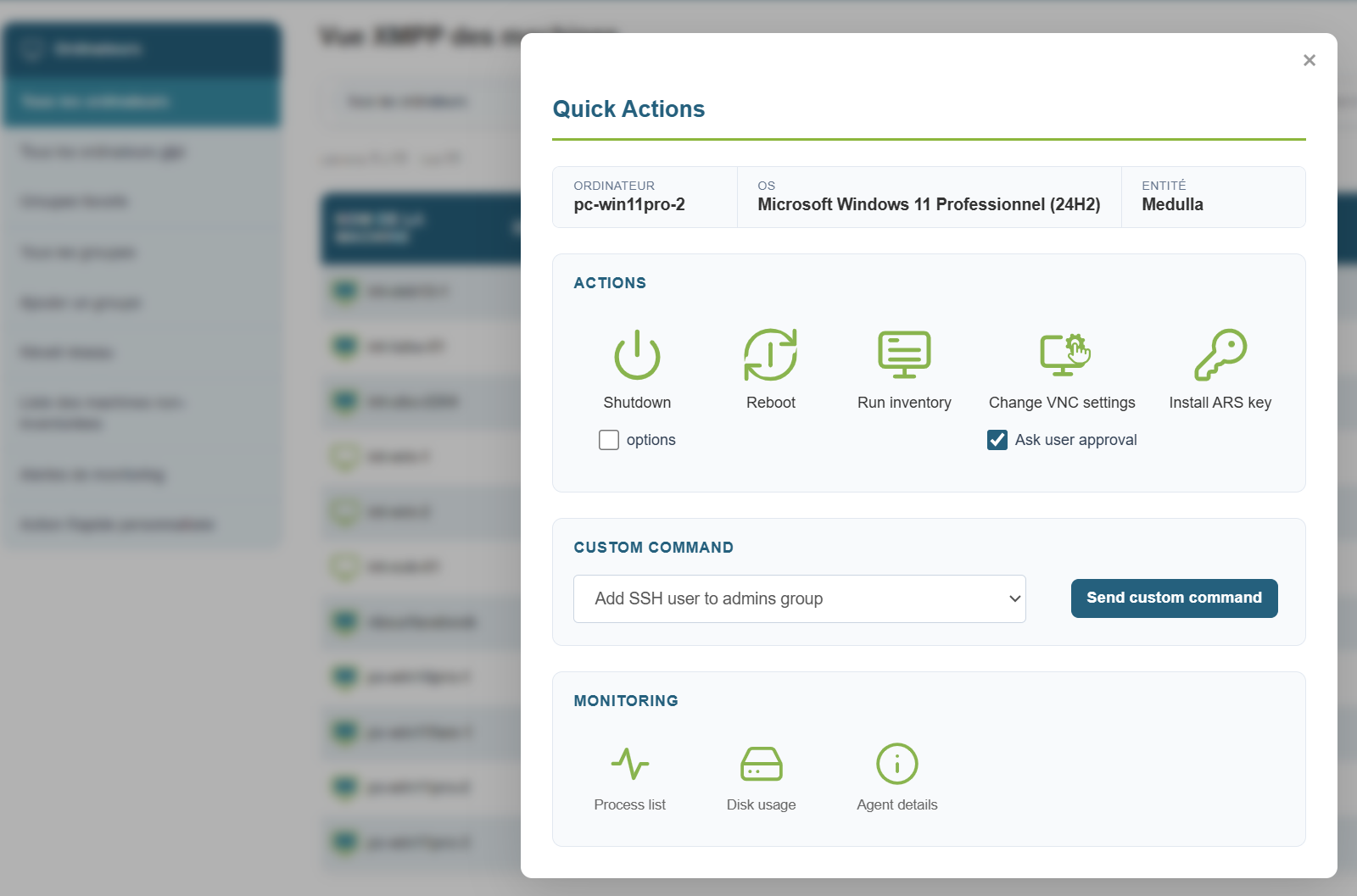
You should see a row in the History view that refers to the inventory request you previously launched.
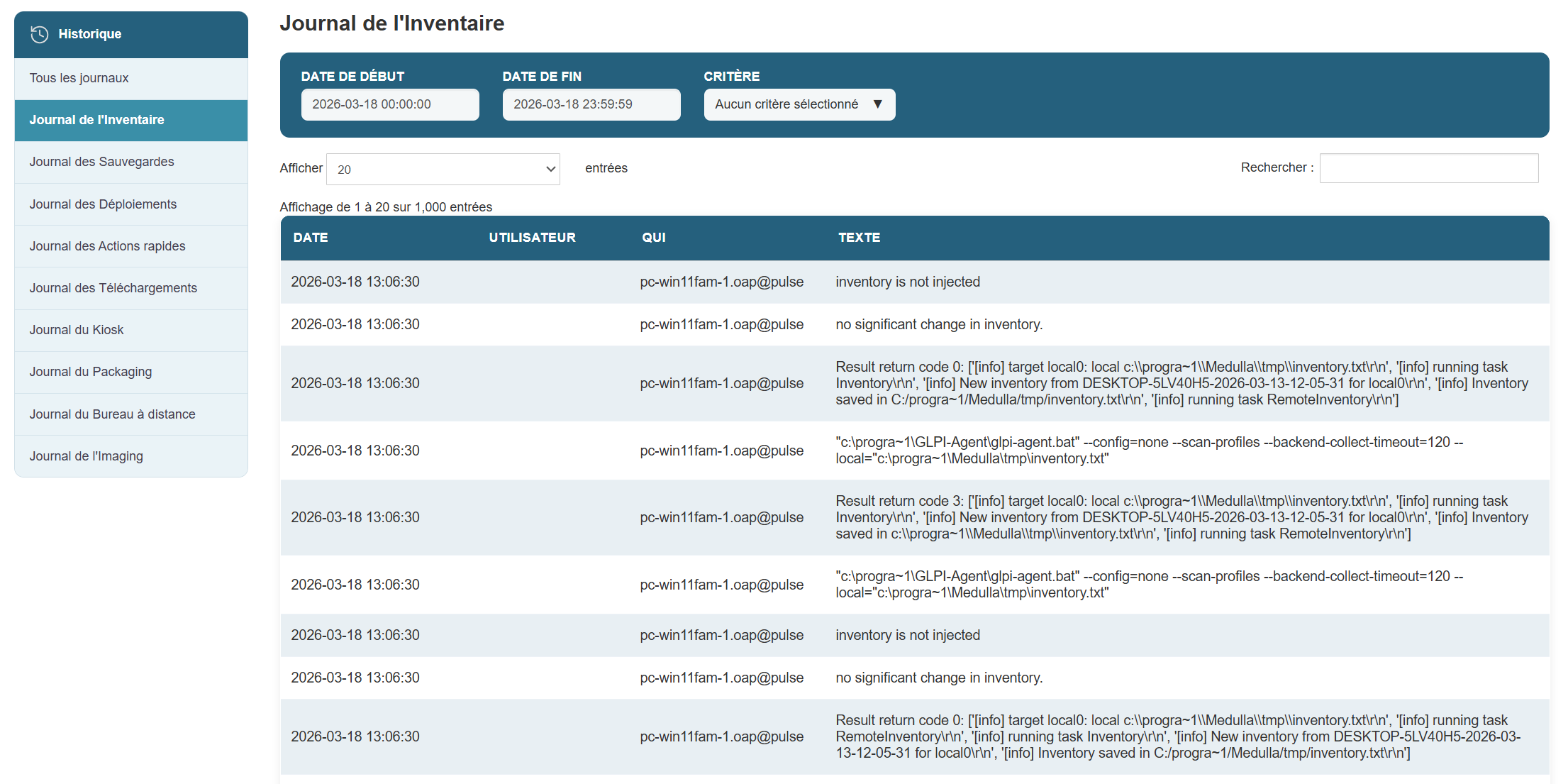
Show Process List:
View the list of processes associated with the machine by clicking the “Show Process List” button in the popup.
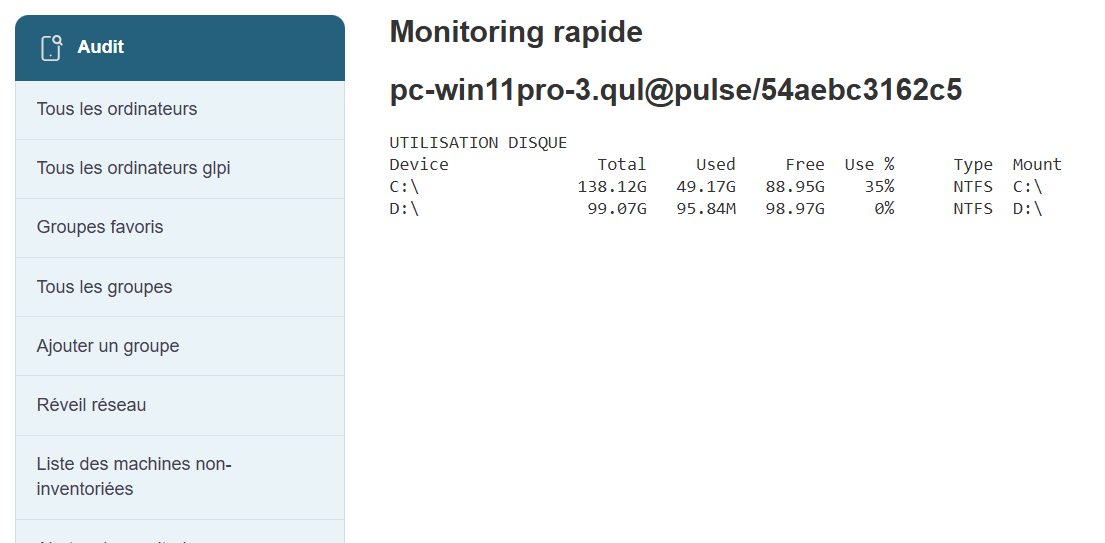
Disk Usage:
View accurate information regarding the machine’s hard drive usage.
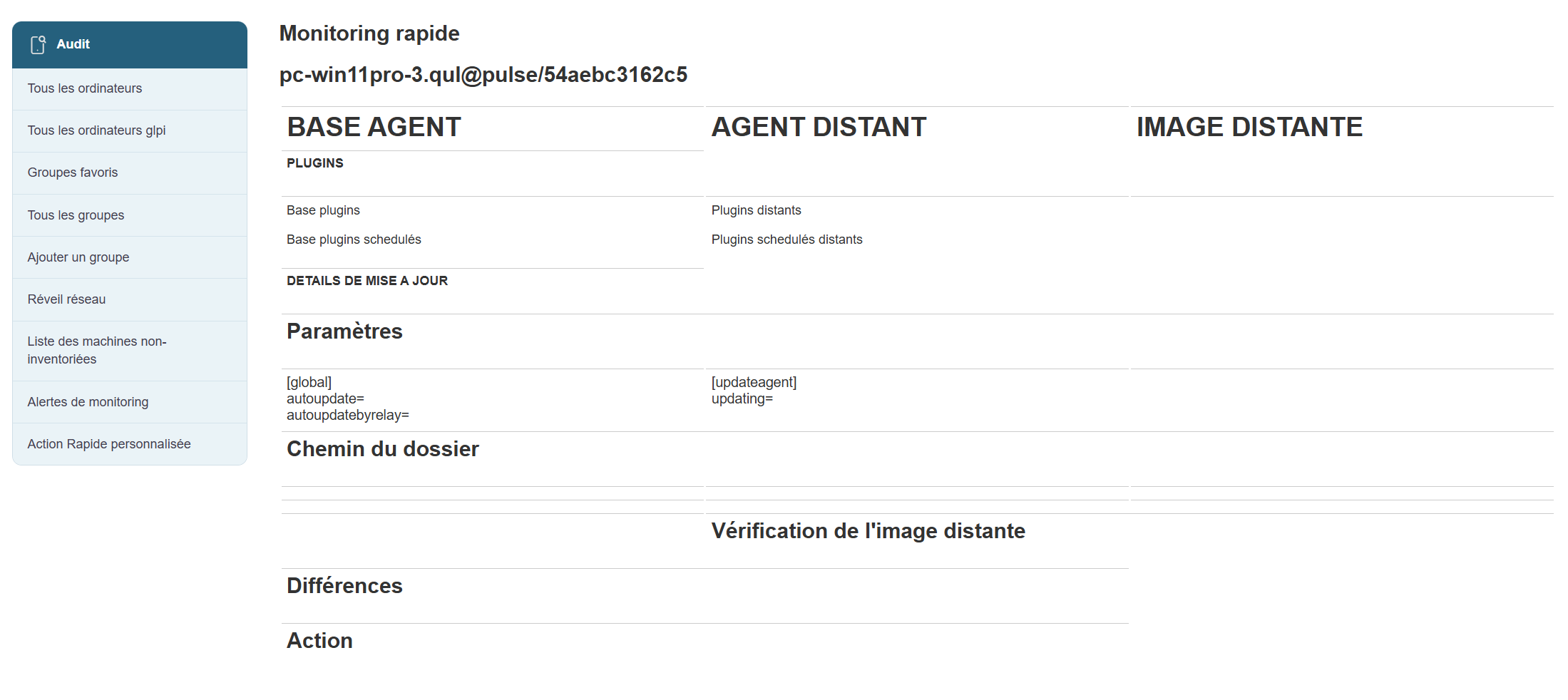
Agent Details:
View information about the agent associated with the machine.
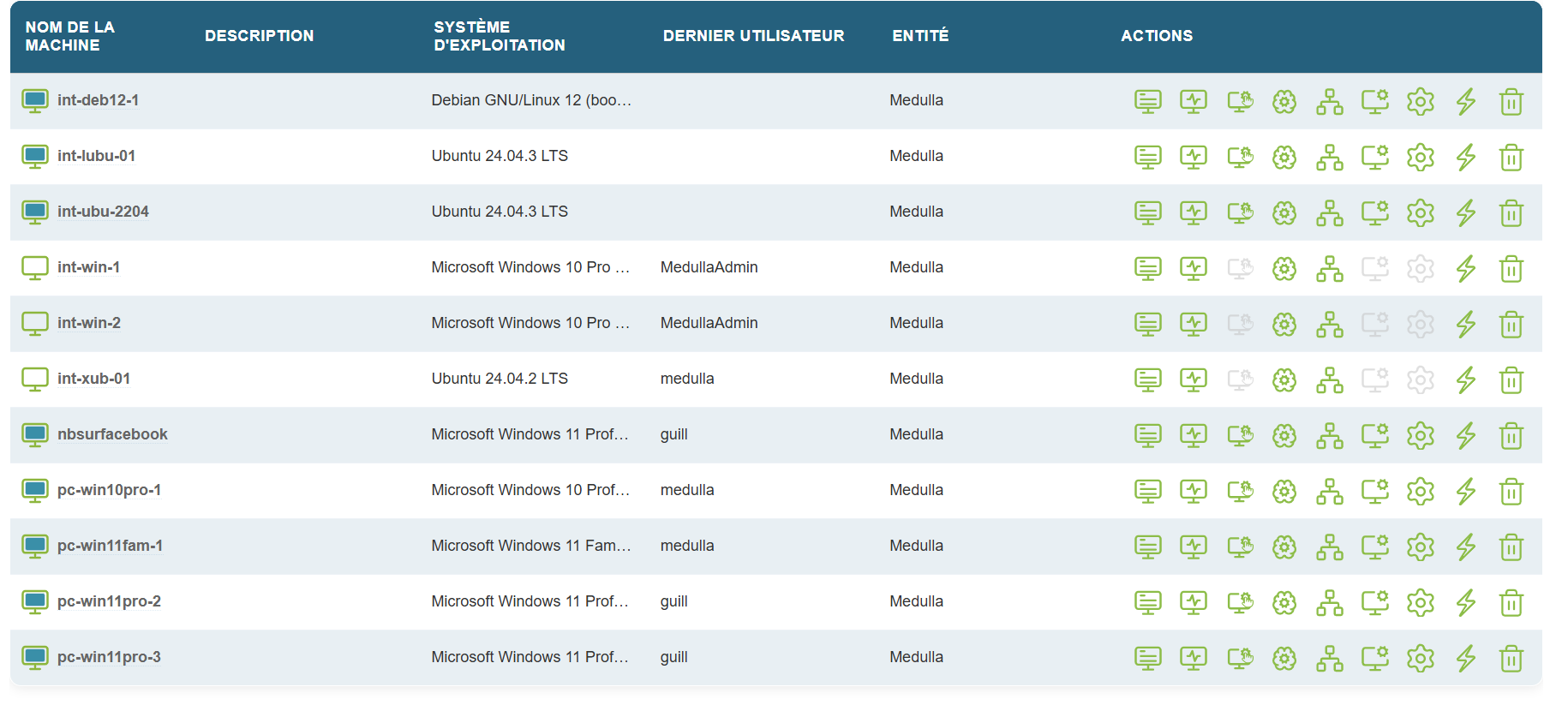
Reboot:
Click the Reboot button and wait about 3 minutes, then verify that the machine has restarted.
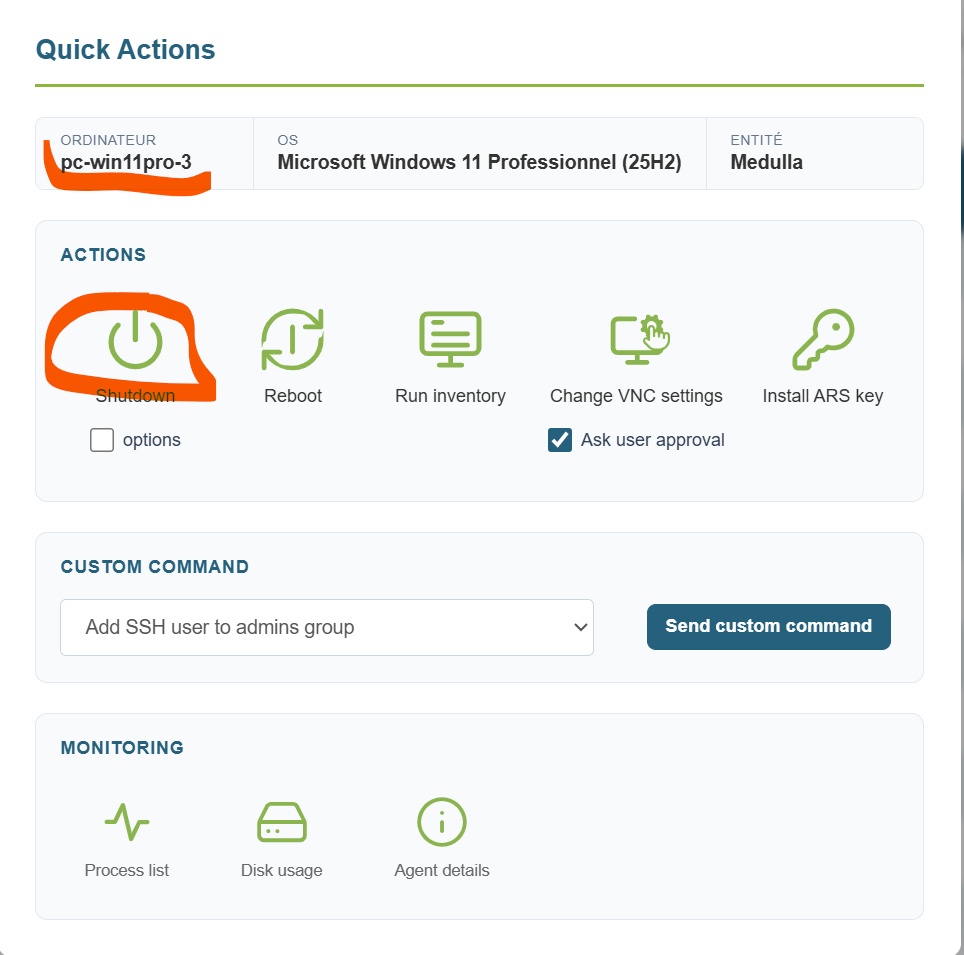
Shutdown:
Click the Shutdown button and wait about 3 minutes.
WOL:
A WOL can be initiated from the quick actions.
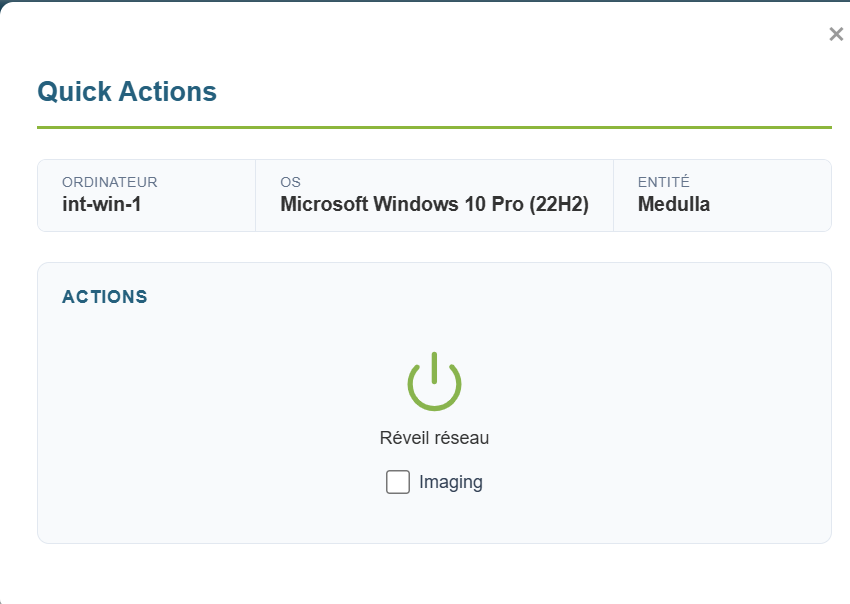
Make sure the machine wakes up; this may take about 5 minutes.
Fixed WOL:
A WOL can be initiated from the “Wake-on-LAN” button to the left of the Computers view.
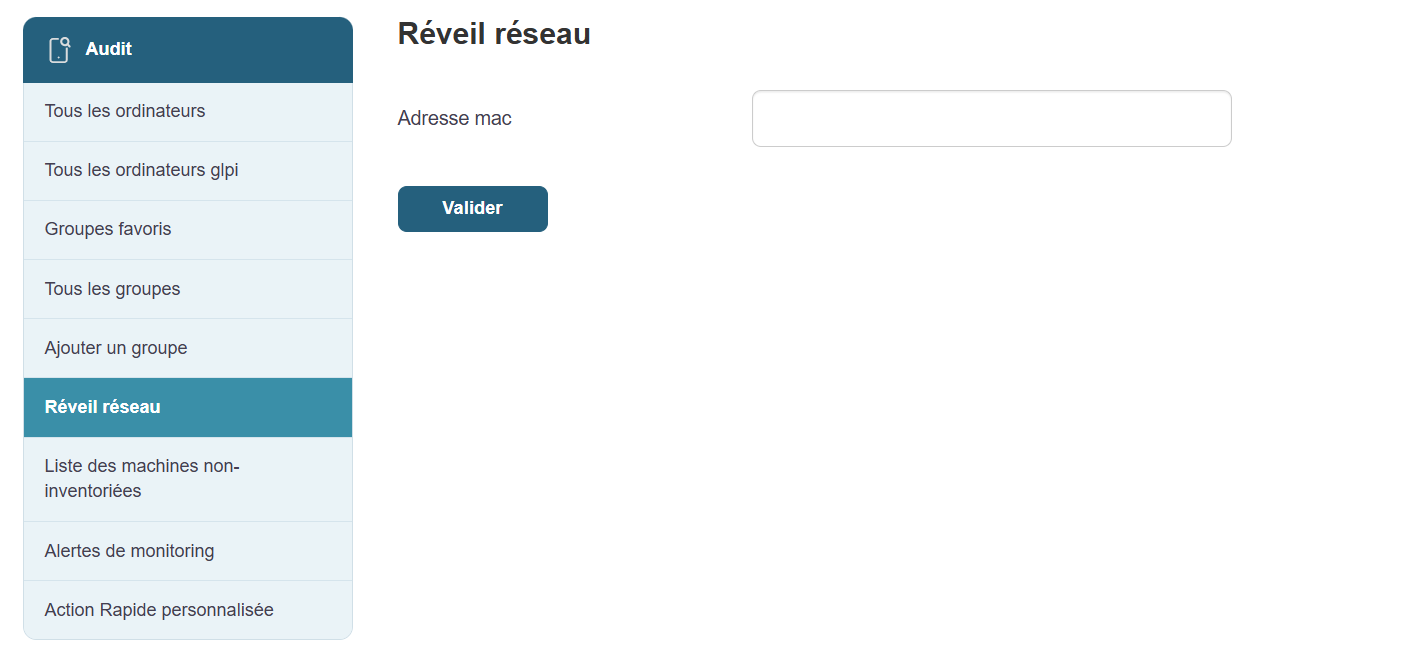
Make sure the machine wakes up; this may take about 5 minutes.
WOL Deployment:
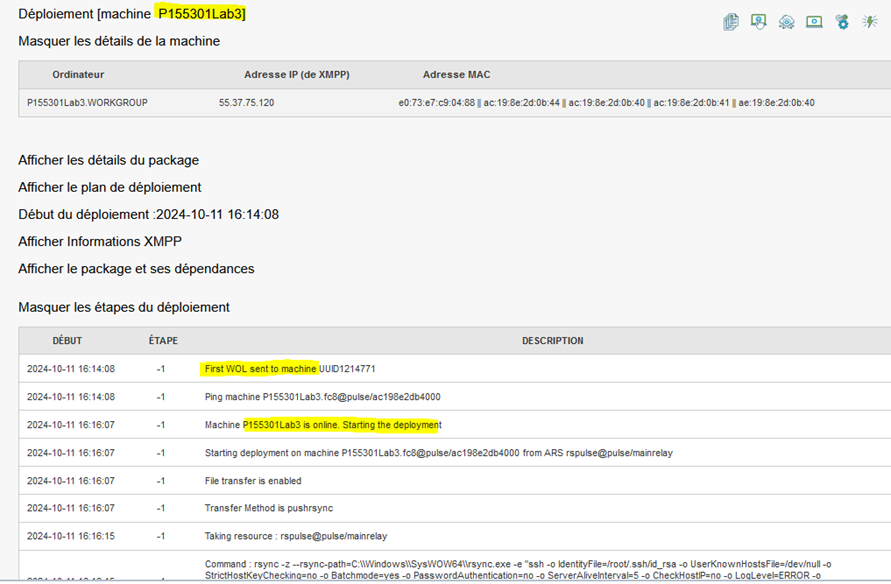
A WOL is initiated via a deployment on a powered-off machine.
Check for the lines “First, Second, and Third WOL sent to machine,” then verify that the WOL executed successfully.
Adding a Quick Action:
Click the button at the very bottom of the left-hand submenu

Then click:
Fill in the information, then click "Submit."
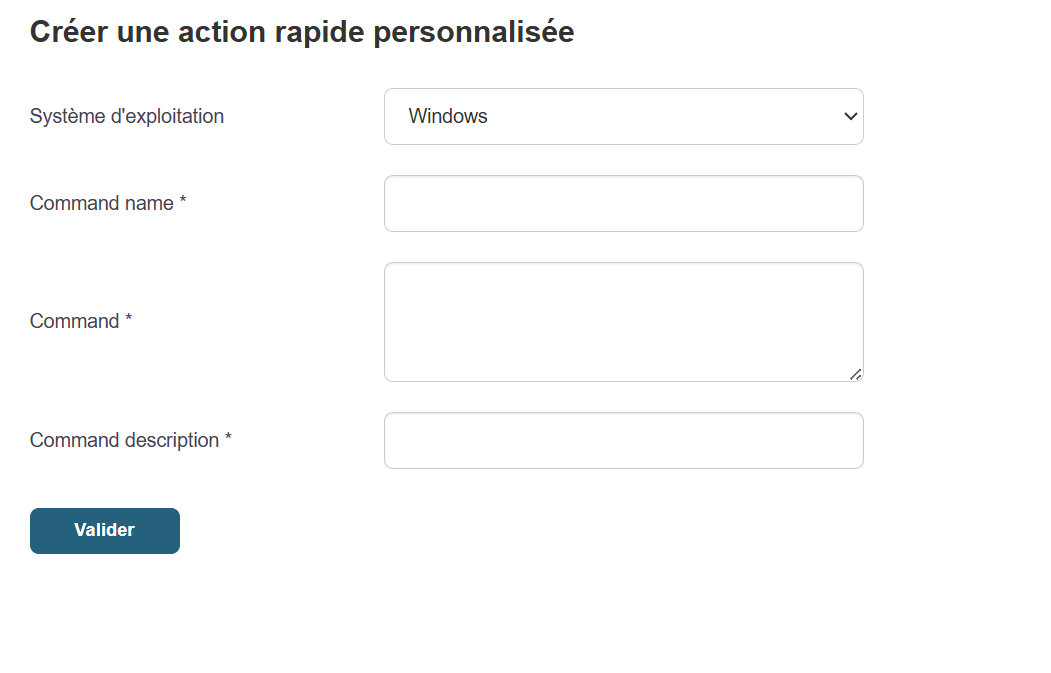
Next, click the "Quick Actions" button on a machine; in the drop-down list, locate your command, then run it.
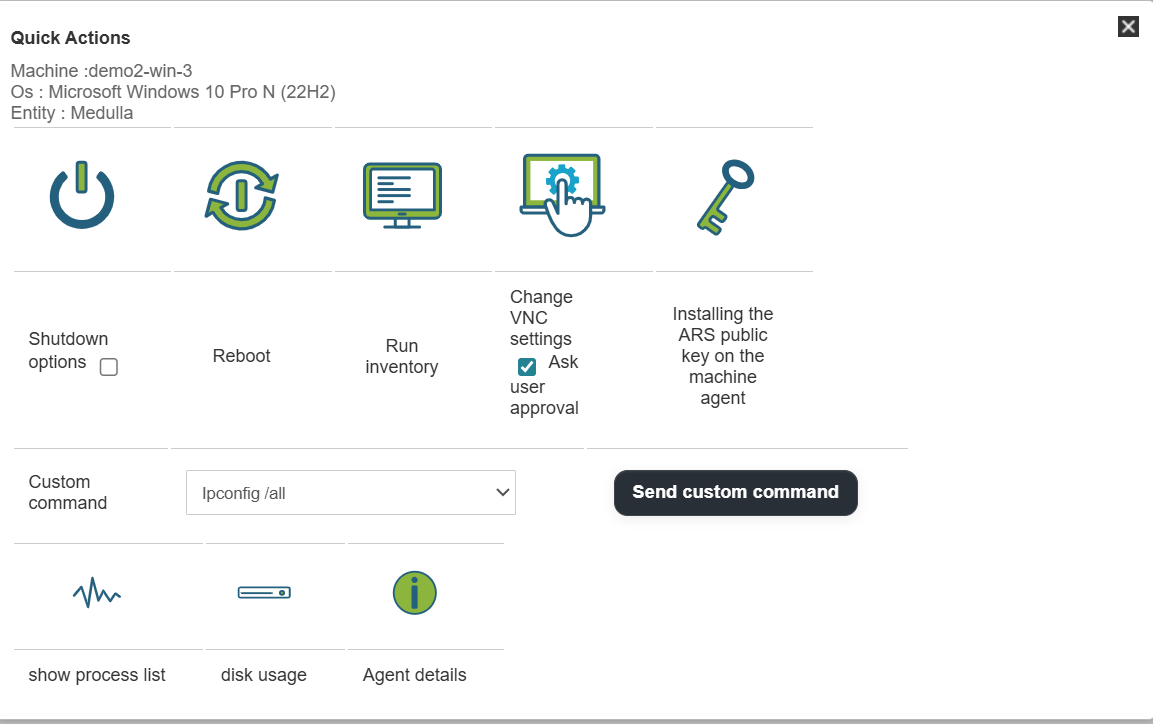
The command results will appear in a few seconds:
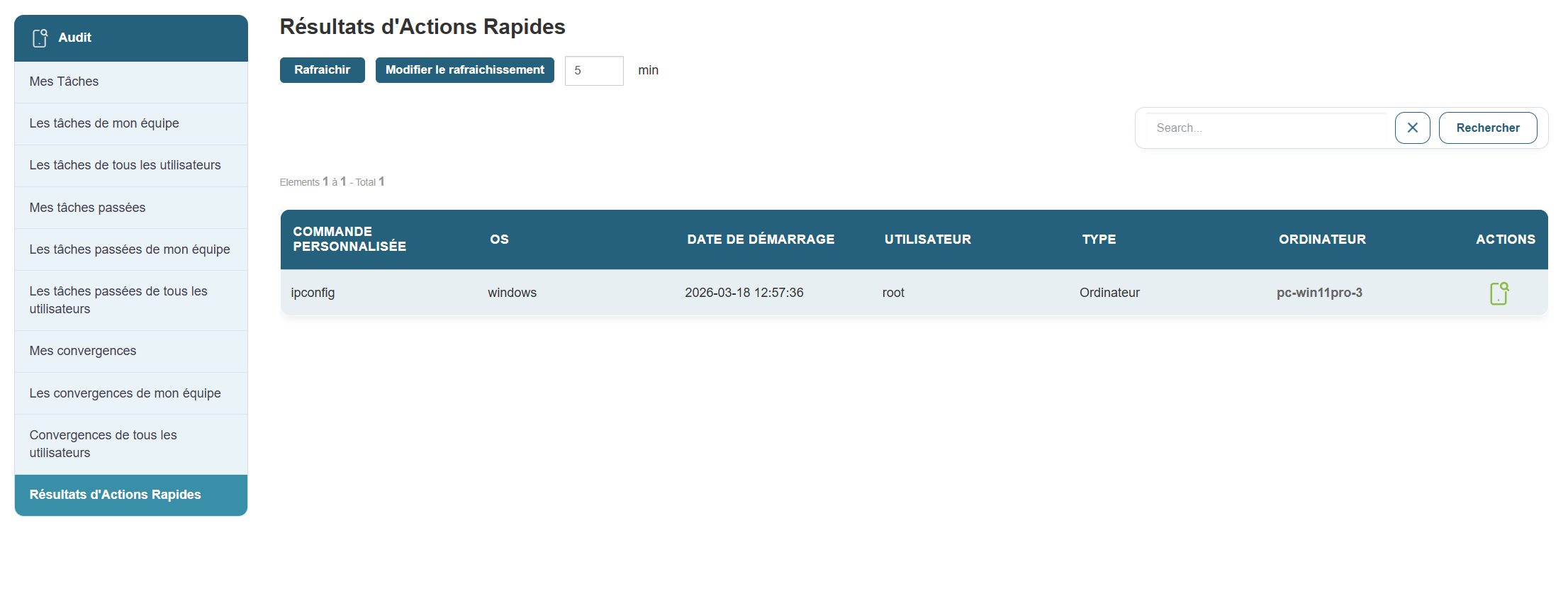
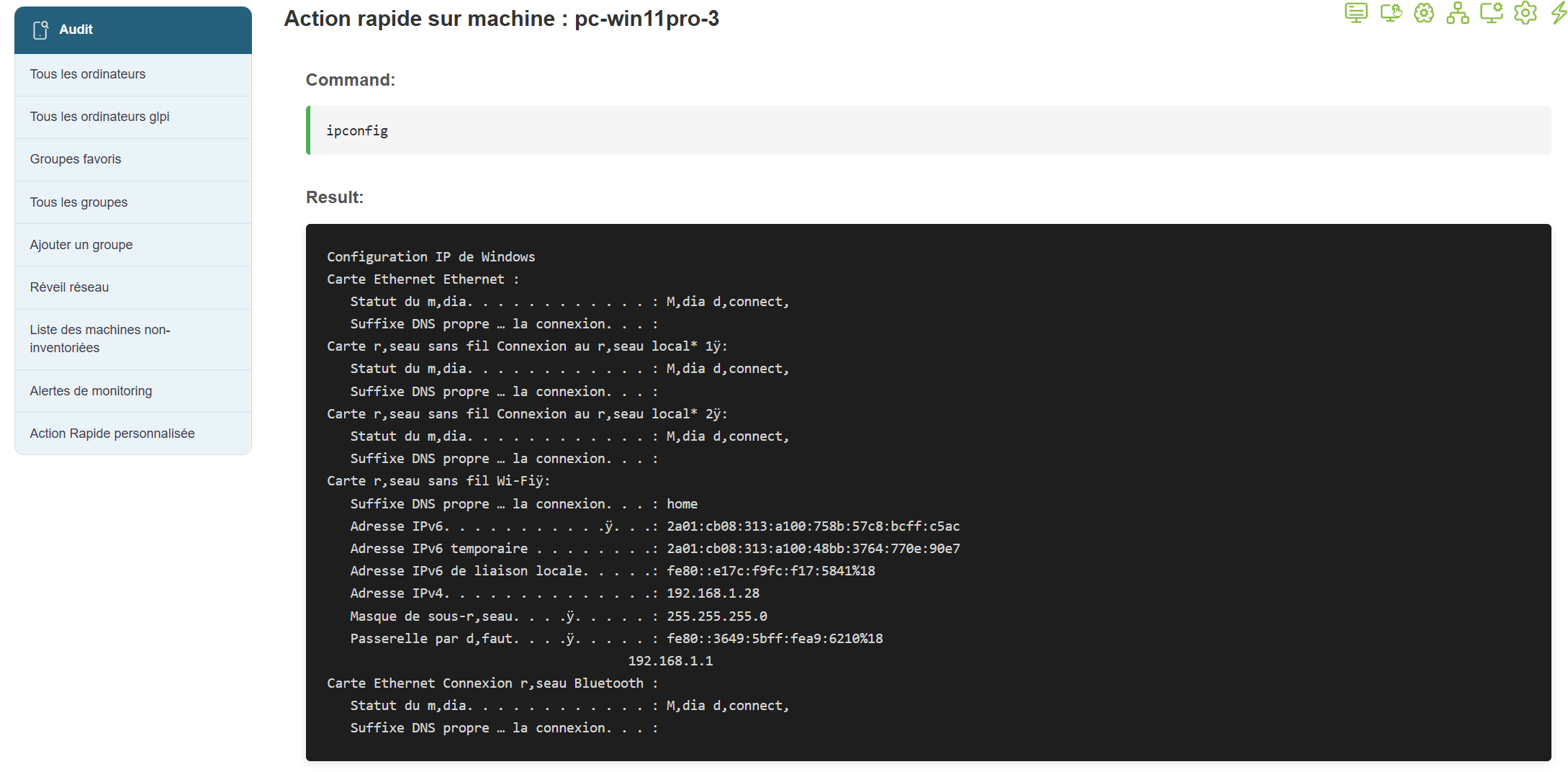
Click the icon on the right in the action bar to view the result of the selected command.
Verifying the Deletion of a Machine:
Request deletion via the icon (trash can icon on a Computer’s action bar)
Verify that the machine has been removed from the list of computers.