
Creating Your First Package
Link to the complete package module:
https://docs.medulla-tech.io/books/medulla-guide-dutilisation-pas-a-pas/chapter/chapitre-8-packages
-
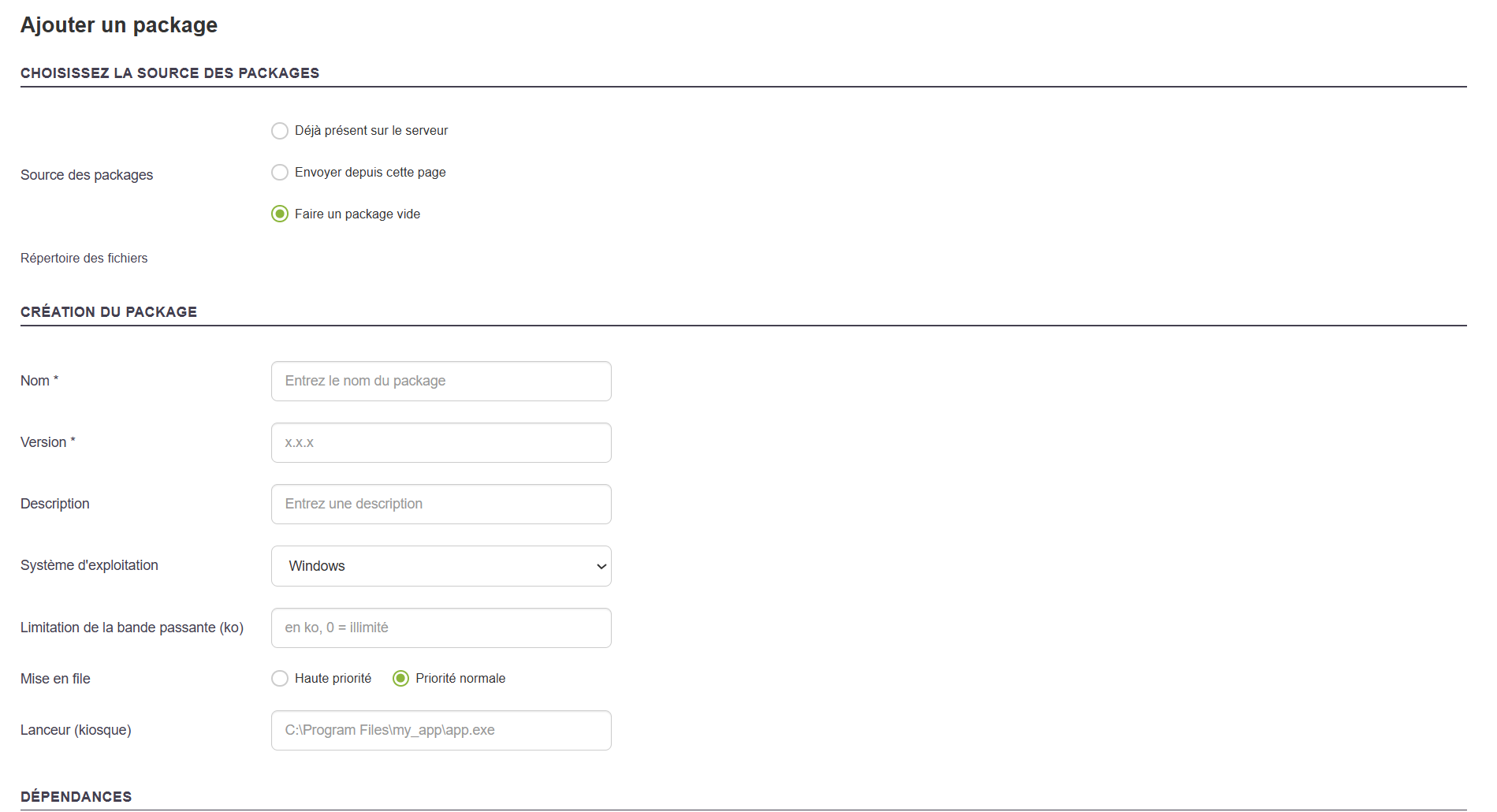
Creating a package involves defining an action (installation, uninstallation, script, etc.) that will be deployed to one or more workstations. The creation form allows you to precisely configure the package’s behavior and its execution options.
Here, we’ll create a simple package—without adding a workflow—just to install a simple application such as Notepad++.
Next, select the source of the files to be used in the package. Four options are available:
- Already on the server
- Upload from this page
- Create an empty package
Get a Notepad++ installer, for example, then click:
-
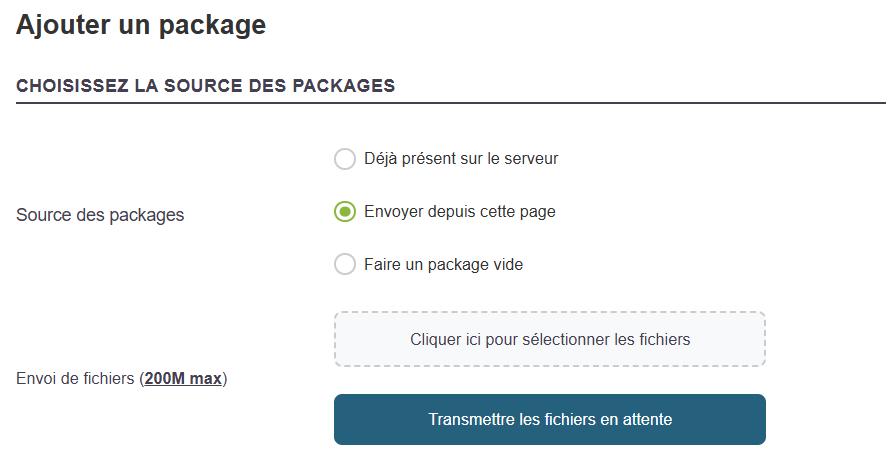
Upload from this page
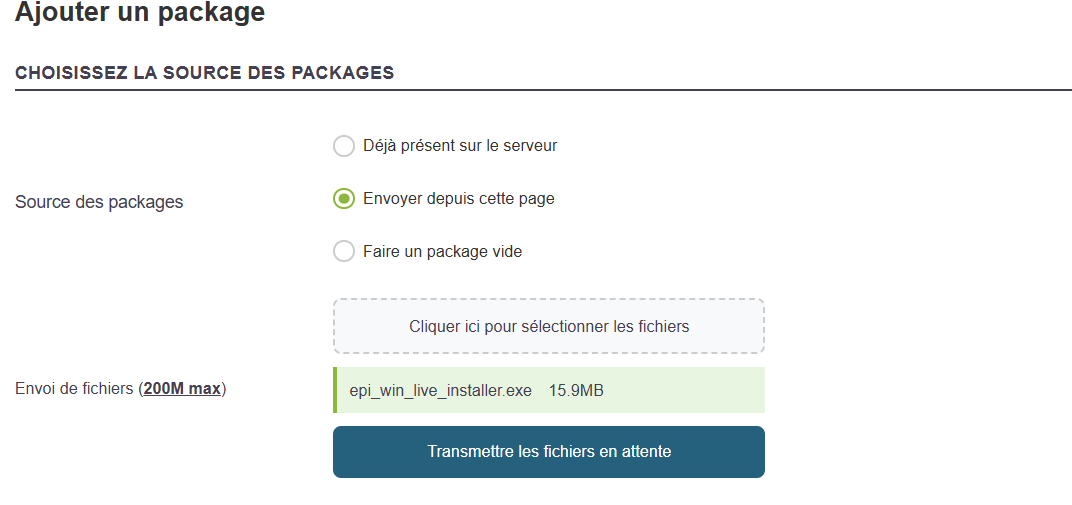
Import the installation files directly from your workstation. - Don't forget to click "Send pending files."
General information to provide
Sharing
Select "Global Packages " to make the package visible across the entire platform to all Entities.
Name
Give the package a descriptive name, for example: InstallNotepad
Special characters (except: _ and -) and accented characters are not allowed.
Version
Specify a version number, for example: 1.0.0 or the Notepad++ version.
Description
Briefly summarize the purpose of the package.
Operating System
Select the target OS, for example:Windows.
Transfer Method
Generally, use pushrsync (recommended): Server -> Rsync -> Machine.
Link to Inventory
Enable this option to allow tracking of the package after installation via the GLPI inventory, if desired.
As you type the first three letters, autocomplete will be activated.
Auto-completion is based on the existing inventory in GLPI.
You can add custom actions to the package, depending on your needs:
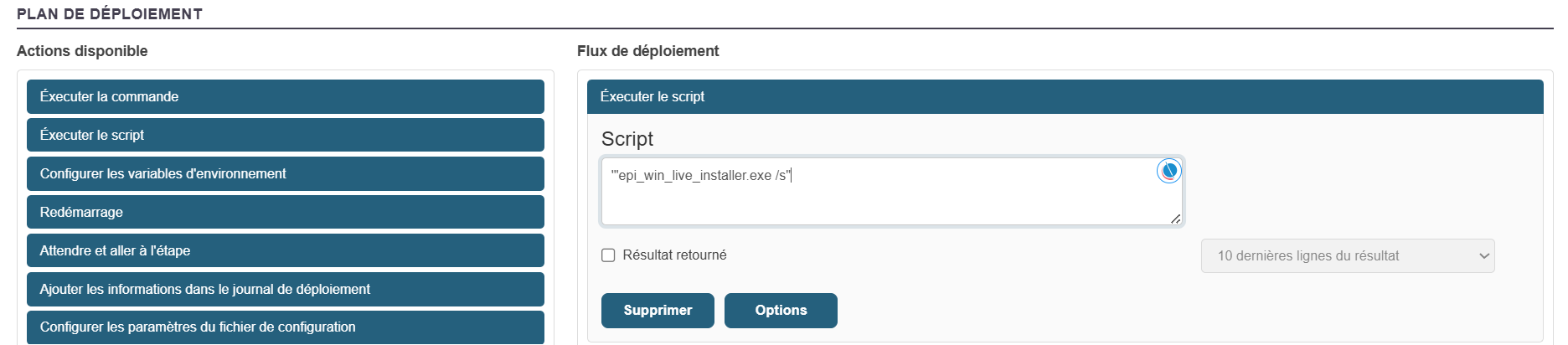
Here, our wizard will automatically determine, based on predefined rules, the correct command to run the installation file and install the application in silent mode.
-
Run a command or script (When adding a file to the "Package Source" package, our wizard automatically adds the correct command to run the setup file and silently install the application)
Once all sections have been configured and verified
ClickAddto save the package.
It will then be accessible from the “Packages > Package List” library for use in a deployment.
It will temporarily appear in the "Pending Packages" list if you have any relays. This list shows the progress of the package synchronization across all your relays, if you have any.
For a complete guide on creating packages: Creating a Complete Package