
Debian OS installation for Medulla server
Technical Specifications
|
Prerequisites – Server Sizing |
||
|
Main Server |
OS |
Debian 12.x |
|
Architecture |
x86-64 |
|
|
CPU |
8 cores |
|
|
RAM |
8 GB |
|
|
Partition / |
20 GB in EXT4 |
|
|
/var partition |
400 GB minimum in XFS or mount point on a storage array |
|
|
Multi-site relay servers (if applicable) |
OS |
Debian 12.x |
|
Architecture |
x86-64 |
|
|
CPU |
4 cores |
|
|
RAM |
8 GB |
|
|
Partition / |
20 GB in EXT4 |
|
|
/var partition |
At least 400 GB in XFS or mount point on a storage array |
|
Debian Server Installation
Summary:
- Separate only /var from / and place them in LVM
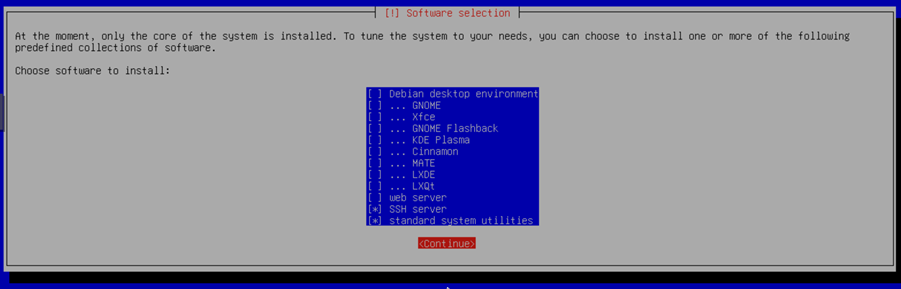
- Install the SSH server and standard system utilities
- Do not install antivirus software or a firewall
- Set up an account that
o can switch to sudo without a password
o can log in from the IP address 94.130.207.190
o can log in with the following key:
ssh-rsa AAAAB3NzaC1yc2EAAAADAQABAAABgQCScgwfwJKM5BtgzAYu6FEeJ5jW3onkzFp8D8piLR22kWbRcT/AJ1z0jhS5ZDtn6mumfidVPFbLkDf382u54pOU6JGwy9GhvEIXOSlzgxZMH5kcfeBE/8Ovr9zLtbRKsWQN9YUSt5y6lmcSxuQNVhkRy49/593oamVJACSitSVJ68716hj0gp4N8gUMVkvNgEBDZVSPe0DXz2h7JEzOKx2ejjRaw22ve+qARTw+60gMP0aCLGt/m0cyv+90AZigQwWIPcUk+bBRJn3Ku+Bkw+JuLYURlVc4xoTvT1JTWKXAzMln4nrlisIc9Ex5eEHSkvs/fgJCgU28Fza5n5mBj/pbQRY+/AWLjvBVuLiVReO7hq60fhrX9+j7MWMCYCZQiHbk/r7OprLyl2yGFX1DbgRGF1Sk2R9DtqRhwPzPxtQ7ZtKSjIhLjrZxJ/YJLHSoUsw+4CHprjzU0gXBt1RCQoyhYqEGcnuFyfd9dIBXCINkmp4jfz7CQjrC8uPqAtS1zQU= support@support
Disk Partitioning Configuration
Partition the disks according to the instructions below:
Perform manual partitioning
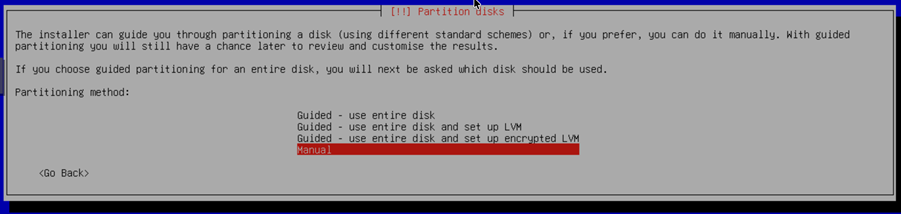
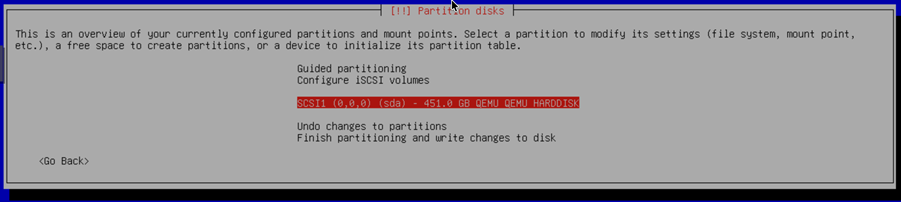

Creating the /boot partition
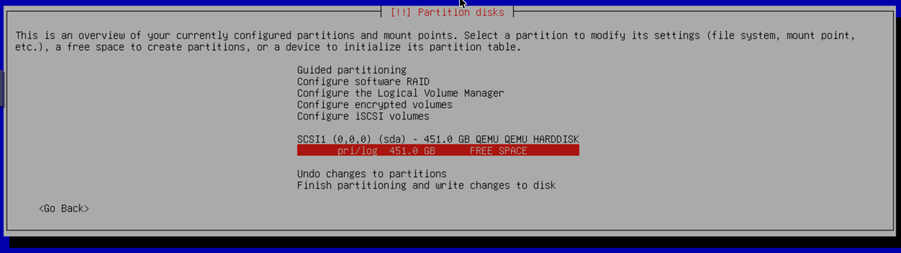




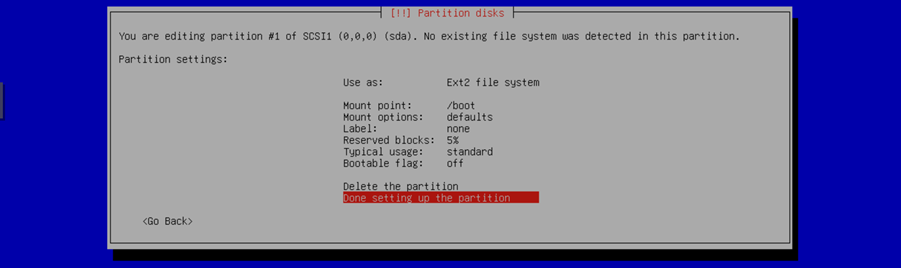
Creating the LVM
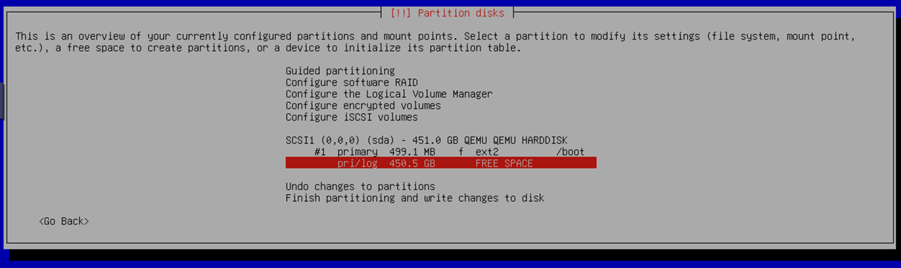



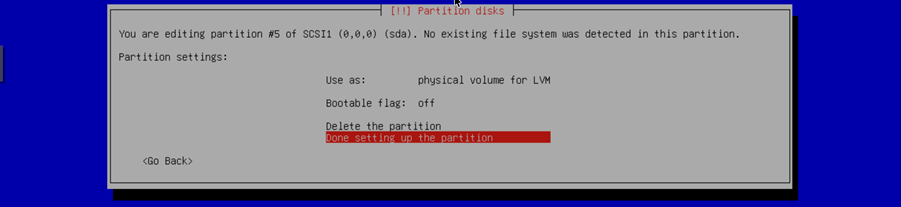
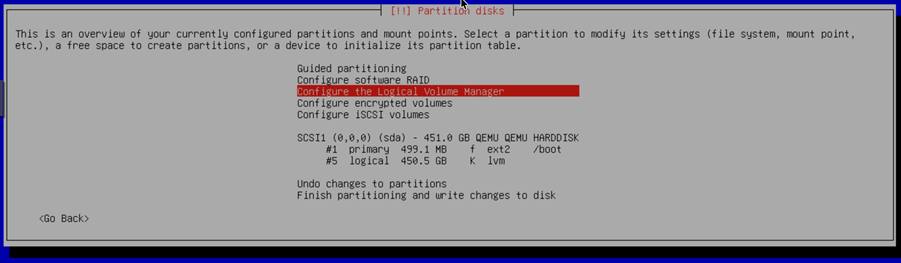
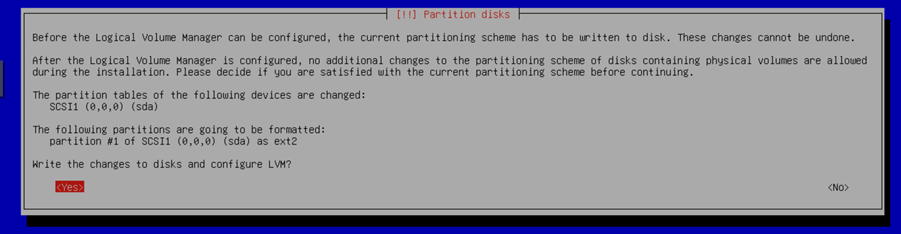
Creating the vg volume group



Create the logical volume lvroot




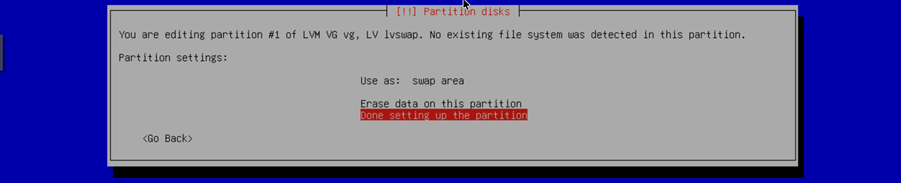
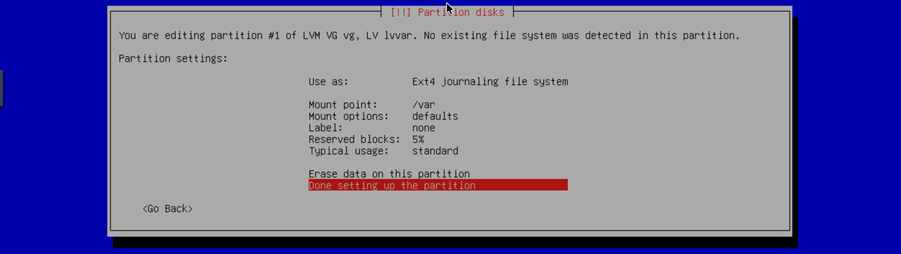
Repeat for the lvswap and lvvar volumes




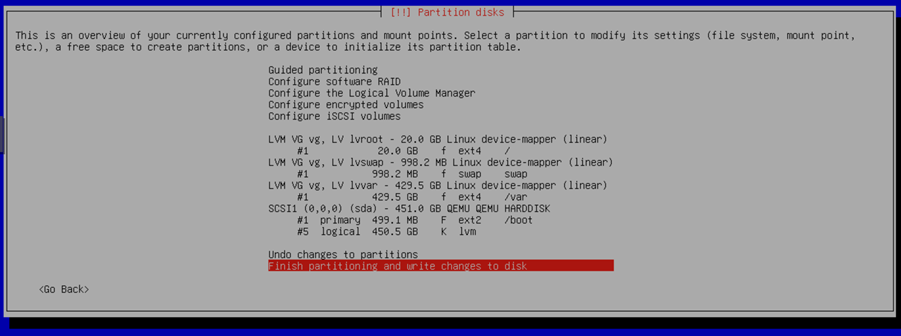
To obtain the following LVM layout:


Configure the / partition
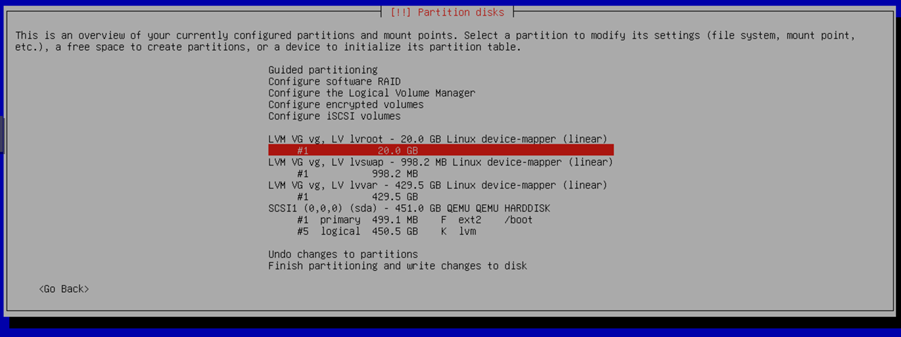
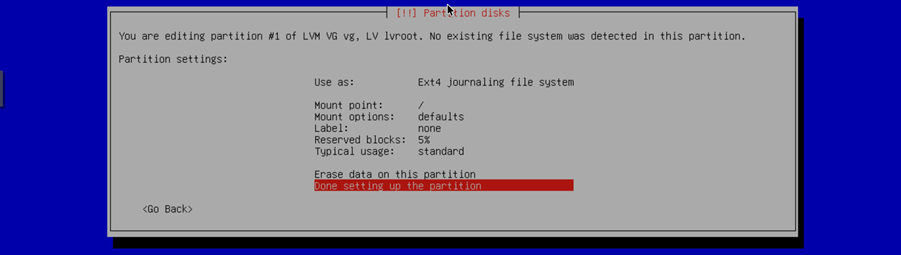
Repeat for each of the swap and /var partitions:
To obtain the following partitioning scheme:
Installing packages
Server verification
1. Download the verification script from https://dl.medulla-tech.io/nc/check_server_before_install.sh
wget https://dl.medulla-tech.io/nc/check_server_before_install.sh2. Run the following commands:
chmod +x check_server_before_install.sh

./check_server_before_install.sh
3.
All script tests must pass. Once completed, you can request the installation script via the contact form:
https://github.com/medulla-tech/medulla/blob/master/README.fr.md
If you have a support contract, please send the results to delivery@medulla-tech.io. If not, please contact the "Sales" department via our websitemedulla-tech.io.
Here are the most common errors:
1. Core Dump Limits
Context: The file /etc/security/limits.d/10-coredump-debian.conf defines the maximum size of "core dump" files. Our script expects specific values that do not match the current configuration.
How to fix: Edit the file mentioned to match the requirements.
-
Open the file:
sudo nano /etc/security/limits.d/10-coredump-debian.conf -
Adjust the lines so they look like this:
-
* hard core infinity -
root hard core infinity -
* soft core 0 -
root soft core 0
-
Suggested sources: Debian documentation on limits.conf and core dump.
2. Number of open files (lsof)
Context: The lsof lines for users xxx and messagebus indicate that the number of currently open files deviates from the value expected by the verification script (often because services are already running or are misconfigured).
How to fix: This is often informative, but if you need to reduce these numbers:
-
Identify what these users are doing:
ps -u user_id_in_error. -
Restart the associated services (e.g.,
sudo systemctl restart dbusfor messagebus). -
If the expected values are too strict for your use case, you may need to adjust the validation script itself or the global
ulimitsettings.
Suggested sources: lsof manual and file descriptor management in Linux.
3. systemd settings (NPROC and SIGPENDING)
Context: The DefaultLimitNPROC (maximum number of processes) and DefaultLimitSIGPENDING (pending signals) values must be31541.
How to fix: You must force these values in the global systemd configuration so that they match the expected values exactly.
-
Edit the configuration file:
sudo nano /etc/systemd/system.conf -
Uncomment or add the following lines:
-
DefaultLimitNPROC=31541 -
DefaultLimitSIGPENDING=31541
-
-
Reload the configuration and reboot (or use
systemctl daemon-reexec).
Suggested sources: systemd-system.conf documentation on freedesktop.org.