
Windows Agent Issue
Medulla / All Versions / Public and Private SaaS and On-Premise / Maintenance
Is your issue related to an interaction betweenMedulla and a Windows workstation (agent not reporting, actions not applied, workstation not visible, etc.)?
To facilitate troubleshooting, Medulla provides a verification script that checks network connectivity, the agent’s status, and the workstation’s configuration.
Download the script:
https://dl.medulla-tech.io/nc/windows_connection_check_signed.ps1
(right-click on the link below, then click "Save Link As...")
Test Prerequisites
Before you begin, make sure you have downloaded the script above and prepared the machines.
On the Windows workstation with the Medulla agent:
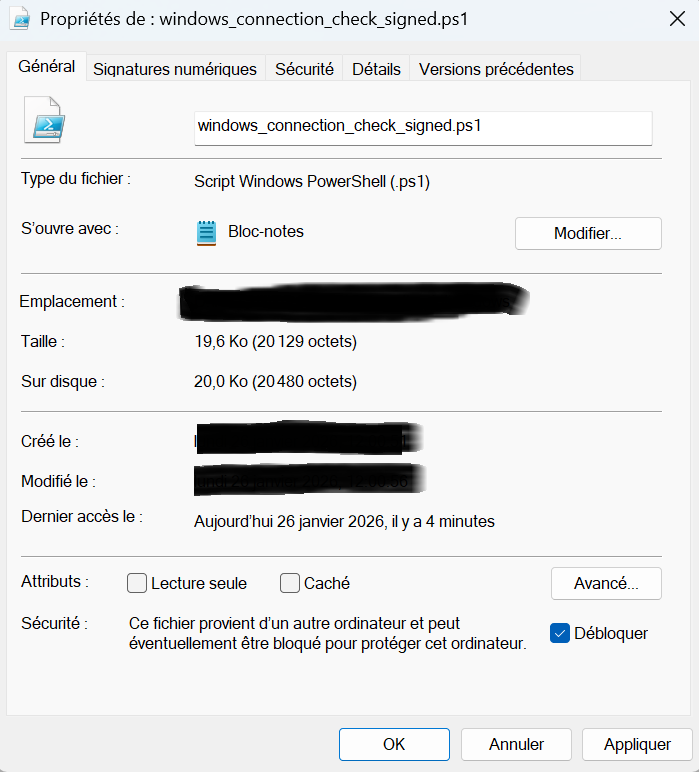
- Right-click the script, click Properties, check the box to "Unblock script execution," and click OK.
- Enable PowerShell script execution:
Set-ExecutionPolicy -Scope CurrentUser -ExecutionPolicy RemoteSigned
# Answer "Yes for all" (A or T) if prompted
For PowerShell v7.5.4:
There is no need to unblock the script. Simply run the command shown above.
You will be asked if you want to allow the publisher of the script; simply confirm by clicking R or A.

Medulla Server Test <- Windows Workstation
Verify direct communication between the server and the client workstations.
On the Client Workstation (Source): Run the test using the server’s hostname or IP address.
.\windows_connection_check_signed.ps1 -Target <SERVER_IP> -Mode pulse
A log file is created (in the location from which you run the script) summarizing the tests performed: LOG_Test_Flux.txt
If you encounter permission errors when creating the log file, try placing the script in the user’s Downloads folder, or grant the windows_connection_check.ps1 script permission to create a file in that location.
Medulla On-Premise
If you have a Medulla On-Premise server, you can also run a diagnostic test from the server to the workstation:
On the Medulla Server (Source): Run the test using the workstation’s hostname or IP address.
./medulla_connection_check.sh -c client.example.com
Recommendation: Please attach the LOG_Test_Flux.txt file when submitting a support request.