
FAQ - Configure rules
Applies to: Medulla
Version: All
Environment: Server / Relay / On-Premise
Category: Server / Relay configuration
Rules for redirecting to a relay
These rules allow workstations to be automatically redirected to a specific relay based on various criteria.
When a workstation attempts to connect to the main server, the rules are analyzed to determine which relay the workstation should be directed to.
Relay
If you have multiple relays and want to specify which relay should be used by certain computers, you can create rules based on various criteria.
These rules allow you, in particular, to associate a group of computers with a specific relay based on their configuration or characteristics.
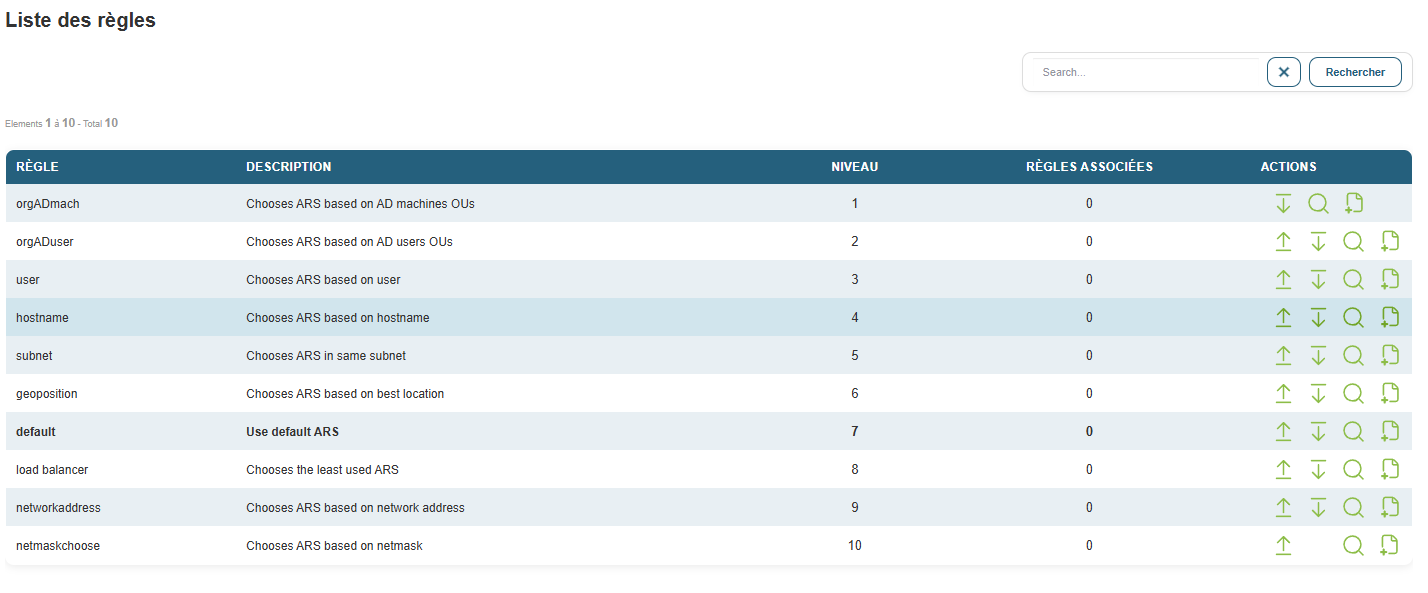
Rule types: with or without subrules
Depending on the type selected, a rule may be usable as is or may require one or more subrules.
| Rule type | Are subrules required? |
|---|---|
subnet |
No |
geoposition |
No |
loadbalancer |
No |
default |
No |
All other rules (e.g., network address, netmask, hostname) |
Yes |
Rules that do not require subrules
subnet, geoposition, loadbalancer, and default rules are configured directly, without defining any additional criteria.
Rules requiring subrules
For all other rules, you must define one or more subrules by clicking the New Rule action associated with the rule in the list.
The New Rule form (for example, New Rule networkaddress) has three fields:
| Field | Role |
|---|---|
| Rule | The criterion used to select the relay (see below) |
| Relays | The relay to which computers that match the subrule will be redirected |
| Regex rule | The regular expression that the tested value must match |
Then click the Confirm button to validate.
The criteria available in the Rule field are:
| Criterion | Label in the interface | Tested value |
|---|---|---|
| Network address | Chooses ARS based on network address | The computer's subnet |
| Network mask | Chooses ARS based on netmask | The computer's subnet mask |
| Hostname | Chooses ARS based on hostname | The computer's hostname |
Important: In the Regex rule field, always enter a regex, never an IP address, a mask, or a name written "as is".
network address rule
For example, to define a rule for computers belonging to the 10.10.10.0/24 network, you can use the network address criterion.
Caution: The subnet mask is required.
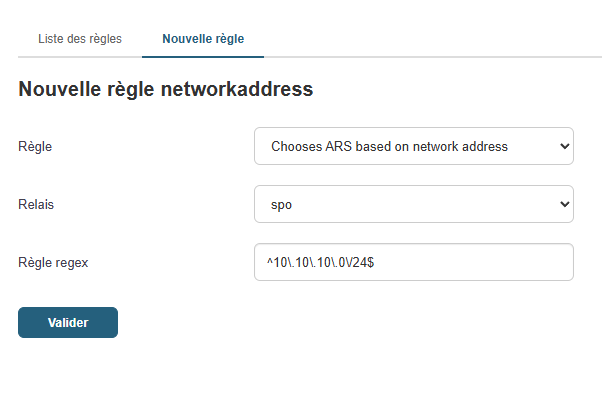
The rules use a regular expression (regex) system. Therefore, do not enter a standard IP address directly into the field.
For the 10.10.10.0/24 network, the value to enter is:
^10\.10\.10\.0\/24$
Regex examples (form tooltip)
When you place the cursor in the Regex rule field, a tooltip displays a few examples. Here they are, along with their meanings.
| Criterion | Regex | Effect |
|---|---|---|
| Network address | ^55\.33\.250\.0\/24$ |
Associates all computers in the 55.33.250.0/24 subnet with the specified relay |
| Network address | ^55\.171\.?[0-2]?[0-5]?[0-5].*\.0\/24$ |
Associates all computers in the 55.171.XXX.0/24 subnet with the specified relay |
| Netmask | 255.255.255.255 |
Associates all computers with the netmask 255.255.255.255 with the specified relay |
| Hostname | ^win10.*$ |
Associates all computers whose hostname begins with win10 with the specified relay |
Syntax reminders
| Element | Meaning |
|---|---|
^ |
Start of the value |
$ |
End of value |
\. |
A literal period (the period alone . matches any character) |
\/ |
A literal slash / (as in /24) |
.* |
Any sequence of characters (including none) |
? |
The preceding element is optional |
[0-5] |
A digit between 0 and 5 |
Tip: Remember to escape periods (
\.) and to enclose your regex with^and$to prevent it from matching values broader than intended. For example, without$, a pattern could also match a value that starts the same way.
Order of rule application
You can create as many rules as needed.
When a computer attempts to connect to the server, the server checks the existing rules from top to bottom.
Here’s how it works:
- The client attempts to connect to the main server.
- The server cycles through the rules in the order they are displayed.
- Each rule is checked to determine whether the workstation meets the defined criteria.
- As soon as a rule matches the workstation, the relay associated with that rule is assigned to it.
- Rules that come after the matching rule are ignored.
default rule
A default rule is typically included to define the default relay used when no other rule matches the workstation.
It is therefore important to place specific rules above the default rule.
If you create a new rule and it appears below the default rule, use the arrows in the Actions column to move it up.
Recommended order example:
- Internal network rule → Main server
- Specific network rule → Relay 1
- Rule specific to a group of computers → Relay 2
- default → DMZ relay