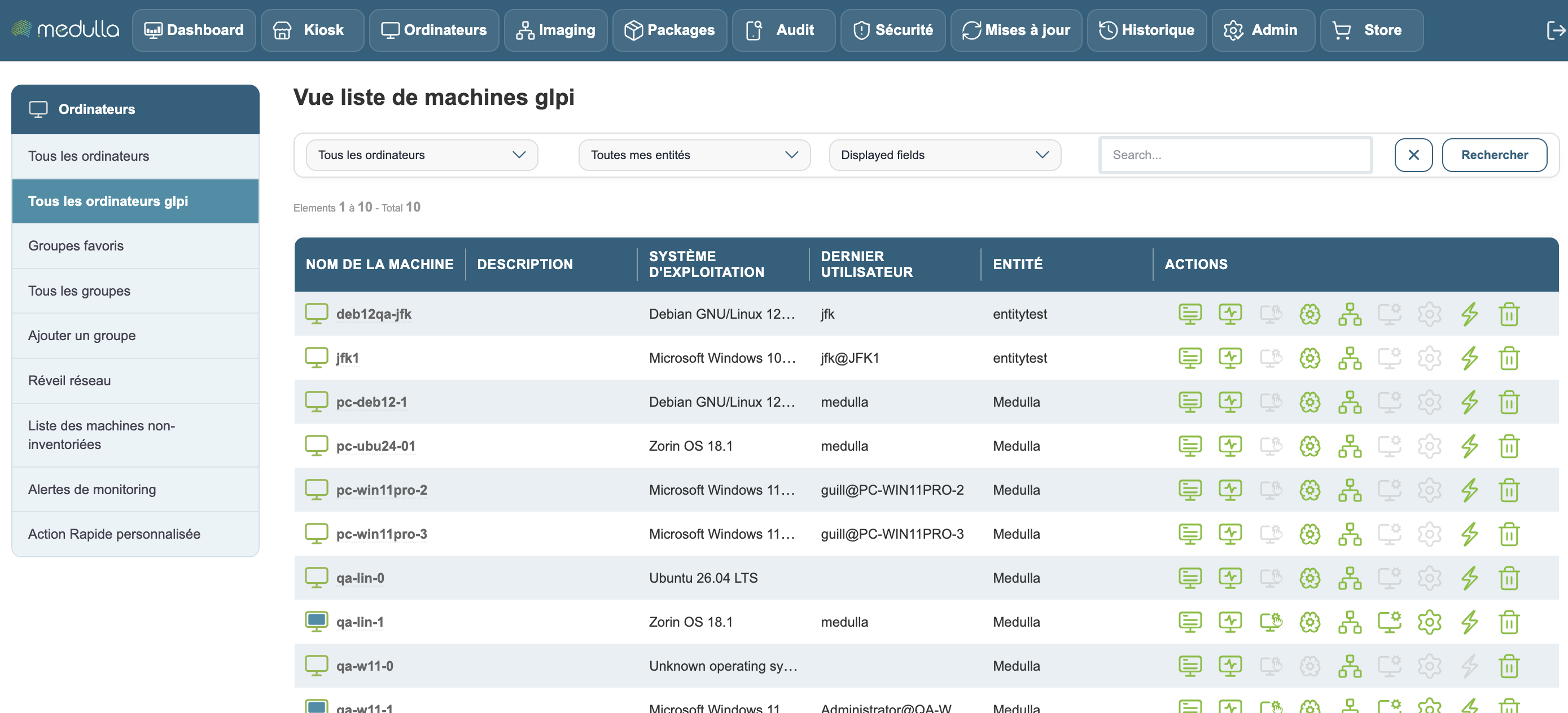
Move a computer from one GLPI entity to another.
Applies to: Medulla / GLPI
Medulla version: All
GLPI version: 10 / 11
Environment: On-Premise
Category: GLPI entities
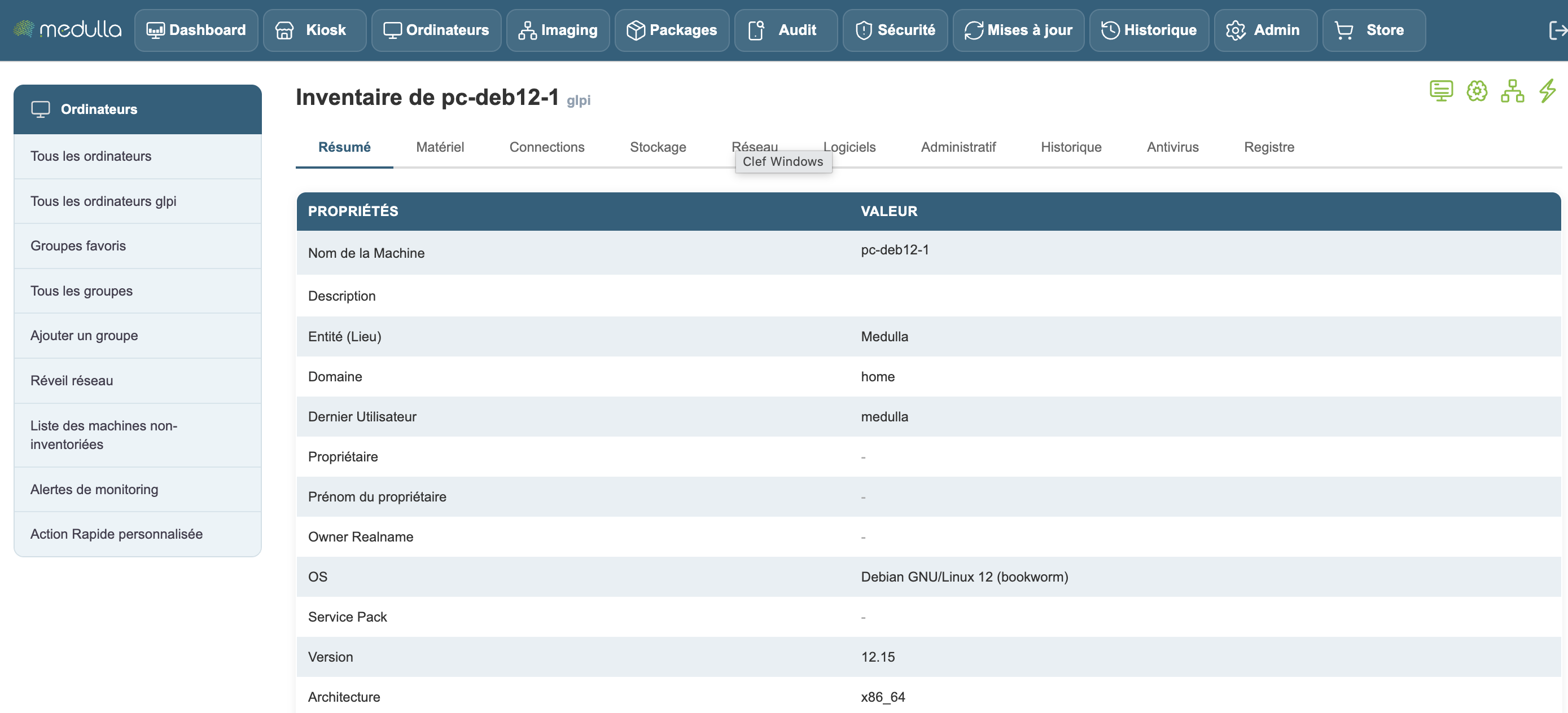
To move a computer from one entity to another, you must log in to GLPI. To do this, click the link on the Medulla page in a computer’s inventory: the GLPI link next to the computer’s name.
In GLPI, select a computer.
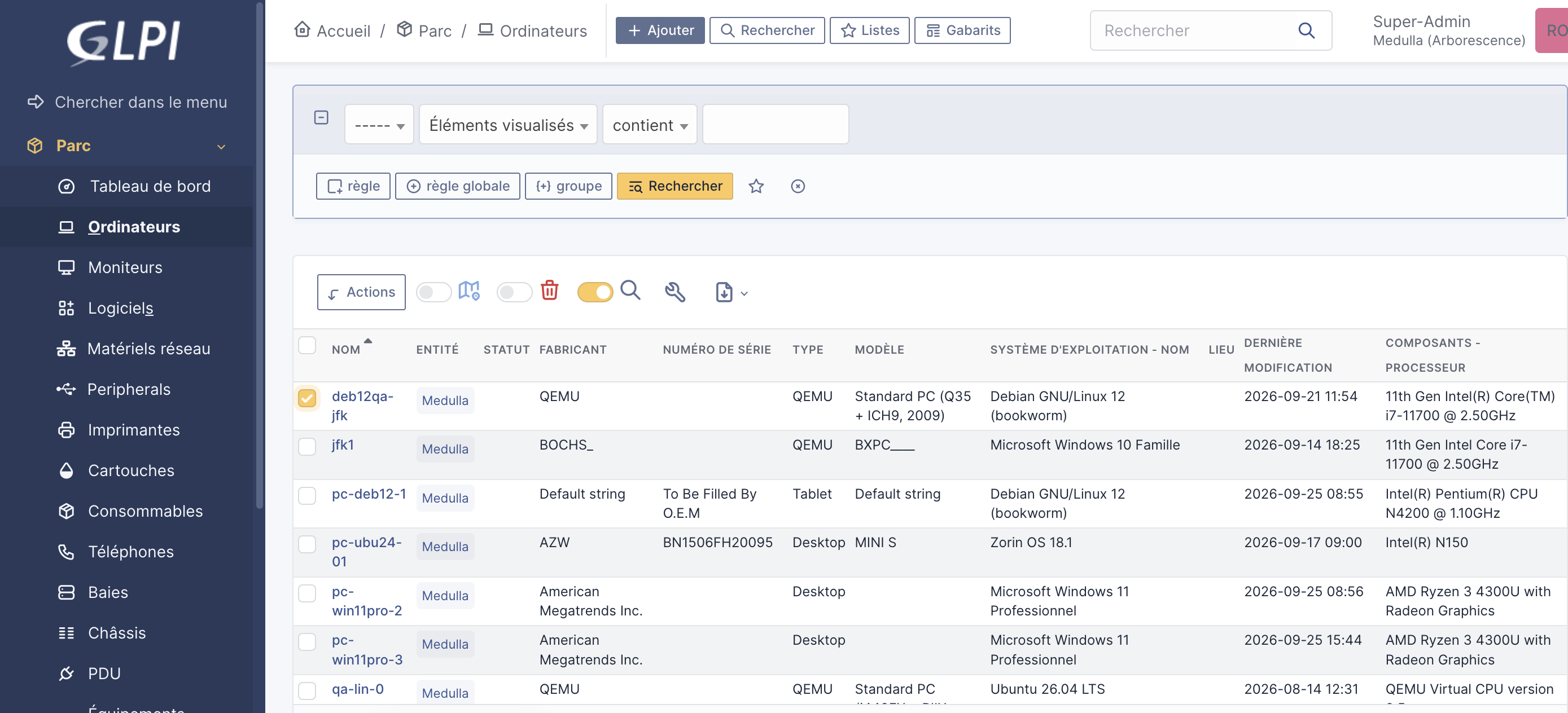
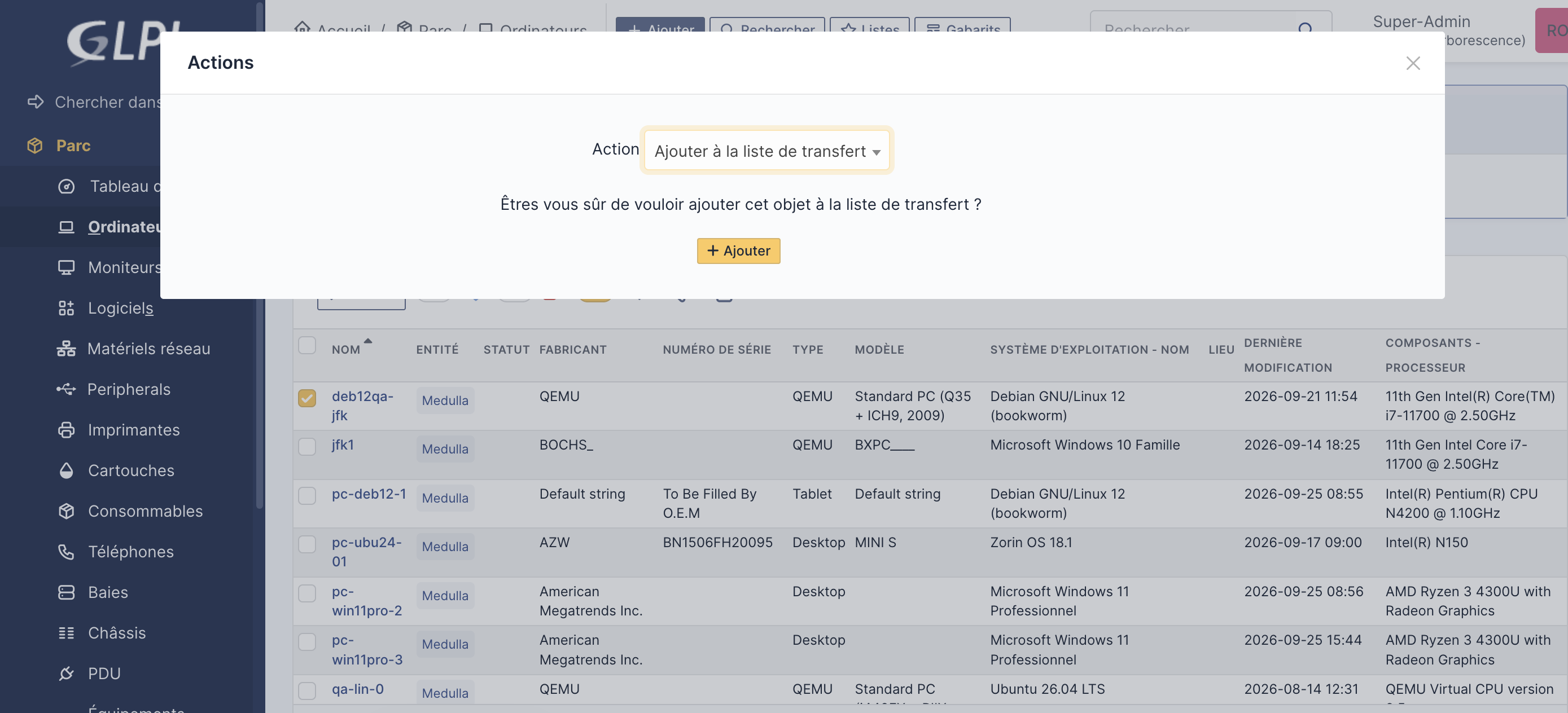
Click the Actions button:
In the action pop-up and the drop-down list, select “Add to transfer list”:
A new page opens. With the computer selected, click “Transfer mode” in the drop-down list...:
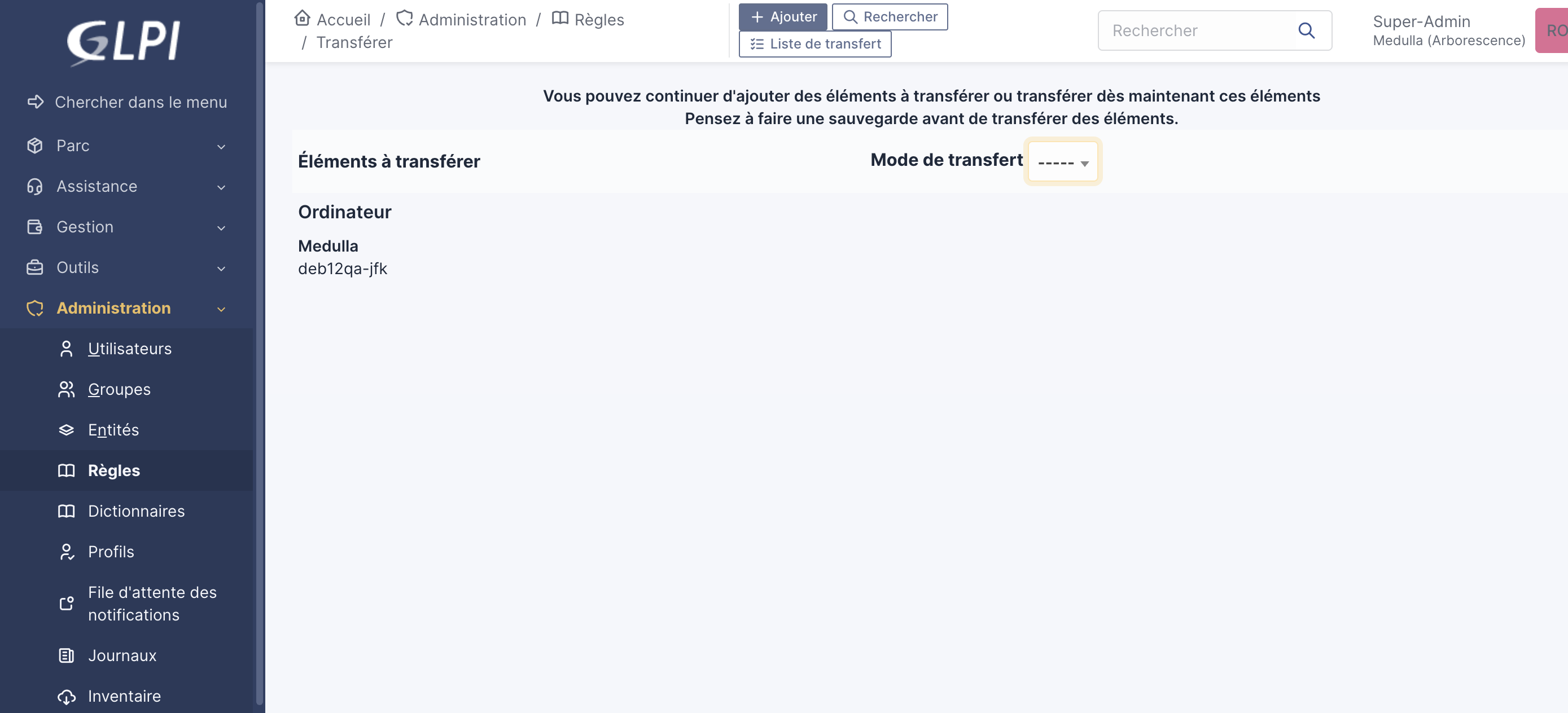
Select “Complete”:
Then, change the entity:
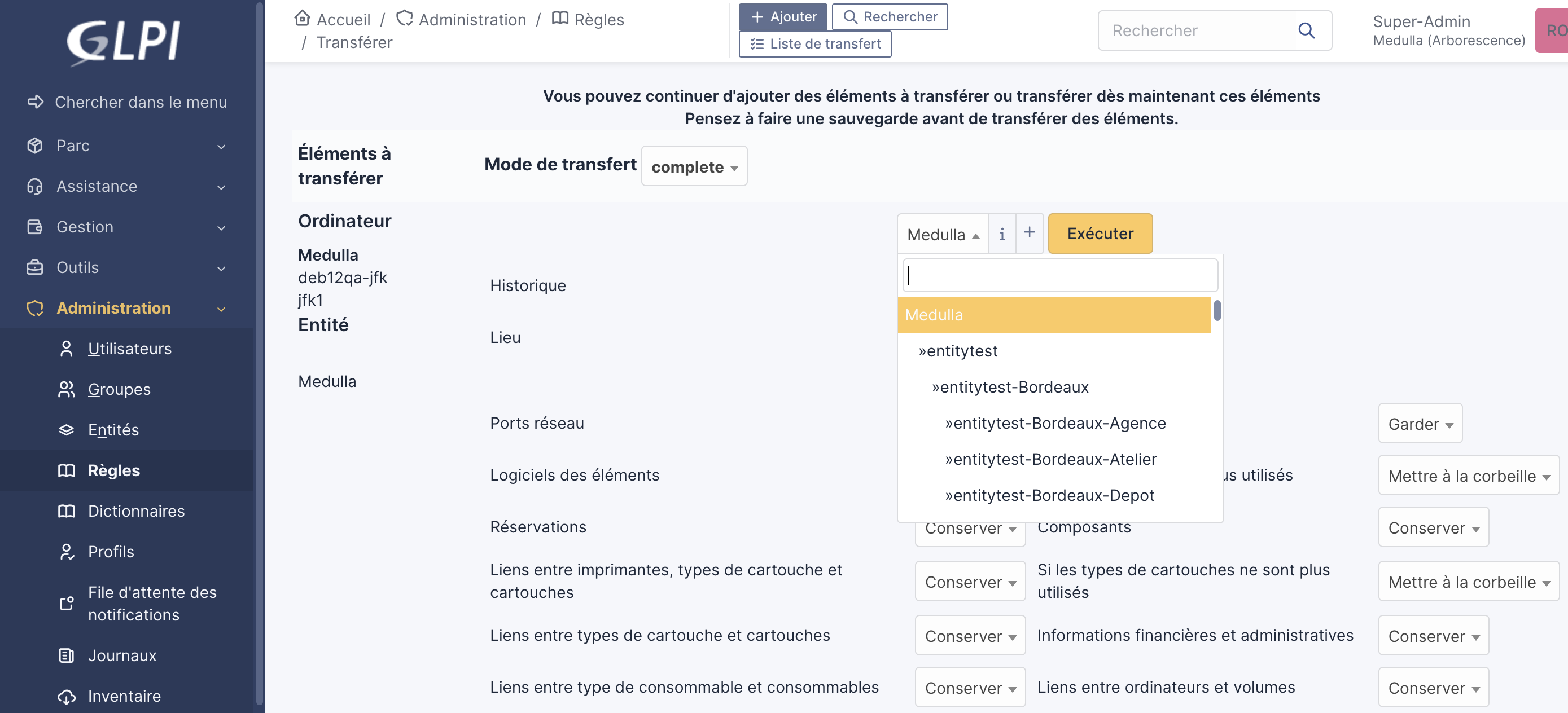
Next, click Execute.
Once the action is complete, return to Medulla and the GLPI view: your computers will now appear under the new entity. Run an inventory to reflect this change: