
LDAP/AD user not listed in Medulla’s user management
Applies to: Medulla / Embedded GLPI / LDAP / Active Directory
Version: All
Environment: On-Premise / Dedicated SaaS
Category: Authentication / LDAP / User Management
Context
Medulla allows users to log in to the interface using:
- the local root administrator account;
- an account from an LDAP or Active Directory directory, when this authentication has been configured.
When logging in for the first time with an LDAP account, Medulla should normally automatically create the user in its local database.
The user can then be found in the user management section to assign the necessary permissions and roles, including the Super-Admin role.
Important: Logging in with an LDAP account is not sufficient to automatically grant administrative privileges. Once the user has been created, an administrator must log in with the root account to modify the user’s permissions.
How do I test the connection to Medulla?
You can test the connection in two ways.
Method 1 – Log in with the root account
The root account provides access to Medulla’s local administration, independent of LDAP authentication.
If you do not have the root password, you can retrieve it by following these steps:
Retrieve the root password for the Medulla interface
Method 2 – Log in with an LDAP account
Log in to the Medulla interface for the first time using your LDAP or Active Directory account.
This first login normally allows Medulla to automatically create your user account in its local database.
Once you’ve logged in for the first time:
- Log out of the LDAP account
- Log back in with the root account
- Open the user management interface
- Search for the newly created LDAP user
- Modify their permissions and assign them the Super-Admin role, if necessary
The procedure is described in the “Edit an existing user” section of the following documentation:
Add an entity and create users
What should you do if the LDAP user does not appear in user management?
If the user is able to enter their LDAP credentials but does not appear in user management after their first login, you must check the LDAP configuration of the GLPI embedded in Medulla.
Note: Medulla relies on the embedded GLPI for part of its user management and LDAP authentication. An incomplete or non-functional LDAP configuration in GLPI may prevent the user from being imported or created correctly.
Checkpoint: Verify that the LDAP connection actually results in the Medulla interface opening. The mere fact that you do not immediately receive an error message does not guarantee that authentication and user creation were successful.
How do I verify the LDAP configuration in the embedded GLPI?
Log in to the GLPI embedded in Medulla using an administrator account.
Configuration
    └── Authentification
            └── Annuaires LDAP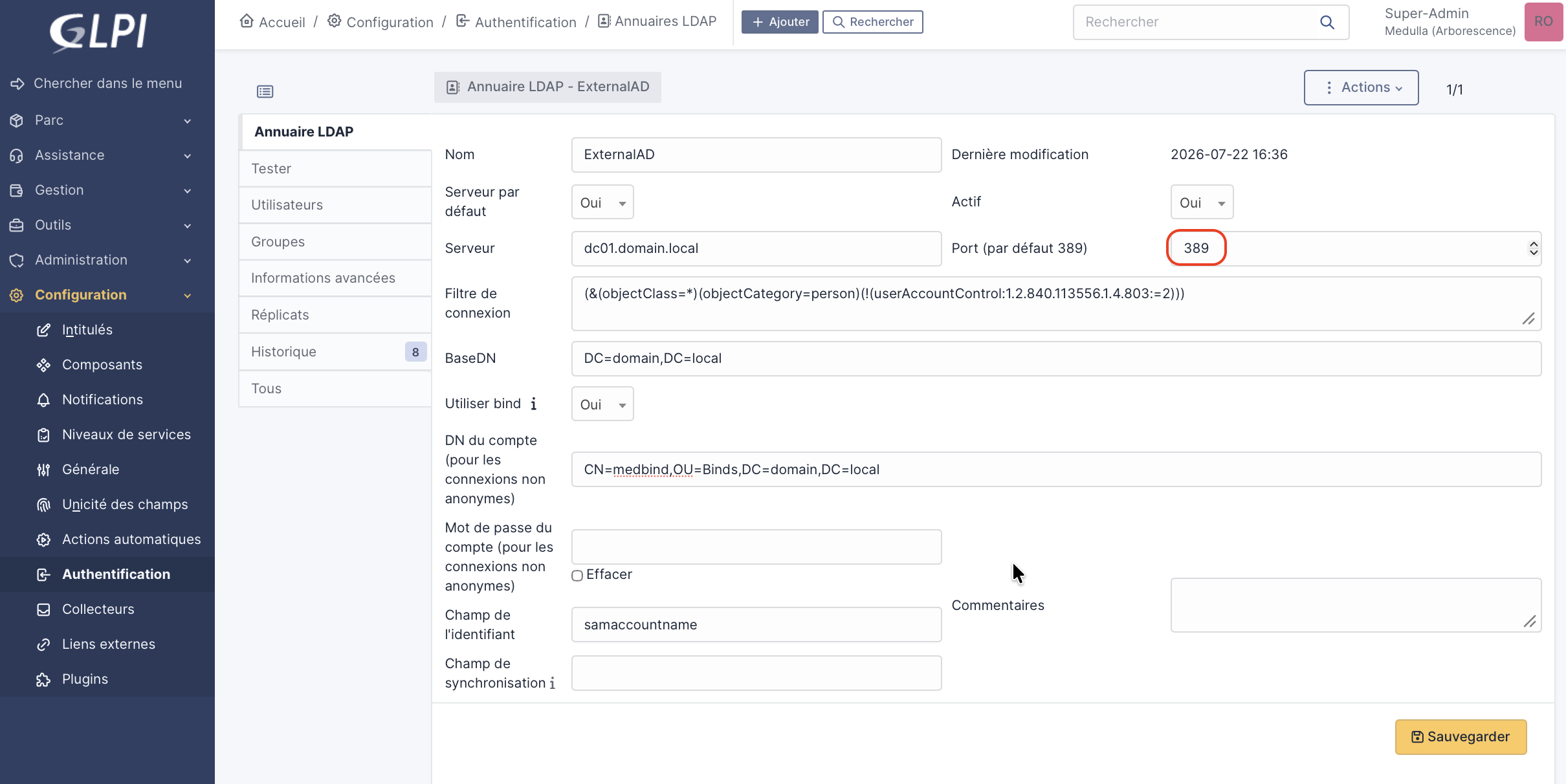
Select the LDAP directory used by Medulla.
Check the following items in particular:
- the address or fully qualified domain name (FQDN) of the LDAP server;
- the LDAP or LDAPS port used;
- the base DN used to search for users;
- the login account or Bind DN;
- the password for the login account;
- the user search filter;
- the attribute used as the login identifier, such as
sAMAccountNameoruserPrincipalName; - the Medulla server's ability to connect to the domain controller;
- the DNS resolution of the domain controller’s fully qualified domain name.
Test the connection to the LDAP directory
In the LDAP directory configuration screen, save the configuration, then use the Test button provided by GLPI.
The test should confirm that GLPI is able to connect to and query the LDAP directory.
Important: If the LDAP connection test fails, the automatic creation or import of users into Medulla will not work properly.
What should you do if the LDAPS configuration on port 636 does not work?
Port 636 corresponds to a TLS-secured LDAP connection, known as LDAPS.
To function, the GLPI server embedded in Medulla must be able to verify the TLS certificate presented by the domain controller.
An LDAPS connection may fail if:
- the certificate authority that issued the certificate is not recognized by the Medulla server;
- the root or intermediate certificate chain is incomplete;
- the certificate has expired or is not yet valid;
- the DNS name used in GLPI does not match the name in the certificate;
- an IP address is used instead of the domain controller’s fully qualified domain name;
- the Medulla server cannot correctly resolve the domain controller’s DNS name;
- port 636 is blocked by a firewall or is not available on the domain controller.
What configuration should be used in GLPI for LDAPS?
To configure LDAPS in GLPI, two fields must be filled in accurately.
Server:
ldaps://nom-complet-du-controleur-de-domaine.domaine.localPort:
636Important: Use the domain controller’s fully qualified domain name (FQDN), not its IP address. The name used must match one of the names listed in the server’s TLS certificate.
Caution: When the server is configured with the prefix ldaps:// and port 636, do not enable the Use TLS option in GLPI’s advanced settings. This option corresponds to an LDAP connection with StartTLS, which is a different operating mode.
Import the certificate or certificate chain onto the Medulla server
If the LDAPS certificate is self-signed, the domain controller’s public certificate must be added to the Medulla server’s certificate store.
If the LDAPS certificate was issued by an internal certificate authority, such as Microsoft AD CS, you must import the root authority certificate as well as any intermediate certificates.
Copy the certificate in CRT format to the following directory:
/usr/local/share/ca-certificates/Example:
sudo cp certificat-autorite.crt /usr/local/share/ca-certificates/Then update the server’s certificate store:
sudo update-ca-certificatesThe command output should indicate that the certificate has been added.
1 addedIf the certificate was exported in binary CER format, you can convert it to CRT format using OpenSSL:
openssl x509 -inform der -in certificat-ldaps.cer -out certificat-ldaps.crtNote: After adding the certificate, you may need to restart the web services or the Medulla server for the new certificate store to take effect.
Test the LDAPS connection from the Medulla server
On a Debian server, install the ldapsearch tool if it is not already available:
sudo apt-get update
sudo apt-get install ldap-utils
Then perform an LDAPS connection test:
ldapsearch -H "ldaps://dc01.domaine.local:636" -x -W -D "CN=Compte_GLPI,OU=Comptes de service,DC=domaine,DC=local" -b "DC=domaine,DC=local"The main options used are:
-H: LDAPS server address;-x: simple LDAP authentication;-W: interactive password prompt;-D: Distinguished name of the account used to query the directory;-b: base DN from which to perform the search.
If the test fails, add the following option to enable diagnostic mode:
-d1Example:
ldapsearch -H "ldaps://dc01.domaine.local:636" -x -W -d1 -D "CN=Compte_GLPI,OU=Comptes de service,DC=domaine,DC=local" -b "DC=domaine,DC=local"Can we temporarily test port 389?
Yes. If the LDAPS test on port 636 fails, port 389 can be used temporarily to distinguish between a general LDAP configuration issue and a problem specific to the certificate or LDAPS.
To perform this diagnostic:
- Open the LDAP directory configuration in GLPI
- Make a note of the current configuration before making any changes
- Temporarily replace the server
ldaps://with the DNS name of the LDAP server - Temporarily replace port 636 with port 389
- Save the configuration
- Run the LDAP connection test again in GLPI
- Log in to Medulla again using the LDAP account
- Log back in with the root account and check if the user appears in the user management section
Caution:Switching from port 636 to port 389 should only be used for diagnostic testing. A plain LDAP connection on port 389 can transmit sensitive information without encryption if StartTLS or another security mechanism is not enabled. For a production environment, correct the certificate configuration and re-establish a secure LDAPS connection.
Interpretation: If the test works on port 389 but fails on port 636, the configuration of the Base DN, the Bind account, and the password is likely correct. The problem is then likely related to the TLS certificate, the certificate chain, the DNS name, or access to port 636.
What should you do after correcting the LDAP configuration?
After correcting the LDAP or LDAPS configuration and obtaining a successful connection test:
- Log out of the Medulla interface
- Log in again using the relevant LDAP account
- Verify that the Medulla interface opens correctly
- Log out of the LDAP account
- Log back in with the root account
- Open user management
- Search for the LDAP user
- Assign the desired permissions and role to the user
What should you do if the user is still missing?
If the user still does not appear after a successful LDAP test and a new login, check:
- that the user is present, active, and not locked out in the LDAP or Active Directory directory;
- that they match the search filter configured in GLPI;
- that they are in an organizational unit included in the Base DN;
- that the Bind account has the necessary read permissions;
- that the attribute used as the login identifier is correctly configured;
- that the user is using the expected login format, such as
user_nameorutilisateur@domaine.local; - that a user with the same identifier or email address does not already exist in another entity;
- that the LDAP directory is active and being used as an authentication source;
- that the web server logs do not contain any LDAP or TLS errors.
Check the web server logs
On a server running Apache, you can view errors using the following command:
sudo tail -f /var/log/apache2/error.logThen repeat the LDAP test or login attempt to identify any certificate, connection, Bind DN, or LDAP lookup errors.
What information should you provide to Medulla support?
If the problem persists, provide Medulla Support with:
- a screenshot of the LDAP configuration in GLPI, with the password hidden;
- the result of the LDAP or LDAPS connection test;
- the result of the
ldapsearchcommand, without revealing the password; - the identifier format used by the affected user;
- the fully qualified domain name (FQDN) of the domain controller;
- the port used, 389 or 636;
- the date and time of the connection attempt;
- the corresponding errors in the Apache logs;
- the version of Medulla being used.
Caution:Never provide the Bind account password, the user password, or a certificate private key to support.
Summary of checks
|
Check |
Action |
|
Log in with the root account |
Verify access to Medulla’s local administration |
|
First LDAP login |
Enable automatic creation of the local user |
|
User missing |
Check the LDAP configuration in the embedded GLPI |
|
LDAP test in GLPI |
Verify that GLPI can connect to and query the directory |
|
LDAPS server |
Use |
|
LDAPS port |
Use port 636 |
|
Use TLS option |
Do not enable this for a |
|
LDAPS certificate |
Import the certificate or certificate chain into the Medulla server store |
|
Server test |
Test the connection using |
|
Temporary test on port 389 |
Identify a specific issue with the certificate, DNS, or LDAPS |
|
After correction |
Reconnect the LDAP user, then verify their presence using the root account |
|
Assign permissions |
Modify the user and assign the Super-Admin role if necessary |
Additional resources
For more information on configuring LDAPS in GLPI, importing the TLS certificate, and testing with ldapsearch, see the following tutorial:
GLPI: How to configure Active Directory authentication via LDAPS?