
PMAD – Diagnose a VNC/RDP remote control session that isn’t working
Applies to: Medulla / Medulla server / Relay server
Version: All
Environment: Public SaaS / Private SaaS / On-Premise
Category: PMAD / Diagnostics
This procedure is used to diagnose a remote control (PMAD) issue when a VNC or RDP connection is not working from Medulla.
The diagnosis must be performed step by step to determine where the problem lies:
- status of the computer and the Medulla agent;
- availability of the remote control protocol;
- Guacamole connection registration;
- configuration of the Guacamole connection;
- establishment of the reverse SSH connection;
- communication between
guacdand the tunnel; - HTTP/Guacamole configuration.
Tip:
Always start with the simple checks outlined at the beginning of this procedure before performing SQL checks or reverse SSH diagnostics.
1. Verify that the computer is online in Medulla
The remote control is not available when the computer appears offline in Medulla.
If the computer appears grayed out or offline, start by verifying that the Medulla agent is running on the computer.
Important:
There is no point in continuing the PMAD diagnosis until the computer is properly connected to Medulla.
2. Check the remote control protocol
If the computer is online, verify that the protocol used for remote control is properly enabled on the workstation.
VNC connection
For a VNC connection, verify in particular that TightVNC is running properly on the computer.
On Windows, you can check if the VNC port is listening with:
netstat -an | find "5900"If no output is returned, check the status and operation of TightVNC.
RDP connection
For an RDP connection, verify that Windows Remote Desktop is enabled on the computer.
You can also verify that the RDP service is listening on the workstation.
SSH connection
When using an SSH connection, verify that the OpenSSH server is installed, enabled, and running on the computer.
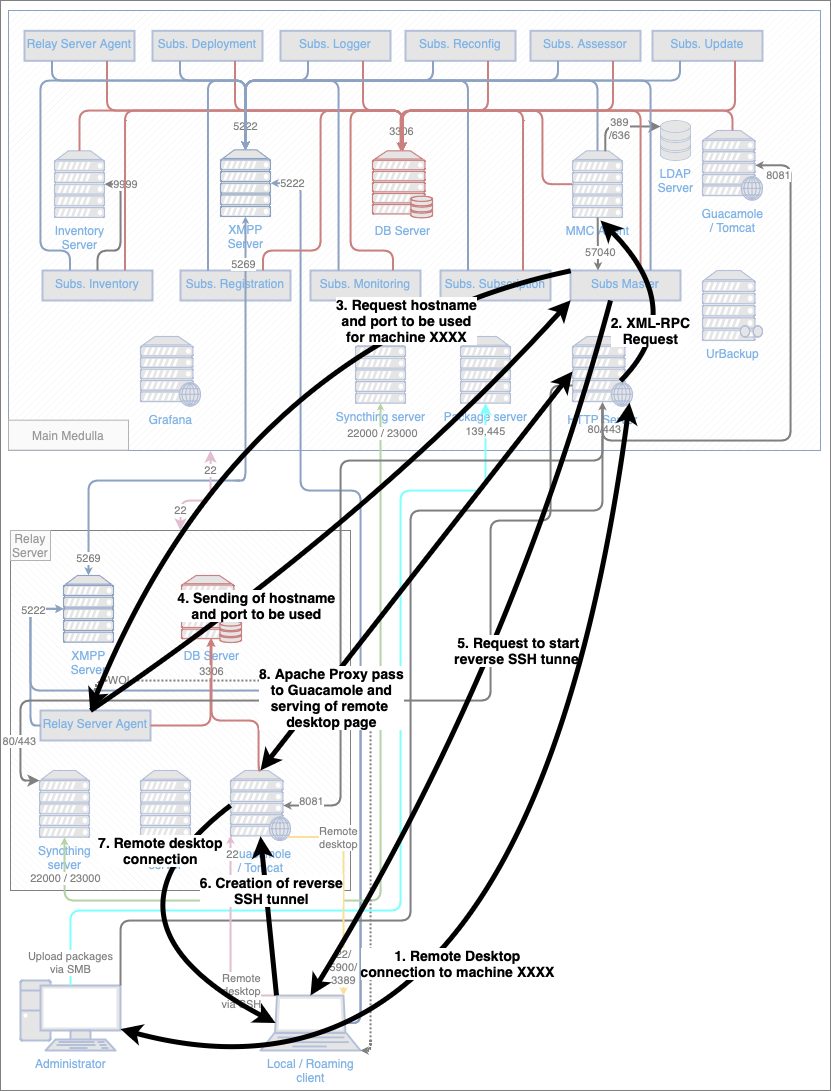
3. Remote control workflow
The following diagram shows the workflow used to establish a remote control connection:
4. Logs to check
If a problem persists, several logs can be checked to identify at which stage the connection is failing.
Medulla server / relay server
/var/log/apache2/*.log
/var/log/mmc/mmc-agent.log
/var/log/pulse/xmpp-agent-relay.log
/var/log/mmc/master-mast.log
/var/log/tomcat9/*.log
/var/log/tomcat9/*.txt
Windows computer
C:\Program Files\Medulla\var\log\xmpp-agent-machine.logGuacamole
To monitor the guacd service logs in real time:
journalctl -u guacd -fTo view the latest events:
journalctl -u guacd -n 1005. Check the Guacamole connections recorded for the computer
If the computer is online and the remote control protocol is working, verify that the Guacamole connections have been correctly recorded in Medulla.
On the xmppmaster database, run:
USE xmppmaster;

SELECT jid,
       hostname,
       machine_id,
       idguacamole,
       protocol
FROM machines
JOIN has_guacamole
    ON machines.id = has_guacamole.machine_id
WHERE jid LIKE '%machine_name%';
Example result:
+-------------------------------------------+-------------+------------+-------------+----------+
| jid                                       | hostname    | machine_id | idguacamole | protocol |
+-------------------------------------------+-------------+------------+-------------+----------+
| machine_name.7wg@server-ars01/bc241109f61e | machine_name |         23 |         386 | SSH      |
| machine_name.7wg@server-ars01/bc241109f61e | machine_name |         23 |         387 | VNC      |
| machine_name.7wg@server-ars01/bc241109f61e | machine_name |         23 |         388 | RDP      |
+-------------------------------------------+-------------+------------+-------------+----------+
Verify that the connection corresponding to the protocol you want to use is present.
For example, for a VNC PMAD, a line with the VNC protocol must be present.
If no connection is present:
Re-register the computer. If the connections are still not created after re-registration, check on the client computer that the relevant protocols are properly enabled: VNC running, RDP enabled, or the OpenSSH daemon started.
6. Check the Guacamole connection details
Once the idguacamole has been identified, you can verify the configuration of the corresponding connection.
Architecture with a relay server:
If the computer is connected to a Medulla relay server, this query must be executed on the relay to which the computer is connected.
In the previous example, the VNC connection has the ID 387.
USE guacamole;

SELECT guacamole_connection.protocol AS protocol,
       guacamole_connection.connection_id AS connection_id,
       parameter_name,
       parameter_value
FROM guacamole_connection_parameter
JOIN guacamole_connection
    ON guacamole_connection_parameter.connection_id = guacamole_connection.connection_id
WHERE guacamole_connection.connection_id = 387;
Replace 387 with the idguacamole corresponding to the connection you want to diagnose.
Example result for a VNC connection:
+----------+---------------+----------------+-----------------+
| protocol | connection_id | parameter_name | parameter_value |
+----------+---------------+----------------+-----------------+
| vnc      |           387 | color-depth    | 24              |
| vnc      |           387 | hostname       | localhost       |
| vnc      |           387 | password       | xxxxxxxx        |
| vnc      |           387 | port           | 60381           |
+----------+---------------+----------------+-----------------+
In this example, Guacamole must connect to:
localhost:60381Port 60381 corresponds to the port used locally to reach the computer via reverse SSH.
7. Verify that the reverse SSH connection has been established
When the Guacamole connection uses:
hostname = localhostverify that the port specified in the Guacamole configuration matches an active reverse SSH connection on the relevant server or relay.
For example, if the returned port is 60381:
netstat -vatpn | grep 60381Example result:
tcp   0   0 0.0.0.0:60381   0.0.0.0:*   LISTEN      420161/sshd: revers
tcp6  0   0 :::60381         :::*        LISTEN      420161/sshd: revers
tcp6  0   0 ::1:44178        ::1:60381   ESTABLISHED 420167/guacd
tcp6  0   0 ::1:60381        ::1:44178   ESTABLISHED 420161/sshd: revers
You should see, in particular:
- an
sshd: reversprocess listening on the relevant port; - when a PMAD connection is active, communication between
guacdand that port.
Note:
Port redirection from guacd to the tunnel occurs when the reverse connection is established. When attempting to connect, therefore, check for the presence of a guacd line in addition to the sshd: revers lines.
If no sshd: revers line is present:
The problem likely lies with the reverse SSH setup.
Please refer to the following FAQ:
8. Additional VNC diagnostics
For a VNC connection, several additional checks can be performed.
On the client computer
Verify that the VNC server is listening:
netstat -an | find "5900"If not, verify that TightVNC is running.
Next, verify that an SSH connection is present:
netstat | find "ssh"On the relay server
Verify that the reverse SSH connection is properly established:
netstat -vatpn | grep sshdNote:
The reverse SSH connection used for PMAD is established on a dynamic port. The port number may therefore vary from one connection to another.
9. Additional RDP diagnostics
For an RDP connection, first verify that Remote Desktop is properly enabled on the Windows workstation.
Also verify:
- that the Windows RDP service is running;
- that the workstation allows Remote Desktop connections;
- that the
RDPconnection is present in thehas_guacamoletable; - that the Guacamole connection has a valid reverse port;
- that the corresponding reverse SSH connection is present on the server or relay.
Tip:
You can use the same method as for VNC: retrieve the idguacamole corresponding to the RDP protocol, then check the connection settings and the associated reverse port.
10. The reverse connection works, but Guacamole still won’t open
If the previous checks are correct:
- the computer is online;
- the Guacamole connection exists;
- the protocol is configured correctly;
- the reverse SSH is set up;
guacdis communicating with the reverse SSH port;
but if the Guacamole session still won't open from the Medulla interface, check the HTTP configuration used to authorize access to Guacamole.
In particular, you should check the HTTP Referer sent by the browser and, depending on the architecture, its transmission through the reverse proxy.
See the dedicated FAQ:
PMAD – Diagnose the HTTP Referer used by Guacamole
Note:
In Chrome, the Developer Tools allow you to check the value of the Referer under Network > Fetch/XHR > Headers. An incorrect or missing value may prevent the PMAD from functioning.
11. Recommended troubleshooting order
If you encounter a PMAD issue, perform the following checks in this order:
- Verify that the computer appears online in Medulla.
- Verify that the Medulla agent is functioning properly.
- Verify that VNC, RDP, or SSH is available on the computer.
- Check for connections in
xmppmaster.has_guacamole. - Re-register the computer if there are no Guacamole connections.
- Retrieve the
idguacamolecorresponding to the relevant protocol. - Check the connection settings in the
guacamoledatabase. - Identify the dynamic port used by reverse SSH.
- Check for the presence of the
sshd: reversprocess. - When attempting a PMAD, verify that
guacdis communicating with the reverse connection. - Check the logs if the source of the problem has still not been identified.
- If the entire technical chain is functioning properly, check the HTTP
Refererand the Guacamole configuration.
12. Summary
| Symptom | Priority check |
|---|---|
| Computer grayed out / offline | Medulla agent and computer connection |
| VNC unavailable | TightVNC and VNC port |
| RDP unavailable | Enabling Windows Remote Desktop |
| No VNC/RDP/SSH connections recorded | Re-registering the computer |
| Guacamole connection present but PMAD not possible | Guacamole connection settings |
No sshd: revers |
Reverse SSH diagnostics |
Reverse connection present but no guacd connection |
Guacamole / guacd and logs |
| The entire chain is working, but the interface is rejecting the PMAD | HTTP Referer / Guacamole configuration / reverse proxy |
Recommendation:
To effectively diagnose a Medulla PMAD, always proceed from the computer to Guacamole: computer online → VNC/RDP protocol → Guacamole registration → reverse SSH → guacd → Guacamole HTTP access. This method allows you to quickly identify at which point in the chain the connection is interrupted.