
Check and change the active antivirus software in Windows
Applies to: Medulla / GLPI Agent / Windows 10 and Windows 11
Category: Inventory / Security / Antivirus / EDR
Products covered: Microsoft Defender, Cybereason, and other antivirus solutions compatible with Windows Security Center
1. Overview
Medulla displays information about antivirus software detected on Windows workstations based on inventory data reported by the GLPI agent.
The GLPI agent relies in particular on information published by the Windows Security Center to identify antivirus products.
Medulla does not select the active antivirus and does not directly modify the settings of Microsoft Defender or a third-party EDR.
The simultaneous presence of Microsoft Defender and Cybereason in the inventory does not necessarily mean that two antivirus engines are providing real-time protection at the same time.
It is important to distinguish between:
- Products installed on the workstation.
- Products registered with the Windows Security Center.
- Products with active real-time protection.
- Products listed in the GLPI inventory.
2. Check the antivirus in the Windows interface
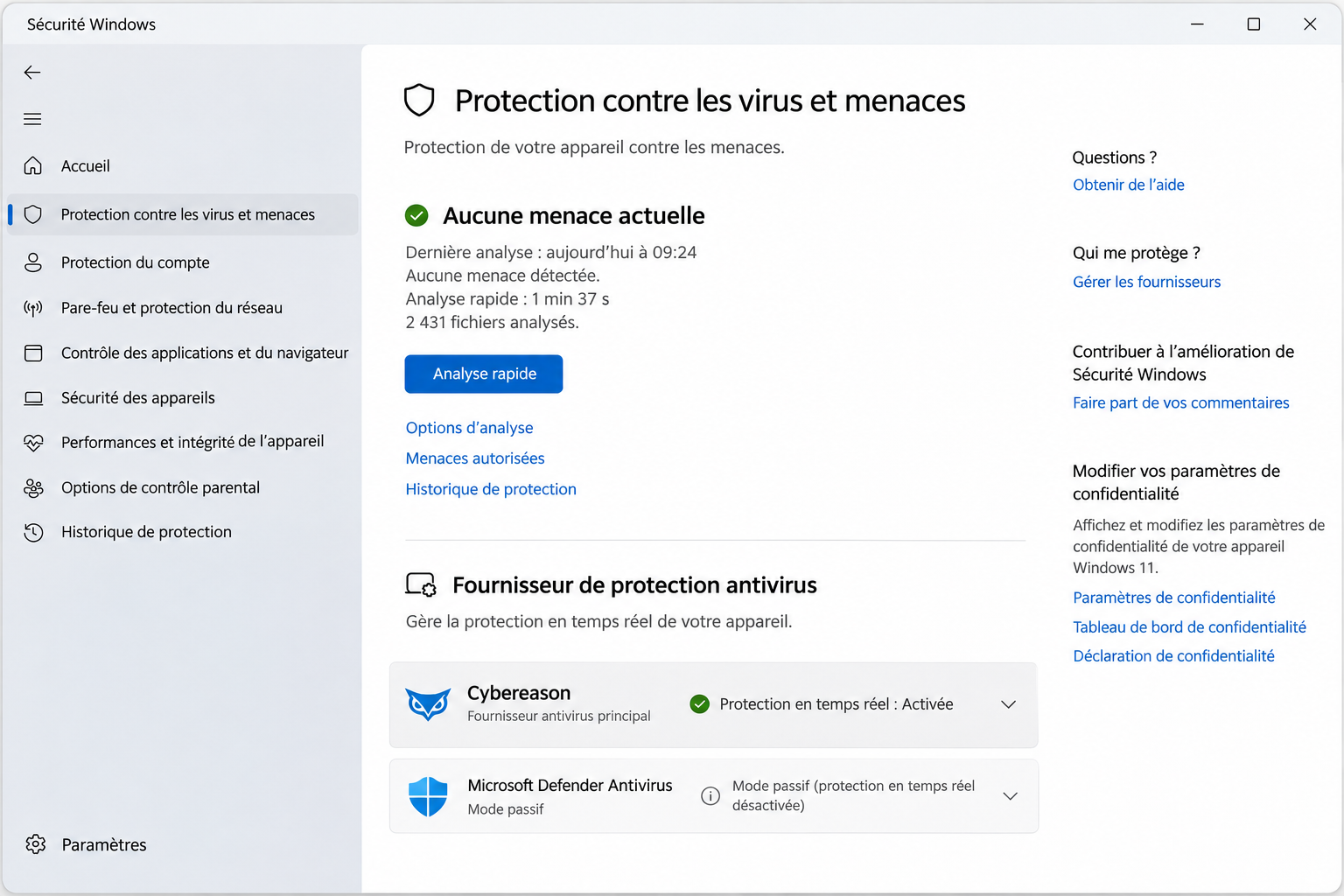
2.1. Open Windows Security
The page displays information about the workstation's antivirus protection.
2.2. View security providers
In the Windows Security app:
- Open Settings (gear icon).
- Select Manage providers under the Security providers section.
- Go to the Antivirus section.
Depending on your version of Windows, the menu labels and exact locations may vary.
This page allows you to identify security providers registered with Windows and view the statuses displayed by the system.
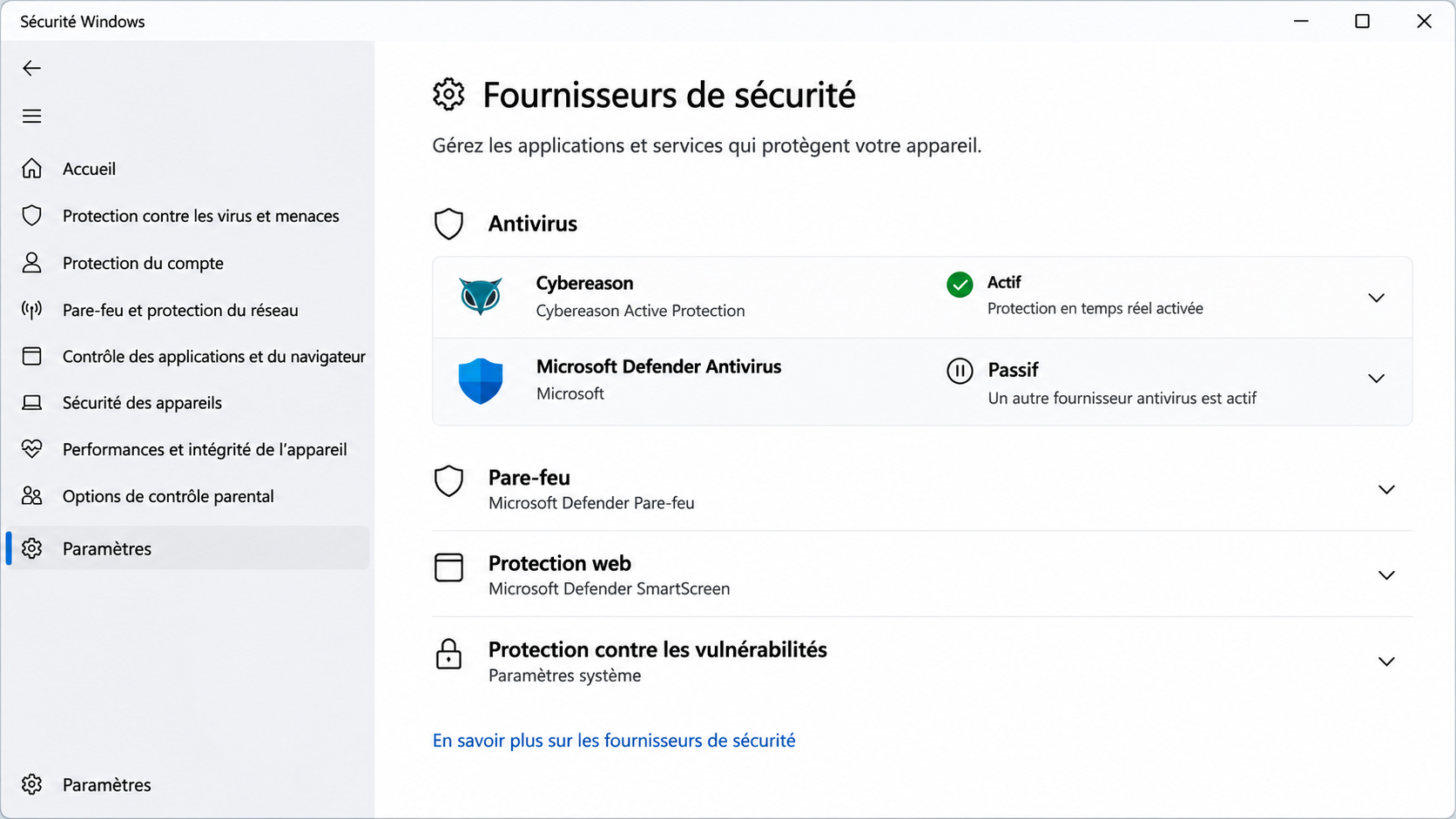
Important: The absence of an EDR in this list does not necessarily mean it is missing or inactive. Some EDR products do not register as antivirus software with the Windows Security Center, depending on their operating mode and configuration.
3. Check registered antivirus programs with PowerShell
On compatible workstations, Windows exposes information about registered antivirus programs in the WMI namespace root/SecurityCenter2.
Open PowerShell as an administrator and run:
Get-CimInstance -Namespace root/SecurityCenter2 -ClassName AntiVirusProduct |
    Select-Object displayName, productState, pathToSignedProductExe
Example of a fictional result:
displayName                  productState  pathToSignedProductExe
-----------                  ------------  ----------------------
Microsoft Defender Antivirus 397568       ...
Cybereason                   397312       ...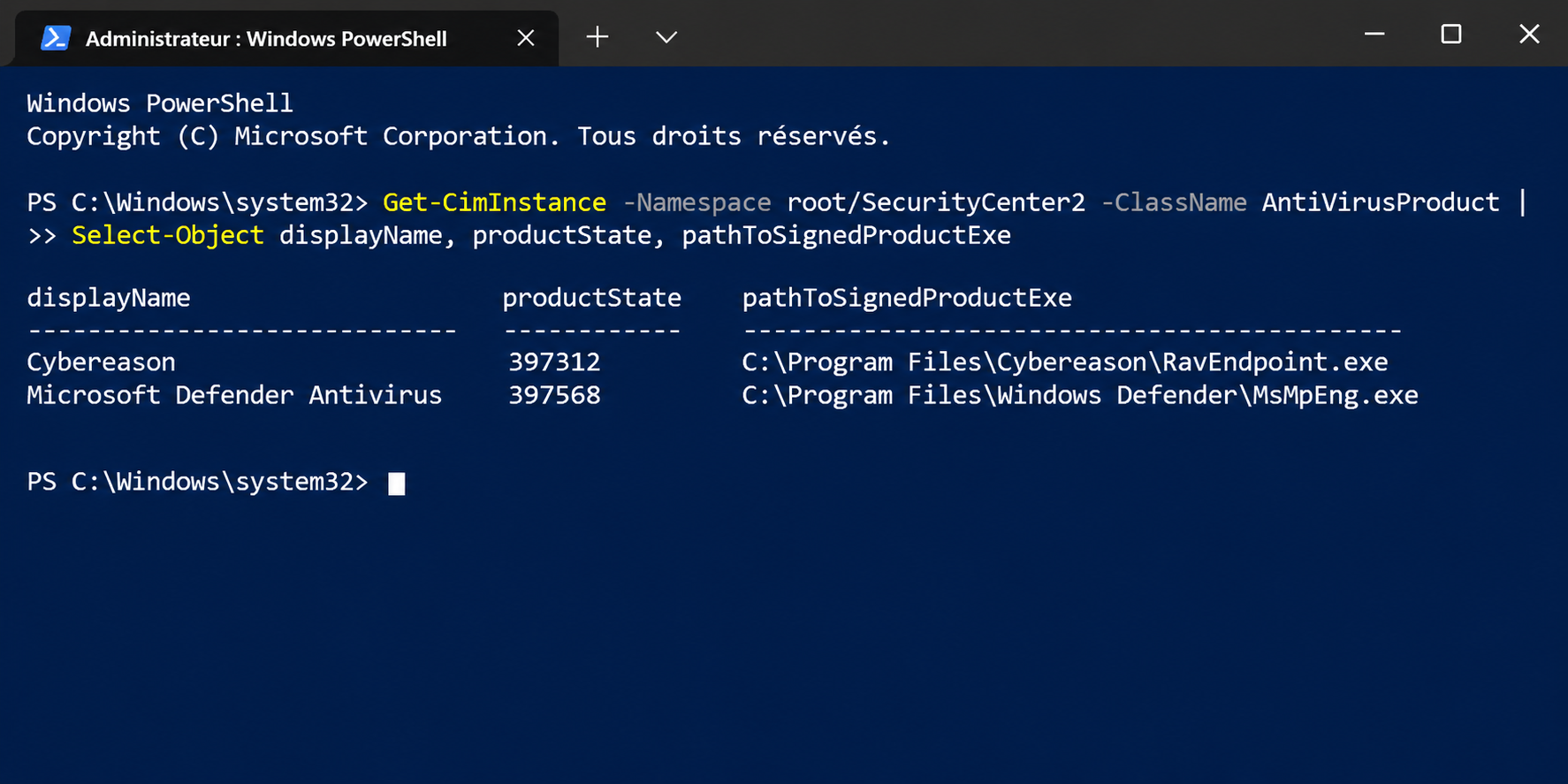
The displayName property indicates the name of the product registered with Windows Security Center.
The productState property represents an encoded status. Its interpretation depends on the format used by Windows and should not be considered in isolation as definitive proof of the product’s operational status.
Key takeaway: This command identifies antivirus programs registered with the Windows Security Center. It does not, on its own, constitute a test of EDR functionality.
4. Check the status of Microsoft Defender
Microsoft Defender provides PowerShell commands to check its status.
Run:
Get-MpComputerStatus |
    Select-Object AMRunningMode,
                  AntivirusEnabled,
                  RealTimeProtectionEnabled,
                  AMServiceEnabled
The main properties are:
| Property | Meaning |
|---|---|
AMRunningMode |
Microsoft Defender's operating mode, such as Normal or Passive Mode. |
AntivirusEnabled |
Status of the Defender antivirus feature. |
RealTimeProtectionEnabled |
Status of Defender real-time protection. |
AMServiceEnabled |
Status of the Defender antimalware service. |
These values should be interpreted together, taking into account security policies and the Microsoft Defender for Endpoint configuration, if used.
5. Why does Microsoft Defender remain visible after installing Cybereason?
There are several possible reasons for this behavior:
- Cybereason is installed, but its antivirus component is not enabled.
- Cybereason is operating as an EDR without taking on the role of primary antivirus.
- The product is not registered as an antivirus with the Windows Security Center.
- A security policy is preventing or modifying the transition of Microsoft Defender to passive mode.
- A required installation or reboot has not been completed.
- The GLPI inventory data has not yet been updated.
It is therefore important to distinguish between how Cybereason operates and its registration with Windows.
6. How do I set Cybereason as the primary antivirus?
Windows does not provide a universal mechanism for manually selecting any antivirus program as the primary product.
Making this change generally requires correctly installing the third-party product, enabling its antivirus features, registering it with the Windows Security Center, and applying the appropriate security policies.
6.1. Verify the Cybereason configuration
From the Cybereason administration console, verify:
- That the agent is properly installed and connected to its console.
- That the license and expected protection features are active.
- That the policy applied to the workstation actually enables antivirus protection, if this feature is part of the deployed product.
- That the agent version and deployment method support registration with the Windows Security Center.
- That no additional steps or reboots are required.
The specific settings depend on the version and edition of Cybereason. Refer to its documentation and administration console.
6.2. Verify registration in Windows
After applying the Cybereason policy, run the following again:
Get-CimInstance -Namespace root/SecurityCenter2 -ClassName AntiVirusProduct |
    Select-Object displayName, productState
Also check the Windows Security → Security providers page.
6.3. Verify Microsoft Defender mode
(Get-MpComputerStatus).AMRunningModeIf Microsoft Defender remains in Normal mode even though Cybereason is supposed to handle primary antivirus protection, verify the third-party product’s configuration, its registration, and the Microsoft policies applied to the workstation.
Security: Do not manually disable Microsoft Defender or its Tamper Protection solely to change the inventory display. Incorrect configuration could leave the workstation without effective antivirus protection.
7. Compare a local installation and a Medulla deployment
If Cybereason correctly assumes the role of primary antivirus during a local installation but not during a Medulla scripted deployment, it is recommended to compare the two installations.
| Checkpoint | Local installation | Medulla deployment |
|---|---|---|
| Installer version | To note | To compare |
| Installation arguments | To note | To compare |
| Runtime context | User / Administrator | Account used by the deployment |
| Cybereason policy | To note | To compare |
| Restart | Performed or not | Performed or not |
| Windows Security Center status | To check | To compare |
| Microsoft Defender mode | To note | To compare |
This comparison helps determine whether the difference stems from the installation, the EDR configuration, or the state of Windows.
8. Why does Medulla still display Microsoft Defender?
Medulla uses inventory information reported by the GLPI agent.
For Windows antivirus software, this information comes in particular from the Windows Security Center.
Medulla does not force Cybereason registration and does not decide which antivirus Windows should use.
After correcting the workstation’s configuration, you should:
- Check the information in Windows Security.
- Check the PowerShell results.
- Refresh the workstation’s GLPI inventory.
- Verify the new entry in Medulla.
Important: If Windows continues to list Microsoft Defender and Cybereason, the inventory may display both products. Do not automatically assume that both antivirus programs are running real-time protection simultaneously.
9. Frequently asked questions
Can the primary antivirus be changed directly from Medulla?
No. Medulla does not have a specific feature that allows you to select the primary antivirus in Windows. However, it can be used to deploy scripts or configurations provided and validated by the security solution vendor.
If two antivirus programs are visible, does that mean both are active?
No. You must check their actual status and operating mode.
Why doesn’t Cybereason appear in the Windows list?
The product may function as EDR without being registered as antivirus software, or its registration may depend on the license, version, and applied policy.
Can Defender be forced into passive mode using PowerShell?
Passive mode depends on Microsoft configuration, the third-party product, and security policies. You should not use a generic deactivation command as a substitute for a properly configured antivirus integration.
How can I tell if the problem is caused by Medulla?
Compare the results directly in Windows, independently of Medulla. If the behavior is already incorrect in Windows Security or in the diagnostic commands, you should first examine the workstation and Cybereason configurations.
10. Recommended diagnostic procedure
- Open Windows Security and review the antivirus providers.
- Run the PowerShell command to inventory antivirus software.
- Check the operating mode of Microsoft Defender.
- Verify the Cybereason agent policy and status.
- Compare the settings of a functional local installation with those of the Medulla deployment.
- Apply the fixes recommended by Cybereason.
- Restart the workstation if necessary.
- Check the statuses in Windows again.
- Refresh the GLPI inventory and view the results in Medulla.
11. Summary
The Windows Security Center is an important source of information for identifying antivirus software installed on Windows workstations.
The GLPI agent retrieves this information and transmits it to the inventory used by Medulla.
The selection of the active antivirus and its registration with Windows depend on the security product, its installation, and the policies in place.
Key takeaway: If Microsoft Defender remains listed after Cybereason deployment, first check the information and protection modes directly in Windows, then verify the Cybereason configuration. Medulla displays the information reported by the GLPI agent and does not define the primary antivirus.