
Add a profile
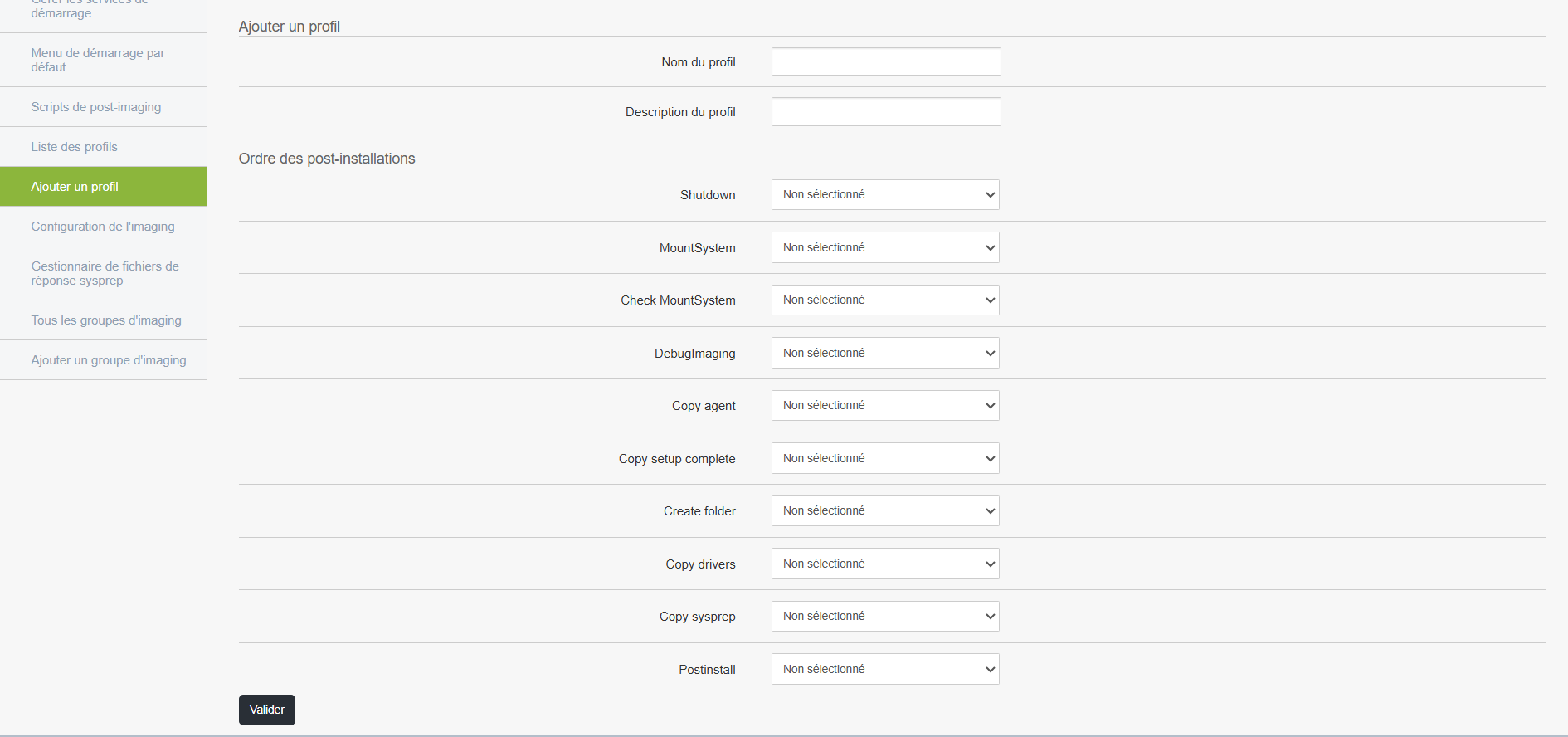
A profile allows you to associate post-installation actions with a master and to add this profile to the machine’s boot menu when booting the machine via PXE.
Accessing and editing a profile
From the management interface, you can:
- Add a new profile
- Edit an existing profile
- Delete a profile if necessary
List of available post-installation actions
Here are the actions that can be configured in the desired order.
All are disabled by default; you must select them manually if you wish to apply them:
-
Shutdown: automatically shuts down the machine once all steps are complete.
-
MountSystem: mounts the system partitions, useful for accessing certain files before deployment is complete.
-
Check MountSystem: Verifies that the system has been successfully mounted.
-
DebugImaging: Enables a diagnostic mode to analyze the imaging process (primarily used by technicians).
-
Copy agent: Copies the Medulla agent to the computer, required for remote management.
-
Copy setup complete: adds a file or script to run at the end of the installation.
-
Create folder: creates one or more custom folders on the computer.
-
Copy drivers: Copies the necessary drivers to the target machine.
-
Copy sysprep: installs files related to Windows system preparation (Sysprep).
-
Postinstall: entry point to run a custom script or command once installation is complete.
Using the profile
-
Create or modify a profile according to the specific needs of your organization or the target computer.
-
Select the desired actions in the appropriate order of execution.
- Associate the profile with a master
- Run this profile when the machine you want to install boots up.
This profile will then be associated with a deployment task, so that the selected steps are automatically applied after installation.