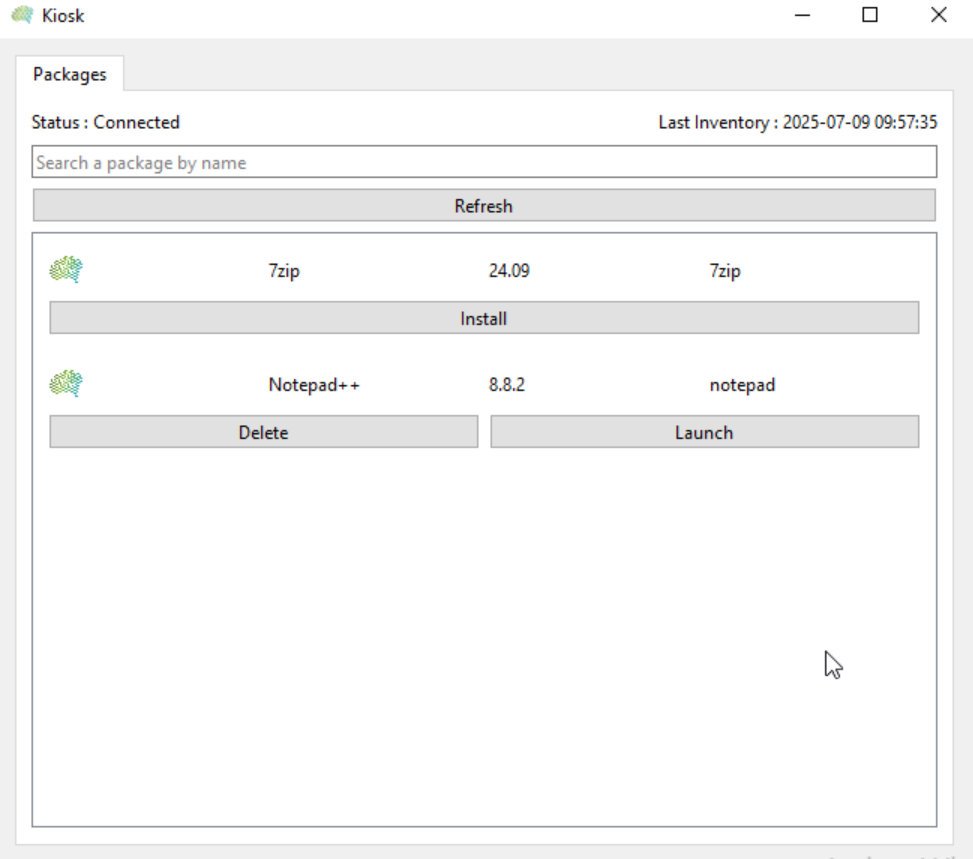
Medulla Kiosk
Once profiles have been created in the Medulla interface, users whose workstations are connected to Medulla will see an icon representing the Medulla logo in their system tray: 
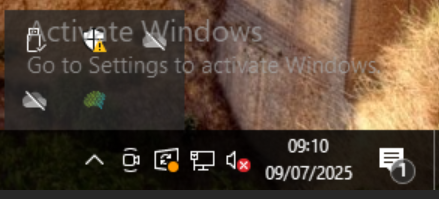
Double-click the icon to open the kiosk, which will display the applications that the Medulla administrator(s) have made available:
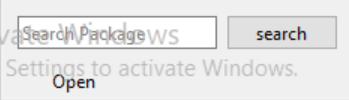
You can also right-click and then click the "Open" button:

Next, the user simply selects the desired package and clicks the “Install” button.
The user then has several options available:
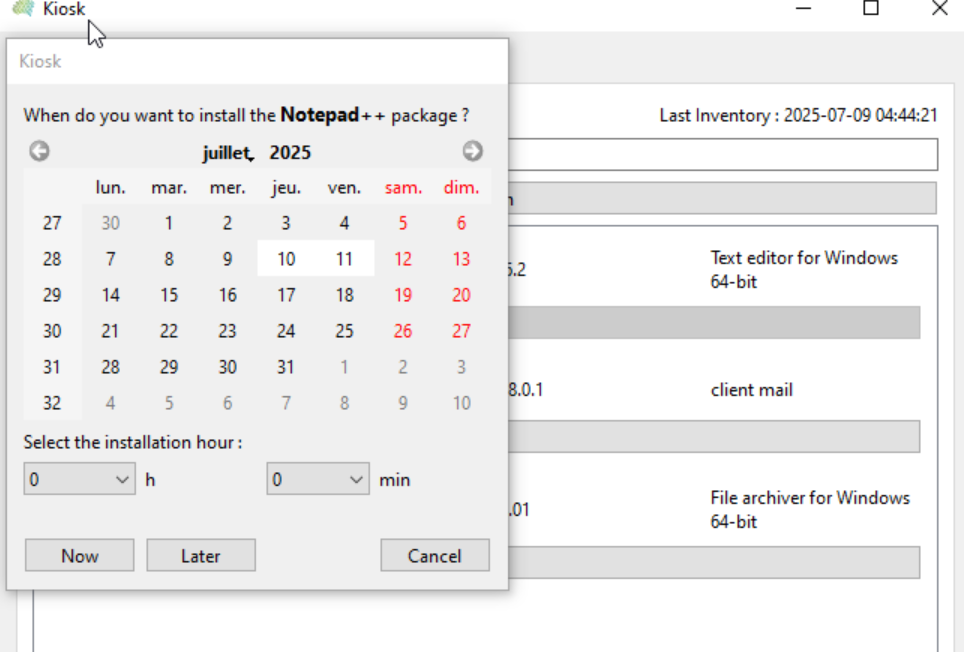
You can schedule a deployment date and time, then click the “Later” button (e.g., today at 5:00 p.m.); the deployment will then take place at the date and time scheduled by the user.
Or they can click“Now” to start the deployment immediately.
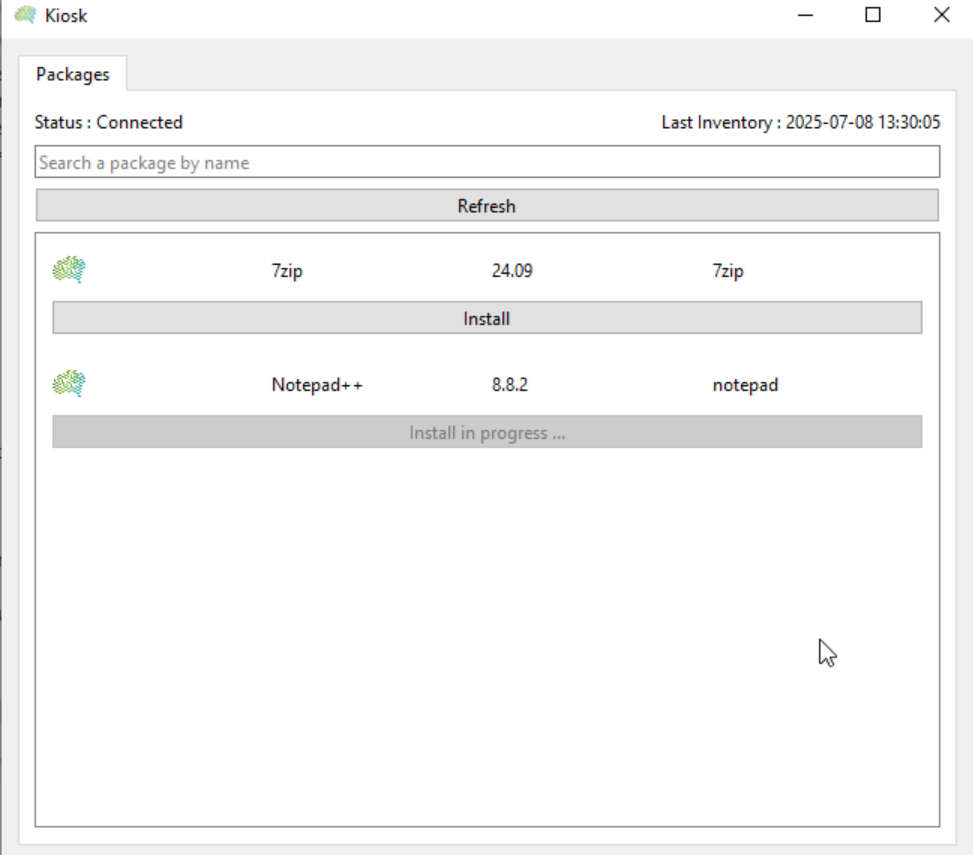
The user will then see the “Install” button change to “Install in Progress.”
Once the “Install” button has been clicked, the Medulla agent will send the installation request to the Medulla server, and the server will handle the installation as a normal deployment.
In the Medulla console, the administrator will find the deployment in the Audit tab with the command name followed by @Kiosk@, which identifies deployments via the kiosk.

The user will see their kiosk window change to display the "Launch" button and the "Delete" button, which allows them to remove the program.