
Computers
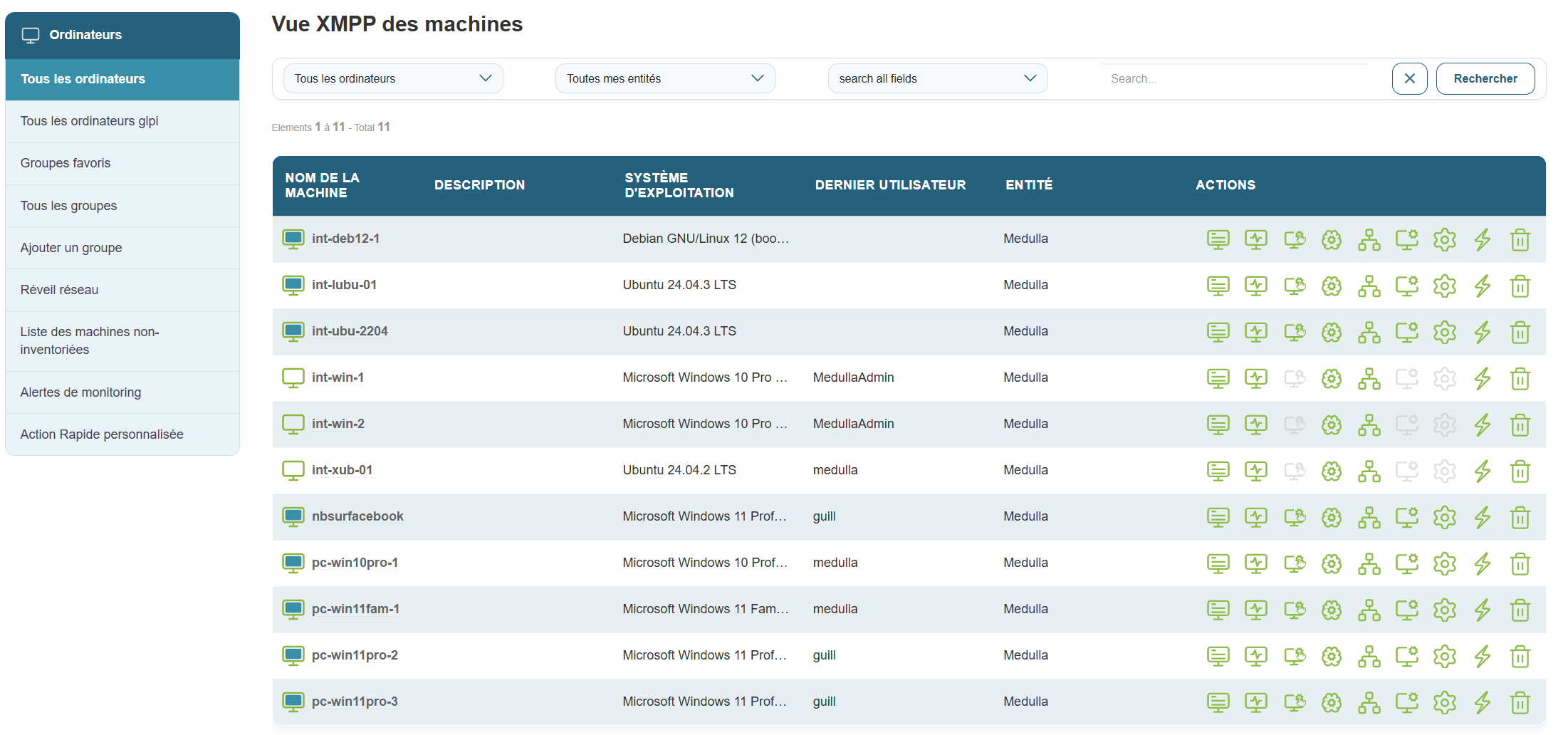
This section is dedicated to the comprehensive management of all workstations in Medulla. Whether you want to monitor, organize, or interact remotely with your workstations, everything is centralized in a user-friendly and intuitive interface.
Computer management in Medulla is based on a centralized interface accessible via the XMPP View. From this interface, you have access to all the features needed to monitor the status of machines, perform targeted searches, apply filters, and carry out various actions on your computers—all in real time.
XMPP View for Workstations
The XMPP View is the heart of workstation management in Medulla. It allows you to monitor the connection status of each workstation in real time and interact with them. This module centralizes information and available actions for complete control over your IT estate
Filters and Workstations
At the top of the page, you’ll find three radio button filters to select workstations based on their connection status:
-
All Computers: Displays all computers, regardless of their status.
-
Online computers: Displays only workstations that are currently connected.
-
Offline computers: Displays machines that are not currently connected.
These filters are useful for quickly and efficiently managing computers based on their availability.
Filtering by Entity
Global Search
Using the “Search all fields” search field, you can search for a machine by entering a keyword. This search field applies to all fields visible in the table, such as the machine name, IP address, operating system, or associated entity.
Actions Available on Workstations
Under each workstation in Medulla, you have several actions available for remote management and control. These actions include advanced features such as machine inventory, monitoring, remote access, and much more. For a detailed overview of each feature, see the Admin section, which covers these options in depth.
Here is an overview of the available actions:
 GLPI Inventory: Track and manage hardware and software configurations through integration with GLPI.
 Monitoring: Real-time monitoring of machine performance.
 Remote Control : Directaccess to machines to perform troubleshooting or maintenance tasks.
 Backup: Provides access to Medulla’s backup module for user workstations.
 Software Deployment : Remoteinstallation or updates for software.
 Imaging Management: Deployment and management of system images.
 XMPP Console: Verify machine connectivity and interact in real time via XMPP.
 Editing Configuration Files: Remotely modifying configuration files.
 Quick Actions: Launch actions and commands via the XMPP protocol.
 Delete the machine
All GLPI Computers
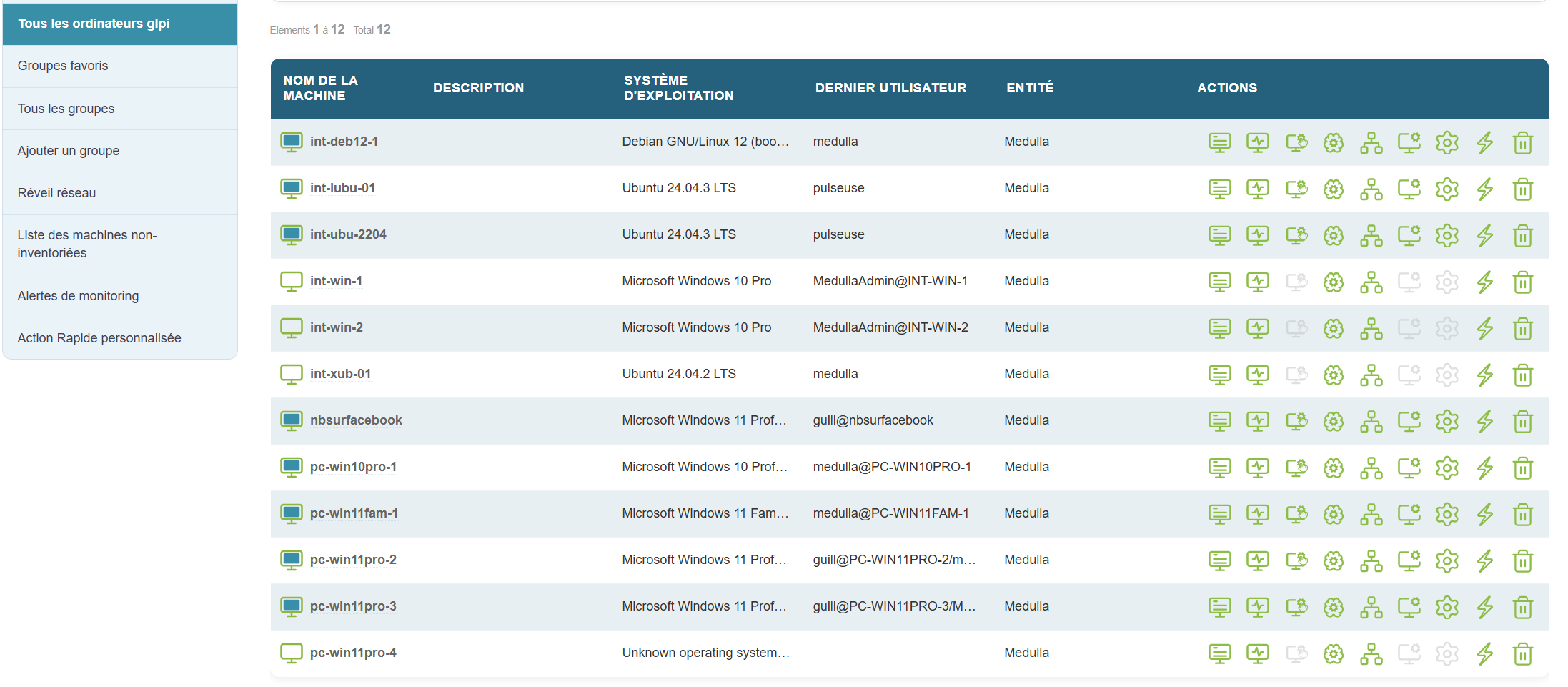
This section displays only the computers that have been synchronized withGLPI via automated inventory. Here, you can view all machines registered in the GLPI system and check their status.
Features:
-
Display similar to the main page: You’ll find a visual interface identical to that of the “All Computers” view, with options to filter online or offline machines.
-
GLPI fields displayed: Key information about computers synchronized with GLPI is visible, such as:
-
Machine name
-
Operating system (OS)
-
Entity to which the machine is assigned
-
Last user
-
And other important information
-
-
Filter by connection status: The interface allows you to filter online and offline machines based on their synchronization status with GLPI.
-
Display based on GLPI connection status: Only computers that have been successfully synchronized with the GLPI inventory will appear here. If no machines appear, this may mean that the GLPI inventory has not been configured correctly or that the machines have not yet been synchronized.
If no workstations appear here, it means that the GLPI inventory has not yet been configured or that the workstations have not been synchronized.