
Imaging
This section is dedicated toverifying the status of the imaging server, an essential step before performing deployment of a system or creating a reference image.
The imaging server is a central component of Medulla: it allows a system image (a kind of complete “copy” of a computer) to be sent to one or more workstations. If this server is unavailable or malfunctioning, no imaging-related operation can be completed.
That is why it is recommended to systematically check its status before performing any such action.
Accessing the Imaging Server Status
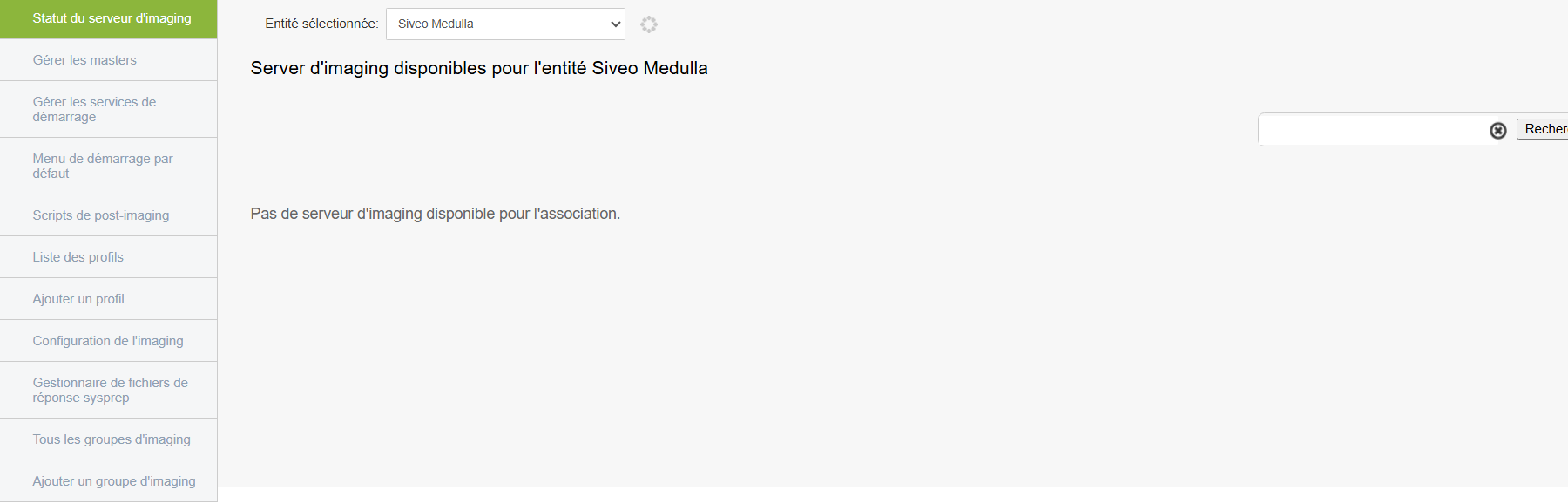
When you click the Imaging Server Status tab, you are immediately taken to a page where the preselected entity is neither private nor public; we will therefore refer to it as “General.”
"General" Entity with Server Offline
This means that the imaging server linked to the “General” entity is inactive. You will not be able to perform deployment of images to the machines in this entity
Understanding the Displayed Information
Selected Entity
At the top of the page, you must selectthe relevantentity.
Entities are logical groupings, often used to separate environments (e.g., services, departments, locations).
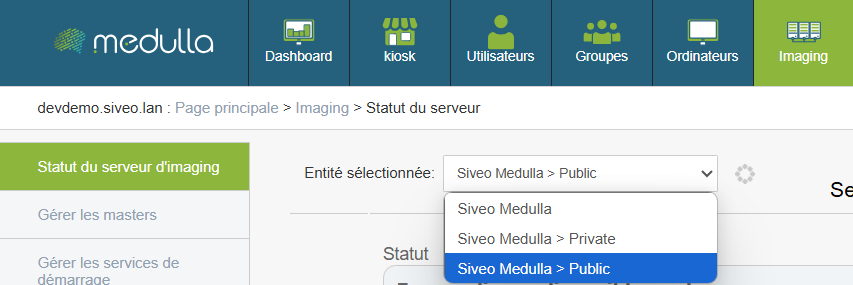
Examples of entities:
- Public
- Private
- General
Why this is important:
Each entity can be linked to a separate imaging server. It is therefore crucial to verify that the server for the entity you wish to use is functioning properly.
Server Status
For the selected entity, a visual indicator shows the server’s current status.
Three statuses may appear:
- Available
The server is operational. You can create an image or perform a deployment. - Offline
The server is not responding.
No imaging operations can be performed.
Recommended action: Contact the administrator or technical support. - Connection error
The server is reachable, but the connection fails (often due to a configuration or network communication issue).
Operations are blocked.
Recommended action: Report the issue to the technical team.
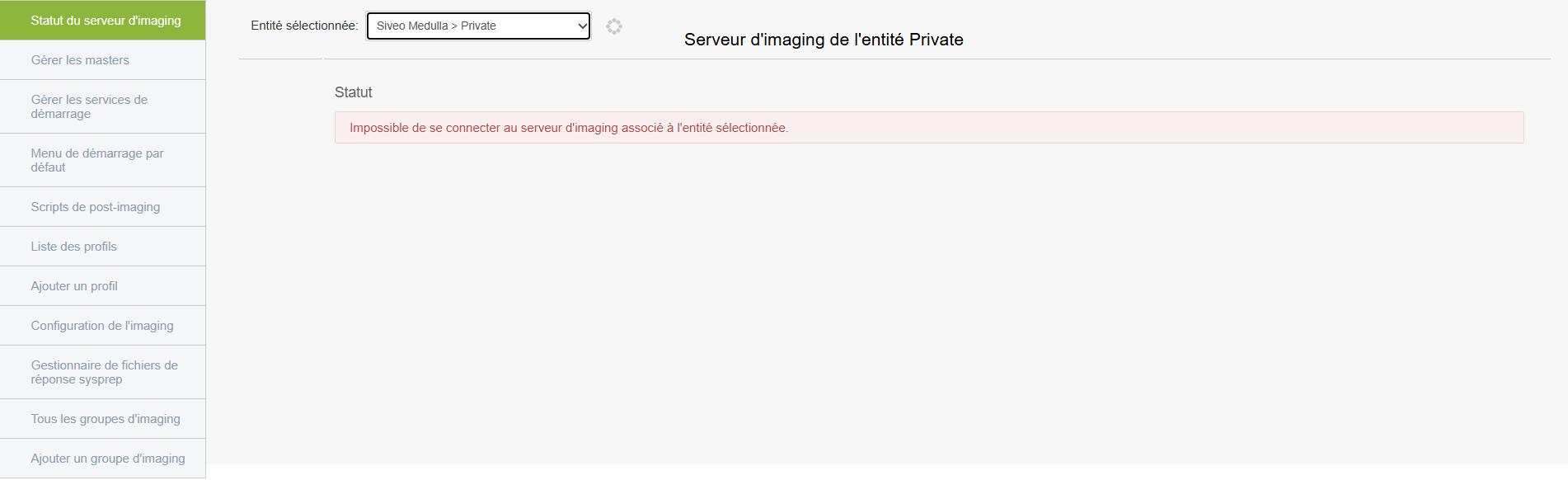
"Private" entity with connection error
Even if the server appears to be accessible, communication is not working.
The deployment will fail upon launch because the connection between Medulla and the server is broken.
"Public" entity with a successful connection

If there are no errors and the server is online, this means the server is active and ready for use; it will therefore display various statistics as shown with the "Public" entity above.
In this case, it will display various pieces of information:
- Available disk space on the server: This section shows the server’s storage capacity—that is, the space available to host system images. This space is divided into two parts called “partitions”; the first (dev/vda3) is the main partition, and the remaining free space indicates that there is still room to store images. The second is a small partition used for booting the server but has no impact on deployments.
- Server Load: This data provides a general overview of the server’s status, such as the time it has been running without a reboot and RAM usage
- Public Entity Statistics: This information details the use of imaging within the entity. Clients refer to the machines associated with the entity; the “client has x backup images” indicator shows which machines required a restore, and the number of available masters indicates the number of system images ready for deployment.
Before performing any imaging operation, verify that you are on the correct entity and that the server status is listed as “Available.”
If the status is “Offline” or “Connection Error, ” do not proceed and notify the administrator or support.