
All groups
Favorite Groups
Once computer groups have been created, you can mark some of them as favorites for quick access.
Favorite groups are useful for:
-
Teams that regularly work on the same set of workstations
-
Preparing bulk action scenarios (imaging, updates, etc.)
-
Monitoring critical or sensitive machines
All Groups
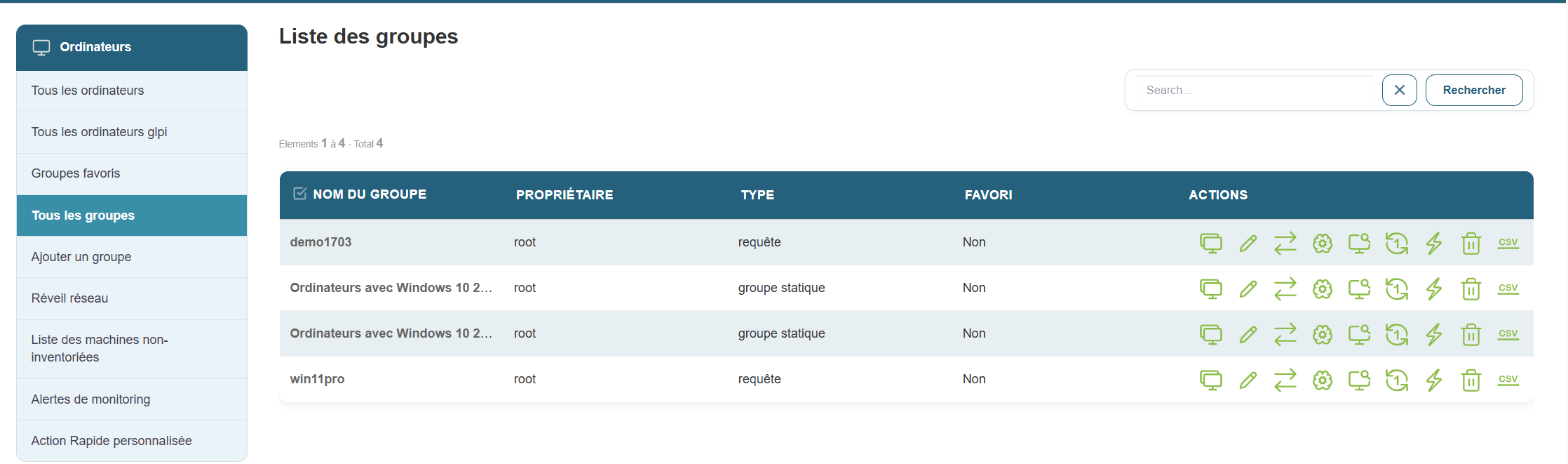
This section displays all computer groups available in your Medulla instance. This allows you to manage all groups centrally and perform large-scale actions, such as:
-
Software deployment
-
Installing updates
-
Remotely restarting machines
-
Exporting reports to CSV format
It also allows you to perform a range of large-scale actions, such as software deployment, updating systems, remotely restarting machines, or exporting reports to CSV format
Add a Group
Medulla offers several ways to structure and organize your IT estate through a flexible group system. When creating a group, you can choose from several methods:
Creating a dynamic group
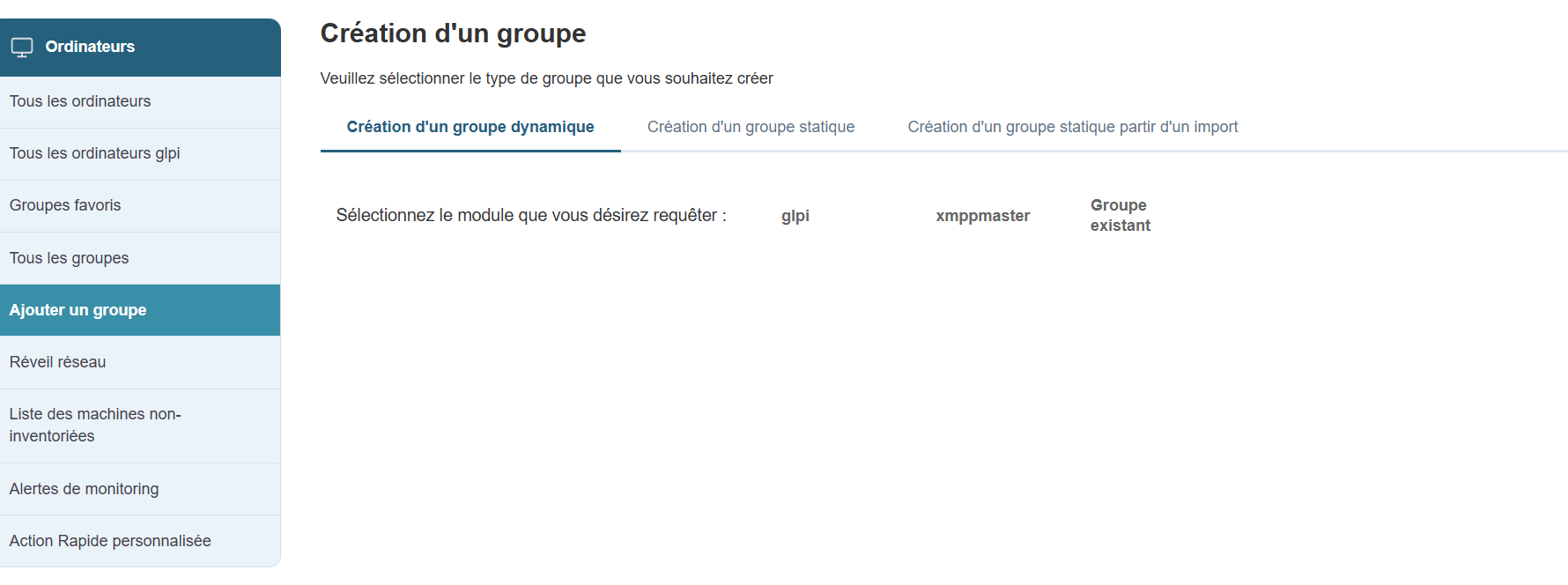
Dynamic groups allow you to automatically target machines based on predefined criteria. These groups update automatically as soon as a machine meets or no longer meets the selected criteria.
Modules available for creating a dynamic group:
-
GLPI: queries based on the GLPI inventory (OS, hardware status, etc.)
-
XMPPMaster: queries related to XMPP actions (real-time communication, monitoring, etc.)
-
Group: for combining or filtering existing groups
Dynamic groups are particularly useful in constantly evolving environments or for automated targeted deployment
Creating a static group
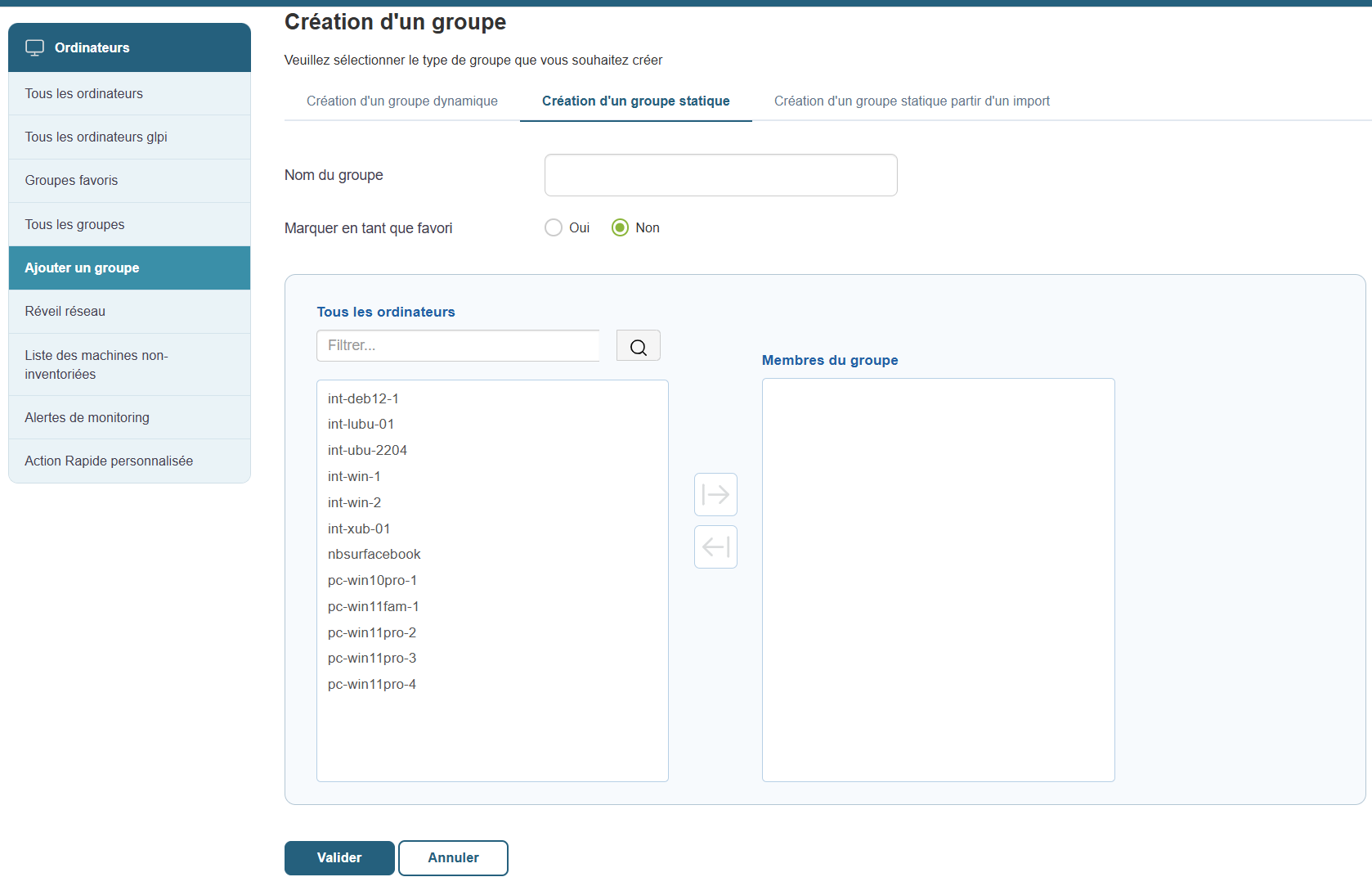
Static groups are created manually by explicitly selecting the machines to include. Unlike dynamic groups, the composition of a static group does not change automatically. You will need to add or remove machines as needed.
How it works:
-
Group Name: Give the group a clear and relevant name.
-
Favorite: Check this box if you want the group to be easily accessible from the Favorites menu.
-
Selecting machines: Choose the computers to include in the group from the list of available machines.
Typical use cases:
-
Create a group of test computers.
-
Prepare a set of computers to be configured manually.
-
Monitor a fixed set of workstations in a specific context.
Static groups are ideal for one-time scenarios or specific monitoring tasks
Creating a static group from an import
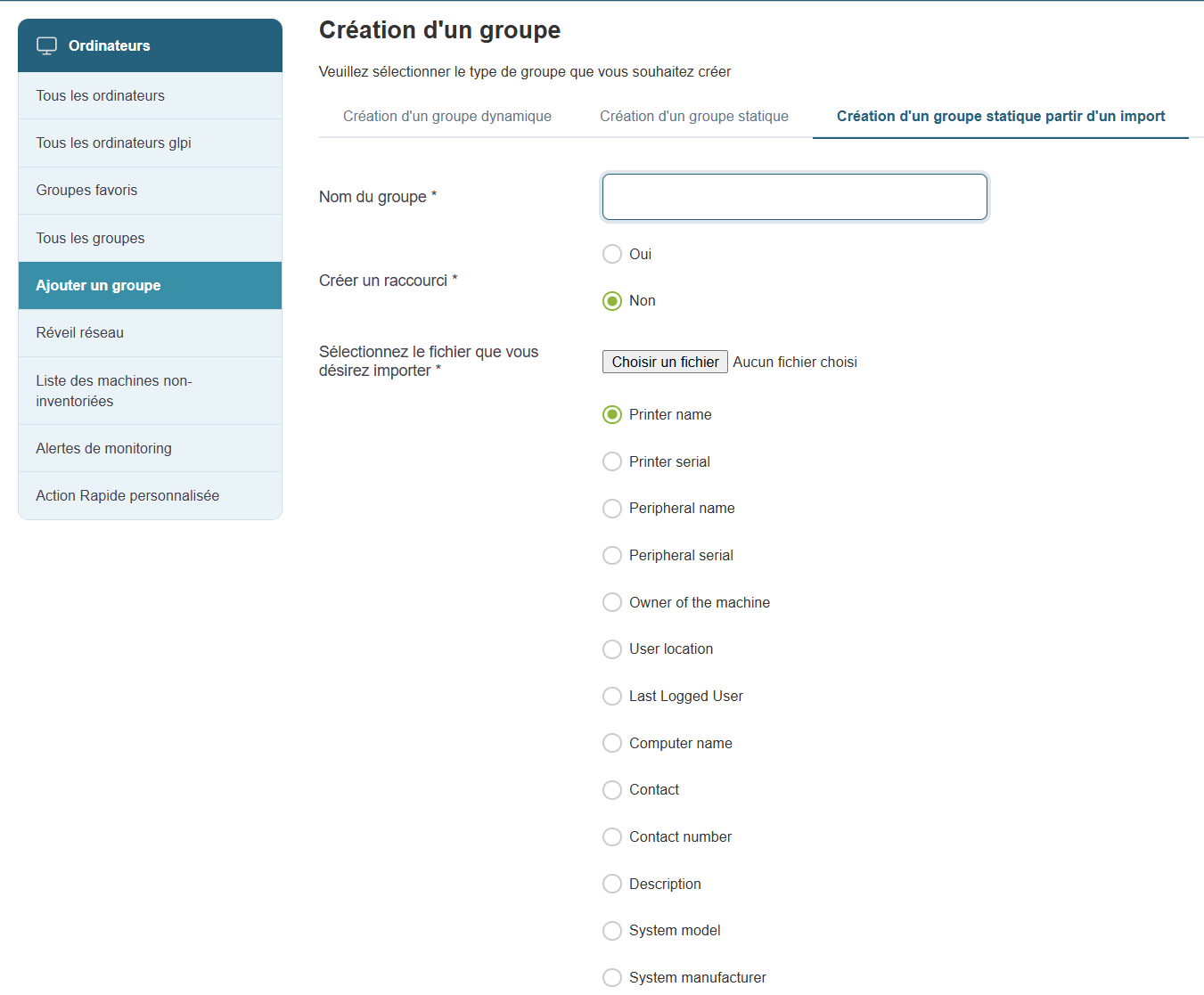
If you already have a list of machines (in CSV or Excel format), you can easily create a group from that file.
Creation steps:
-
Group Name: Enter a name for the group.
-
Favorite: Check this box if you want the group to be a favorite.
-
Import the file: Click "Choose a file" to import your list ( CSV or Excel formats are supported).
-
Define Data Types: Specify the types of data contained in the file (e.g., Machine Name, User, Inventory Number, Operating System, etc.).
This method is ideal if you’re retrieving information from an external system or a structured Excel spreadsheet.