
Add a profile
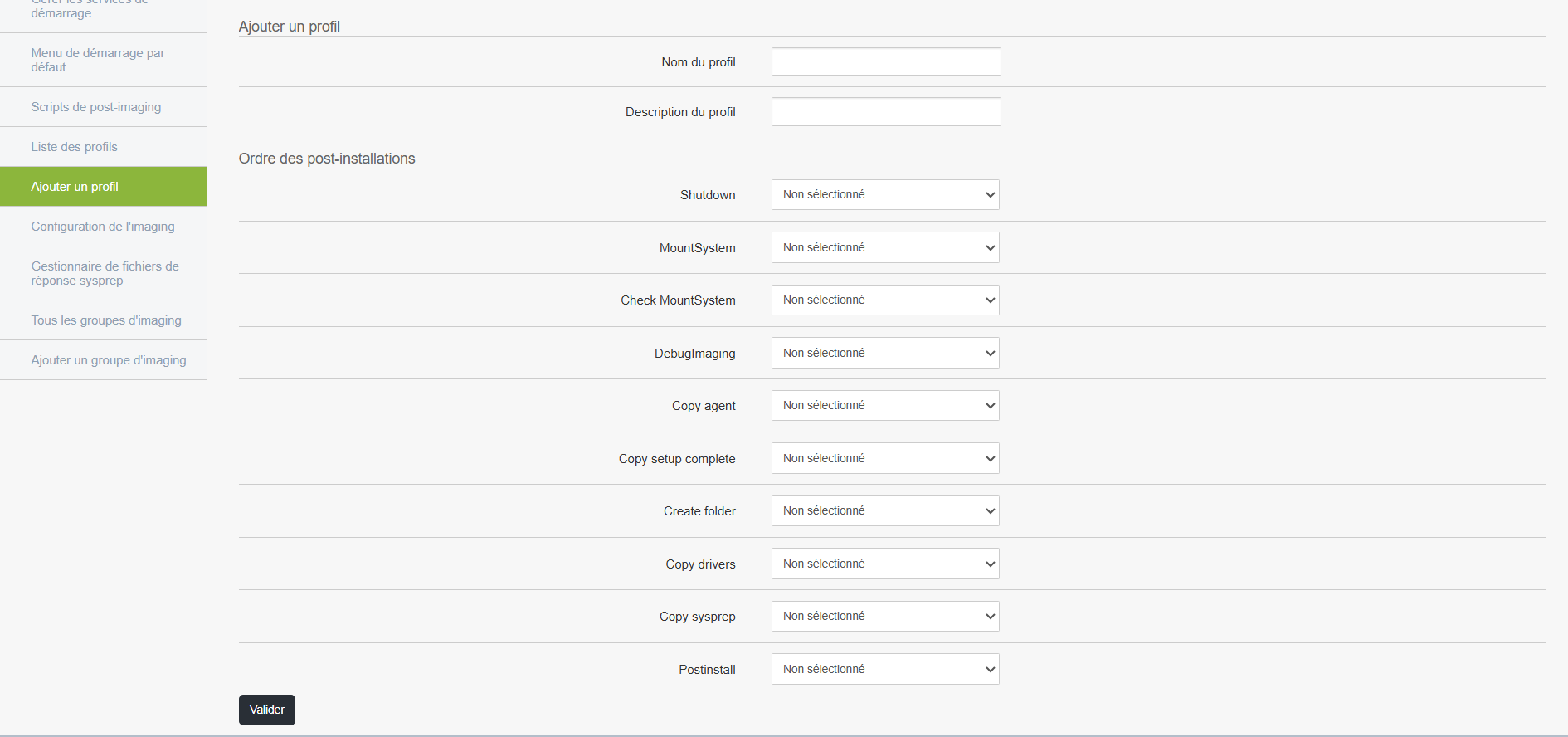
A profile allows you to associate post-installation actions with a master and to add this profile to the workstation’s startup menu when booting the workstation via PXE.
Accessing and Editing a Profile
From the management interface, you can:
- Add a new profile
- Edit an existing profile
- Delete a profile if necessary
List of available post-installation actions
Here are the actions that can be configured in any order you choose.
All are disabled by default; you must select them manually if you want to apply them:
-
Shutdown: Automatically shuts down the workstation once all steps are complete.
-
MountSystem: mounts the system partitions; useful for accessing certain files before deployment is complete.
-
Check MountSystem: Verifies that the system has been successfully mounted.
-
DebugImaging: Enables a diagnostic mode to analyze the imaging process (primarily used by technicians).
-
Copy agent: Copies the Medulla agent to the workstation; required for remote management.
-
Copy setup complete: Adds a file or script to run at the end of the installation.
-
Create folder: Creates one or more custom folders on the workstation.
-
Copy drivers: Copies the necessary drivers to the target machine.
-
Copy sysprep: Installs files related to Windows system preparation (Sysprep).
-
Postinstall: entry point for running a custom script or command once the installation is complete.
Using the Profile
-
Create or modify a profile based on the specific needs of your organization or the target workstation.
-
Select the desired actions in the appropriate order of execution.
- Associate the profile with a master
- Run this profile when the machine you want to install boots up.
This profile will then be associated with a deployment task so that the selected steps are automatically applied after installation.