Push notifications
A push message is a command sent by the MDM server directly to one or more devices, without waiting for their next synchronization. The device receives it in real time and executes the requested action immediately. This allows, for example, a device to be restarted remotely, locked, an application launched, or its configuration reloaded without delay. The complete list of available command types is detailed below.
This page displays the history of push messages sent to devices.
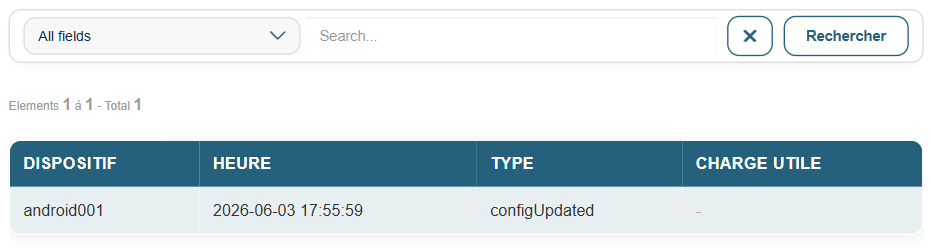
For each message, the following information is displayed: the recipient device, the date and time sent, the message type, and the associated payload.
To send a new push message, click the corresponding button.
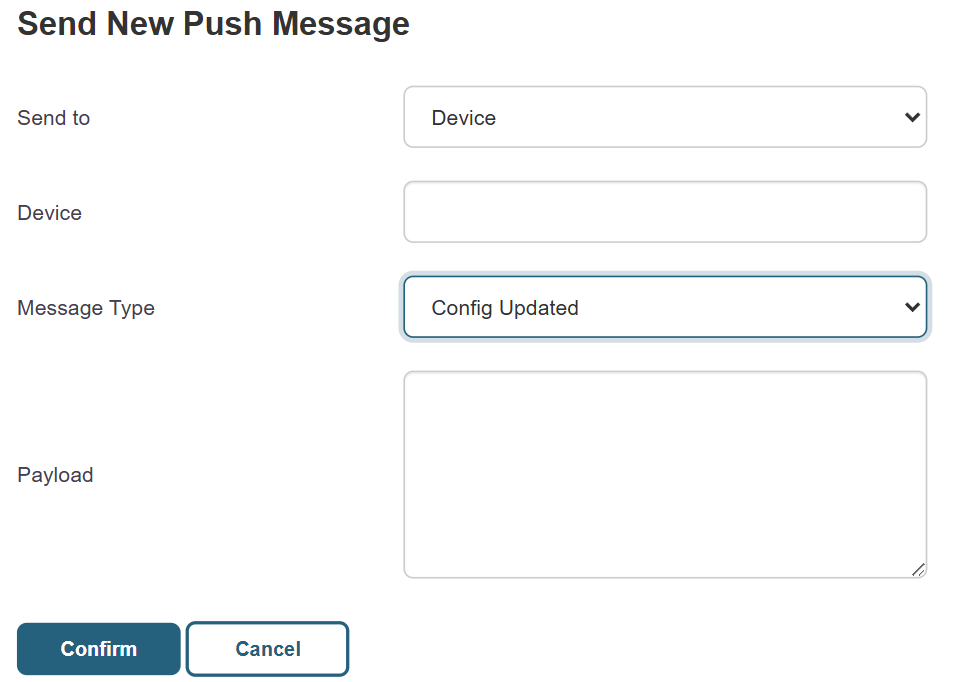
The form allows you to specify:
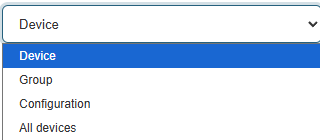
- Send to: the message recipient. Four options are available: a specific device (identified by its name), a group, a configuration, or all devices.
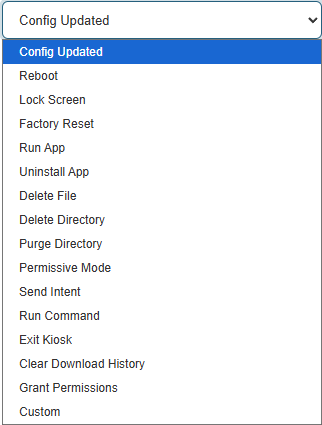
- Message type: the action to trigger on the device. The available types are:
-
- Config Updated: instruct the device to immediately retrieve its configuration from the server.
- Reboot: Restart the device.
- Lock Screen: Lock the screen.
- Factory Reset: Perform a full factory reset of the device (wipe).
- Run App: Launch an app (the Android package must be specified in the payload).
- Uninstall App: Uninstall an app (the package name must be specified in the payload).
- Delete File: Delete a file (the path must be specified in the payload).
- Delete Directory: Delete a directory.
- Purge Directory: Clear the contents of a directory (recursive depending on the payload).
- Permissive Mode: Switch the device to permissive mode.
- Send Intent: Send an Android intent (action and data must be specified in the payload).
- Run Command: Run a shell command on the device.
- Exit Kiosk: Exit kiosk mode.
- Clear Download History: Clear the download history.
- Grant Permissions: Grant permissions to an app.
- Custom: custom type. A "Custom Type" field appears for entering the type name, in addition to the payload.
- Payload: Additional data in JSON format, required for certain types (e.g., package to launch, path to delete). The form provides a pre-filled JSON template based on the selected type.