
Files
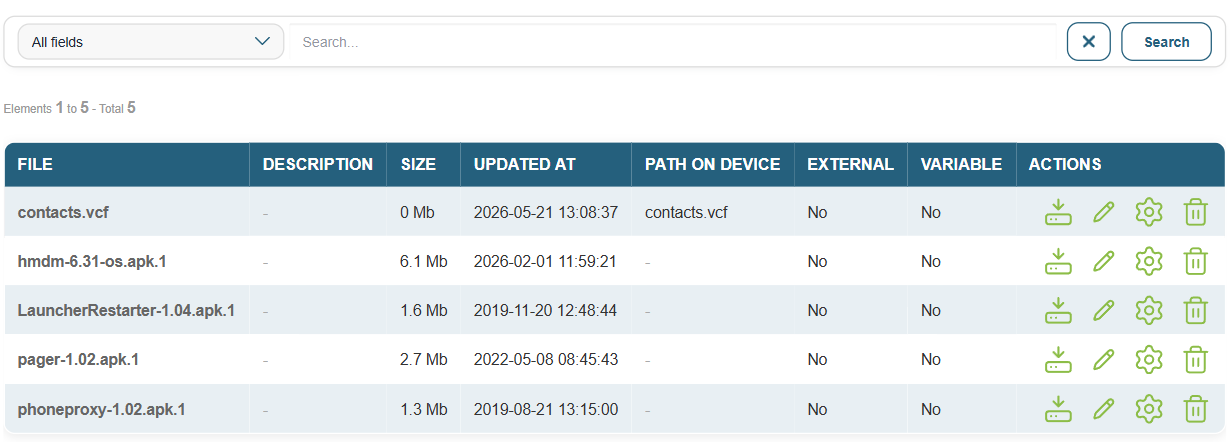
This page displays the catalog of files available for MDM deployment. These files can be pushed to Android devices to a specific destination path.
Typical use cases:
- Upload a document, image, text file, or any other resource to the device’s shared storage (e.g., /sdcard/Documents/) so that it is accessible from an app or a kiosk, without manual intervention.
- Upload a contact file in VCF format, then use the generated URL to populate the MDM contact synchronization plugin. This allows you to push a shared address book to all devices.
For each file, the information displayed includes: the name, description, size, last update date, destination path on the device, and two indicators: External (the file is hosted on an external URL rather than in Medulla) and Variable (the file’s content contains variables that will be substituted upon sending).
The available actions for each file are:
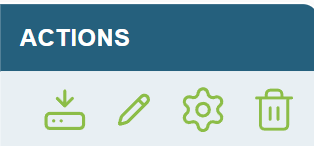
- Copy Link: Copies the form’s URL to the clipboard.

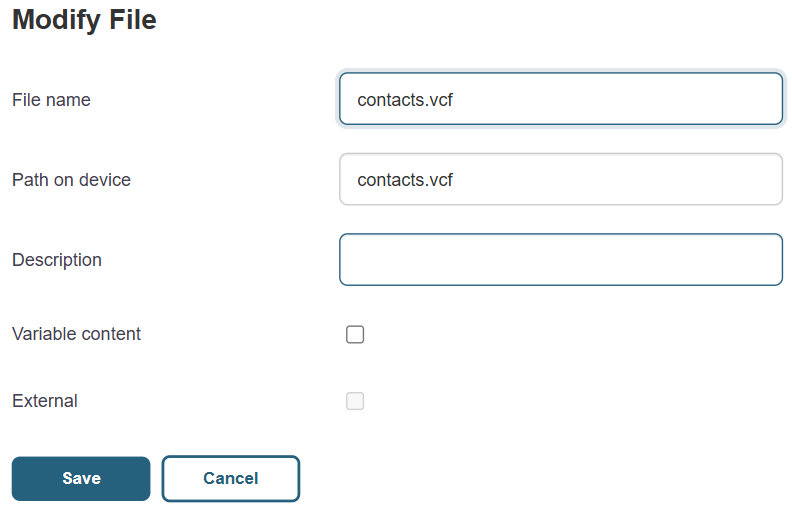
- Edit: edit the file’s settings.
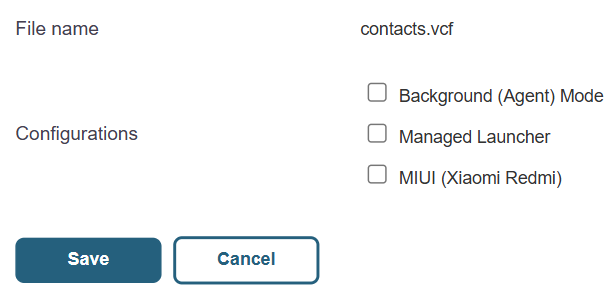
- Assign configurations: associate the file with one or more configurations so that it is performed on the corresponding devices for deployment.
- Delete: Remove the file from the catalog.
To add a new file, click the Add button. There are two options:
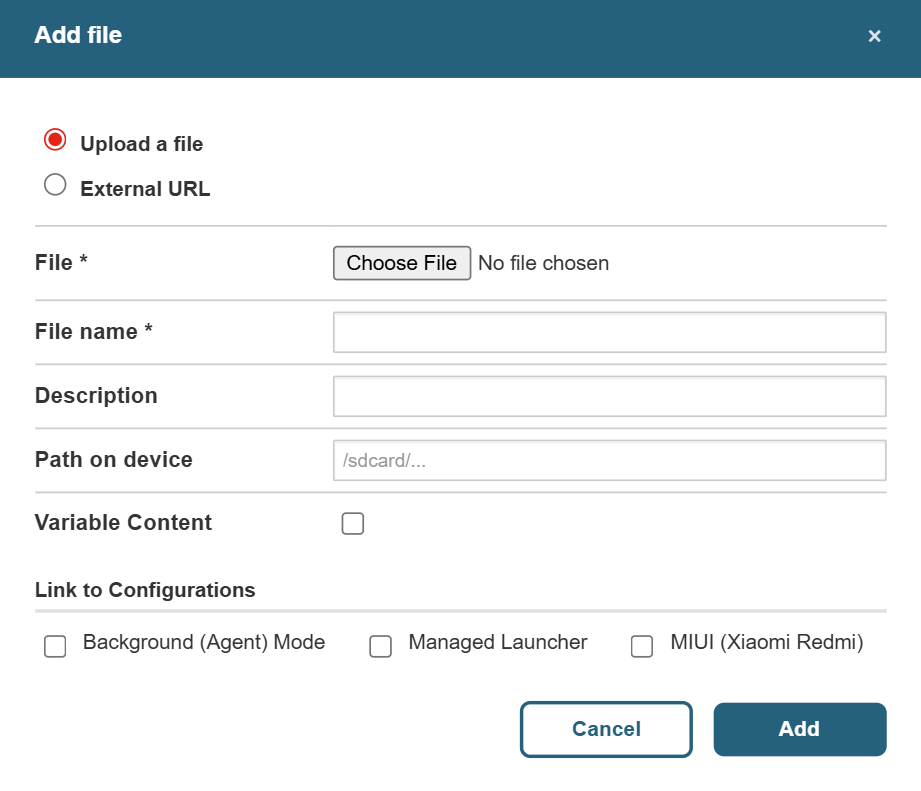
- Upload: Upload the file directly to Medulla. The name is automatically populated based on the selected file.
- External URL: Enter the URL of a file hosted outside of Medulla. The name will be derived from the URL if not specified.
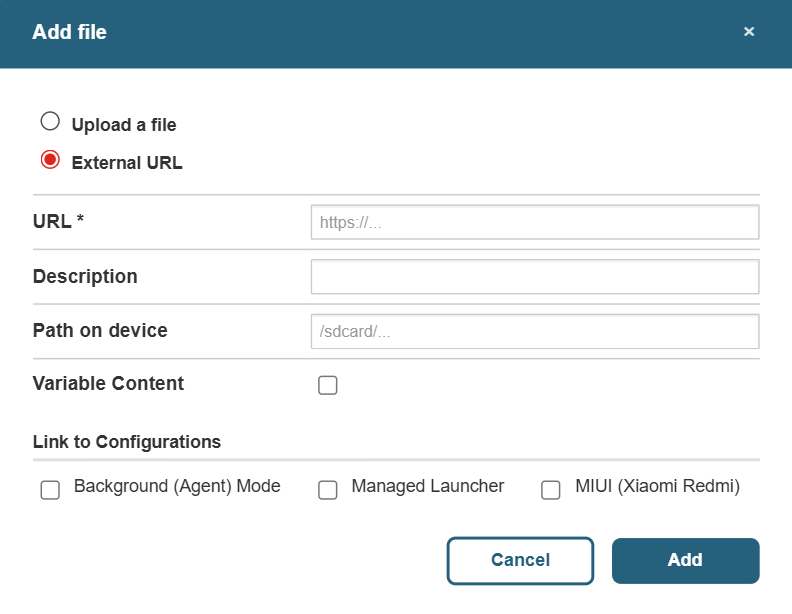
In both cases, the following settings are available:
- Description: a free-form comment to identify the file.
- Path on the device: the absolute path where the file will be stored on the device (e.g., /sdcard/config/my_file.conf). If left blank, the device uses the default behavior defined by HMDM.
- Variable content: If enabled, variables in the file will be replaced with their values at the time of deployment. Useful for configuration files that must contain device-specific information.
You can associate the file with one or more configurations directly from the add form, or later via the “Assign Configurations” action in the list.
