
Applications
This page displays the catalog of applications available for MDM deployment. These are the applications that can be assigned to configurations and thus deployed to devices.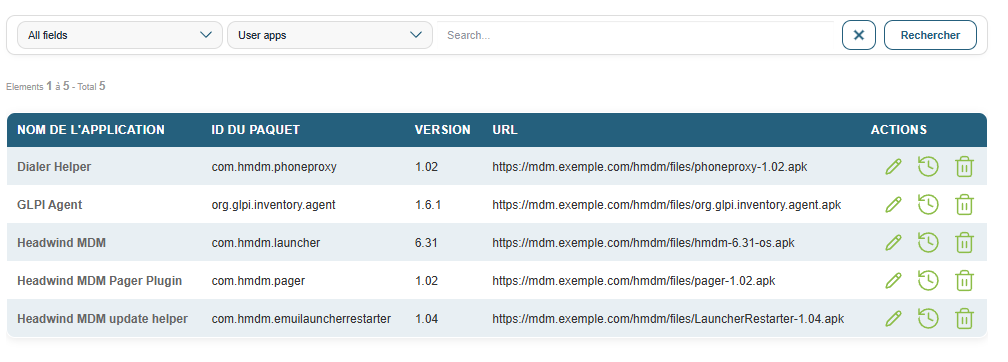
By default, the list displays only user applications. A filter allows you to also display system applications.
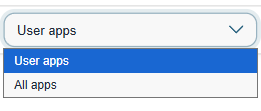
For each app, the following information is displayed: the name, the Android package ID (e.g., com.android.chrome), the version, and the download URL.
The actions available for each app are:
- Edit: Edit the app’s settings.
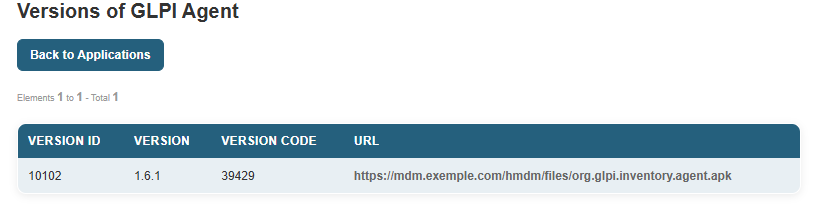
- Versions: View the history of versions available for this app.
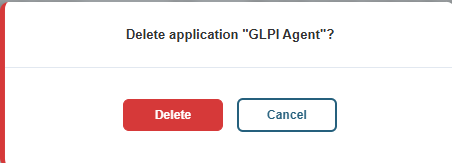
- Delete: Remove the app from the catalog.
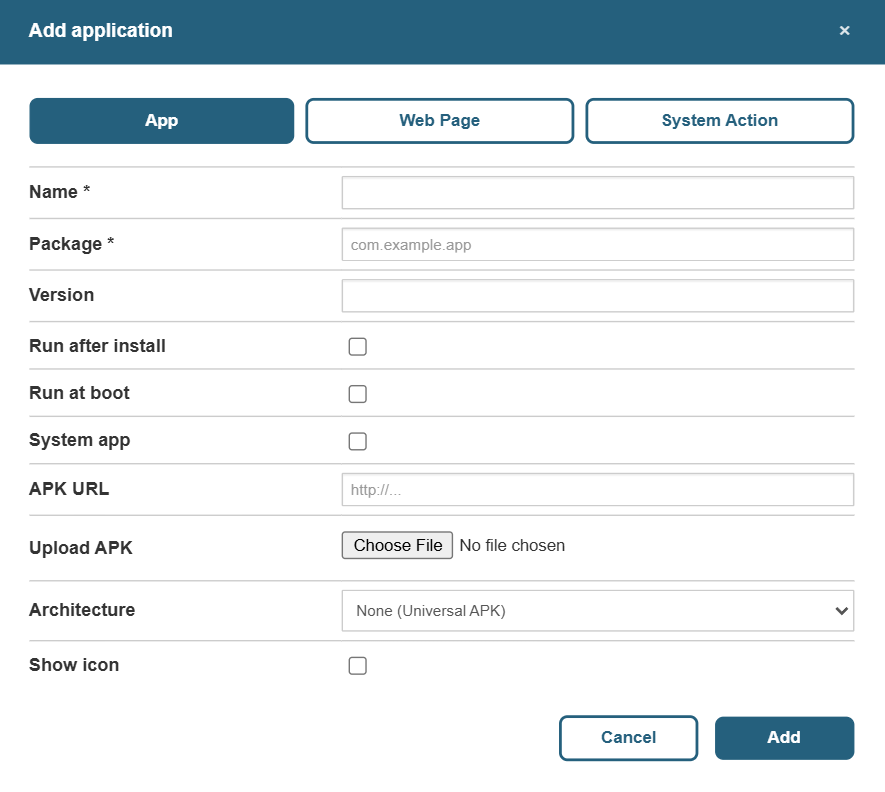
To add a new app, click the Add button. There are three ways to add an app:
- Application: an APK to be provided via a download URL or by uploading the file directly to Medulla.
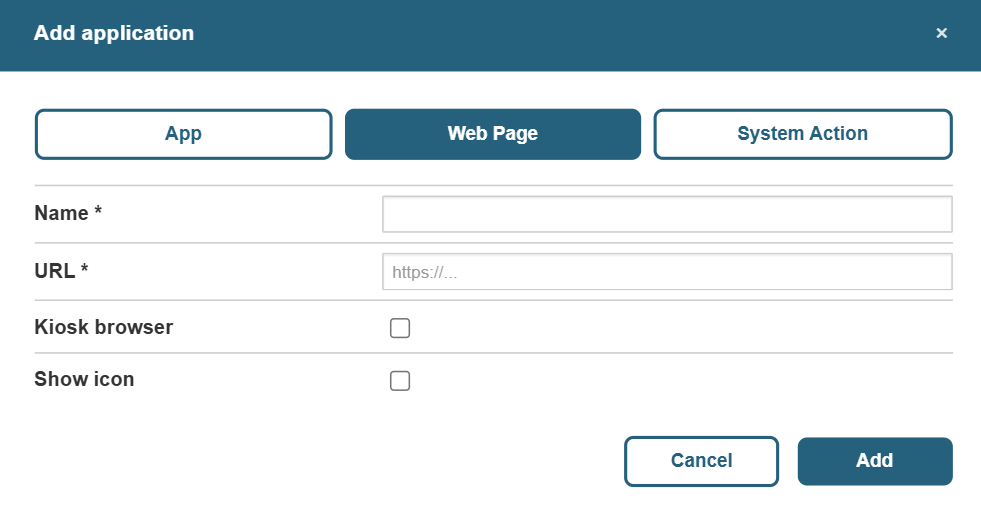
- Web page: a URL that will open in the device’s browser. Useful for providing access to a web app from the desktop without installing an APK.
- System action: a shortcut that directly triggers an Android function via an intent (e.g., open Wi-Fi settings, launch the camera). This is particularly useful for exposing a specific system feature without granting access to the entire OS.
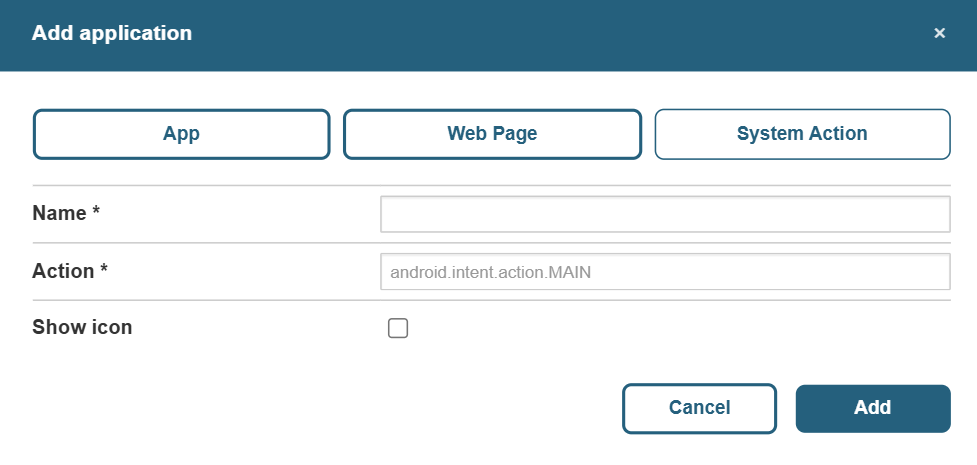
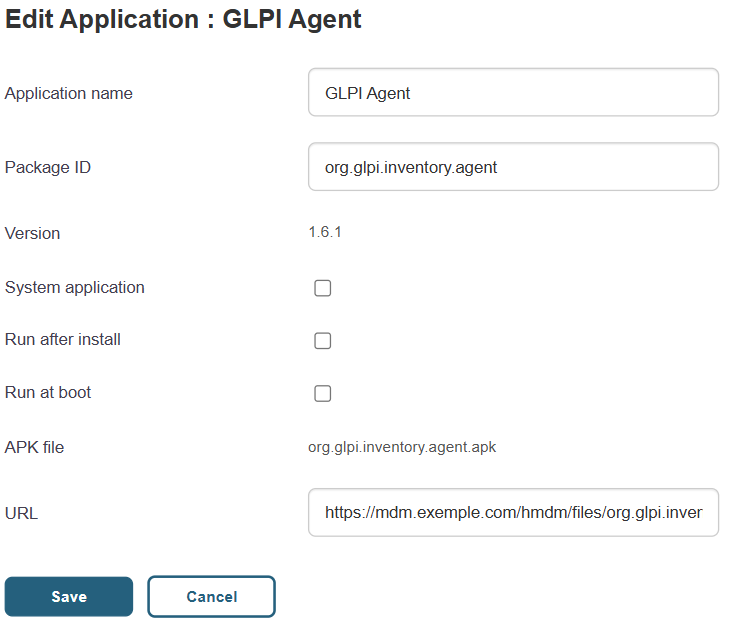
The form for adding or modifying an app allows you to enter the following settings:
- Name and package ID.
- Version and URL or APK file.
- Custom icon.
- Behavior options: launch the app after installation, launch it when the device starts up, or use it in kiosk mode.