All devices
This page displays a list of all Android devices enrolled in Medulla. It is the home page of the MDM module.

For each device, four visual indicators allow you to assess its status at a glance:
- Status: indicates whether the device is online or offline, along with the date of its last connection.
- Permissions: Indicates whether the permissions required for the MDM agent to function properly have been granted on the device (administration, accessibility, overlay, usage statistics).
- Installation: Indicates whether the device is correctly configured in MDM mode (default launcher, MDM mode enabled).
- Files: Indicates whether the expected files are present on the device.
The configuration assigned to the device is also displayed. Clicking on it takes you directly to its details page, where you can view or modify it as needed.
You can add a new device directly from this page using the Add button.
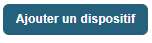
A form allows you to enter the name, description, IMEI, email address, configuration to assign, and desired groups. Once created, the device can be enrolled using an automatically generated QR code.
There is also a button to display the QR code for downloading the MDM agent APK. This QR code is intended for Android devices in dual-profile mode (business and personal use): the user manually installs the agent on their personal device, which remains in dual-profile mode without being fully managed by the MDM. The QR code listed for each device is used to enroll a device in full enterprise mode, where the device is entirely under MDM control.
The “Send Enrollment to Unenrolled Devices” button sends an enrollment email containing a QR code to all devices listed in the MDM module that have not yet been enrolled.

For each device, the first column displays its name, which also serves as a unique identifier in the system: this name is used during enrollment via QR code to link the physical device to its entry in Medulla.

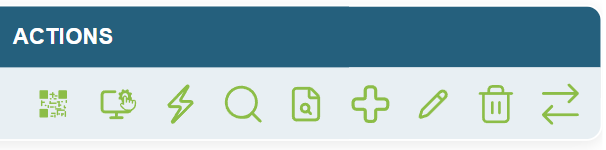
From this list, you can filter devices by name, description, IMEI, or configuration, and then perform actions on each one:
- Details: View the device’s full profile.
- Logs: View the device's logs.
- Message: Send a text message to the device.
- Edit: Edit the device's information (name, description, configuration, groups, etc.).
- Quick Actions: Perform immediate actions such as restarting, locking, or resetting the device.
- QR Code: Display the device’s enrollment QR code.
- Remote Control: Take control of the device’s screen.
- Delete: Remove the device from the fleet.
- Send Enrollment Email: Send an email containing the enrollment QR code to the email address assigned to the device.