
Configurations
This page displays a list of available MDM configurations. A configuration defines the overall behavior of the devices associated with it. Any changes made to a configuration are automatically applied to all affected devices.

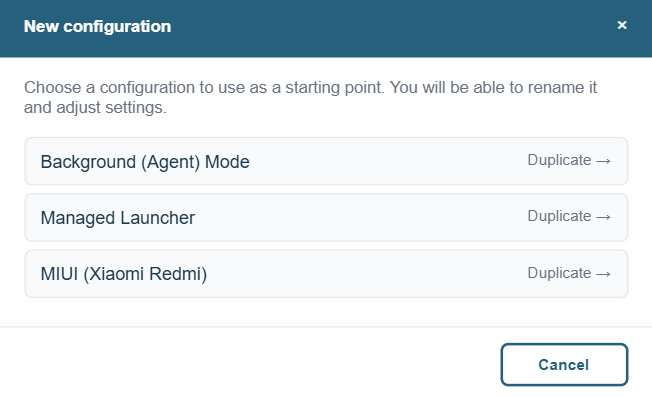
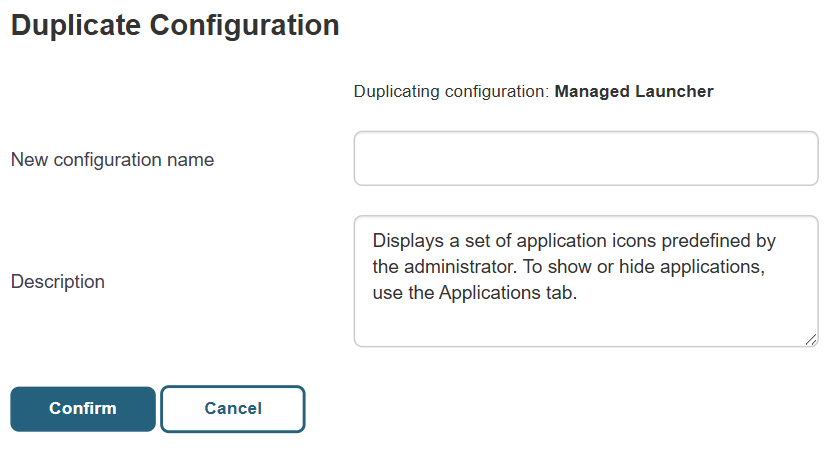
To create a new configuration, it is recommended to start with an existing configuration using the “Duplicate” action, then adjust the settings as needed. The form contains a large number of settings, and duplicating a configuration allows you to modify only the differences without having to fill everything out from scratch.
For each configuration, the available actions are:
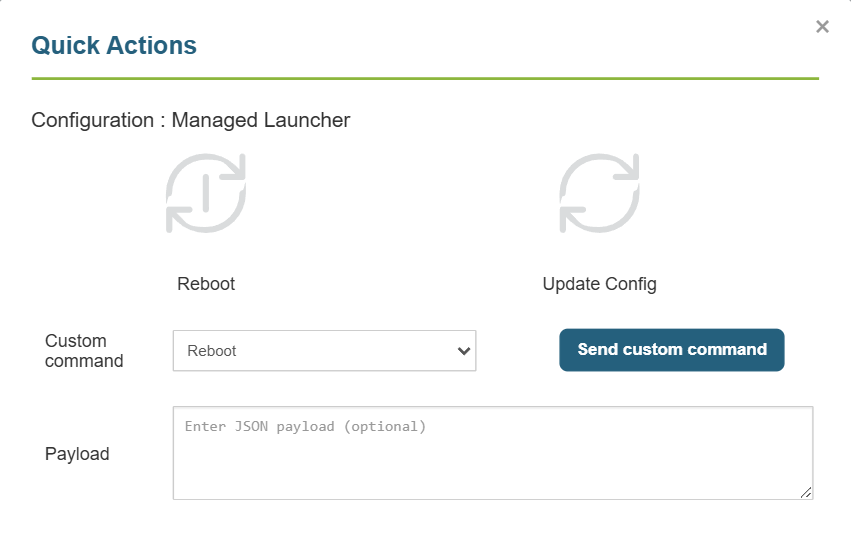
- Quick Action: Perform a bulk action on all devices associated with this configuration.
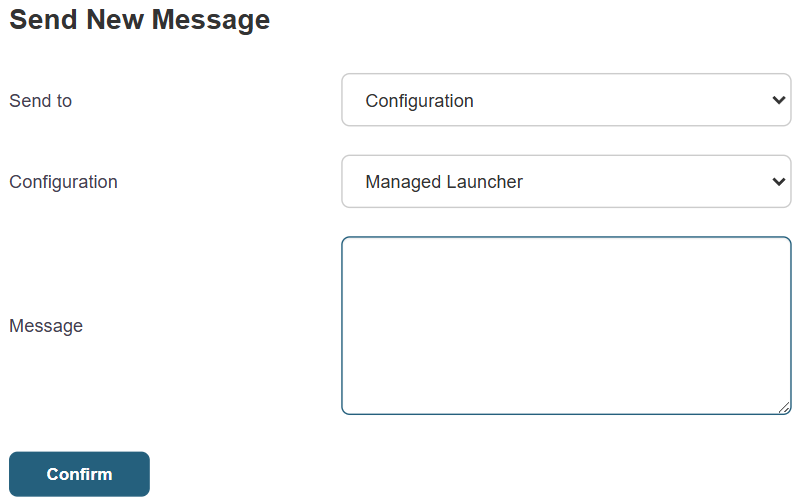
- Message: Send a text message to all associated devices.
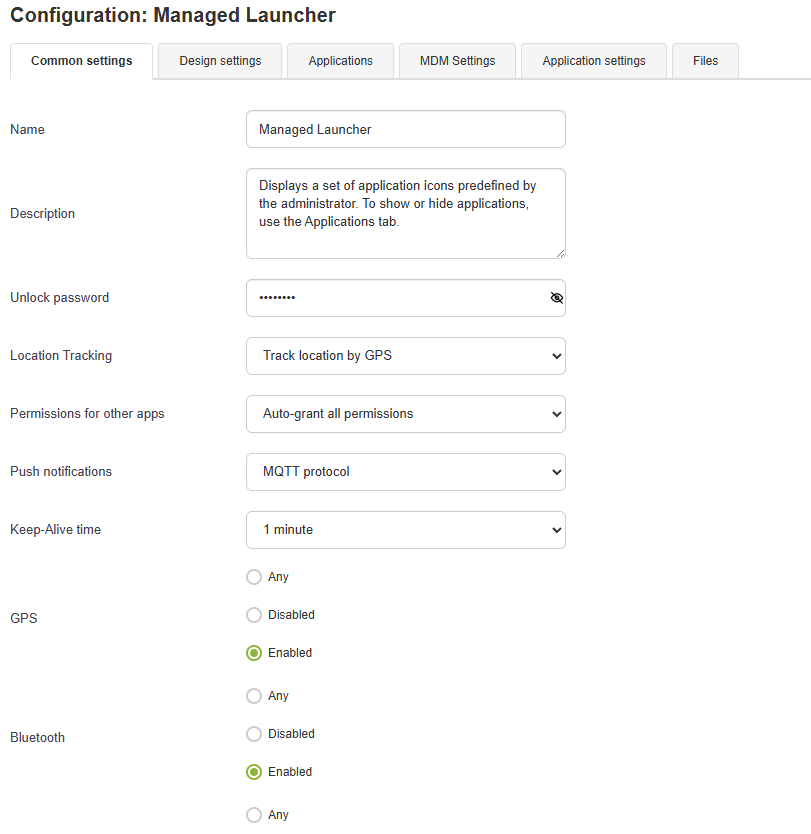
- Edit: Open the configuration edit form.
- Duplicate: Create a copy of the configuration with a new name.
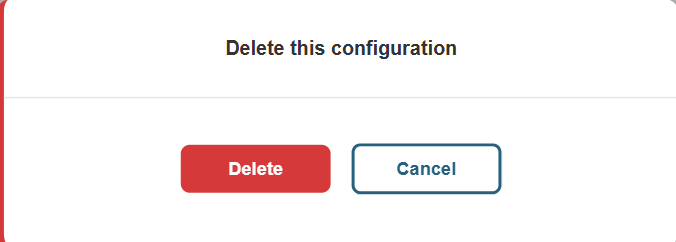
- Delete: Delete the configuration.
The edit form is organized into several tabs:

- General Settings includes general settings: name, description, settings unlock password, location tracking, app permission management, server communication protocol (MQTT or HTTP polling), and hardware restrictions such as GPS, Bluetooth, Wi-Fi, mobile data, USB storage, brightness, volume, orientation, and screen lock.
- Design Settings lets you customize the appearance of the interface on devices: colors, background image, icon size, and the title displayed on the home screen.
- "Applications" lists all apps available in the catalog. For each app, you can define the action to take: install (the app is deployed and visible), install and hide (the app is installed but its icon is not displayed on the home screen), or remove. You can also set the display order on the screen.
- MDM Settings includes advanced management settings: kiosk mode (restricts the device to a single app), system and app update policies with time windows, automatic Wi-Fi configuration (SSID, password), time zone, device encryption, and other system lock options.
- App Settings allows you to push configuration settings directly to installed apps. For example, you can configure Chrome to automatically open a specific page on startup, or preconfigure a business app with the server address to use, without the user having to enter anything.
- Files allows you to associate files with the configuration. The files selected here will be automatically deployed to devices associated with this configuration.