Import / Export
These two pages allow you to import and export device lists in bulk in CSV format.
Export
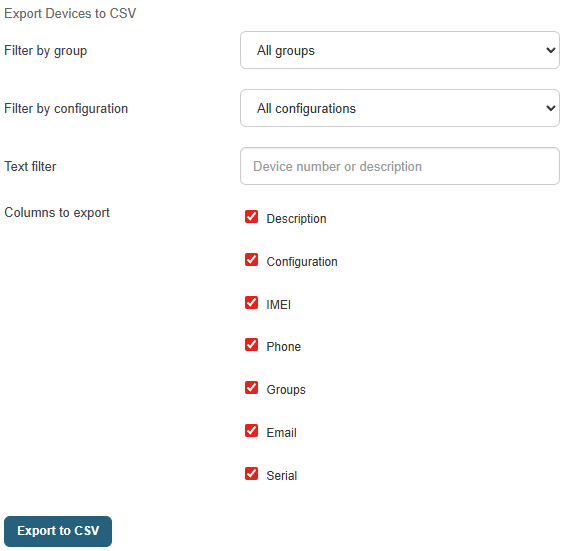
The export page allows you to download a CSV file containing the list of devices. You can filter the devices to be exported by group, configuration, or free text. The columns to be exported can be selected: Description, Configuration, IMEI, Phone, Groups, Email (custom1), Serial Number.
This CSV file can then be edited and reimported to update devices in bulk.
Import
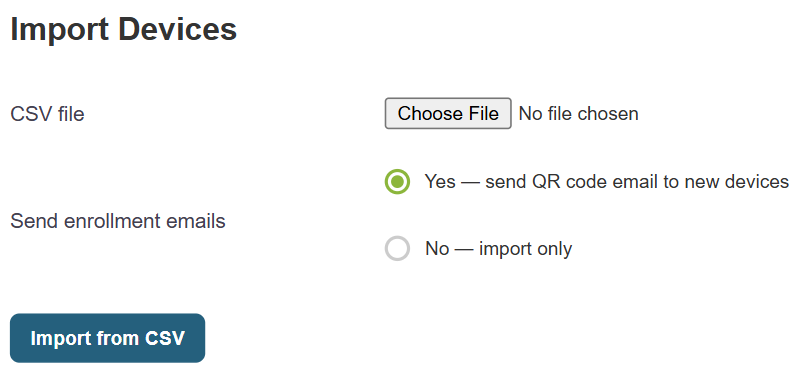
The Import page allows you to import a CSV file to create or update devices in bulk.
The "Send Registration Emails " option automatically sends emails containing enrollment QR codes. Once the QR code is scanned, the device is linked to its entry in the MDM module based on its IMEI.

The file must conform to the format exported by Medulla. Recognized columns include:
- `number` (device name and ID)
- `description`
- `configuration`
- `imei`
- `phone`
- `groups`
- `custom1` (email)
- `serial`
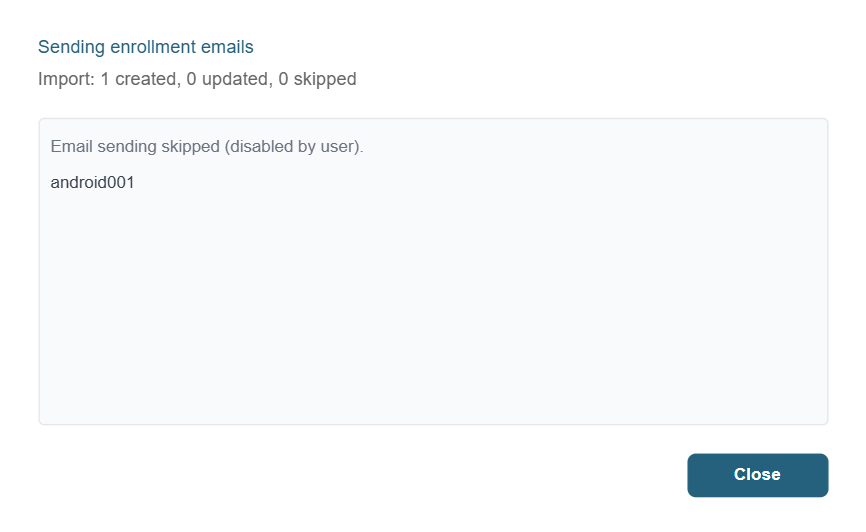
After the import, Medulla displays a summary: number of devices created, updated, and ignored.
Automatic Enrollment Email Sending
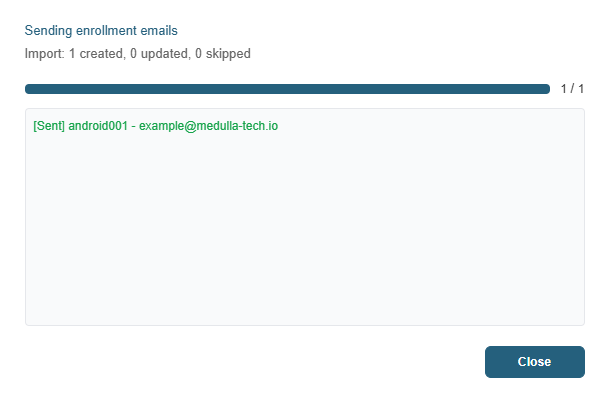
When the "Send enrollment emails" option is enabled, Medulla automatically sends an enrollment email to each valid email address listed in the `custom1` (email) column of the CSV file. The email contains a QR code that can be scanned with the Android device to install the MDM agent and enroll the device.