
Capturing a Windows 11 image
Applies to: Imaging / Windows master
Version: All
Environment: On-Premise
Category: Imaging
Background
This procedure allows you to create a Windows 11 master compatible with Medulla’s Imaging module.
The process consists of several steps:
- Downloading the Windows ISO image
- Clean installation of the system
- Preparing the master in Audit mode
- PXE capture of the image via Medulla
- Converting the image to a master
Important:
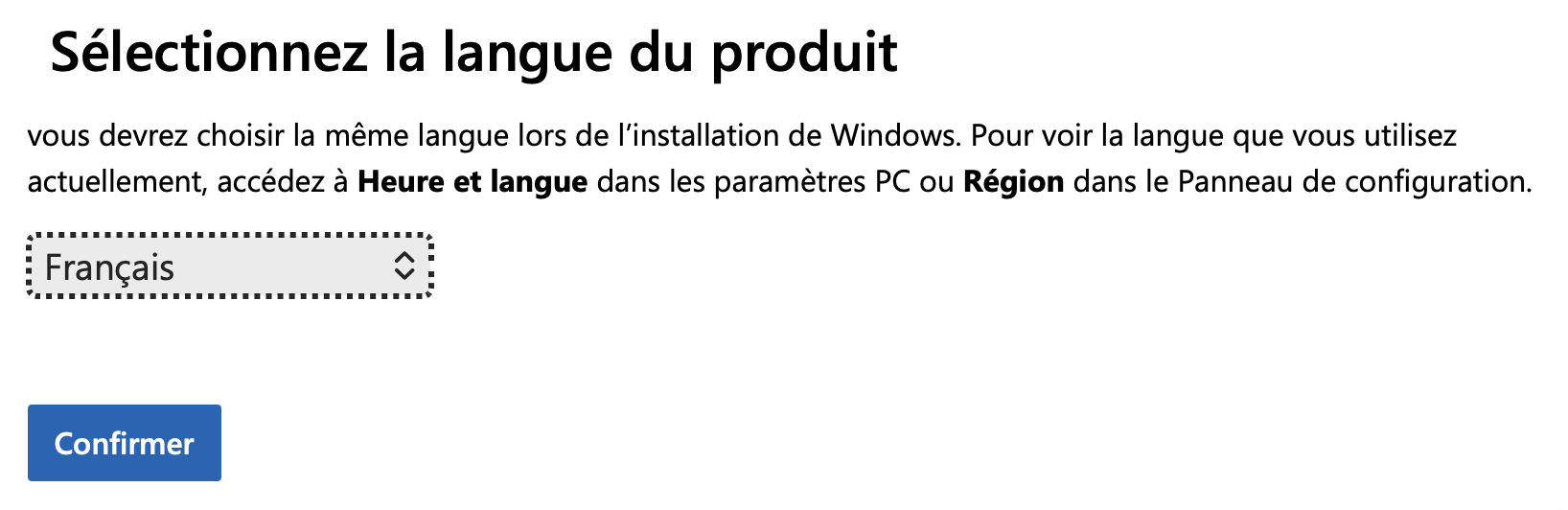
The language of the Windows ISO image must match the purchased Windows license key.
1. Download the Windows ISO image
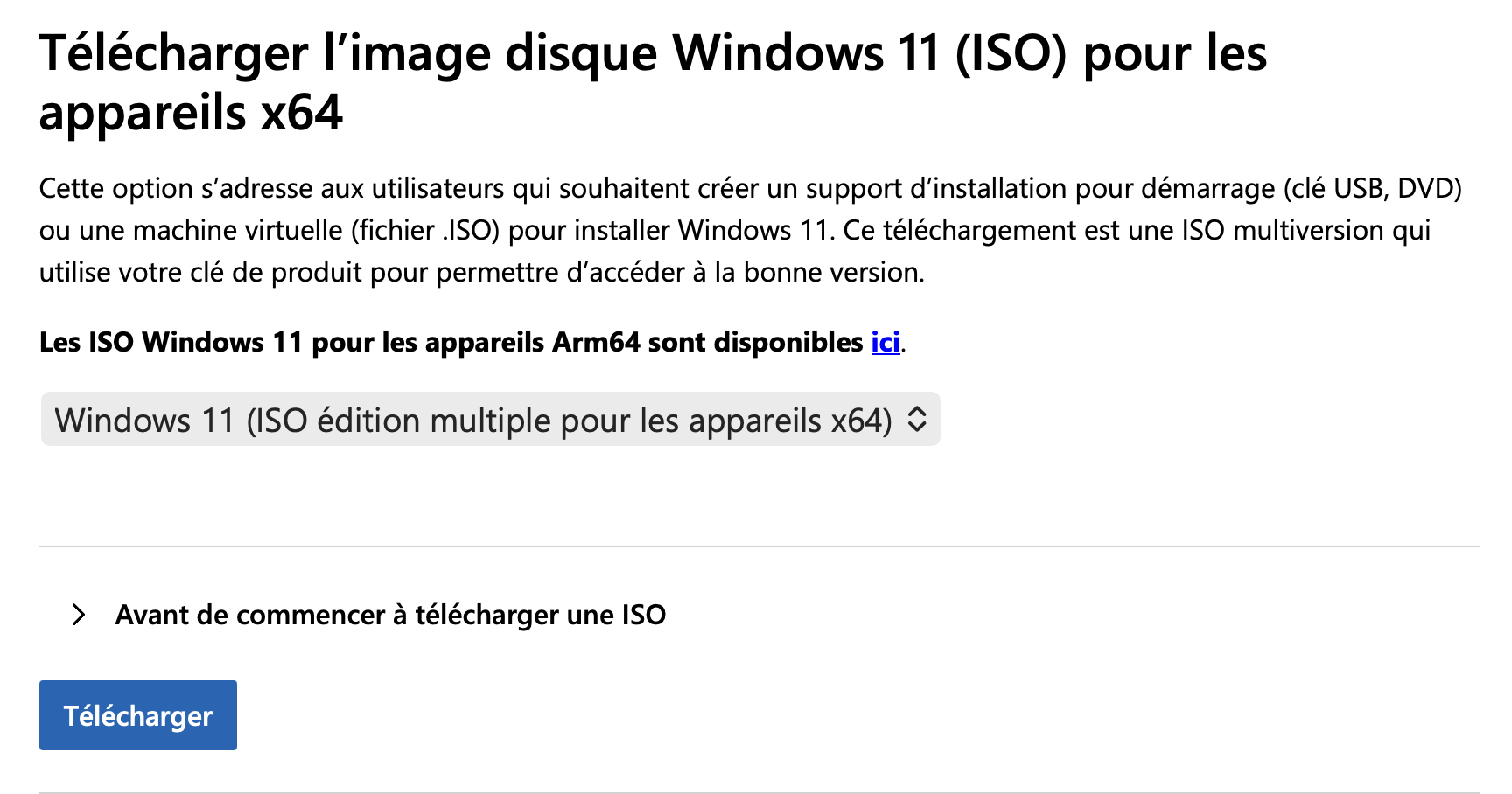
Download an official Windows ISO image from Microsoft:
Download Windows 11 – Microsoft
Select the version that matches your Windows license.
2. Installing Windows
Start the virtual machine (or physical computer) using the downloaded Windows ISO, then begin the installation.
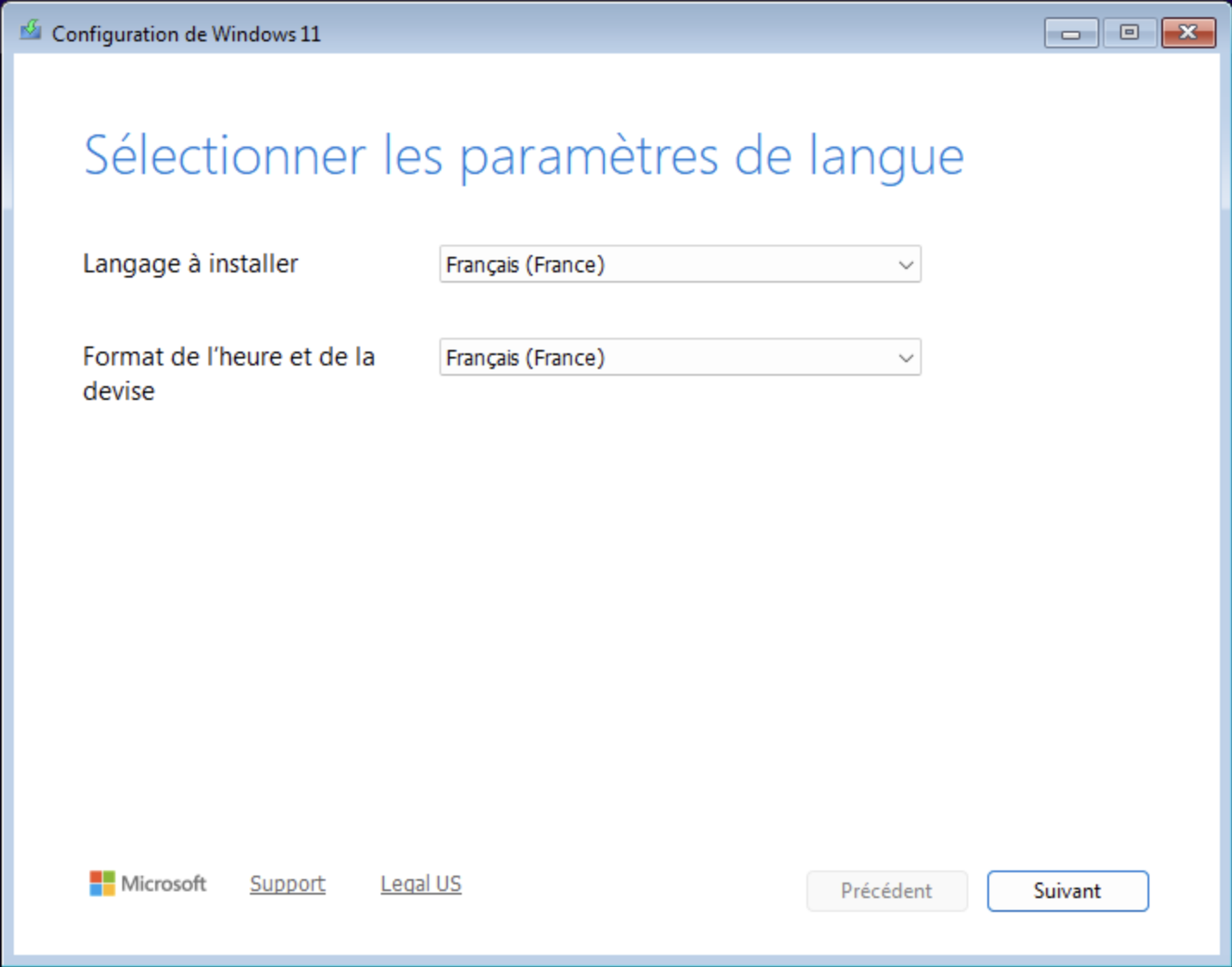
Choose the language
Select the language that matches your Windows license.
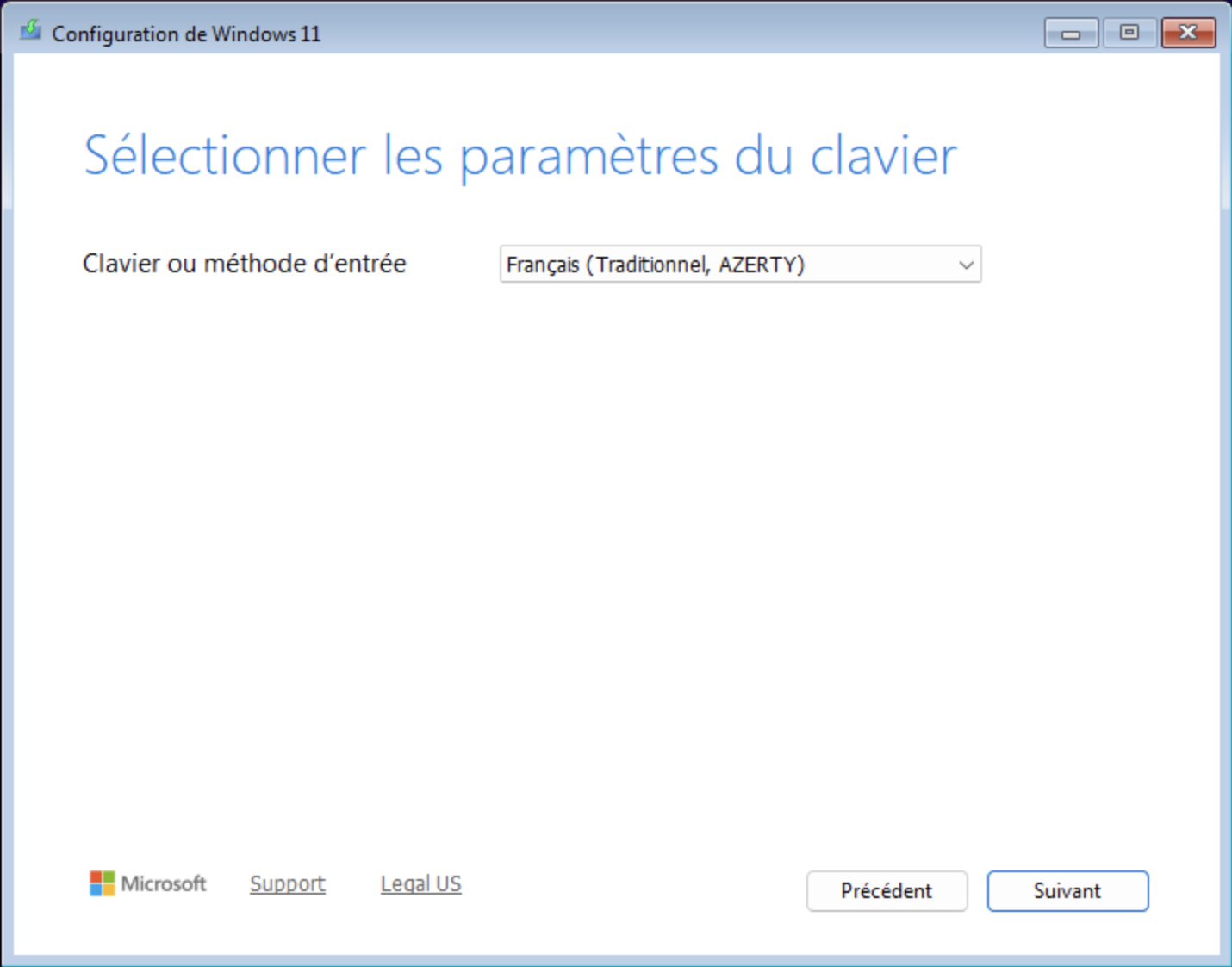
Choose a keyboard layout
Select the desired keyboard layout.
Choose the installation type
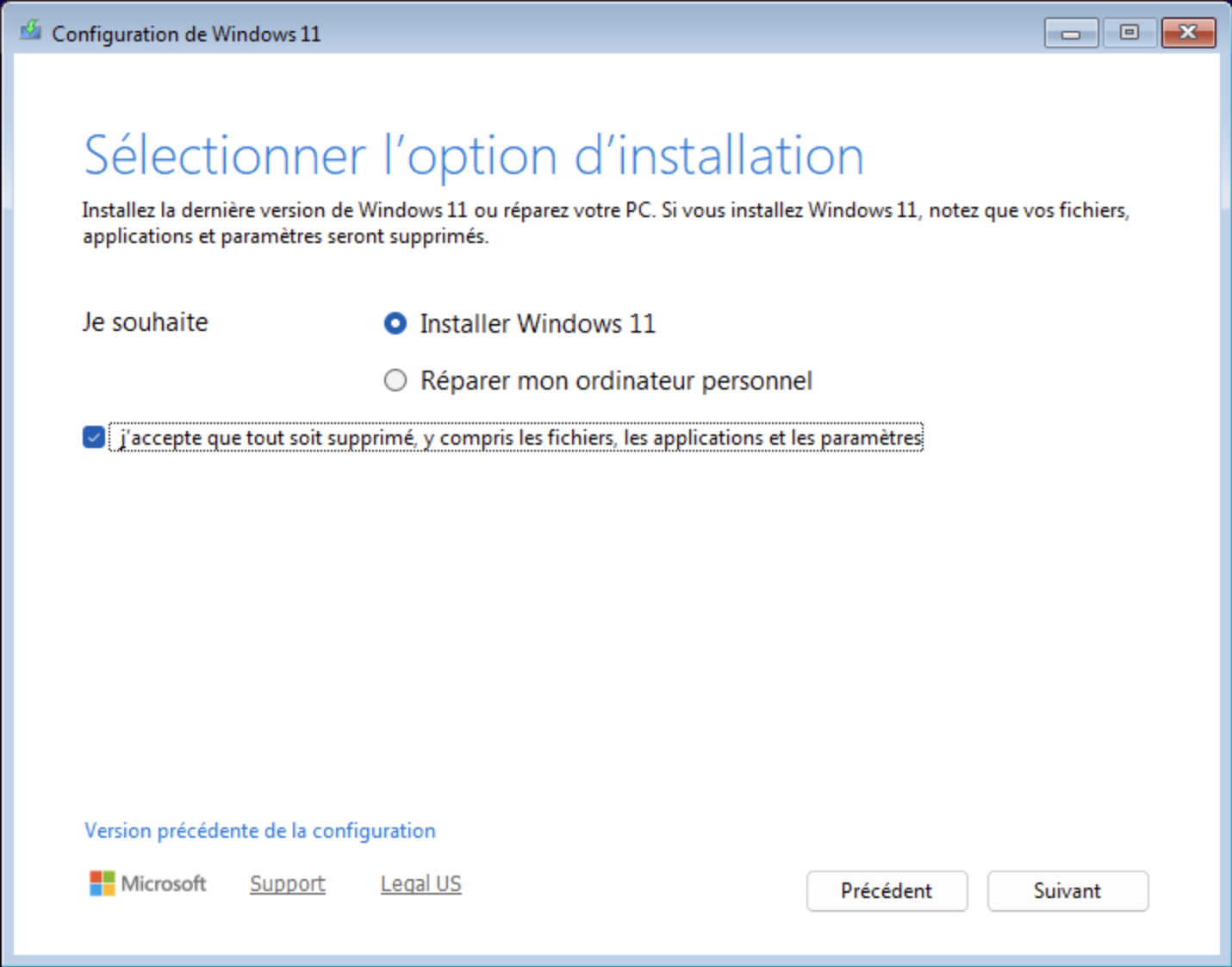
Set the installation settings exactly as indicated.
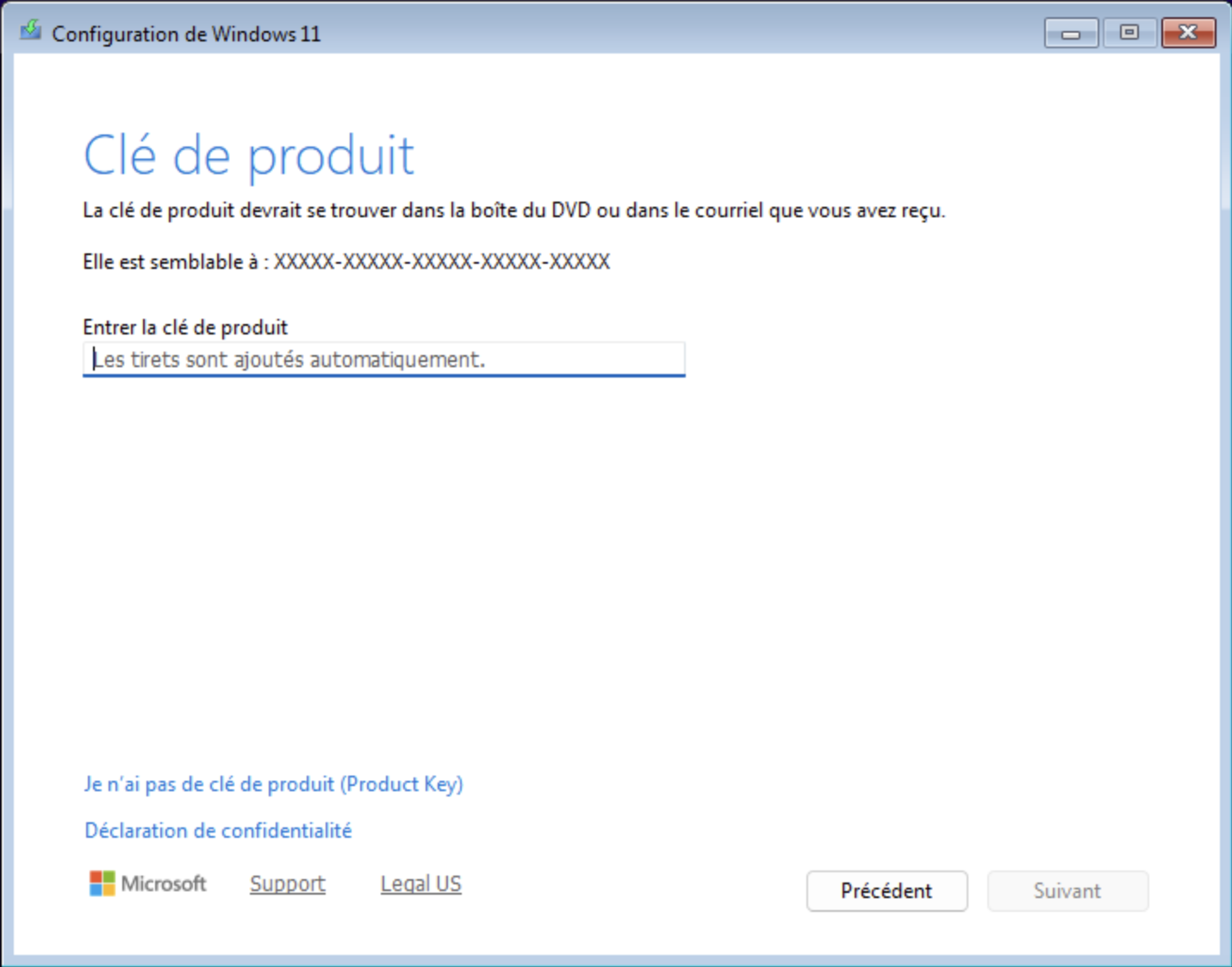
Skip the product key
Important:
Click: I don't have a product key
The license will be applied later.
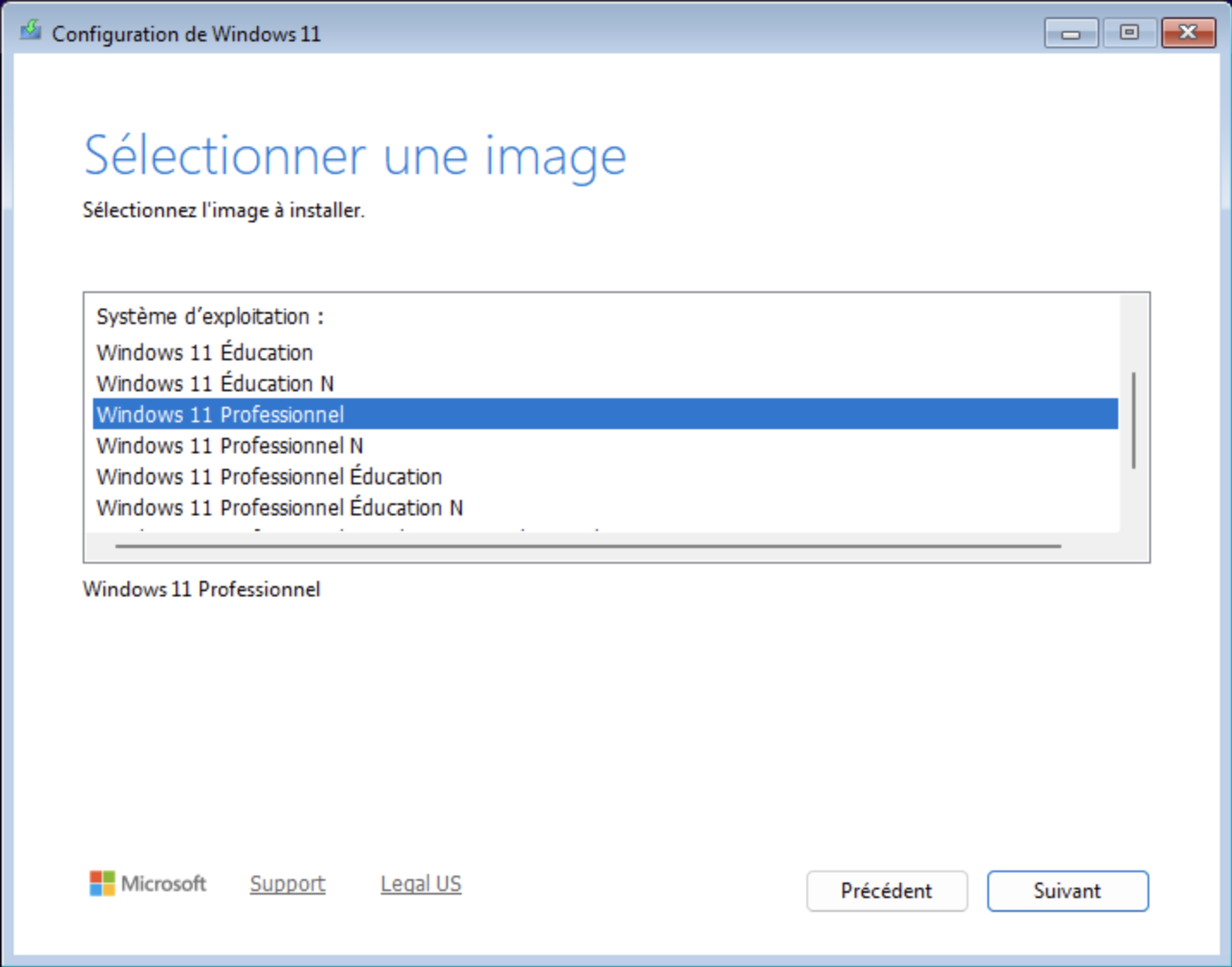
Select the Windows edition
Caution:
Select the exact version of Windows that matches your license:
- Windows 11 Pro
- Windows 11 Enterprise
- Other licensed version
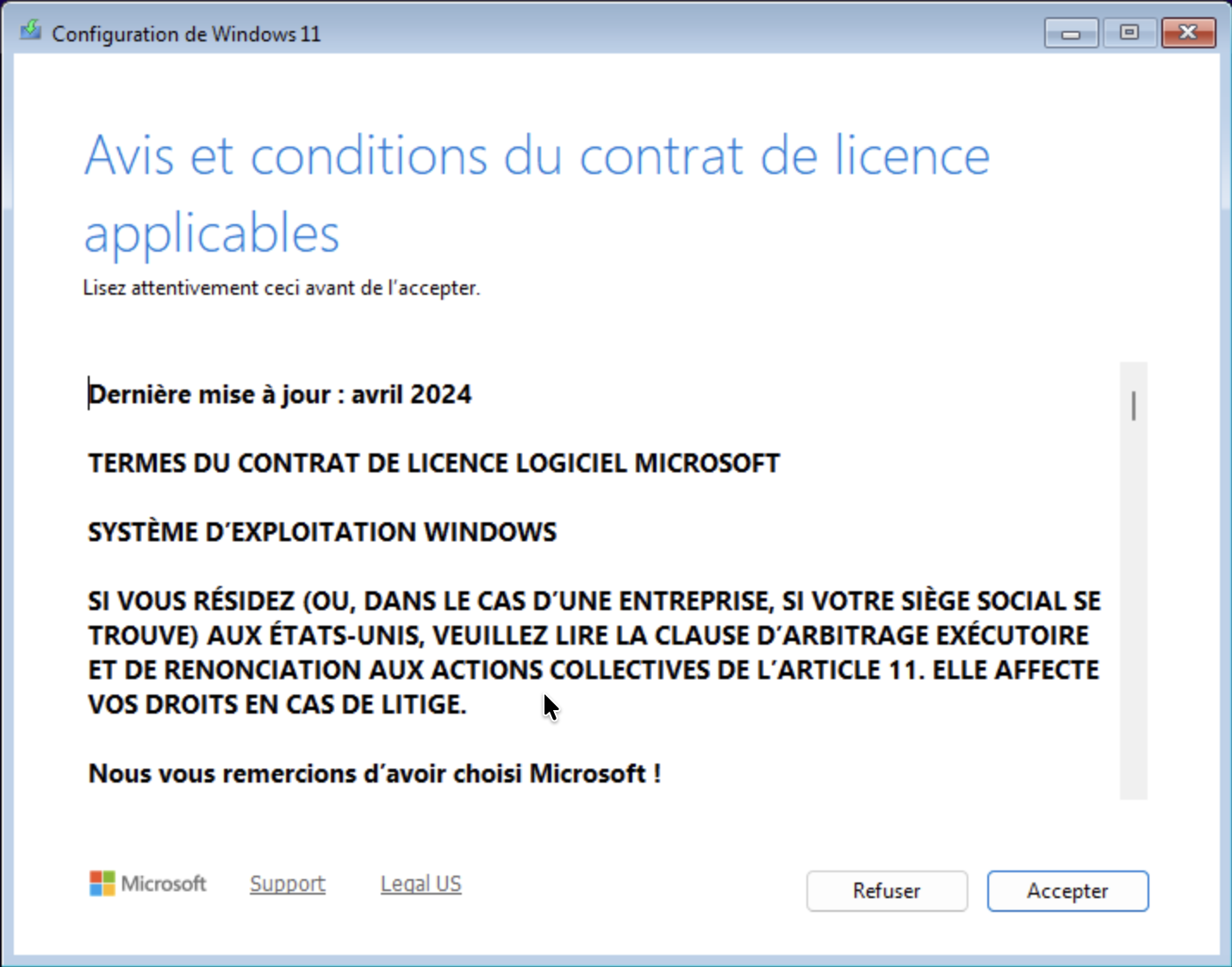
Accept the license agreement
Accept the Microsoft license terms.
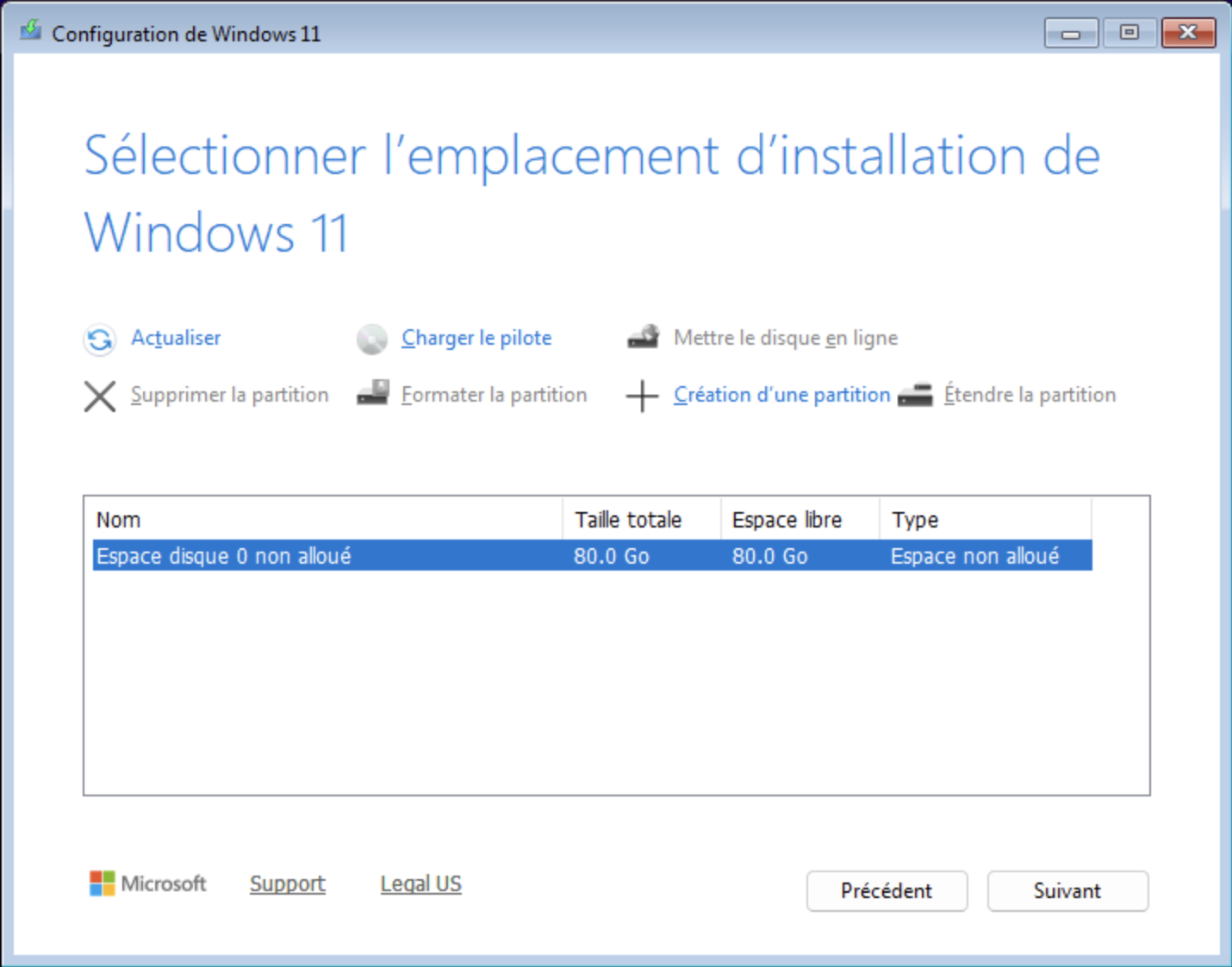
Select the installation drive
Select the drive where Windows will be installed.
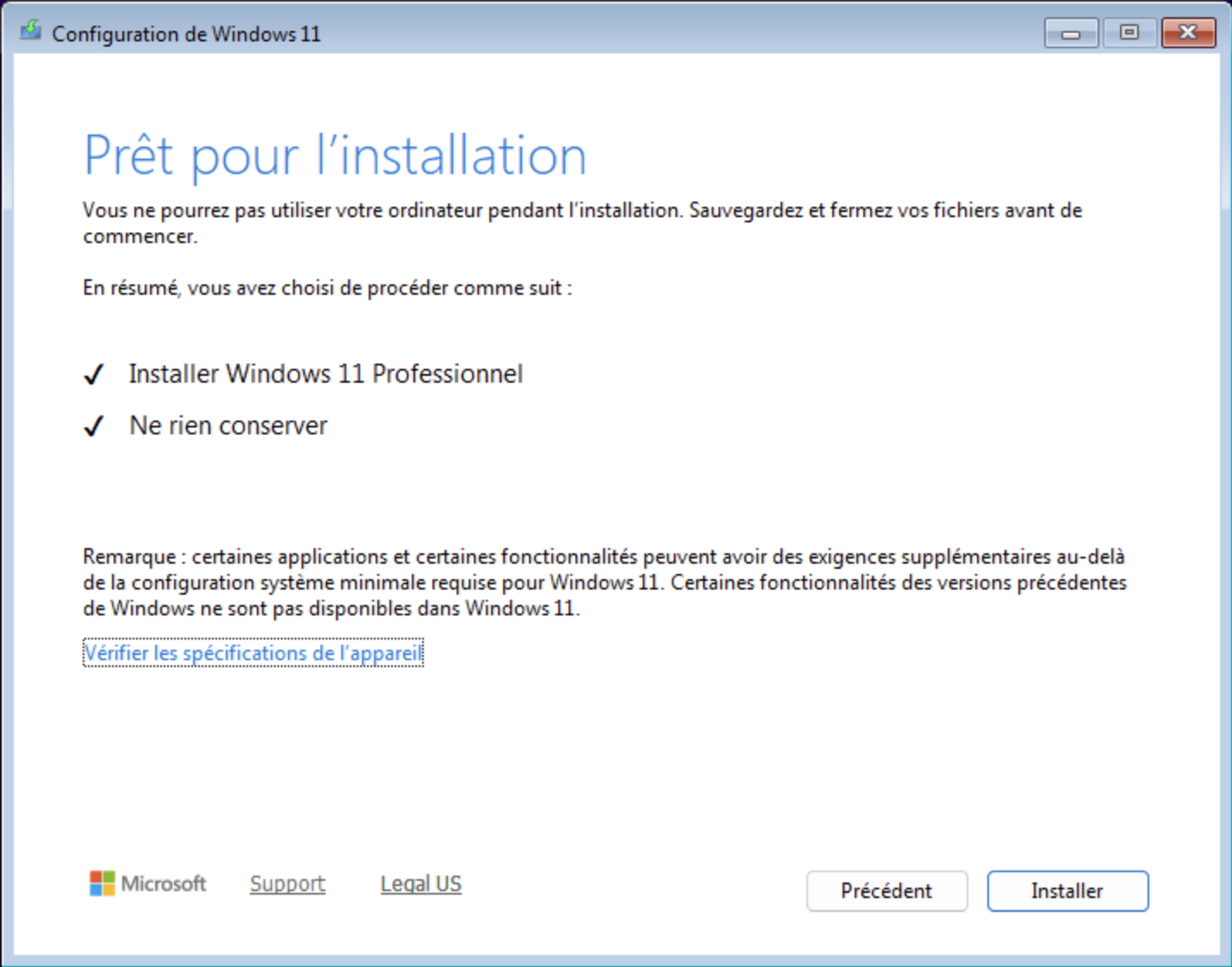
Start the installation
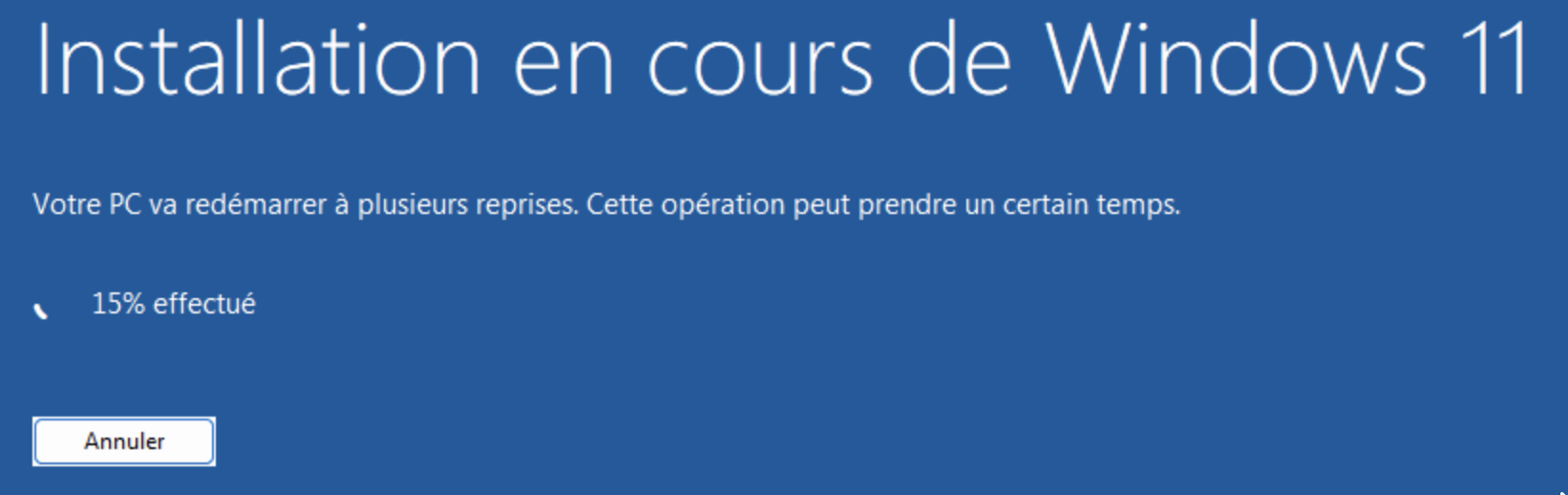
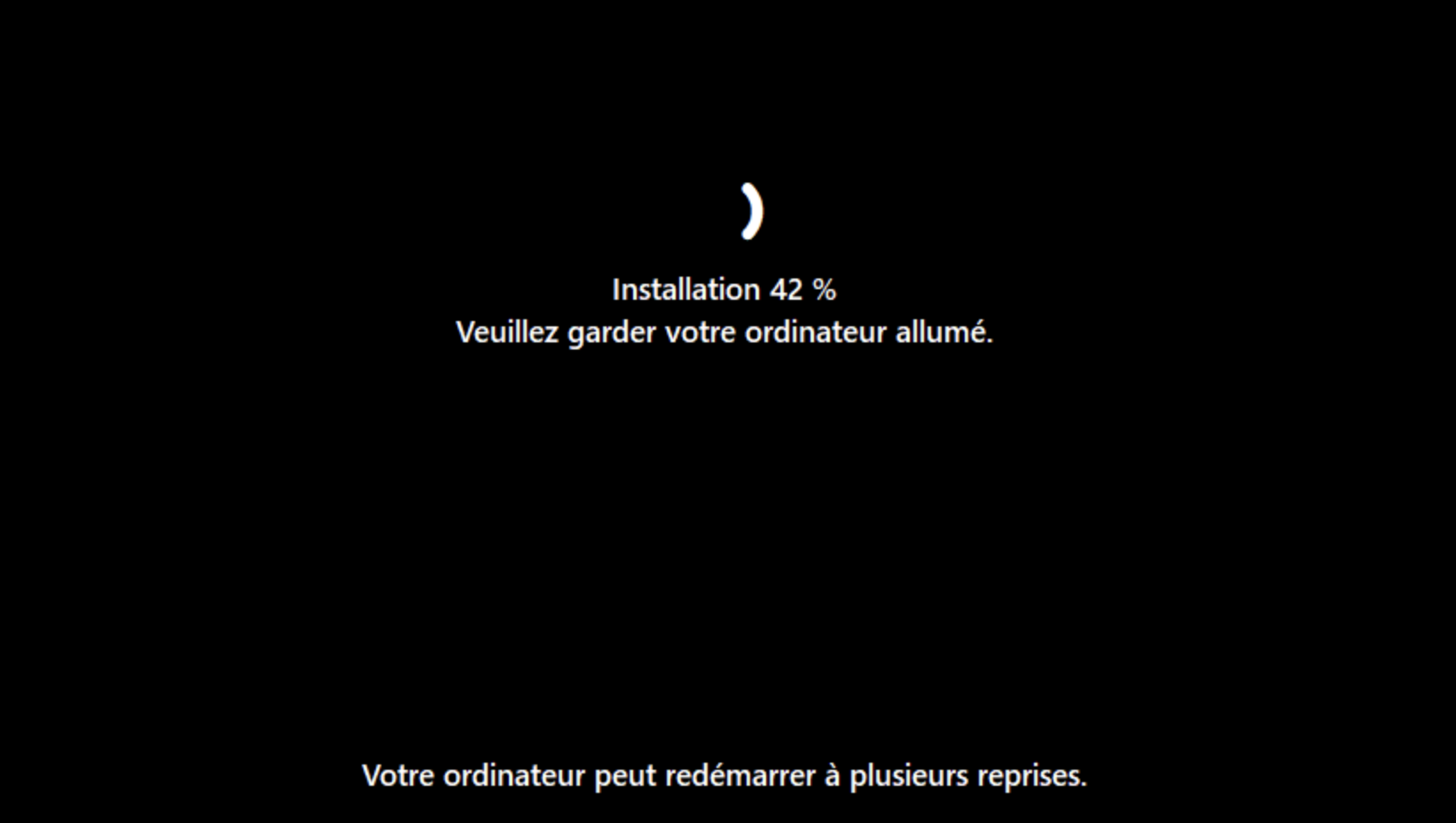
Start the installation and wait for the process to complete.
The computer will restart automatically several times.
3. Preparing the Windows master
Once the OOBE (Windows initial setup) screen appears:
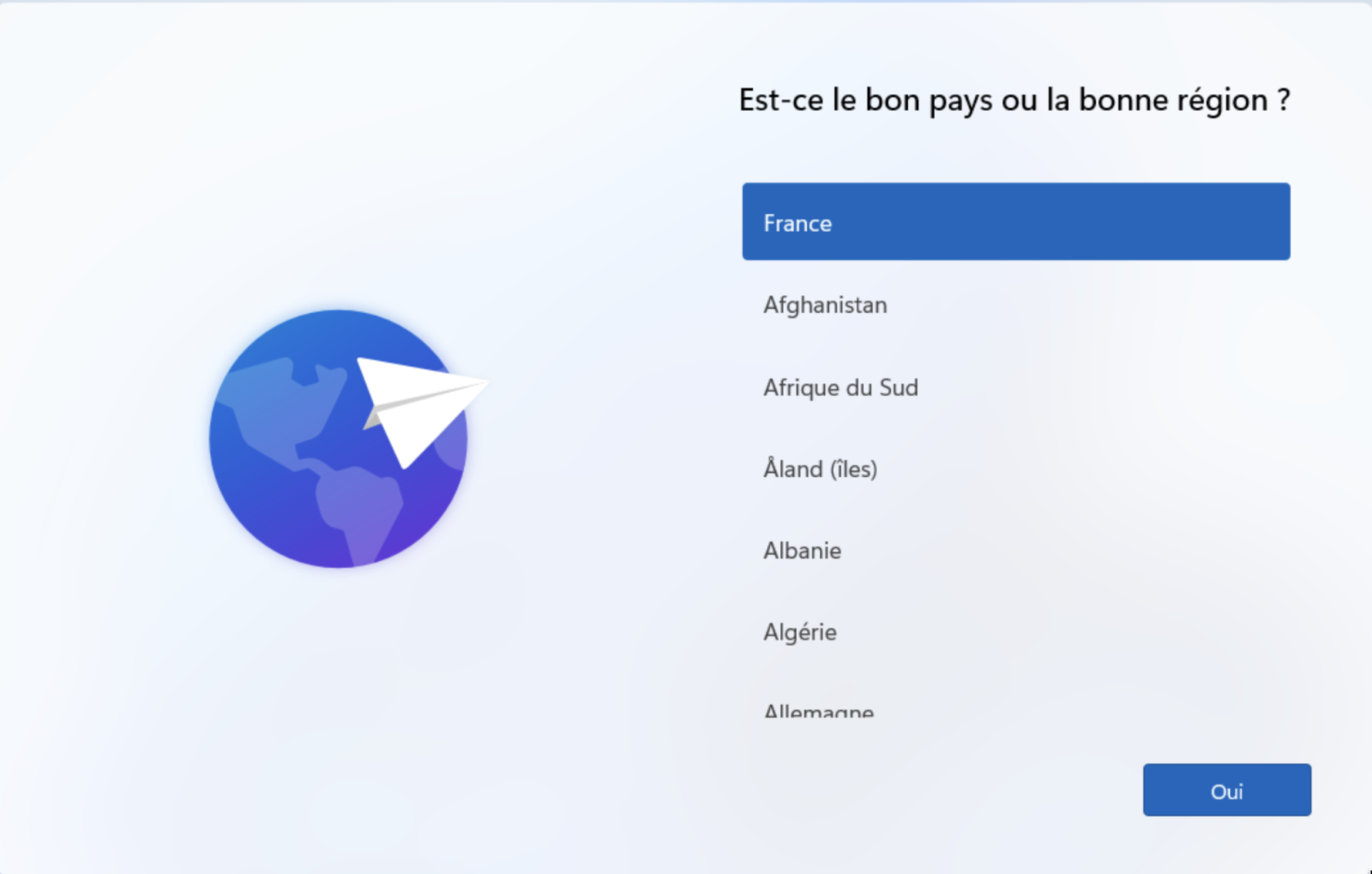
CTRL + SHIFT + F3The computer will automatically reboot into Audit Mode using the local Administrator account.
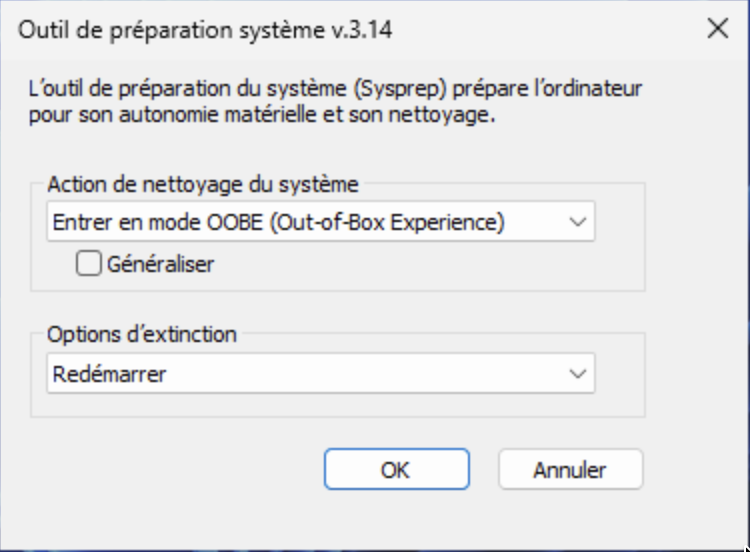
Tip:
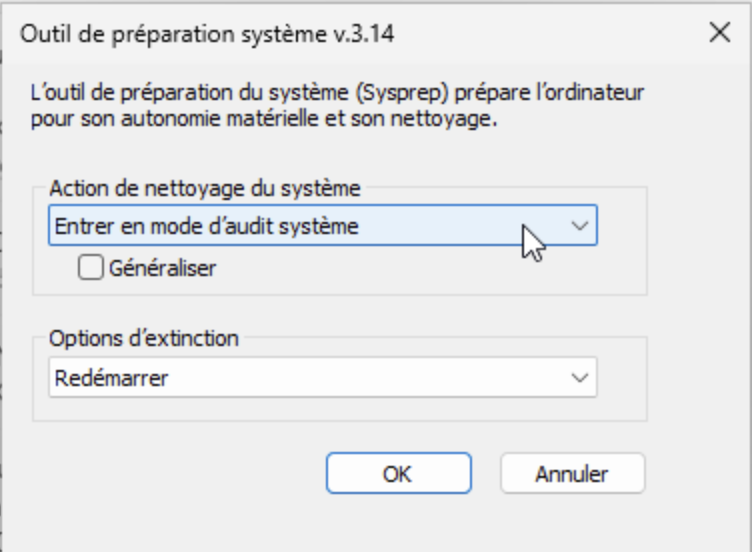
Leave the System Preparation Tool (Sysprep) window open. You’ll need it later.
Install Windows updates
Install all the latest updates via:
Windows Update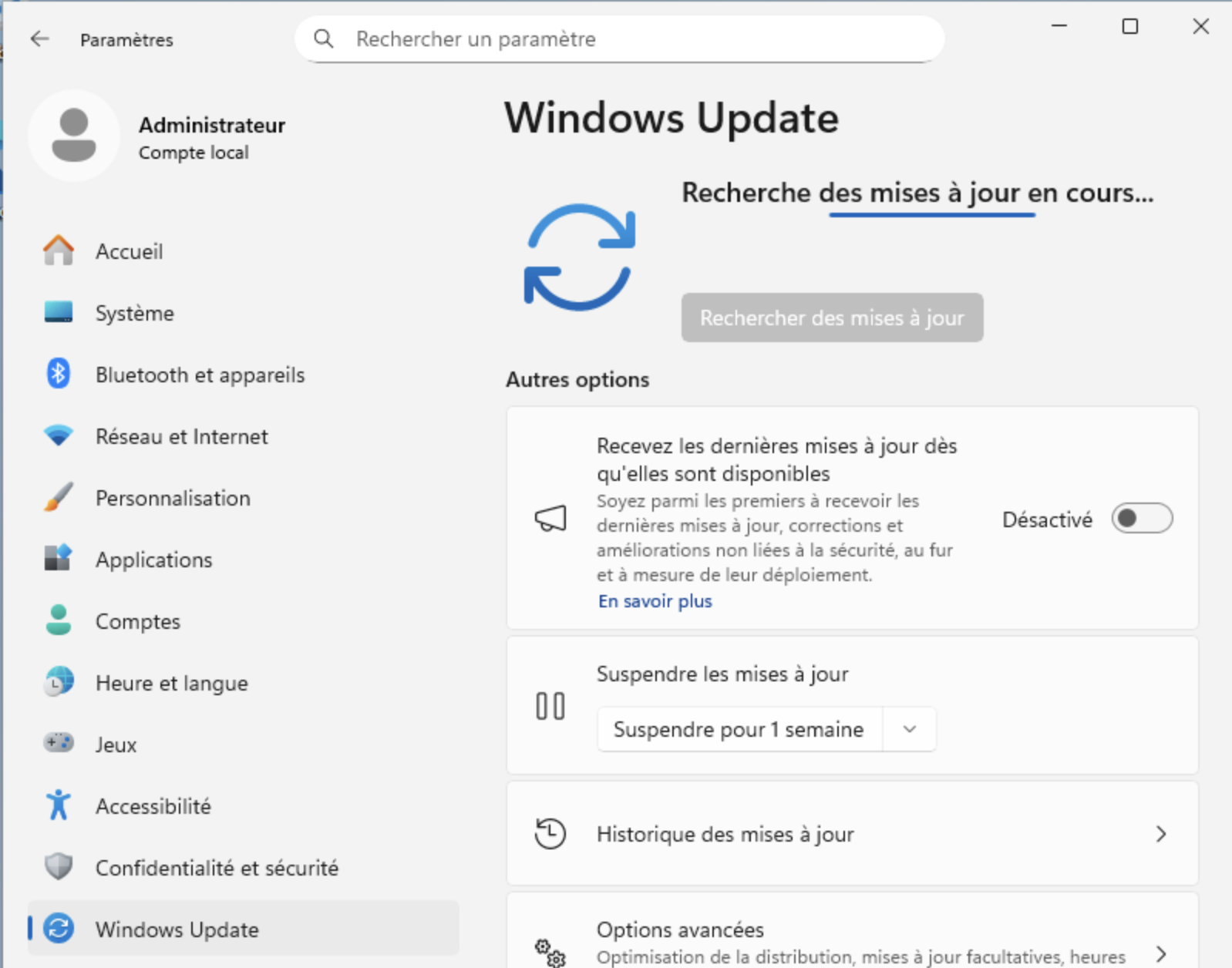
Caution:
If a restart is required and the OOBE screen reappears, press again:
CTRL + SHIFT + F3Clean up the system
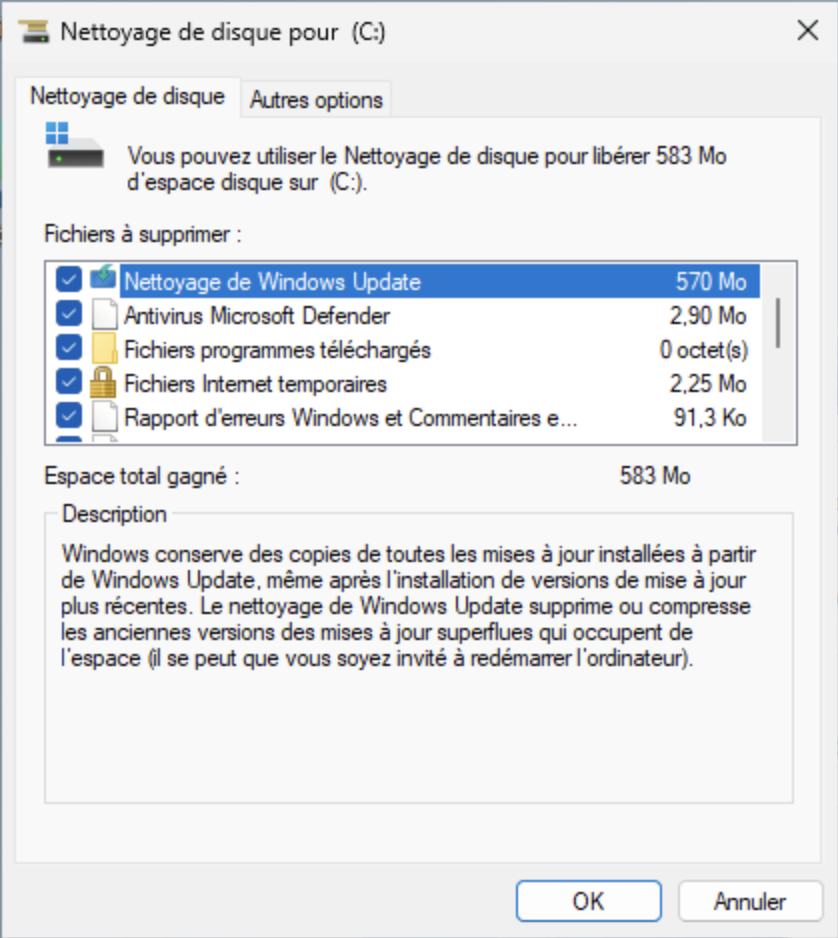
Launch the Disk Cleanup tool
Check all items, then confirm deletion.
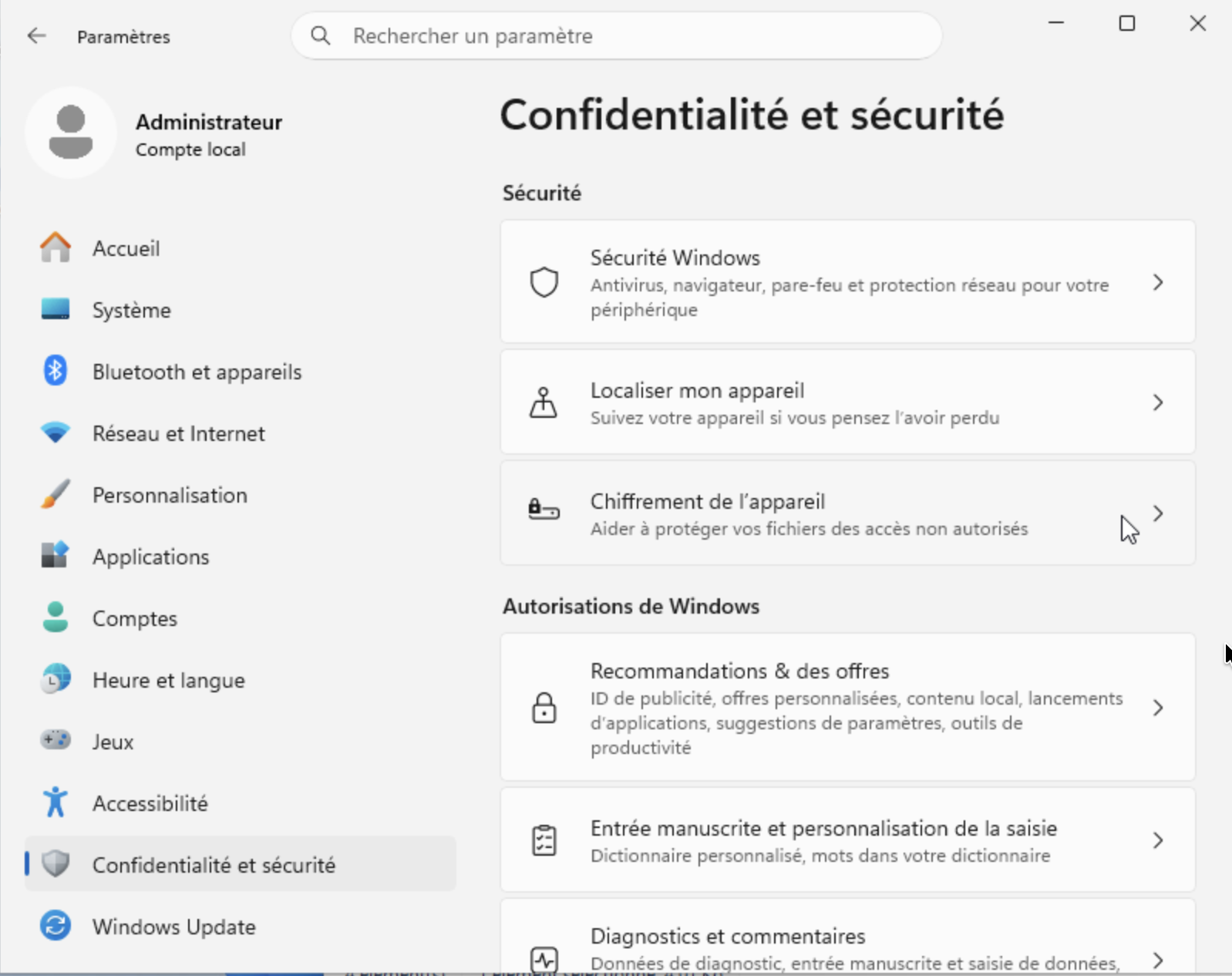
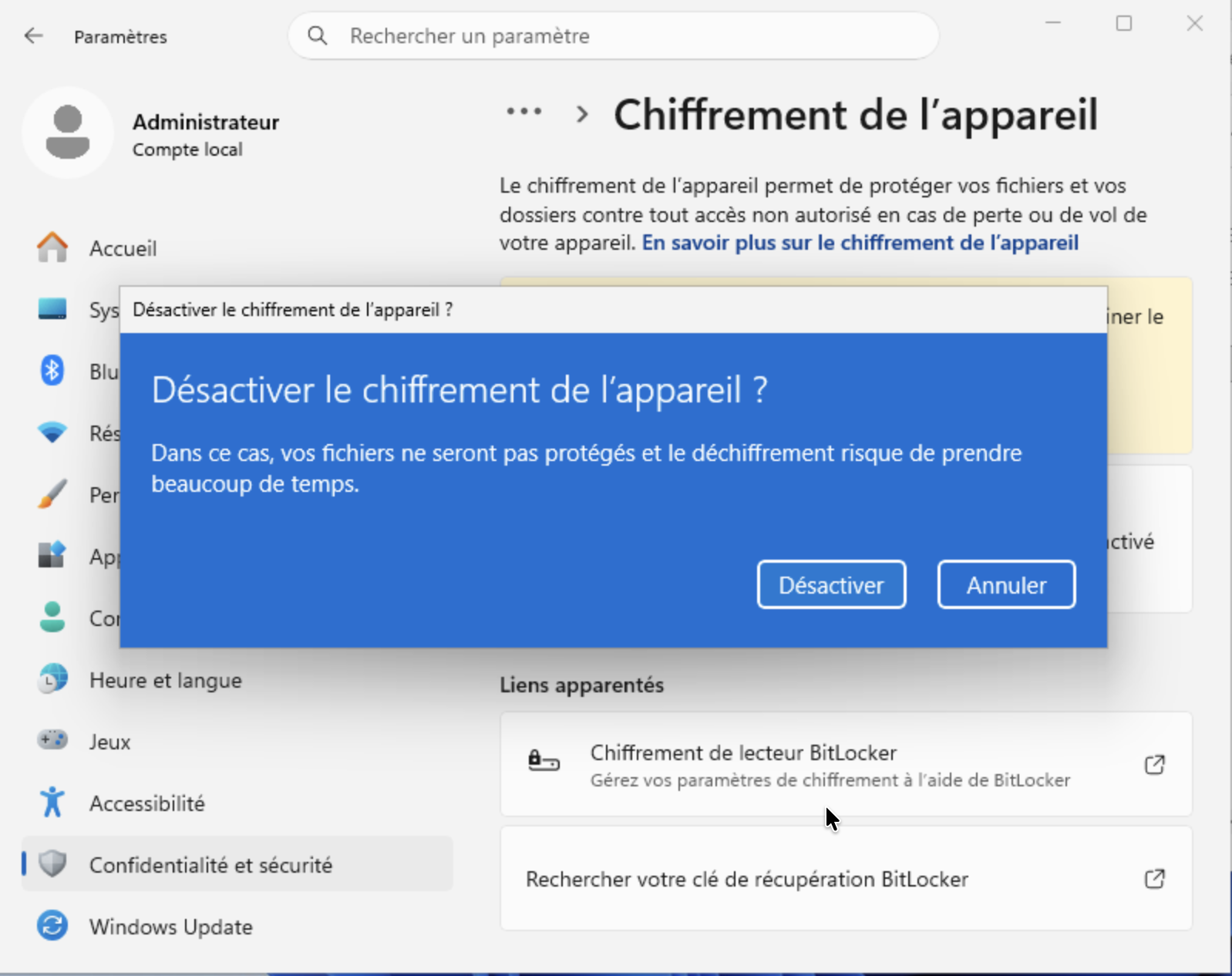
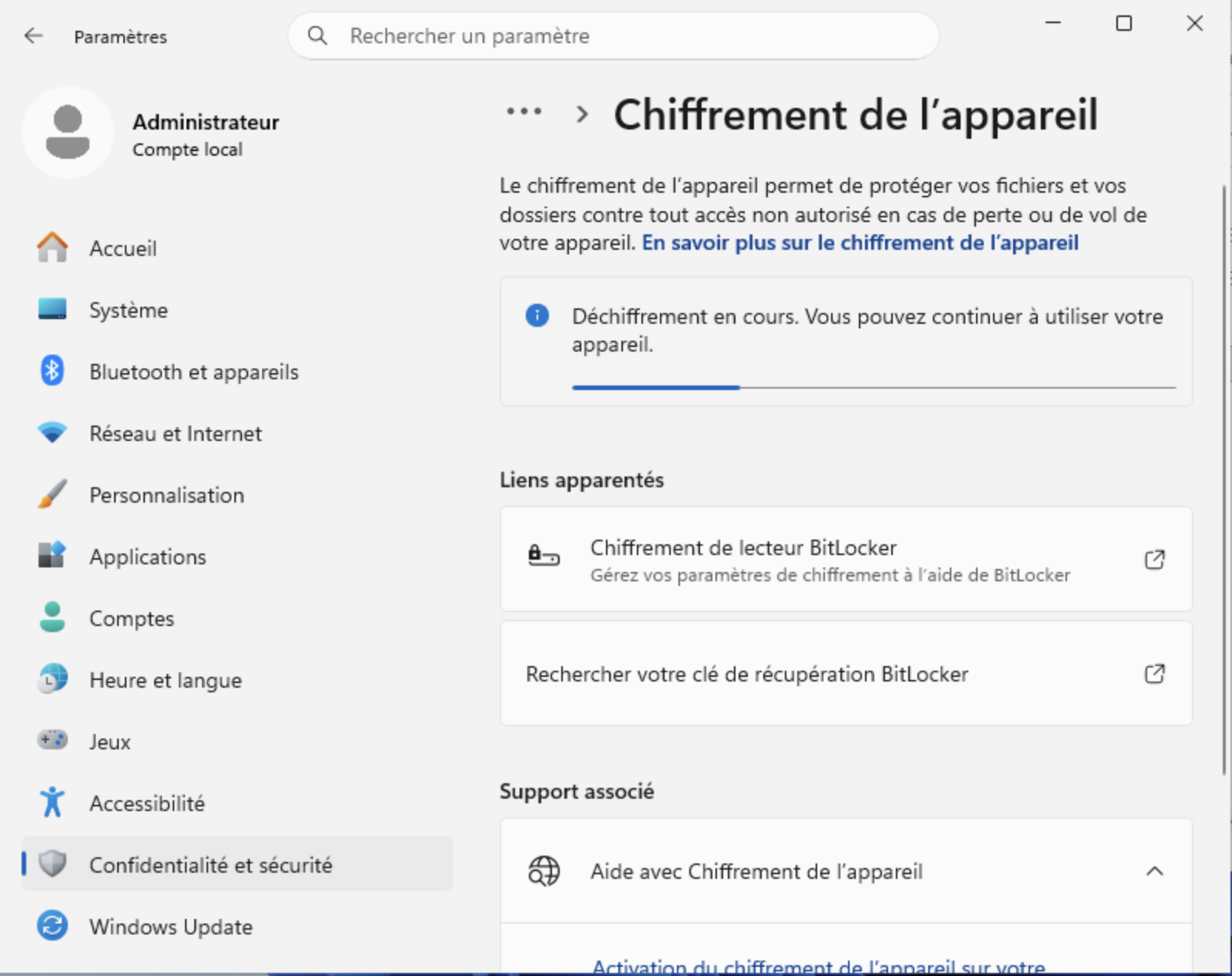
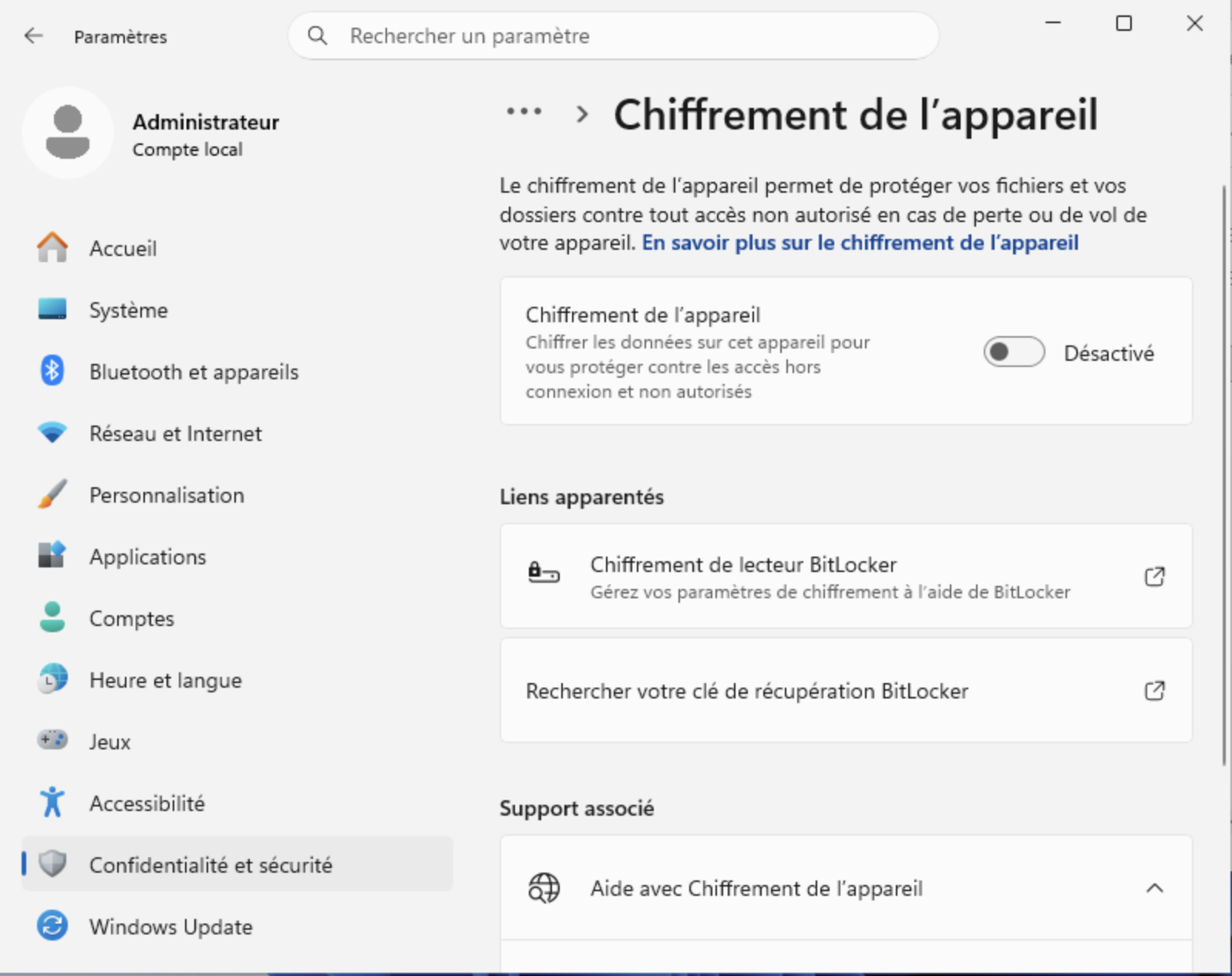
Disable device encryption
Verify that disk encryption is disabled.
Wait until the operation is completely finished before continuing.
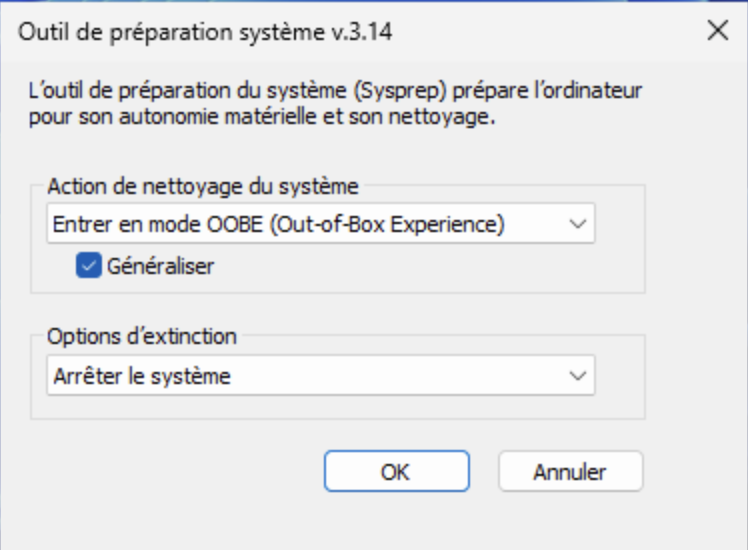
Prepare Sysprep
In the System Preparation Tool window:
- Select Enter OOBE Mode
- Check Generalize
- Select Shut down the system
Then click OK.
Important:
The computer must be shut down at the end of Sysprep. Do not restart it in Windows.
4. Capturing the image via PXE
Prerequisites
- The computer must boot from PXE first
- The DHCP server must point to the Medulla PXE server
- The Medulla PXE menu must be properly configured
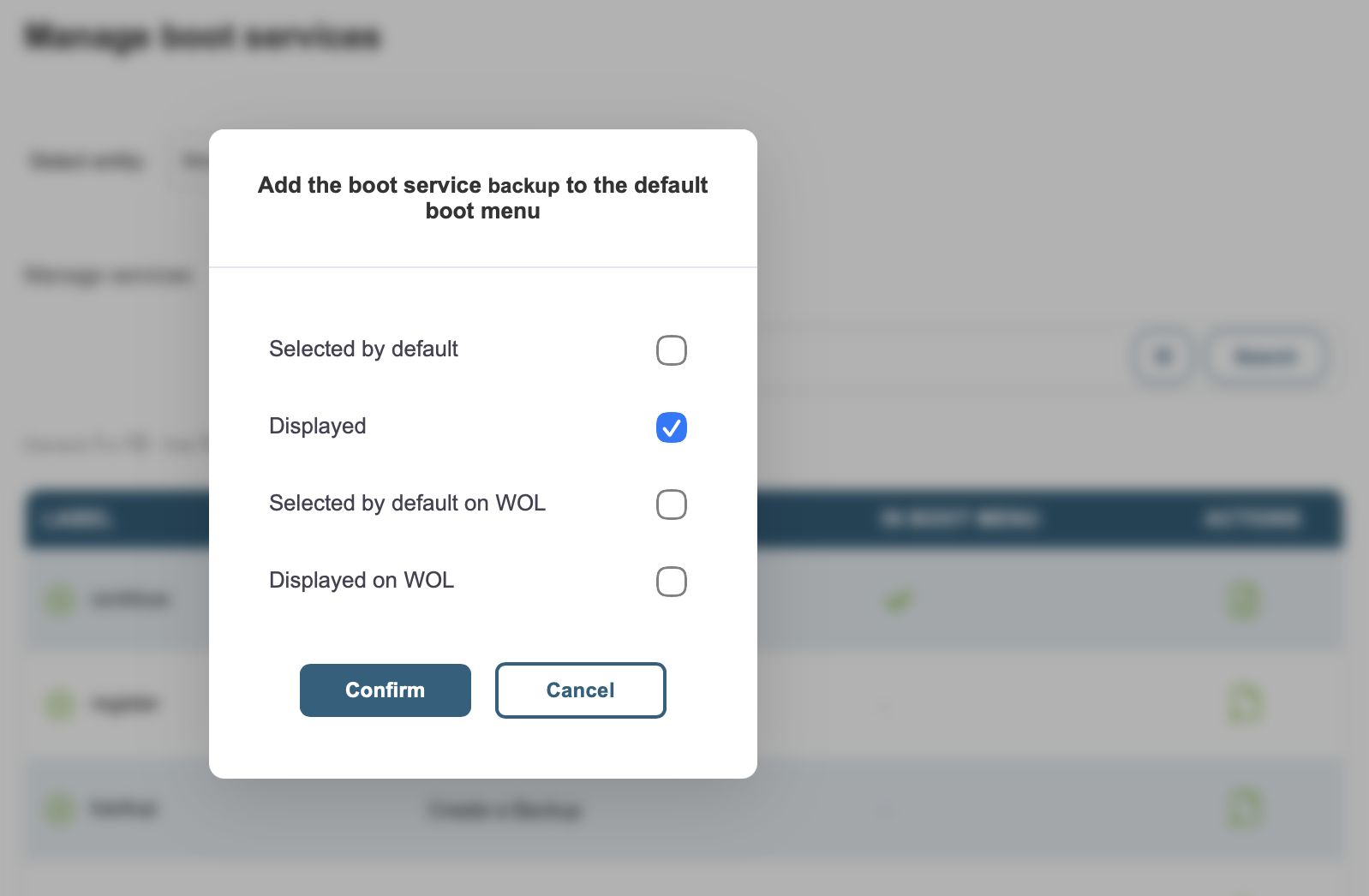
Configure the Medulla PXE menu
In the module:
Imaging → Default boot menu- Continue
- Backup
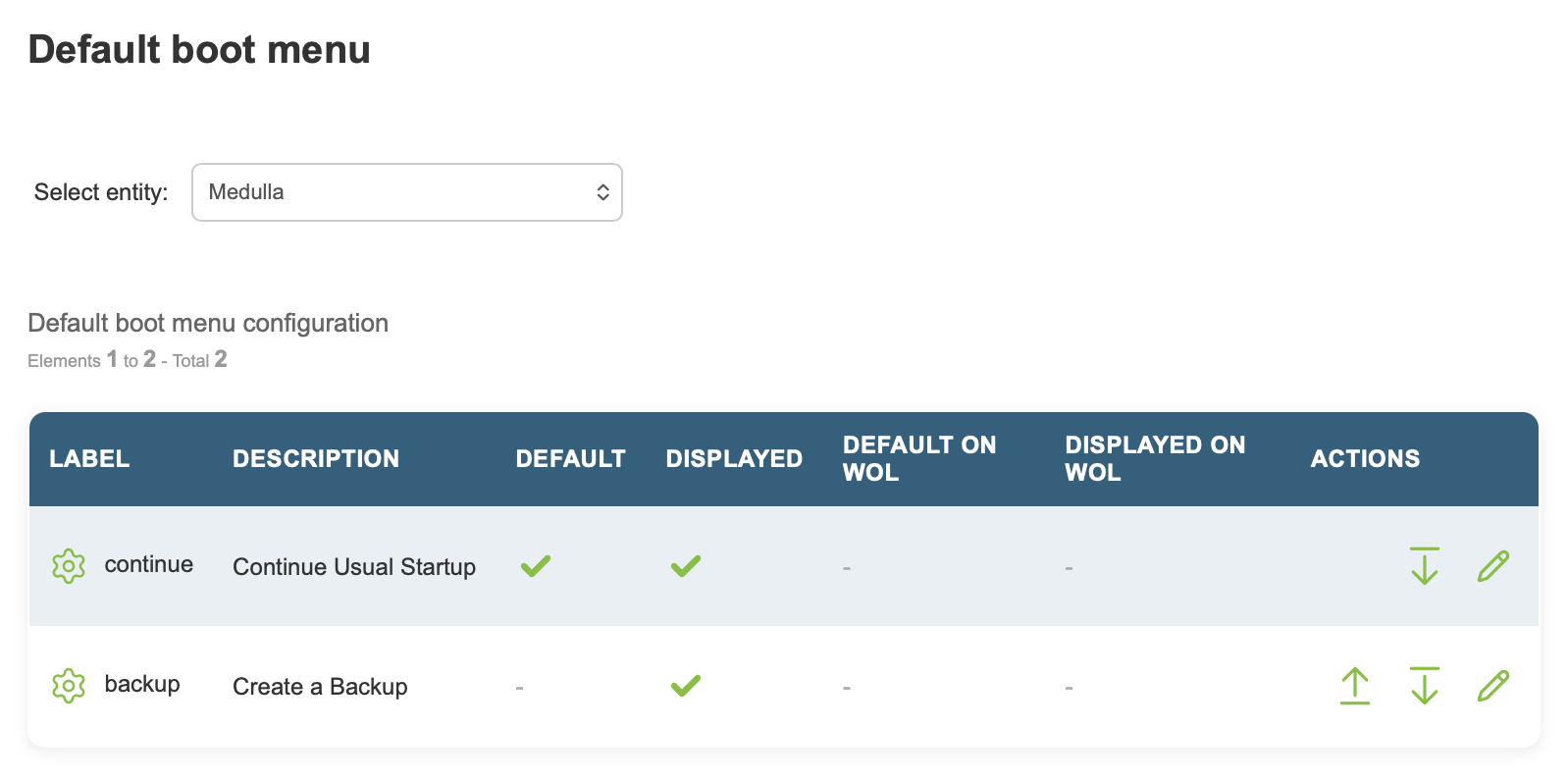
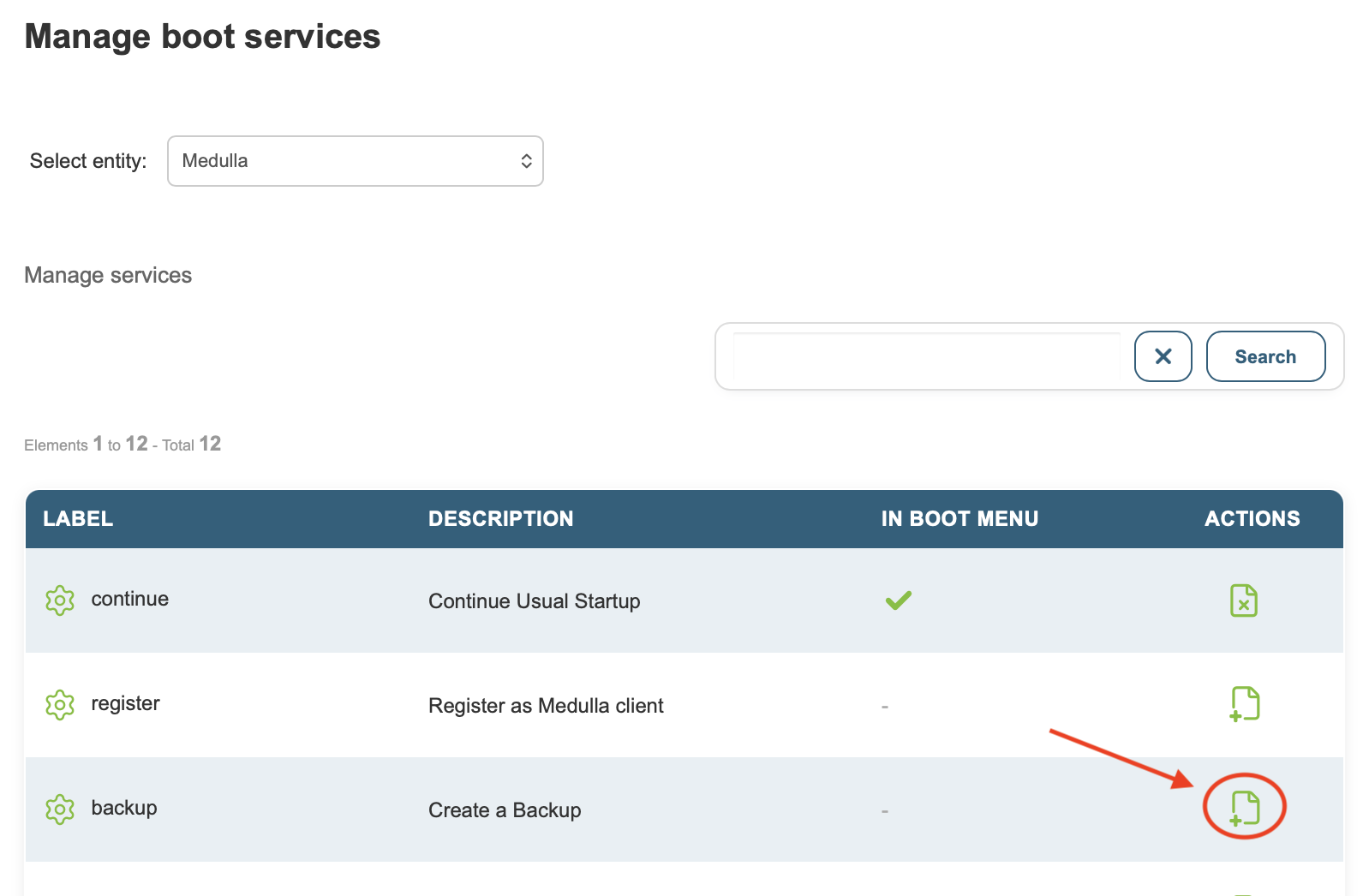
If necessary:
Imaging → Manage boot servicesAdd the services to the menu, then reorder them.
Register the computer
Boot the computer via PXE, then select:
Register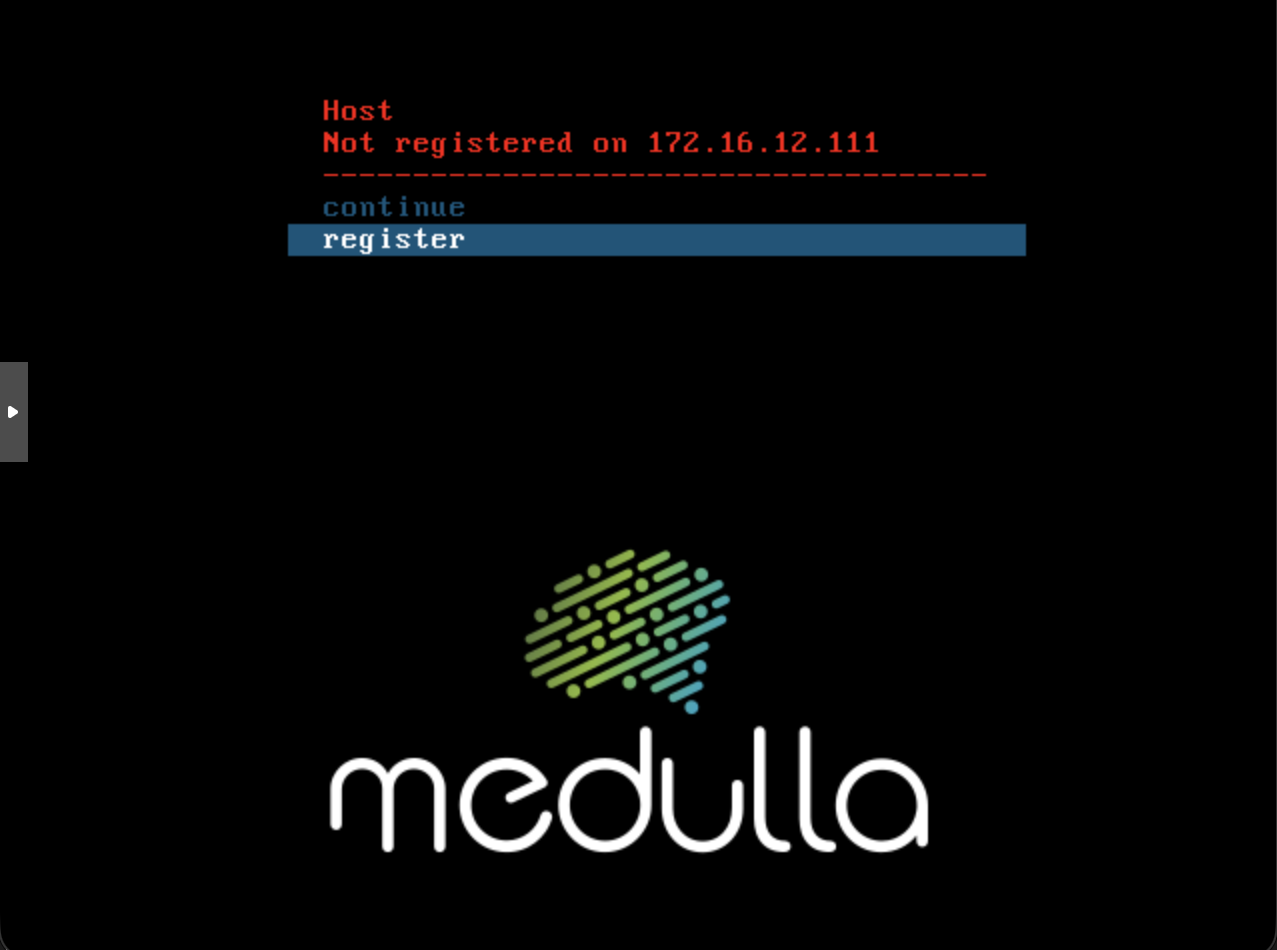
Name the computer, then confirm.
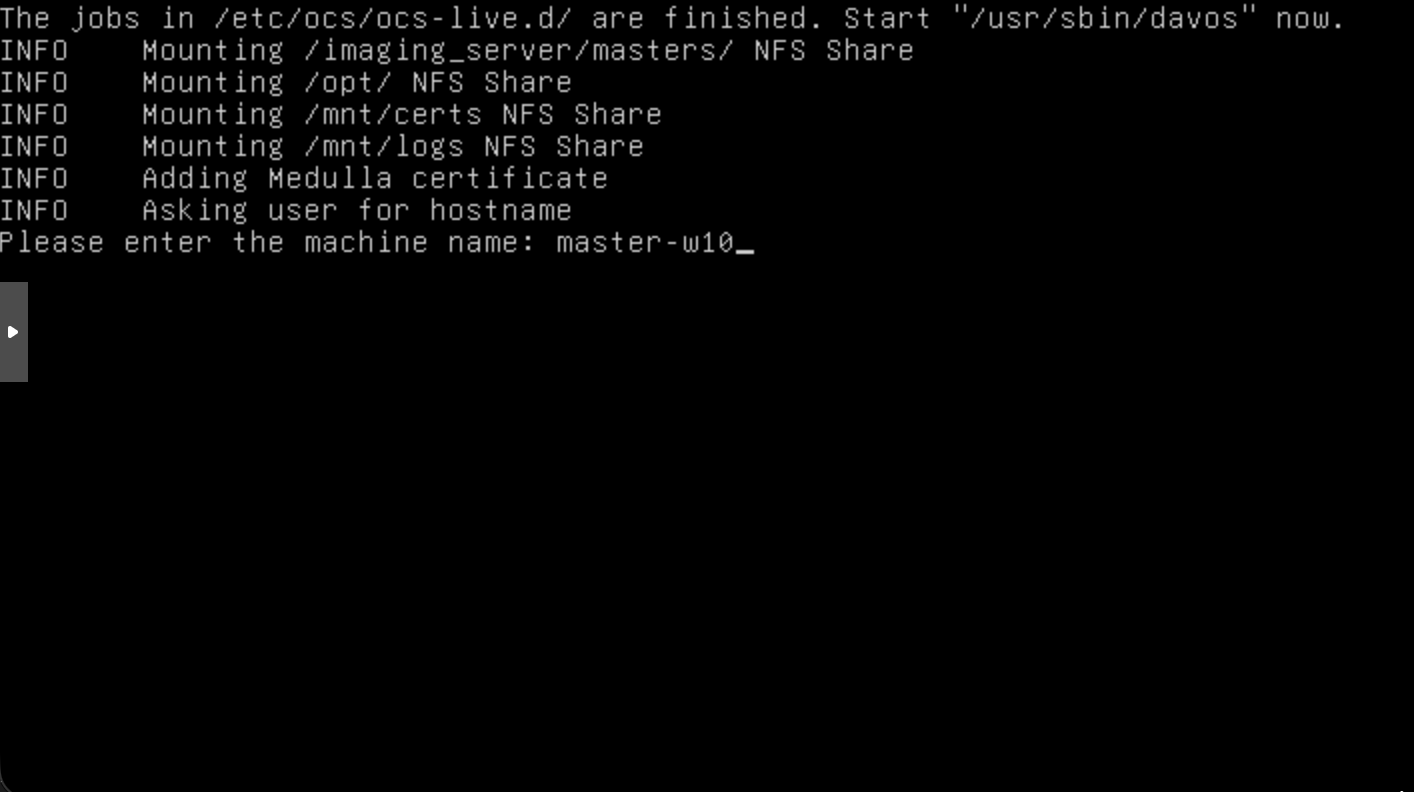
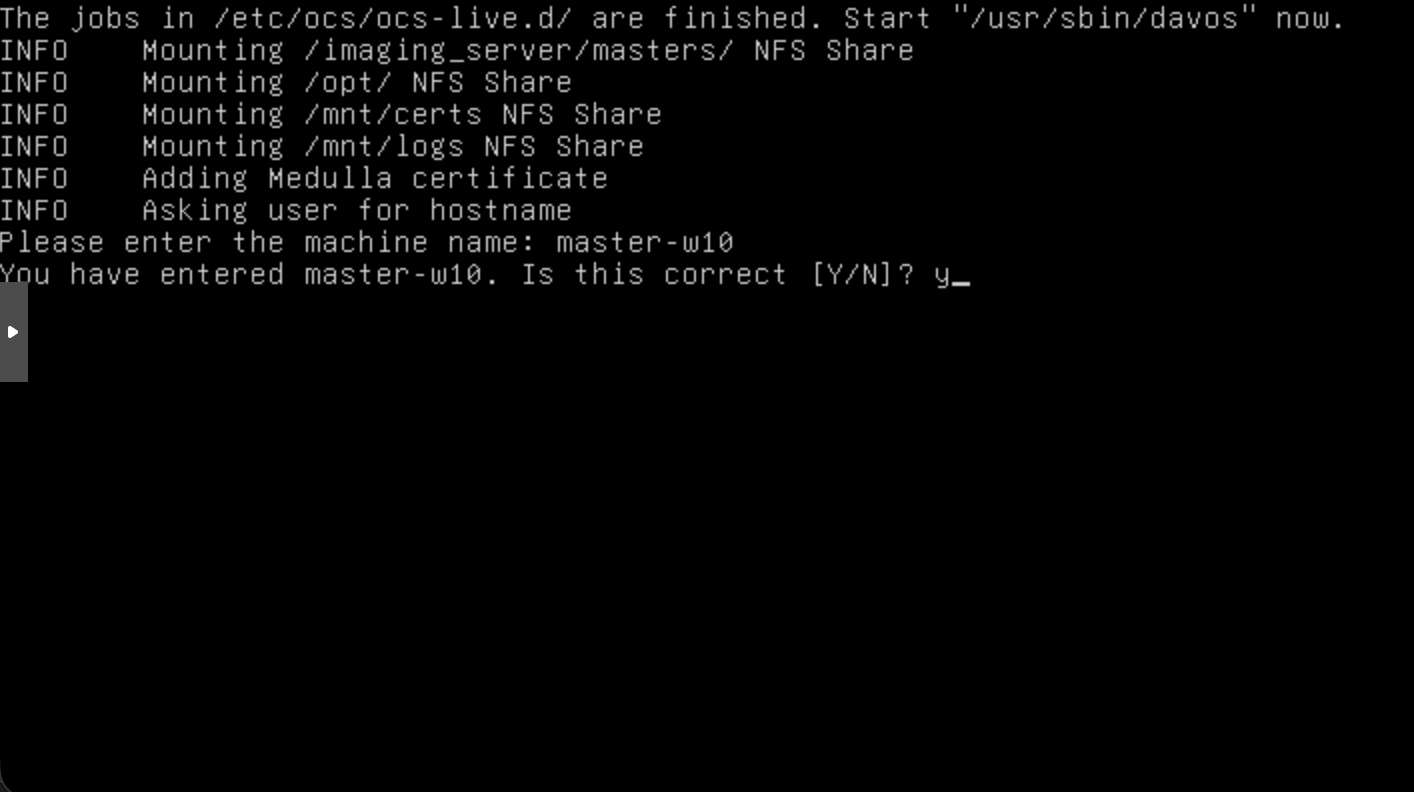
Image the disk
After restarting:
BackupWait until the capture is complete.
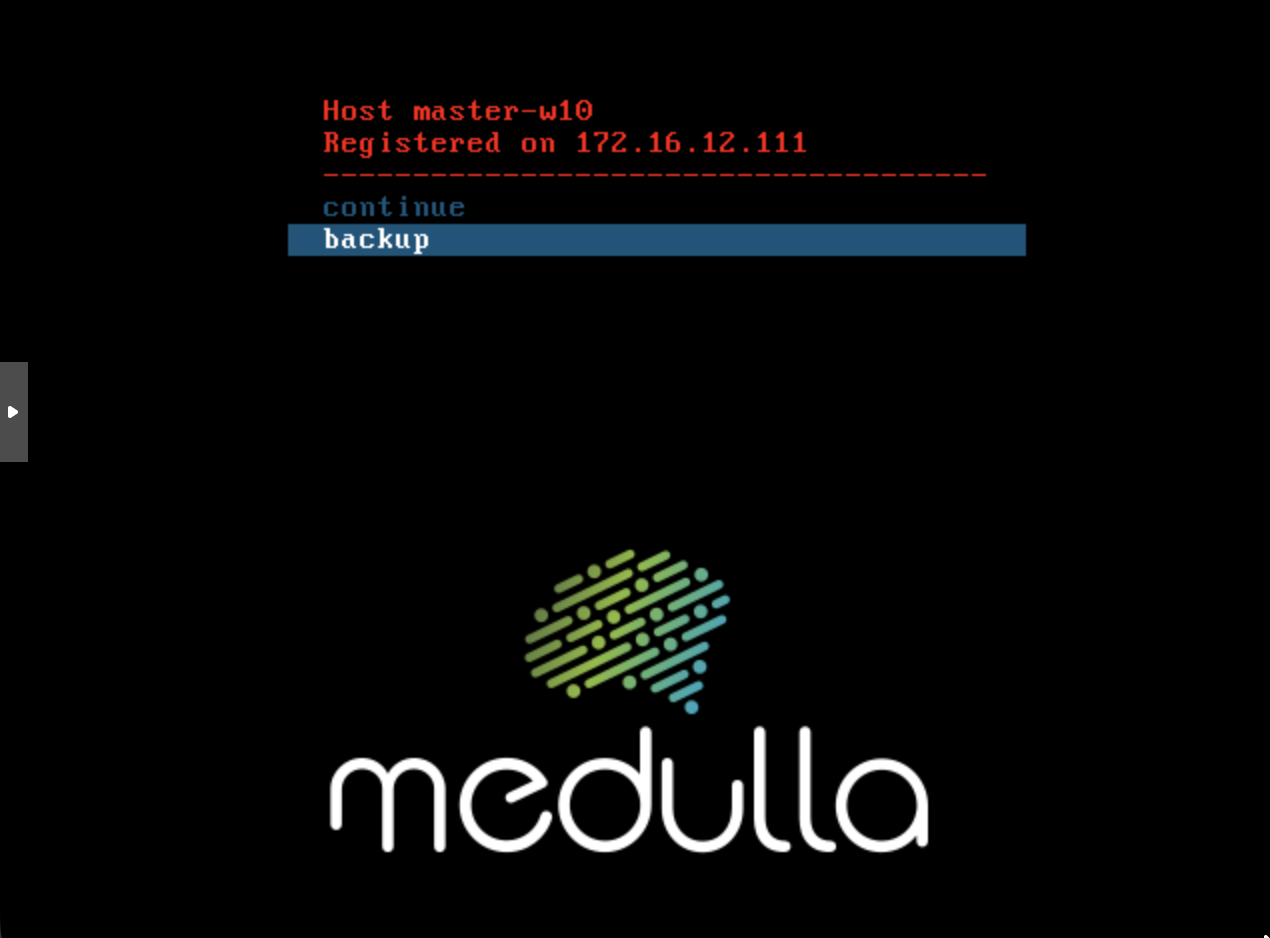
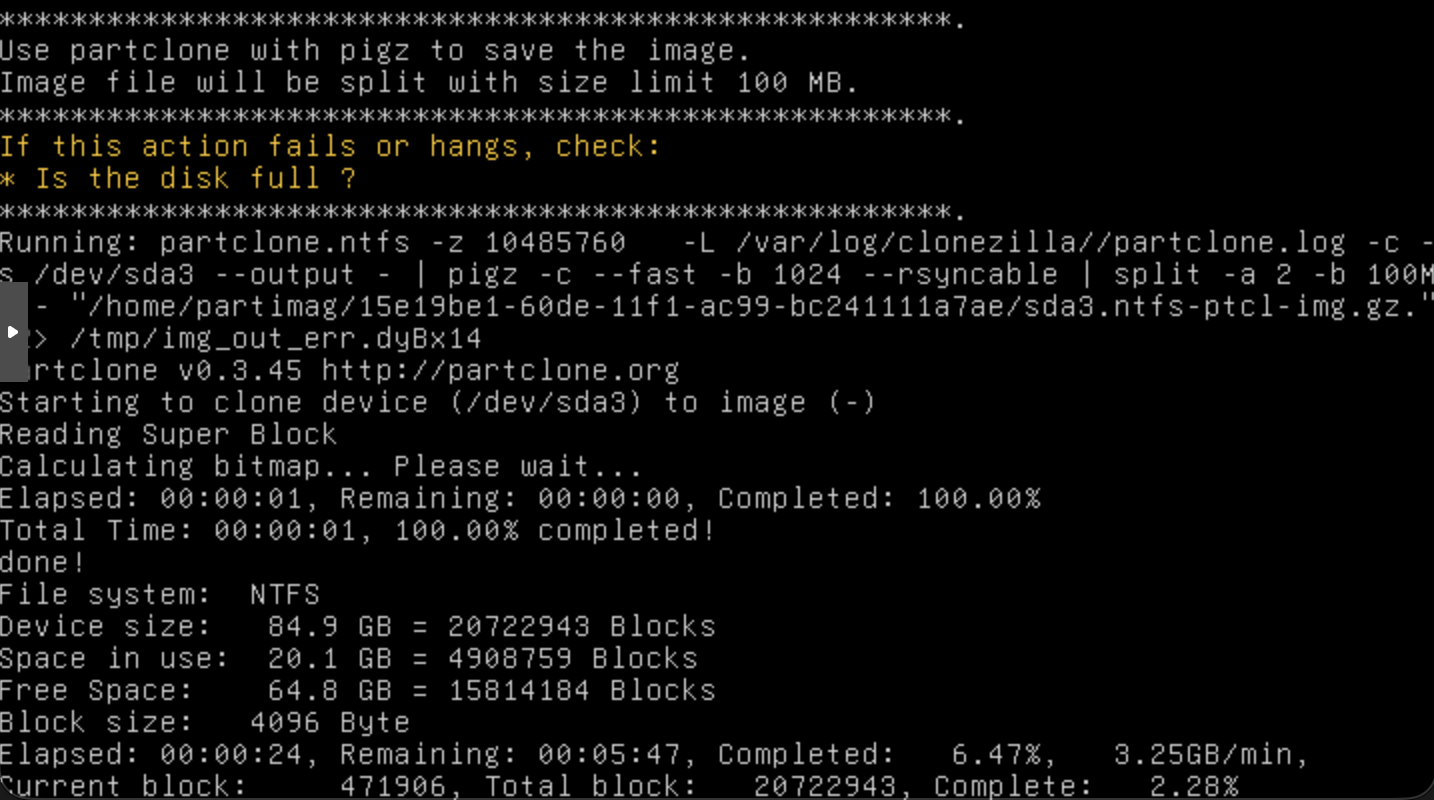
Note:
Once the capture is complete, the computer will automatically reboot and the PXE menu will reappear.
You can then shut down the computer.
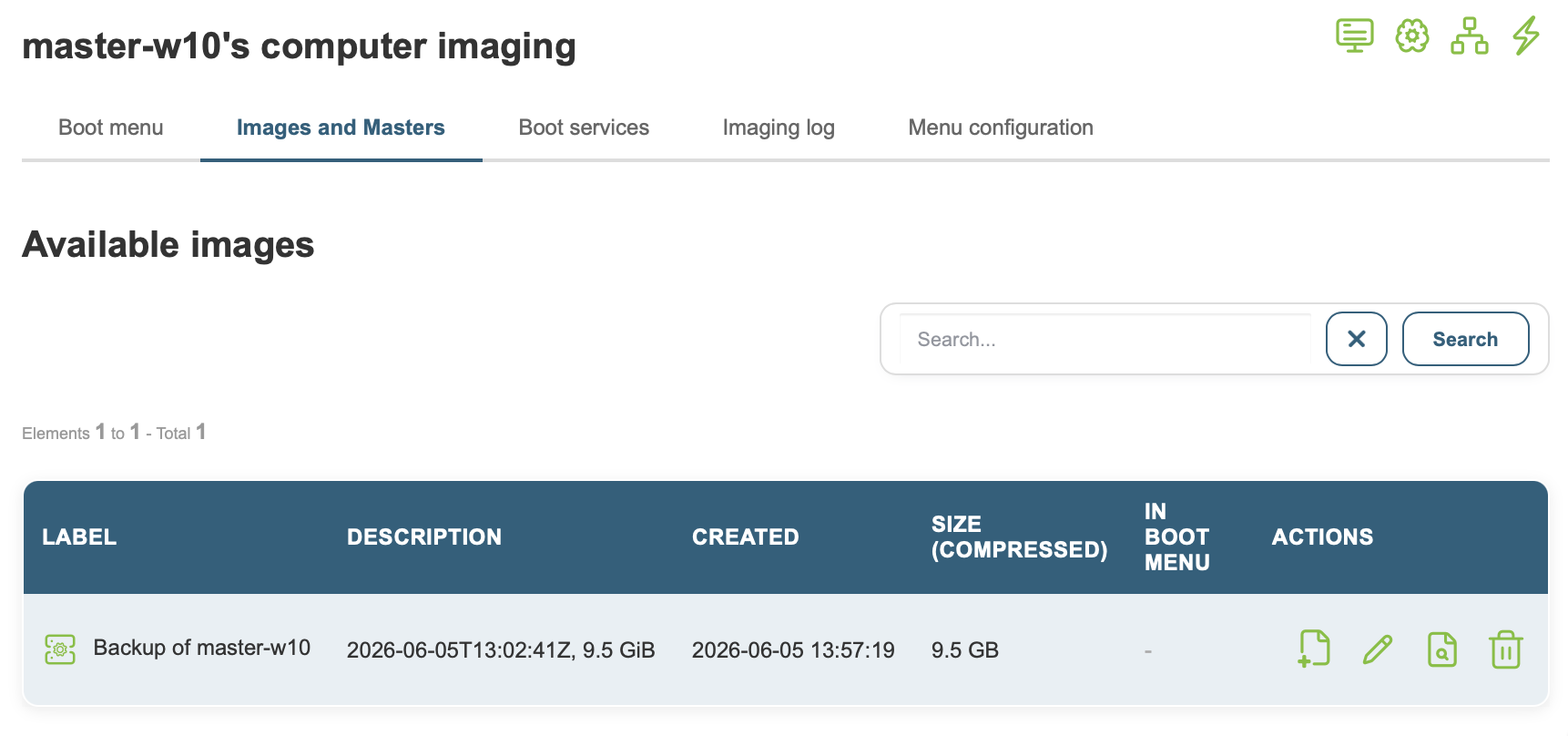
5. Creating the master in Medulla
In Medulla:
Computers → All computers GLPIClick:
Imaging managementon the computer used to capture the image.
Convert the image to a master
In the tab:
Images and MastersLocate the captured image, then click:
Edit ImageSet:
- Master name
- Description
Click:
Convert to master → Save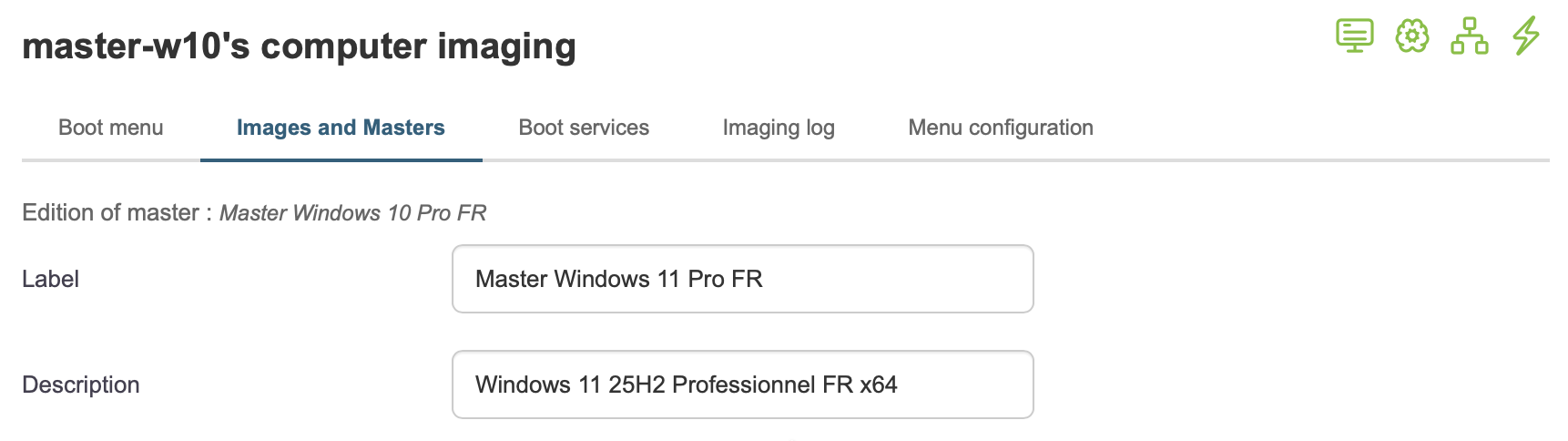
The master will then be available in:
Imaging → Manage mastersImportant
- Always install Windows updates before running Sysprep
- Always disable disk encryption before capturing
- Never restart Windows after running Sysprep
- The computer must boot via PXE before booting from the local disk
Default settings
| Item | Value |
|---|---|
| Recommended OS | Windows 11 |
| Preparation mode | Audit Mode |
| Audit Mode shortcut | CTRL + SHIFT + F3 |
| Sysprep action | OOBE + Généraliser + Arrêter |
| PXE menu | Register, then Backup |