
Version upgrades
An update fixes the system in place. An upgrade moves it to the next version: Windows 10 to Windows 11, Windows 11 24H2 to 26H2, Debian 12 to Debian 13.
The Upgrades screen is dedicated to them.
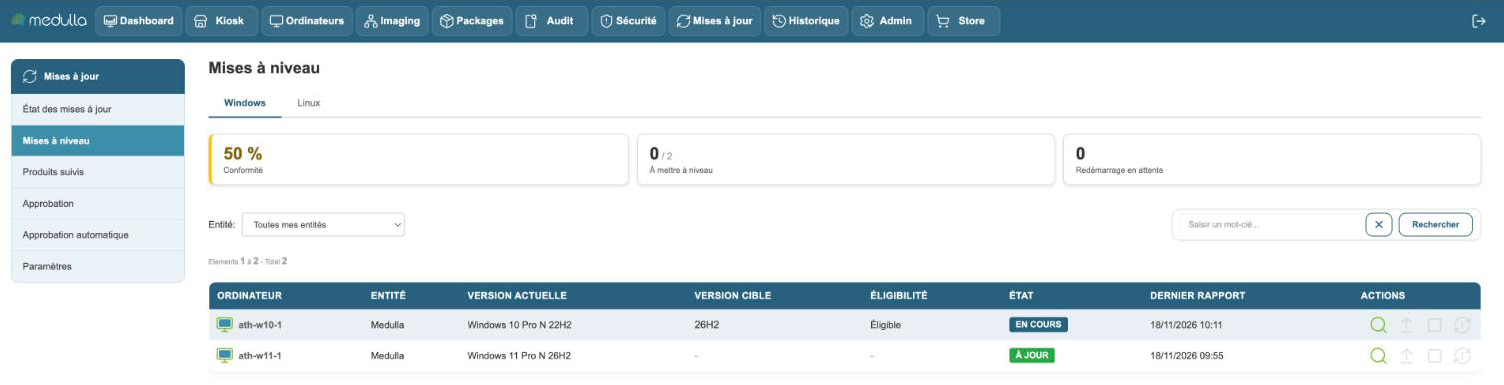
Reading the list
Three cards summarize the fleet: the compliance, the number of machines to upgrade, and those that have a reboot pending.
Each row gives the current version of the machine, its target version, its eligibility and its status.
| Status | What it means |
|---|---|
| Up to date | the machine is already on the latest version you track |
| To upgrade | a more recent version is possible |
| In progress | the upgrade is launched and carries on by itself |
| Reboot pending | the upgrade is waiting for the machine to restart |
| Waiting for the report | a step has just finished, Medulla is waiting for the workstation's confirmation |
| Not concerned | Windows servers, long-term support editions, unsupported distributions |
The Eligibility column, specific to Windows, says whether the machine can receive the target version.
Eligibility
For Windows 11, Microsoft imposes hardware requirements: processor, TPM chip, secure boot, memory, disk space. Medulla uses Windows' verdict when the workstation has one. Otherwise it collects these items itself, and Microsoft's compatibility check decides at launch.
Hover over the mention Not eligible: the tooltip gives the exact reason. Medulla does not bypass any of these requirements.
Launching an upgrade
- Check that the target version is checked in Tracked products.
- On the row of the machine, click Upgrade machine.
- Confirm.
The status changes to In progress. The upgrade runs in several steps that Medulla chains on its own. To go from Windows 10 to Windows 11 26H2, for example: compatibility check, installation of Windows 11, latest cumulative update, then activation of version 26H2.
Allow one to two hours per workstation, during which it restarts several times.
Launch it on a workstation with no open session: the workstation then restarts on its own at each step, all the way through. With a user logged in, each restart is requested from them; with no answer after five minutes, the upgrade waits for the workstation to be restarted.
An upgrade is launched machine by machine, or on a group from the Computers module.
During the upgrade
- The machine stays in upgrade from launch to end, including between two steps.
- No other update can be deployed to it.
- The Abandon action stops the chain of steps. It does not undo what is already installed, and is not available while a step is running: wait for it to end.
If a step fails, the machine goes back to To upgrade. Hover over its badge: the tooltip gives the cause. Fix it, then launch again: Medulla resumes at the step that failed.
Choosing when
In Settings, the Upgrades time range sets when the steps are allowed to start. You can launch during the day an upgrade that will only begin in the evening.
The Linux tab
Same principle for Debian, Ubuntu and AlmaLinux. Before offering an upgrade, Medulla checks that the machine can receive it:
- enough disk space;
- no held package or package to repair (Debian, Ubuntu);
- on Debian, the main repository of the distribution is present and the backports repository is removed.
A machine that does not pass these checks is not upgraded: the tooltip of its status gives the reason, for example Main repository missing from the apt sources. Medulla does not change the sources of a machine; put them back in order, then launch again.
Late packages do not block: the upgrade installs them itself before changing version. At the end, restarting the Linux machine is left to you.
Before upgrading a server or an important workstation: make a backup or a snapshot. A version upgrade cannot be undone from Medulla.