
The package editor: how it works
How does the package editor work?
The concept in one sentence
A Medulla package is a list of steps that run in sequence on the target computers. To build this list, drag actions from the left panel to the right pane.
| 📋 Available Actions (left) | 🔧 Deployment Workflow (right) |
|---|---|
| The list of all the building blocks you can use: run a command, download a file, display a message, etc. | Your “recipe”: the steps that Medulla will execute on the computer, from top to bottom. |
Each action you add becomes a step. You can reorder the steps using drag-and-drop, and click on each step to adjust its options.
Basic concepts to know
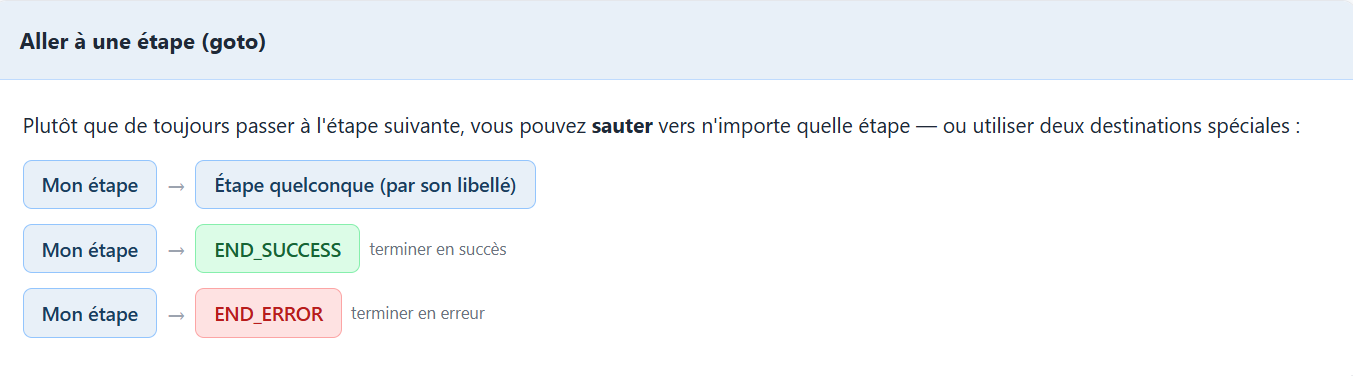
Each step has a unique name called a “label.” It’s like a tag: it helps you keep track of things, but most importantly, it lets you reference that step from another one (see goto below).
Medulla automatically generates a label. Do not change it unless you know what you’re doing—other steps may reference it
Commands and scripts
Run command
Command: Run command: Runs a command line on the target computer. This is the most common action—for example, to run an MSI installer, copy a file, or call a system tool.
Typical example:
Install software silently:msiexec /i MonLogiciel.msi /qn
Parameters
| Parameter | What is this for? | Required? |
|---|---|---|
| step label | Unique name of the step. Serves as a reference and target for goto jumps. Do not modify unless necessary. | Yes |
| command | The command to execute (e.g., msiexec /i app.msi /qn). |
Yes |
| alternate package | If checked, runs the command from the folder of another package. The package must already have been deployed to the workstation, and the package’s contents must not have been deleted. | Optional |
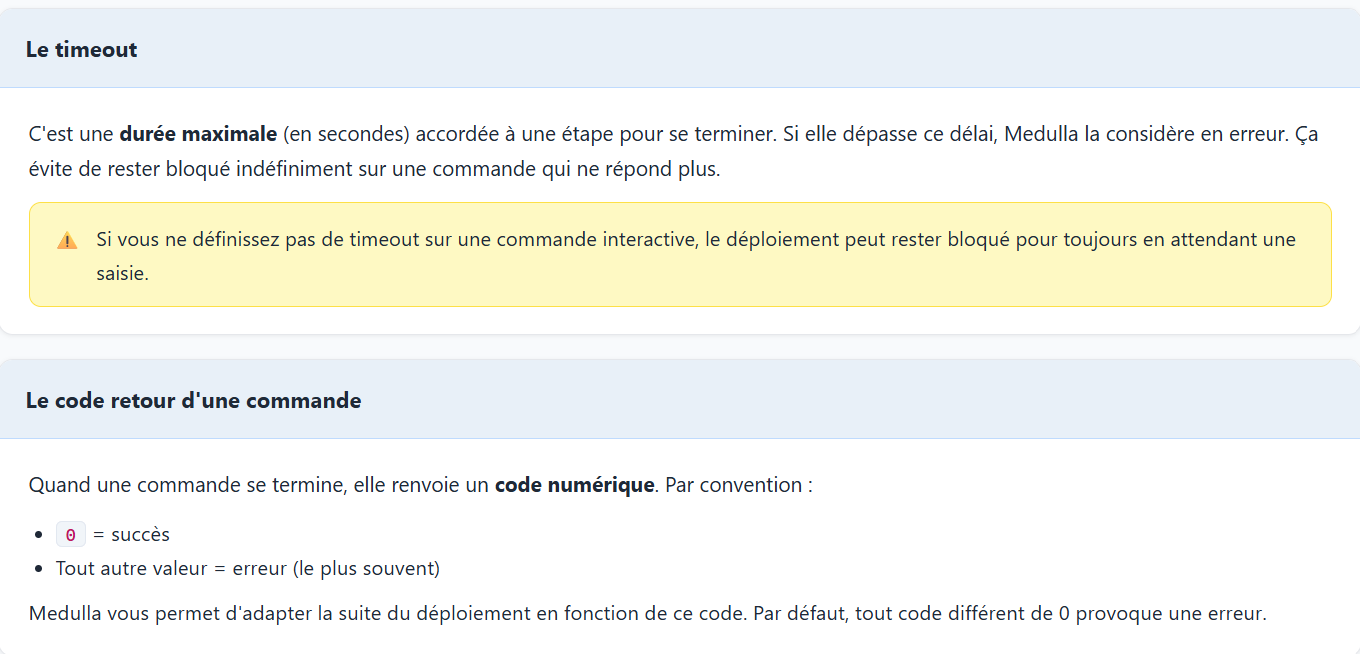
| timeout (secs) | Maximum duration in seconds. If the command takes longer than this, it is stopped and considered an error. | Optional |
| return result | Specifies whether Medulla should capture the command's output, and how many lines (first, last, or all). | Optional |
| on return code, goto | Allows you to redirect the deployment based on the command’s return code (see table below). | Optional |
Return code operators
These symbols are entered in the return code field to define the condition.
| Syntax | Meaning |
|---|---|
| !=1 / !1 / <>1 | The code is not equal to 1 |
| ==1 | The code is exactly 1 |
| <1 | The code is less than 1 |
| >1 | The code is greater than 1 |
| <=1 | The code is less than or equal to 1 |
| >=1 | The code is greater than or equal to 1 |
| IN1,5 / in1,5 | The code is in the range [1; 5] |
| OUT1,5 / out1,5 | The code is outside the range [1; 5] |
Real-world example: Some installers return the code 3010 to indicate “installation successful, restart required.” Without a custom rule, Medulla would treat this as an error. With ==3010 → END_SUCCESS, you handle this case correctly.
Execute script
Writes a complete script to the target computer, then executes it. Use this when a single command line isn’t enough—for example, for a sequence of checks or more complex processing.
The difference from “Run command”: here, you write the script’s content directly in Medulla. The script is created on the computer at deployment time and then executed.
Parameters
| Parameter | What is this for? | Required? |
|---|---|---|
| Step label | Unique label for the step. | Yes |
| Script language | The type of script to use. Medulla selects the appropriate interpreter:
|
Yes |
| alternate package | Runs the script from another package's folder. | Optional |
| suffix | Forces the script file extension (e.g., ps1 for PowerShell). Takes precedence over the selected language. |
Optional |
| force hash-bang | Forces the shebang (#!) on the first line of the script. Takes precedence over the selected language. Useful on Linux if the interpreter is in a non-standard path. |
Optional |
| timeout | Maximum execution time for the script (in seconds). | Optional |
| return result | Captures the script's output (first/last lines, or all). | Optional |
| on return code, goto | Conditional branch based on the return code (same operators as for “Run command”). | Optional |
Beginner tip: For a PowerShell script, select the PowerShell language and let Medulla handle the rest. Only use suffix or force hash-bang if you have a very specific need.
System and files
Set Environment variables
Defines one or more environment variables that will be available for subsequent steps. Useful for passing parameters between steps without hard-coding them.
What is an environment variable?
It’s a named system variable accessible to programs and scripts running on the computer. Examples include TEMP, PATH, and USERNAME.
| Parameter | What is this for? | Required? |
|---|---|---|
| Step label | Unique label for the step. | Yes |
Enter your variables in the NOM :: valeur format, one per line. Example: LANG :: fr_FRLOGLEVEL :: INFO
Restart
Restarts the computer or just the Medulla agent. Useful after installing software that requires a restart.
| Parameter | What is this for? | Required? |
|---|---|---|
| Step label | Unique label for the step. | Yes |
| Target Restart | Two options: • Computer: Restarts the entire computer • Agent: Restarts only the Medulla service (faster, less disruptive) |
Yes |
Restarting the computer will interrupt the user’s current work. Prefer to restart the agent whenever possible, or combine this with the User Postpone Options action to let the user choose when to restart
Wait and go to step
Pauses for a specified number of seconds before continuing. By default, proceeds to the next step. You can also specify a different target step.
Typical use case: Wait for Windows to start a service before configuring it. Add a 10–30-second pause after installing a service.
| Parameter | What is this for? | Required? |
|---|---|---|
| Step label | Unique label for the step. | Yes |
| Wait for (seconds) | Duration of the pause (in seconds). | Yes |
| goto | Step to proceed to after the pause. If left blank, proceeds to the next step. | Optional |
Add info in deployment log
Writes a custom message to the deployment logs. Very useful for tracking what’s happening, annotating your sequence, or displaying the value of a variable.
| Parameter | What is this for? | Required? |
|---|---|---|
| Step label | Unique label for the step. | Yes |
| Information | The text to be written to the logs. You can use dynamic variables enclosed in @@@:@@@PACKAGE_NAME@@@ — package name; @@@HOSTNAME@@@ — computer name@@@OS_FAMILY@@@ — OS family@@@IP_MACHINE@@@ — IP address@@@UUID_PACKAGE@@@ — unique package identifier@@@PREC_RESULT@@@ — result of the previous step@@@PREC_RETURNCODE@@@ — return code of the previous step |
Yes |
Example: Installation de @@@PACKAGE_NAME@@@ sur @@@HOSTNAME@@@
Medulla will automatically replace the variables at deployment time.
Set config file parameter
Adds or removes a parameter in an INI configuration file (a text file organized into sections with key=value pairs).
What is an INI file?
A text file organized as follows:

[crochets] delimit the sections, and each line is a clé=valeur pair
| Parameter | What is this for? | Required? |
|---|---|---|
| Step label | Unique label for the step. | Yes |
| Config action description | Configuration string in the following format:opération@__@fichier@__@section@__@clé@__@valeurAdd/modify a parameter: add@__@agentconf.ini@__@global@__@log_level@__@INFODelete a parameter: del@__@agentconf.ini@__@global@__@log_level |
Yes |
Broken down, add@__@agentconf.ini@__@global@__@log_level@__@INFO means:
• operation = add (add/modify)
• file = agentconf.ini
• section = global
• key = log_level • value = INFO
Unzip File
Extracts a ZIP archive on the target computer.
| Parameter | What is this for? | Required? |
|---|---|---|
| Step label | Unique label for the step. | Yes |
| Zip file | Path to the ZIP file to be extracted (file name only if in the package folder, or full path). | Yes |
| alternate package | Uses the folder of another package as the current directory. | Optional |
| return result | Captures the output of the operation in the logs. | Optional |
| unzip to specified folder | Destination folder. If empty, extracts to the current folder. | Optional |
| goto | Step to proceed to after extraction (regardless of the outcome). | Optional |
| on success go to step | Step to reach if the extraction is successful. | Optional |
| on error go to step | Step to be executed if the extraction fails. | Optional |
Download File
Downloads a file from a URL to the target computer. Useful for retrieving an installer or a resource from an internal web server.
| Parameter | What is this for? | Required? |
|---|---|---|
| Step label | Unique label for the step. | Yes |
| alternate package | Downloads to the directory of another package. | Optional |
| Download File | The full URL of the file to download (e.g., https://mon-serveur/fichier.zip). |
Yes |
Remove uploaded files
Deletes the package folder that was transferred to the computer. Place this at the end of the sequence to avoid leaving unnecessary files behind.
Best practice: Always add this action to the end of your packages to keep computers clean. It has no settings—only the step label can be edited.
Sections — Installation, Update, Uninstallation
What are sections for? A single package can contain multiple execution modes: installation, update, and uninstallation. Section markers allow you to separate these modes. Steps placed after a marker belong to that mode. The installation mode is the default—it’s the one that runs if you don’t specify anything.
| 🔧 Install Section | 🔄 Update Section | 🗑️ Uninstall Section |
|---|---|---|
| Default mode. | Used by Kiosk. | Kiosk + negative convergences. |
{"section": "install"} |
{"section": "update"} |
{"section": "uninstall"} |
How do I force a specific section to run?
In the deployment’s advanced options, fill in the Dynamic parameters Packages field with one of the JSON strings above.
Example to force uninstallation: {"section": "uninstall"}
User and Kiosk interactions
Kiosk Progression
Sends a progress message to the user’s Kiosk during the installation, update, or uninstallation of a package.
The Kiosk is the interface visible to the end user for tracking and requesting software. This action lets the user see that something is happening—even though the progress displayed is only an estimate.
| Parameter | What is this for? | Required? |
|---|---|---|
| Step label | Unique label for the step. | Yes |
| Message | Text displayed in the user's Kiosk. | Yes |
| Progression (percentage) | Percentage of progress to display (from 1 to 100). The value is for reference only—you decide what it represents. | Optional |
Example: Set notifications at 25%, 50%, 75%, and 100% to give the user a sense of smooth progress.
User Notification
Displays a pop-up window on the user’s screen with a message and a confirmation button. The user must click to continue.
If the user never clicks and no timeout is set, the deployment remains blocked indefinitely. Always set a timeout.
| Parameter | What is this for? | Required? |
|---|---|---|
| Step label | Unique label for the step. | Yes |
| Message box title | Title displayed in the title bar of the pop-up window. | Yes |
| Text size (title) | Size of the title font. | Optional |
| Message | The message displayed to the user. | Yes |
| Text size (message) | Size of the message font. | Optional |
| True button text | Label for the confirmation button (default: “OK”). | Optional |
| Timeout | Maximum wait time in seconds. If exceeded, the deployment proceeds to the next step. | Recommended |
User Question
Displays a window with a question and two buttons (Yes / No or any other text). The rest of the deployment depends on the user's response.
| Parameter | What is this for? | Required? |
|---|---|---|
| Step label | Unique label. | Yes |
| Message box title | Popup title. | Yes |
| Text size (title) | Size of the title font. | Optional |
| Question | The question asked of the user. | Yes |
| Text size (question) | Size of the question font. | Optional |
| True button text | Label for the “Yes” button (confirmation). | Optional |
| False button text | “No” button label (cancel). | Optional |
| If 'True' go to step | Step to proceed to if the user clicks the confirmation button. | Optional |
| If 'False' go to step | Step to proceed to if the user clicks the cancel button. | Optional |
| If 'No User' go to step | Step to be performed if no user is logged in (e.g., PC in sleep mode). | Optional |
| If 'Timeout' go to step | Step to be performed if the timeout expires without a response. | Optional |
| Set timeout (in seconds) | Maximum time to wait for a response (in seconds). | Recommended |
User Postpone Options (Let the user choose the time)
Allows the user to postpone an action (such as a restart) a limited number of times. After the maximum number of postponements, the deployment continues automatically.
Typical use case: “Your computer needs to restart. Do you want to do it now?” The user can respond “Later” up to 3 times. On the 4th attempt, Medulla restarts the computer.
The two buttons:
• <true> button = “I’ll do it now” (accept)
• <false> button = “Later” (postpone)
| Parameter | What is this for? | Required? |
|---|---|---|
| Step label | Unique label. | Yes |
| Title / Question | Title and text of the pop-up window (same as for the question). | Yes |
| Text sizes | Size of the font for the title and question. | Optional |
| True button text / False button text | Labels for the accept and postpone buttons. | Optional |
| If 'True' go to step | Step if the user accepts. | Optional |
| If <false>, go to | Step if the user postpones (returns to this step after the interval). | Optional |
| If 'Max Postponements Reached' go to step | Step to reach when the user has exhausted their postponements. | Optional |
| If 'No User' go to step | Step to take if no user is logged in. | Optional |
| If 'Timeout' go to step | Step if the timeout expires without a response. | Optional |
| Set timeout (in seconds) | The amount of time to wait for a response before proceeding to the timeout step. | Recommended |
End of deployment
These steps are automatic
Every new package already contains two end steps: you don’t need to add them from the palette. They automatically receive the END_SUCCESS and END_ERROR jumps.
End Success
Success exit point for the deployment. All steps that jump to END_SUCCESS end up here.
| Parameter | What is this for? | Required? |
|---|---|---|
| Step label | Label (usually END_SUCCESS). |
Yes |
| Delete package | If checked, deletes the package files from the computer after deployment. | Optional |
| Inventory | What to do after deployment: • Forced inventory: Always generates an inventory • No inventory: Does not generate an inventory • Inventory on change: Generates an inventory only if changes have been detected |
Optional |
The inventory allows Medulla to update its database of software installed on the computer. Recommended after an installation.
End Error
Exit point for deployment failure. All steps that jump to END_ERROR end up here. Medulla records the deployment as failed.
| Parameter | What is this for? |
|---|---|
| Step label | Label (usually END_ERROR). No other settings. |
Meta variables (advanced use)
What is a Meta variable?
These are special placeholders that you can insert into your commands, scripts, or messages. Medulla automatically replaces them with their actual values at runtime. They are enclosed in @@@.
@@@PREC_RESULT@@@ |
Textual result of the previous step. Contains what the previous command or script displayed (its standard output). Useful for retrieving a value calculated in the previous step. |
@@@PREC_RETURNCODE@@@ |
Return code from the previous step. The numeric value returned by the previous command (0 = success, any other value = error in general). Useful for logging or conditioning subsequent processing. |
@@@DYNAMIC_PARAM@@@section@@@ |
Value of the “Dynamic parameters Packages” field in the deployment’s advanced options. Allows you to retrieve in your script a value passed when the deployment was launched. Example: if you pass {"section": "uninstall"}, the variable will contain uninstall. |
Example of use: logging the return code of a command:
In the “Add info in deployment log” action, enter the following message:Code retour de l'étape précédente : @@@PREC_RETURNCODE@@@