
Approving updates
Nothing is installed without your agreement. The Approval screen is where you give it, or withdraw it.
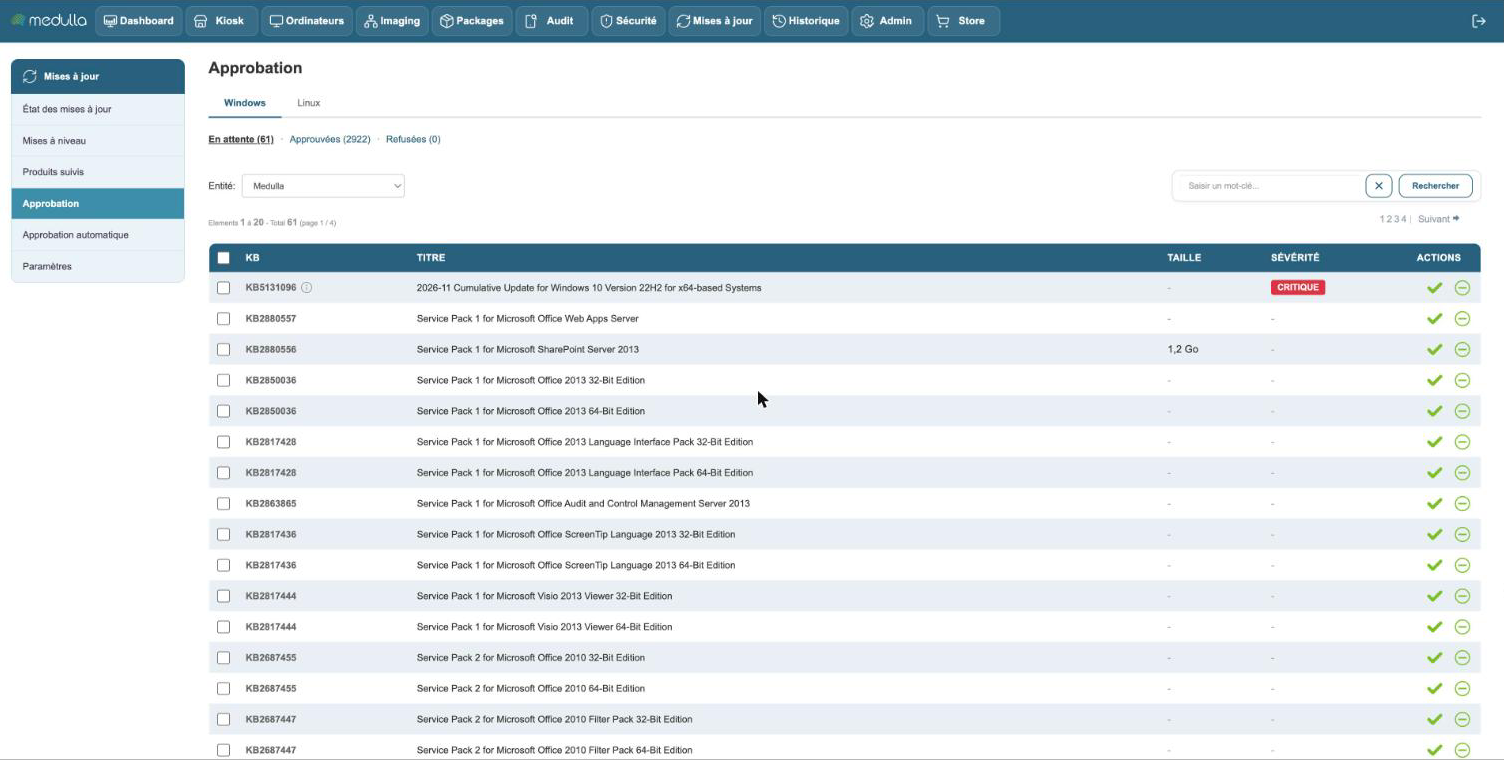
Three lists
The updates of the products you track are split into three lists, with their count:
- Pending — no decision has been made. They are not deployed.
- Approved — they can be deployed.
- Declined — they will never be deployed, even if an automatic rule covers them.
The screen shows all the updates of the tracked products, not only those your machines are missing. The list is therefore long: this is what leaves you the choice, including for a machine that will join the fleet tomorrow.
Deciding
The actions depend on the list:
| List | Actions |
|---|---|
| Pending | Approve, Decline |
| Approved | Deploy, Decline, Back to pending |
| Declined | Approve, Back to pending |
Back to pending cancels your decision. The action is not offered when the decision comes from an automatic rule or from an entity yours depends on: that is where it has to be changed.
In the Pending list, you can handle several rows at once: check them, then use Approve selected or Decline selected. The checkbox in the header checks the whole page.
The search field finds an update by its KB number or a word from its title.
Approved by a rule: an update covered by an automatic approval rule is approved automatically. Hover over its title: the tooltip says so. To set it aside, decline it or change the rule.
What happens after an approval
Medulla prepares the package: it downloads the files from Microsoft, checks that they are intact, then makes them available to the relays.
As long as the package is not ready, the deployment action stays grayed out on the machine pages, with the mention Package being prepared.
Approving by entity
The Entity selector chooses who you are deciding for. A decision made on an entity applies to those that depend on it, as long as they have not made their own.
The Linux tab
On Linux, you do not approve package by package: the automatic approval rule decides, by classification. The tab shows the result in two lists: the missing packages your rule approves, and those it leaves pending. To change this result, change the rule.