
Automatic approval
Approving each update by hand quickly becomes tedious. A rule approves on your behalf everything that matches a type of update.
The Automatic approval screen shows the possible rules.
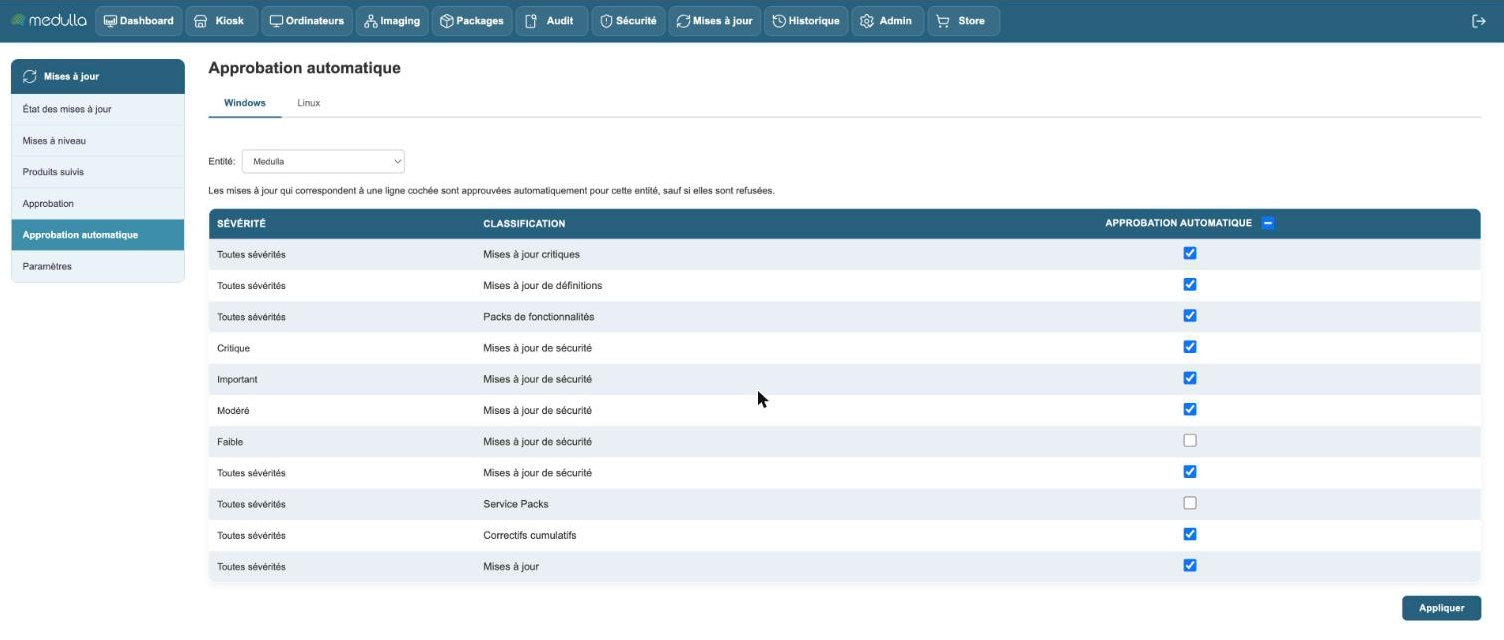
Each row combines a severity and a classification. A checked row automatically approves, for the chosen entity, all the updates that match it, including those Microsoft will publish later. Confirm your choices with Apply.
A rule covers neither optional updates, nor those reserved for extended support, nor Windows version changes: those are always decided by hand.
The classifications
They are Microsoft's:
| Classification | What it contains |
|---|---|
| Security Updates | vulnerability fixes; it is the only classification that carries a severity |
| Critical Updates | fixes for important bugs, unrelated to security |
| Update Rollups | a set of fixes grouped together |
| Definition Updates | the Microsoft Defender definitions |
| Updates | ordinary fixes |
| Feature Packs, Service Packs | added features |
For security updates, you can check severity by severity (Critical, Important, Moderate, Low) or take everything with All severities.
A reasonable starting setup
For a fleet of workstations:
- Check Critical and Important for security updates.
- Check Definition Updates if you track Microsoft Defender.
- Leave the rest in manual approval, long enough to see what it amounts to on your fleet.
What the rule does not do
A rule approves, it does not deploy. An approved update is only installed if you deploy it, or if automatic deployment is enabled in the Settings.
A decline wins: an update you have declined by hand in the Approval screen stays declined, even if a rule covers it. This is the way to set aside one specific update that causes a problem without touching your rules.
The Linux tab
On Linux, there is no catalog to approve row by row: the rule is the only setting. It applies to two classifications, Security Updates and Updates. The packages covered by a rule are approved; the others wait.
Setting by entity
The Entity selector chooses the entity you are setting. A sub-entity applies the rules of the entity it depends on, as long as it does not have its own. The Use the setting of… link returns it to inheritance.