
Deploying an update
An approved update is not installed yet: it has to be deployed. You can do it by hand, or let Medulla take care of it.
On a machine
- Open the machine page from the update status.
- In Missing updates, click the deployment action of the row you want.
- Confirm in the confirmation window.
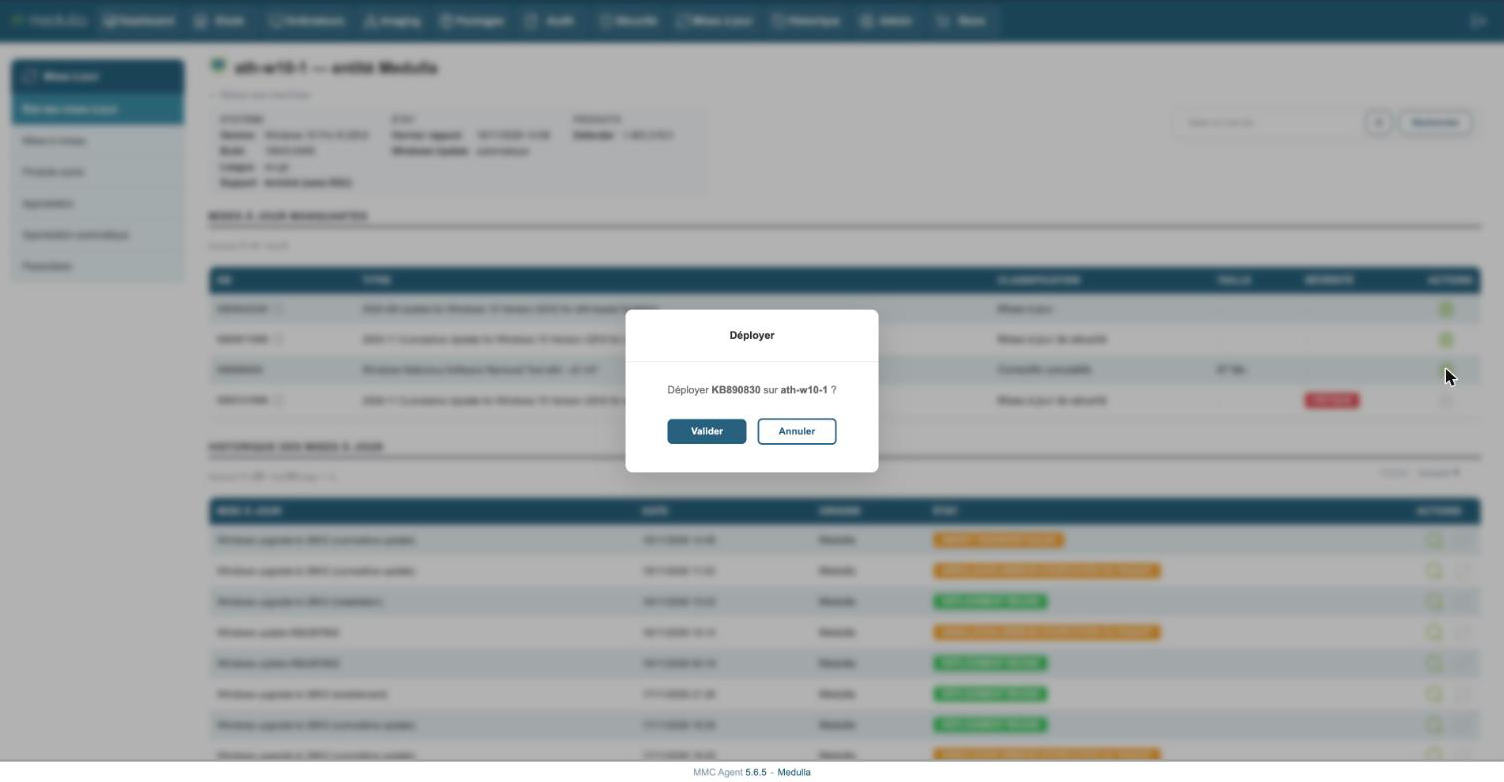
The deployment appears right away in the history of the page, with the status Deployment start.
On an entity or a group
- An entity: in the Approval screen, Approved list, the Deploy action pushes the update to the machines of the entity that are missing it. The entities that depend on it are not touched.
- A group: in the Computers module, the action Deploy specific update on this group opens the list of updates that the machines of the group are missing.
In both cases, only the machines concerned receive the deployment. Those that cannot receive it right away are listed in the confirmation message, with the reason.
Automatically
In Settings, the Automatic deployment checkbox sends approved updates out on their own, during the time range of the entity. Only workstations are concerned; servers stay in manual deployment.
Medulla only tries once per workstation. After a failure, the update remains missing and it is up to you to deploy it again.
The restart
Many Windows updates require a restart. Medulla never restarts a workstation while its user is working on it:
- nobody has an open session: the workstation restarts on its own;
- a user is logged in: a window asks them whether they want to restart now. With no answer after five minutes, or if they refuse, the workstation is not restarted;
- a server is never restarted by Medulla.
When the restart does not happen, the machine goes to Reboot pending. It will not receive any other Windows update until it has restarted. You can restart it from its page, or wait for the user to do it.
Following a deployment
The history of the page gives the status of each deployment. The magnifying glass opens its detailed log.
| Status | What it means |
|---|---|
| Deployment start | the package is on its way or being installed |
| Deployment Success | the machine answered that the installation went well |
| Abort Package Execution Error | the installation failed, or was postponed; the cause is in the log |
The result is confirmed by the report the machine sends right after: the row then disappears from the missing updates.
A few durations, so you do not worry too early
| Update | Observed duration |
|---|---|
| Defender definitions | a few seconds |
| .NET fix | about 15 minutes |
| Windows 11 cumulative update | one to two hours, then about ten minutes at restart |
A deployment that has stayed "started" for more than four hours deserves a look at its log.
The Windows Update history of the workstation does not show everything: an update installed by Medulla is not always listed there. Check on the machine page, or in "Installed updates" in Windows.
Uninstalling an update
In the history of the page, the uninstall action removes a Windows update that causes a problem. It is only offered for an update whose package Medulla holds, and never for those Windows cannot remove.