
Following alerts
The Alerts screen lists everything that is open on the fleet, from the most serious to the oldest.
Reading the list
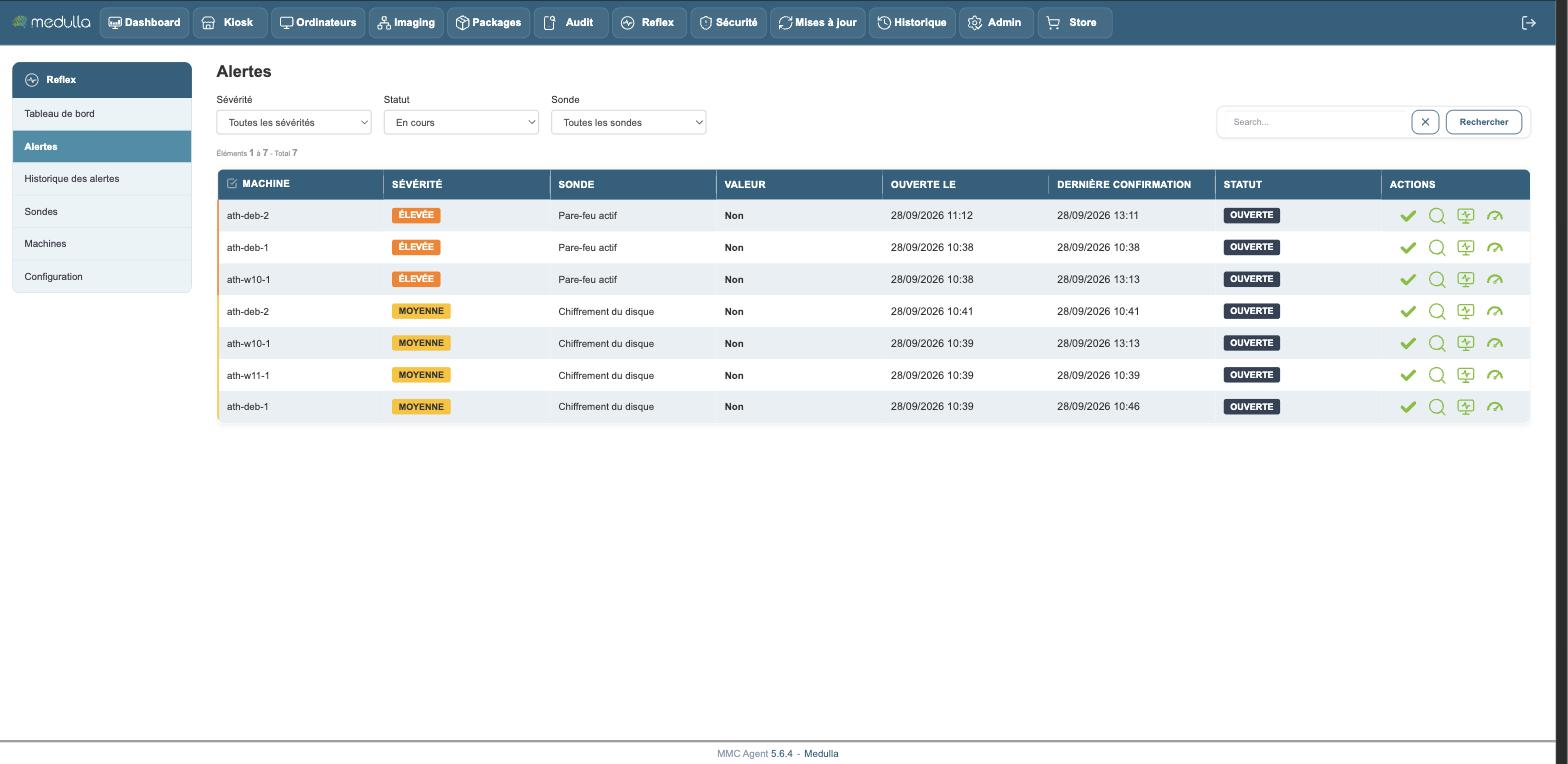
Each row carries the machine concerned, the severity, the probe that triggered, the value measured at the time it triggered, the opening date, the date of the last confirmation and the status.
The difference between the two dates matters. "Opened" says how long the problem has lasted; "Last confirmed" says when the machine last confirmed it. A large gap between the two points to a machine that no longer measures.
Filtering
Three drop-down lists narrow the display: by severity, by status and by probe. The search field applies to the machine name.
The status filter offers:
- In progress — what needs your attention, the default display
- Acknowledged — what someone has taken charge of
- All
Acknowledging an alert
Acknowledging means saying "I have seen it, I am on it". The alert stays open and keeps being measured, but it leaves the default view and stops calling on the team.
The check icon at the end of the row acknowledges an alert. The checkboxes at the start of the rows let you acknowledge several at once.
An acknowledgement does not close the alert: only the machine closes it, by returning a measure that meets the condition again.
Viewing the detail of an alert
The magnifying glass at the end of the row opens the detail of the alert.
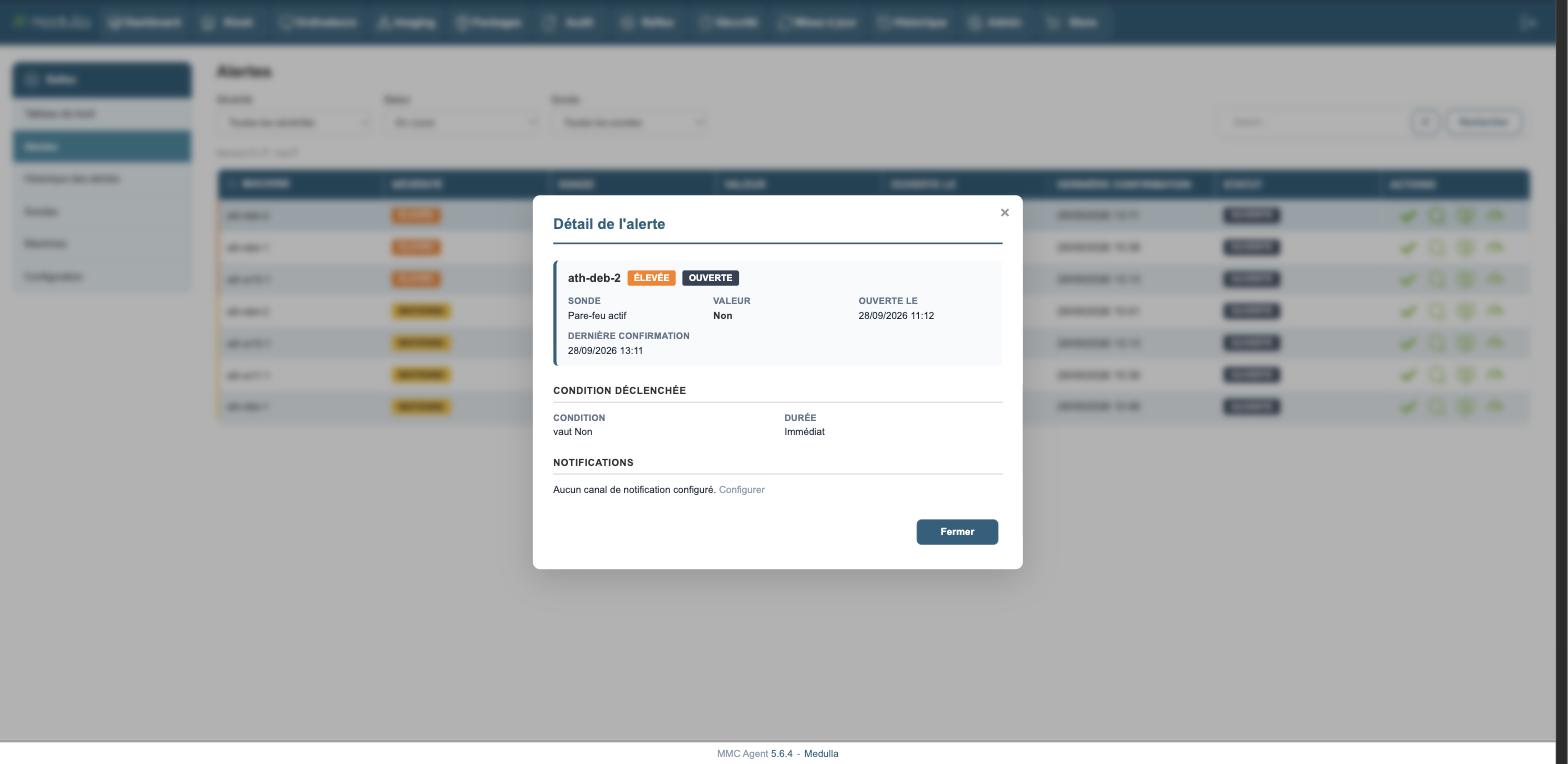
It recalls the machine, the probe, the measured value and the two dates, then adds two things the list does not show.
Condition that fired — which of the conditions of the probe triggered, and the duration required. A probe that carries several thresholds does not say which one gave way in the list; here, it does.
Notifications — whether a message was sent, through which channel, and when. As long as no channel is configured, this section tells you so and offers the shortcut to create one.
Some probes return more than a figure. "Local administrators" returns their number, but also their list; "Pending updates" returns their number, but also which ones. When the probe produces one, this detail is shown here, frozen as it was when the alert opened. This is what lets you understand afterwards what happened, even if the situation has changed since.
And what is closed
Resolved alerts leave this list and move to the Alerts History screen, which is the subject of the next chapter.