
Linux updates
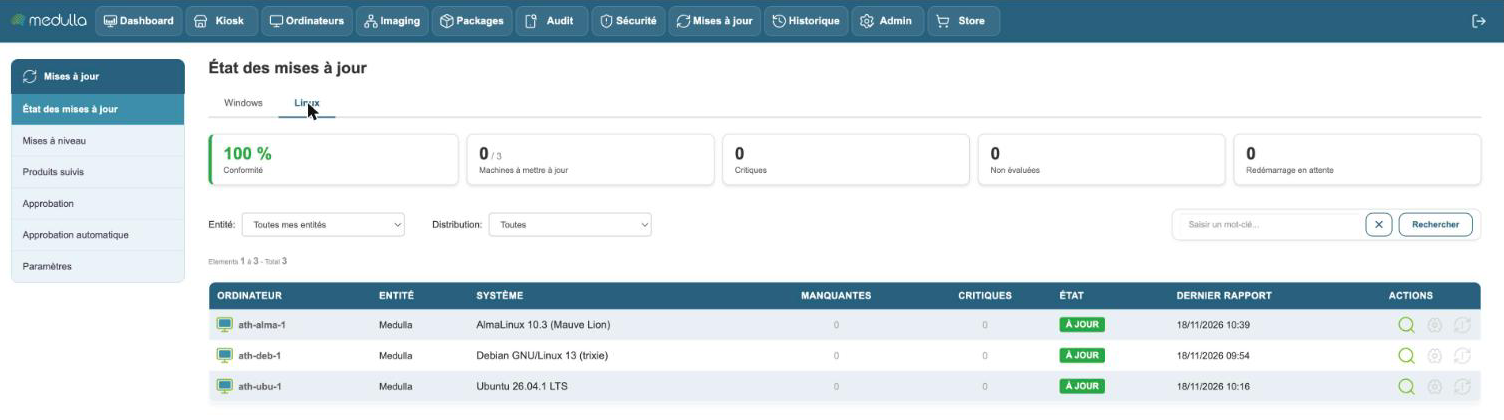
Linux machines are managed in the same screens as Windows machines, under the Linux tab. The principle stays the same; only the mechanics differ.
What changes compared to Windows
| Windows | Linux | |
|---|---|---|
| What gets installed | numbered updates (KB) | packages |
| Where it comes from | Medulla downloads from Microsoft | the machine takes from its own repositories |
| Approval | update by update, or by rule | by rule only |
| Deployment | one update at a time | all the approved packages at once, or a single one |
Medulla relies on the package manager of the distribution: apt for Debian
and Ubuntu, dnf for AlmaLinux, Rocky Linux and RHEL, zypper for openSUSE
and SLES.
Deciding what gets installed
Everything is set in Automatic approval, Linux tab, with two classifications:
- Security Updates — the packages that fix a vulnerability;
- Updates — all the others.
Check those you want to see installed. The Approval screen then shows the result: the approved packages and those left pending.
Deploying
From the update status or the machine page, the Deploy the approved updates button installs all the approved packages of the machine in a single operation. On the page, each row also lets you install a single package.
On a group, the same action is available from the Computers module.
If automatic deployment is enabled in the Settings, Linux workstations are updated on their own during the time range, like Windows workstations.
The restart
Some packages, the kernel first of all, only take effect after a restart. The machine then goes to Reboot pending.
- A workstation with a graphical desktop restarts on its own if nobody has an open session on it.
- As soon as a user is logged in, it waits: restart it from its page when possible.
- A server, with no graphical desktop, is never restarted by Medulla.
The page of a Linux machine
It lists the missing packages with their installed version, their available version and their classification, then the history of deployments.
Upgrading the distribution
Moving to the next version, Debian 12 to 13 for example, is done from the Upgrades screen. It is described in the previous page.