
The machine page
The page gathers everything Medulla knows about a machine: what it is, what it is missing, what has been installed on it.
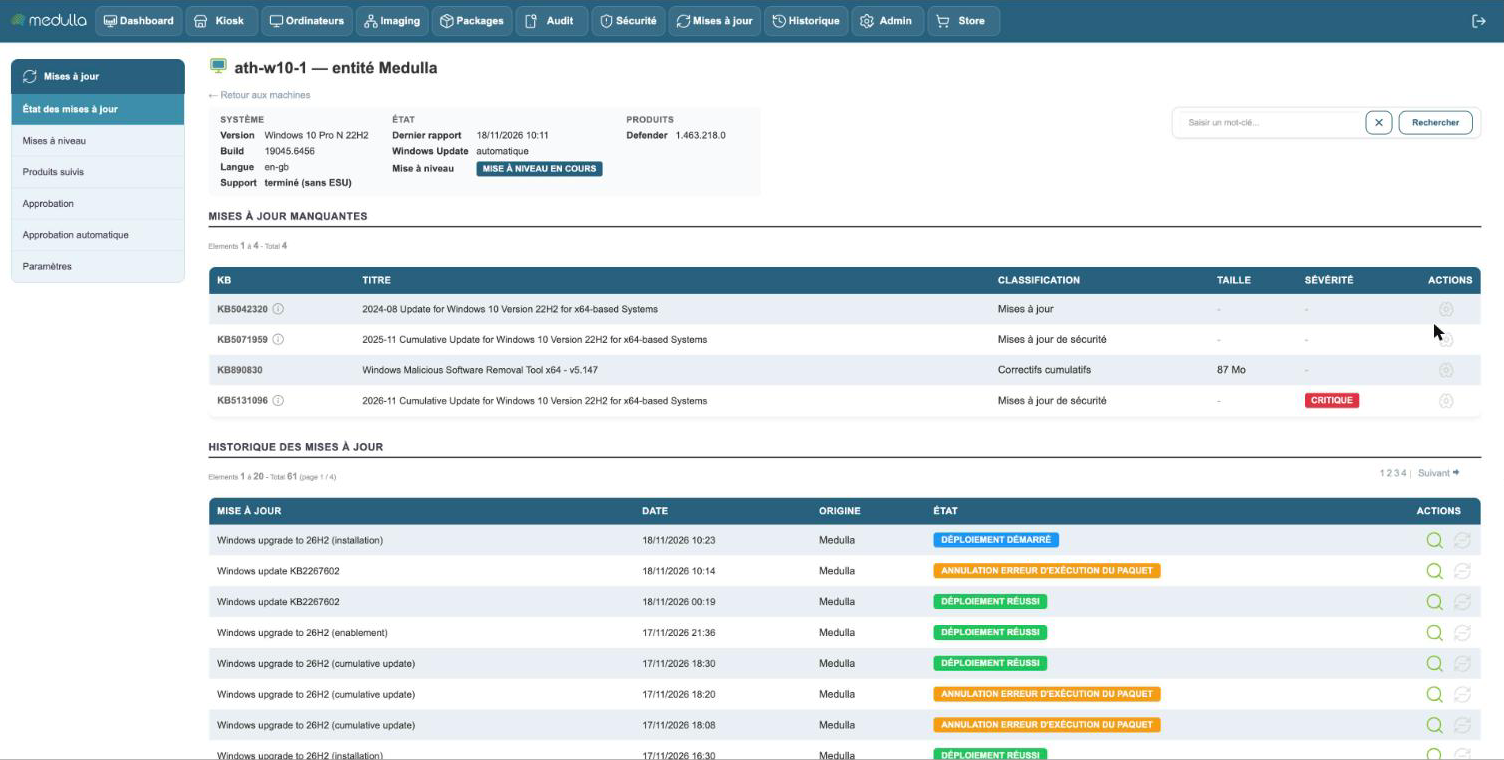
The title gives the name of the machine and its entity. The icon to the left of the name shows whether the machine is online.
The header
Three columns, which are only displayed if they have something to say.
System — the Windows version, its build, the installation language. A Support line appears for a Windows 10 workstation that is no longer covered by Microsoft.
Status — the date of the last report, and the Windows Update setting of the workstation: automatic, paused until a date, disabled, managed by a WSUS server. Medulla reads this setting, it does not change it.
Products — the Microsoft products Medulla tracks on this workstation:
- Defender: the version of the antivirus definitions. Hover over it to see their date.
- Office: the installed version. The mention behind signals that a more recent version exists; waiting for Office to close signals that it is downloaded and will be applied once the user has closed Office.
Missing updates
The list of what the machine is missing, with for each row its KB number, its title, its classification, its size and its severity.
The last column holds the deployment action. When it is grayed out, the tooltip says why:
| Tooltip | What to do |
|---|---|
| Not approved for this entity | approve it in the Approval screen |
| Package being prepared | wait, Medulla is downloading the files from Microsoft |
| Package failed | read the cause given; Medulla could not prepare the package |
| Deployment in progress | wait for it to finish |
| Reboot pending | restart the machine |
| Installed, waiting for the machine report | wait for the next report |
| ESU license required | the update is reserved for workstations covered by Microsoft's extended support |
During a version upgrade, a deployment launched by hand is refused: a message says so on validation.
A second list, Other available updates, groups the optional updates that Windows offers without considering them necessary.
An icon next to the KB number signals a special case, for example an update that the workstation will install through its own Windows Update. Hover over it.
Updates history
Everything that has been installed on the machine, from the most recent to the oldest.
- Origin says who installed it: Medulla, or the Workstation itself through its Windows Update.
- Status gives the result of a Medulla deployment.
- The magnifying glass opens the detailed log of the deployment. Its Deployment Status block shows what the machine answered at each step: this is where you read the cause of a failure.
- The second action uninstalls the update. It is only offered for an update whose package Medulla holds, and never for those Windows cannot remove.
Postponed is not failed: before installing, Medulla checks that the workstation is ready. If it has a reboot pending, Medulla restarts it first, or asks the logged-in user to do so. If this restart is refused, the deployment stops with the mention "Installation postponed" in its log. Launch it again once the machine has restarted.
The page of a Linux machine
It follows the same layout. The missing updates are packages, with their installed version and their available version.
The Deploy the approved updates button installs all the approved packages at once. Each row also holds an action that installs that single package.